Achieve3000 Literacy - Edit Student Information
Edit student information in Achieve Literacy to keep class records accurate.
- Supplemental
- Getting Started & Orientation
- Literacy
- SSO & Manual-Rostering
- Customer Support
- Direct Login & Auto-Rostering
- Middle School
- Class Management
- Direct Login & Manual-Rostering
- High School
- Classroom Teacher
- SSO & Auto-Rostering
- PreK-12
- Preschool
- Achieve3000 Literacy
- Elementary School


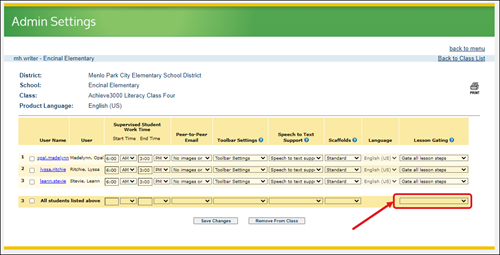
On the Admin Settings page, you can edit settings for your students, such as:
- Supervised Student Work Time
- Peer-to-Peer Email Settings
- Toolbar Settings
- Speech-to-Text Support
- Scaffolds
- Lesson Gating
Access Admin Settings
1. Launch your Achieve3000 Literacy class.
2. Click on your name in the top right corner.
3. Select Admin Settings from the menu.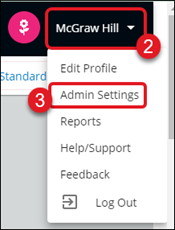
4. From the User section, click on the Edit student and teacher information link.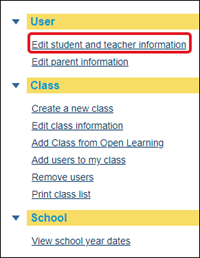
5. Select the Class you want to edit from the drop-down. Click the Submit button.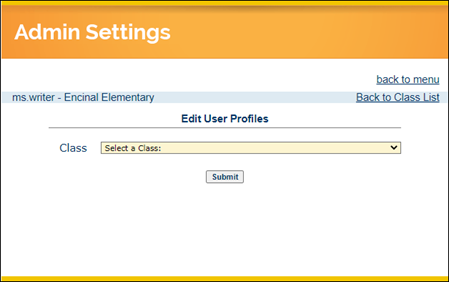
6. Click on the drop-downs for the individual options to select a different setting for each student.
To adjust all students at once, check the box at the bottom next to All students listed above. Then, select the desired settings from the drop-downs.
7. Click the Save Changes button.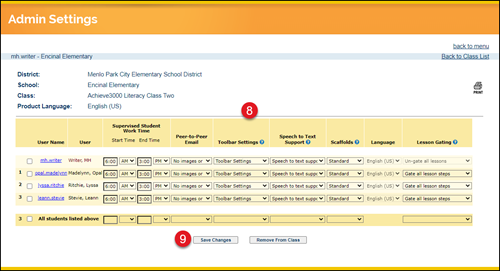
Lesson Gating
Students must complete each lesson step, in order, before moving on to the next step. For example, the primary article text will be blurred until students complete the "Ready" poll and submit their responses. Once completed, they will be able to advance to the full article text.
You can adjust the settings to limit this gating feature to five-step lessons only - or remove it entirely - for individual students or an entire class.
1. From the Admin Settings page, select the drop-down in the Lesson Gating column for the student you want to make edits to.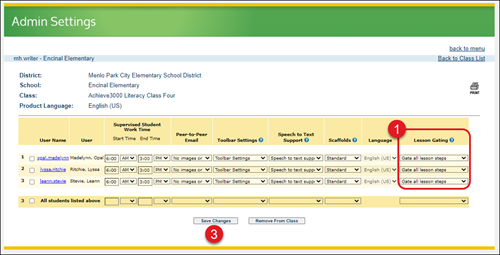
2. Select to Gate all lesson steps, Gate five-step lessons only, or Un-gate all lessons.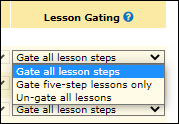
3. Click the Save Changes button.
To change the Lesson Gating setting for all students, click the drop-down in the All students listed above row. Select the desired option. Click the Save Changes button.