
Setting Student Scaffolds for Achieve3000 Literacy Lessons
Understand how scaffolding features in Achieve3000 Literacy support differentiated instruction.
- Customer Support
- PreK-12
- Classroom Teacher
- Elementary School
- Middle School
- High School
- Direct Login & Auto-Rostering
- Direct Login & Manual-Rostering
- SSO & Auto-Rostering
- SSO & Manual-Rostering
- Supplemental
- Literacy
- Achieve3000 Literacy
- Plan & Present
- Tools & Resources
- Grades & Assignments


Instructional scaffolds are features that can be turned on and off to meet the specific needs of individual students. By default, students are set to Standard scaffolds, and you can change them at any time during the school year and as many times as needed while students strengthen their literacy skills.
Examples of scaffolds include audio support for the lesson, numbered steps for the lesson components, and Vocabulary and Concept previews to help get students ready to read. These are embedded into the lesson interface so that they are available as students are working with their leveled content.
Standard
The scaffolds for these students include:
- Content starting at 250L, with 8 multiple choice questions
- Vocabulary support on the side of the article page
- "Writing Tips" support in Write Step
Support
These scaffolds are best used for students who are striving readers, students who may need support following steps in a routine, those who are working in English language acquisition, or those who need extra time to work through the lesson.
The scaffolds for these students include:
- Content ranging from PRE level (i.e., 150L or lower with 4 multiple choice questions) to Adult Reader level (i.e., 1350L or higher with 8 multiple choice questions).
- Vocabulary and Concept preview screen at start of lesson to introduce vocabulary and key concepts of the lesson.
- Extra time for activity completion (at 250L and below).
- Access to full translation in Spanish, if selected.
- Access to partial translation in Spanish, if selected.
If the Partial Language option is selected:
- Full Spanish: Hero/title & article summary; Ready/Reflect and Reflect Results; Write prompt and Writing Tips; Rubric.
- In English: Read & Respond (Both leveled and Stretch versions).
- In Both: Tabs roll from English to Spanish when hovered; Vocab & Concept Preview: Description in English; Vocabulary is in both; Audio Support in Spanish and English. Students can write in either English or Spanish.
Enrichment
These tools support advanced learners with differentiated materials and extension opportunities to broaden content-area concepts and vocabulary beyond the lesson steps.
The scaffolds for these students include:
- Extension activities and related outside links for additional exploration.
Scaffolds are set at the student level from the Class/Student Settings page.
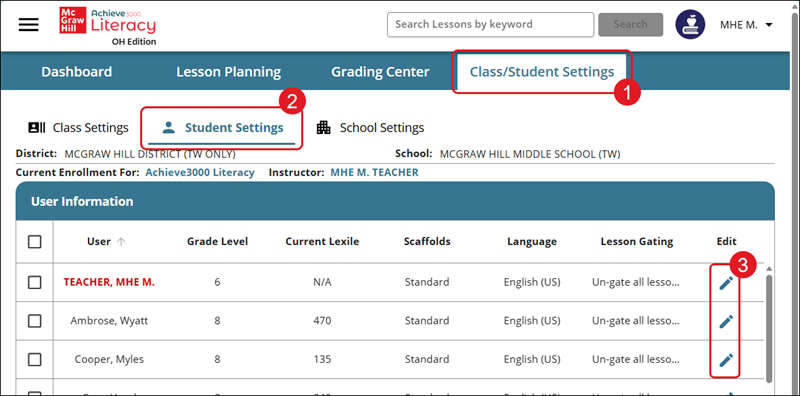
1. Click the Class/Student Settings tab from the Achieve3000 Literacy home page.
2. Click on Student Settings.
3. Click the Edit (pencil icon) button for the student.
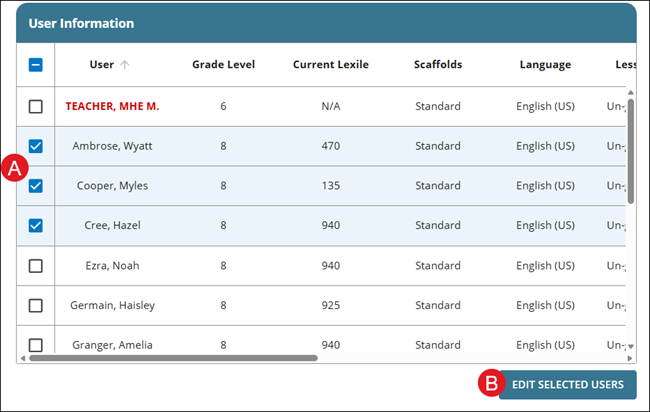
You can also set scaffolds for multiple students at a time by checking the box next to the student names (A) and clicking the Edit Selected Users button (B).
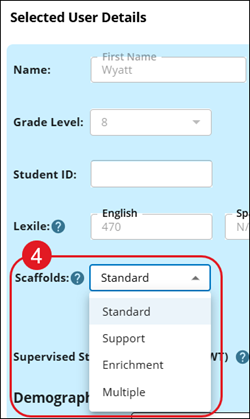
4. Select the preferred Scaffolds option from the drop-down.
If Support is selected, you will also want to choose the Language (English, Full Spanish, or Spanish Support).

If Multiple is selected, check the box for Support and/or Enrichment. This option is only available if making the change for one student at a time.

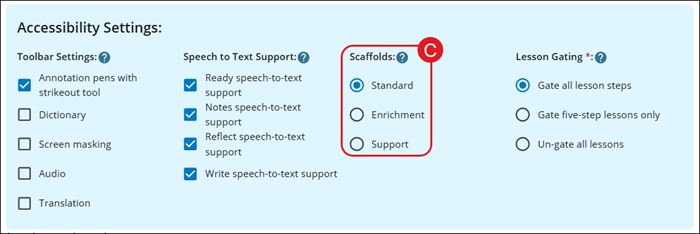
If you selected to edit Scaffolds for multiple students at a time, select the radio button (C) for the preferred option.
Administrators also have the availability to set scaffolds for students. This can be done by following the steps on the Edit Achieve3000 Literacy Class Information as an Administrator article.