
Search and Filter ConnectED Resources
Learn how to search and filter resources to locate lessons and materials efficiently.
Tags
- Customer Support
- PreK-12
- Classroom Teacher
- Elementary School
- Middle School
- High School
- Direct Login & Auto-Rostering
- Direct Login & Manual-Rostering
- SSO & Auto-Rostering
- SSO & Manual-Rostering
- Core
- Literacy
- Math
- Science
- Social Studies
- Health
- Visual & Performing Arts
- World Languages
- Glencoe Health 2014
- McGraw Hill Health 2014
- Glencoe Algebra 1 2014
- Glencoe Algebra 1 2018
- Glencoe Algebra 2 2014
- Glenoce Algebra 2 2018
- Glencoe Math
- Glencoe Geometry 2014
- Glencoe Geometry 2018
- Glencoe Math Course 1
- Glencoe Math Course 2
- Glencoe Math Course 3
- Glencoe Math Accelerated
- McGraw Hill My Math
- McGraw Hill My Math 2018
- McGraw Hill My Math 2013 & 2016
- Glencoe Science 2017
- Glencoe Science
- Inspire Science 2017
- iScience 2017
- Asi se Dice 2016
- Networks 2014 (K-5)
- Dashboard & Navigation Overview
- Tools & Resources


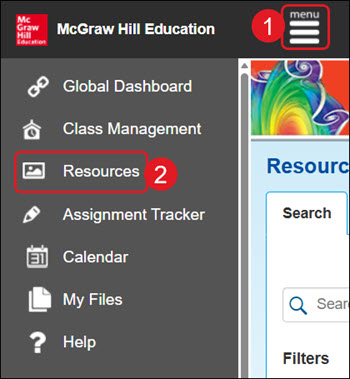
Access course resources by clicking on Menu (1) at the top left, then click Resources (2) from the menu.
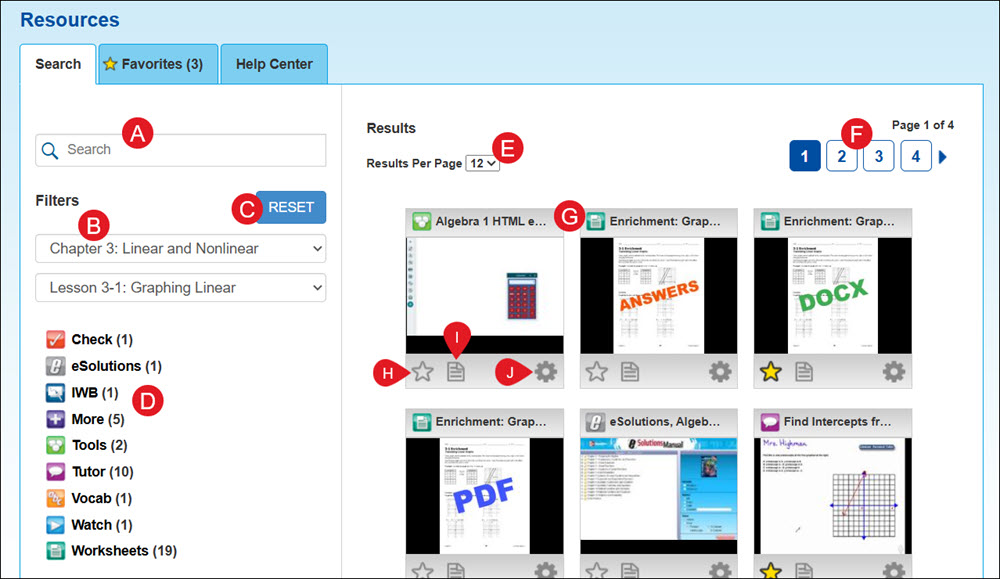
- Use the Search to locate a specific resource or resource type.
- Select a Chapter and Lesson from the drop-downs to narrow down the available resources.
- Click the Reset button to set the Filters back to default selections.
- Select a Filter to narrow the resource selections by the selected type.
- Select how many Results Per Page to view at a time.
- Navigate through the pages of resources by clicking on a Page number or using the back-and-forth arrows.
- Click on a resource tile to view the resource.
- Click the star icon to save the resource to your Favorites.
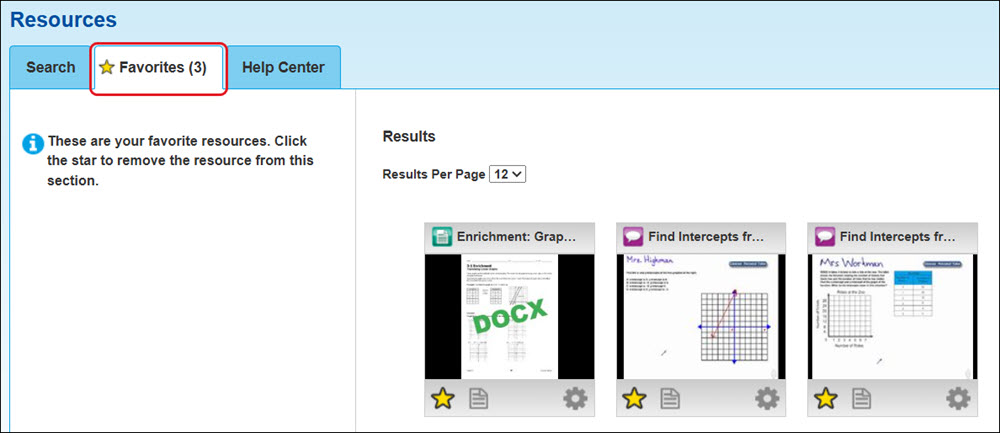
Favorited resources can be found on the Favorites tab. Click the star icon on the resource tile to remove it from your favorites.
- Click on the paper icon to add Notes to the resource.
- Click on Tools (gear icon) to have options to Open this Resource, view Details, view associated Standards, Assign this Resource, or Share with Google Classroom.