Achieve3000 Literacy - Teacher Dashboard
Get an overview of the Achieve Literacy teacher dashboard and available instructional tools.
Tags
- Supplemental
- Getting Started & Orientation
- Dashboard & Navigation Overview
- Literacy
- SSO & Manual-Rostering
- Customer Support
- Direct Login & Auto-Rostering
- Middle School
- Direct Login & Manual-Rostering
- High School
- Classroom Teacher
- SSO & Auto-Rostering
- PreK-12
- Preschool
- Achieve3000 Literacy
- Elementary School


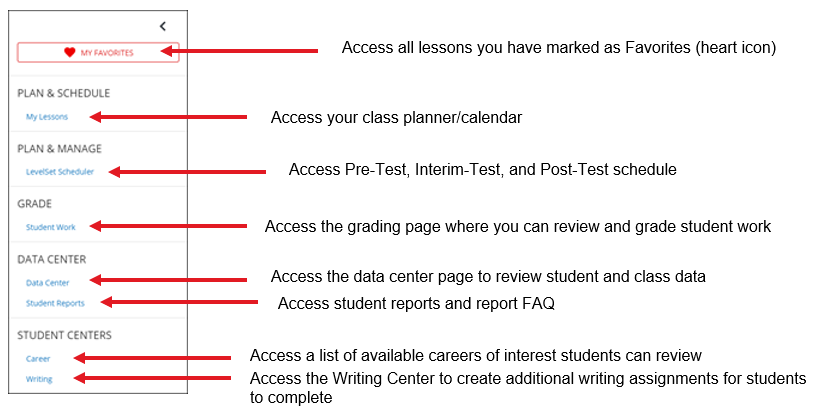
For steps on how to complete class setup when first launching your Achieve Literacy course, read the Achieve3000 Literacy - Class Setup article.
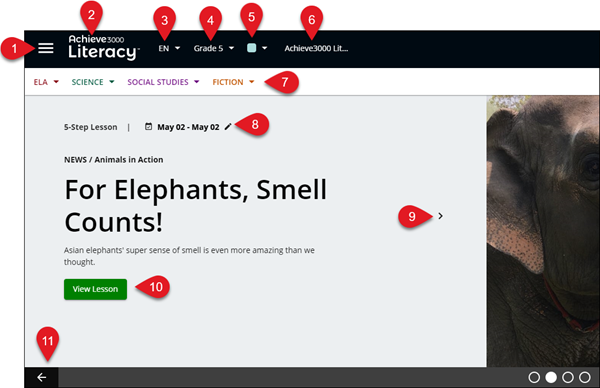
- Side Menu – Click on the triple bar menu icon to open the side menu.
- Home – Click on the product logo to navigate back to the home page.
- Language Selector – Change the primary language to English (US), Spanish, or Spanish Support.
- Grade Selector – If you teach multiple grades, this drop-down will allow you to change between the grade levels set for those classes.
- Class Color – You can change the color associated with your class by using the color selector.
- Class Name – This provides the name of the class that you are currently accessing in the program.
- Subject Search – Quickly search for lessons based on subject matter.
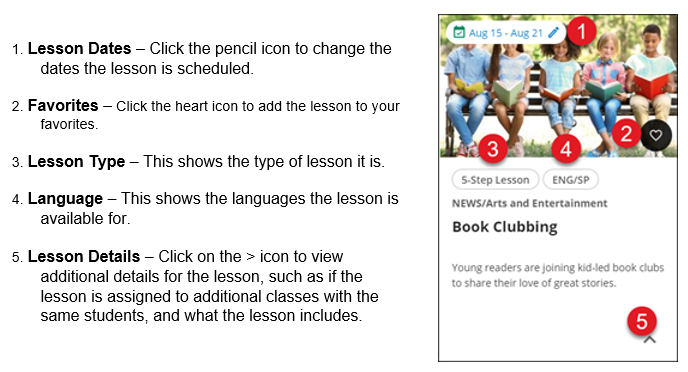
- Lesson Dates – Click the pencil icon to change the dates the lesson is scheduled.
- Lesson Details – Click on the > icon to view additional details for the lesson, such as if the lesson is assigned to additional classes with the same students, and what the lesson includes.
- View Lesson – Click the View Lesson button to open the lesson.
- Lesson Carousel Navigation – If you have more than one lesson scheduled for the day, you can navigate between the lessons by using the arrows and dots at the bottom of the lesson carousel.
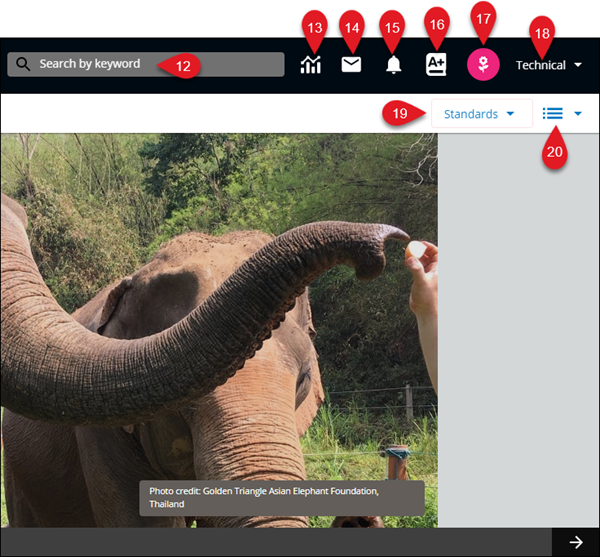
- Search – Use the search bar to search for resources and lessons by entering keywords, topics, or titles of lessons.
- Data Center – Click the icon to access the student performance data.
- Mail – Click the icon to access your class mailbox.
- Notifications – Click the icon to access all class notifications.
- Gradebook – Click the icon to access the grading tool for the class.
- Avatar – Click the icon to change the avatar associated with your teacher account.
- Profile/Settings – Click on your name to access your profile, reports, and settings.
- Standards – Click on the standards filter to search for lessons based on a specific type of standard.
- Lesson Details Filter – This will allow you to search by specific types of lessons or help narrow down searches.