
Navigating the Teacher Dashboard for Wonders/Maravillas
Get an overview of the Wonders teacher dashboard and tools for planning, instruction, and assessment.
- Getting Started & Orientation
- Dashboard & Navigation Overview
- Literacy
- SSO & Manual-Rostering
- Customer Support
- Direct Login & Auto-Rostering
- Wonders 2014
- Maravillas 2020 & 2017
- Core
- Direct Login & Manual-Rostering
- Classroom Teacher
- Wonders Balanced Literacy 2016
- Wonders 2023 2020 2017
- SSO & Auto-Rostering
- PreK-12
- Elementary School
- Kindergarten
- 1st Grade
- 2nd Grade
- 3rd Grade
- 4th Grade
- 5th Grade
- 6th Grade
- Middle School


Overview
Navigation Banner
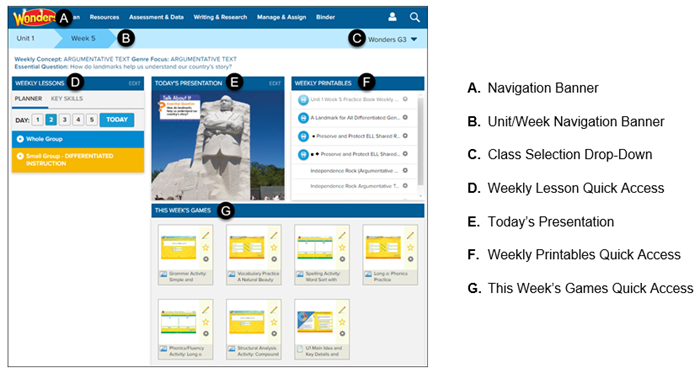
Use the Navigation Banner to access any page in the Wonders program. This banner is available on every page of the program.
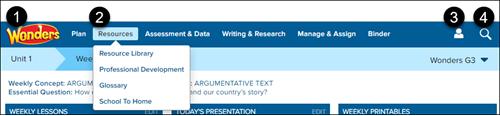
1. Click the Wonders logo to return to the Teacher Center Dashboard.
2. To access a page, hover over an option on the Navigation Banner. Select the page option from the menu.
3. Hover over the Account icon to return to your bookbag, edit the Course Settings (Mastery Levels), or log out of the program.
4. Click the Search (magnifying icon) to search the program by keyword or by standard.
Unit/Week and Class Navigation
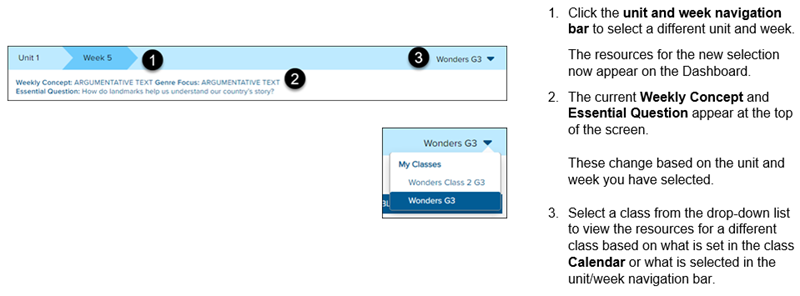
The current unit and week in your teaching calendar are displayed by default. The information on the Dashboard is determined by the unit and week.
Weekly Lessons
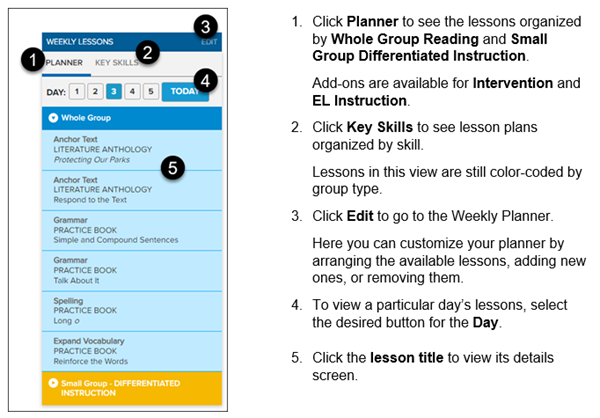
Daily lessons for the selected week appear on the left side of the Dashboard.
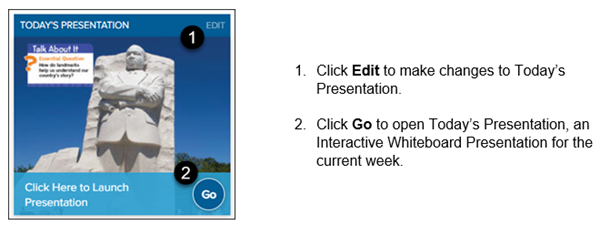
Today's Presentation
The Presentation provides you with all of your lesson materials in a projectable, digital format for your current day of instruction, based on today's calendar.
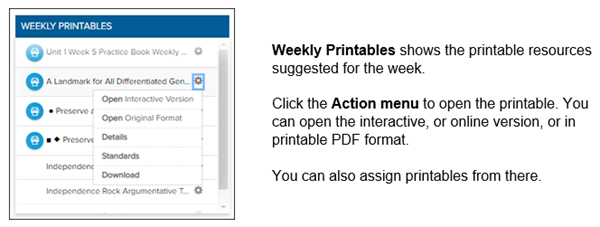
Weekly Printables
This Week's Games
This Week's Games provide a wide range of games that support foundational skills, vocabulary, and spelling in support of the current lesson plan.
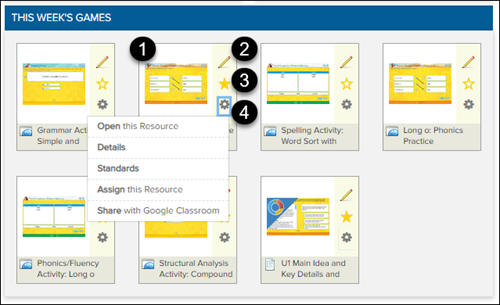
1. Select the game tile to open the resource and work through it with the class.
2. Select the Pencil icon to save and edit notes for the resource.
3. Select the Star icon to save the resource to My Favorites, which can be accessed through the Resource Library.
4. Select the Action menu to Open this Resource, view the resource Details or Standards, and Assign this Resource through Wonders or Google Classroom.