
Create Discussions in Talk About It for Wonders/Maravillas
Learn how students use Wonders 2020 Research and Inquiry to complete guided research projects and inquiry‑based activities.
- Literacy
- SSO & Manual-Rostering
- Customer Support
- Direct Login & Auto-Rostering
- Wonders 2014
- Maravillas 2020 & 2017
- Tools & Resources
- Core
- Direct Login & Manual-Rostering
- Classroom Teacher
- Wonders Balanced Literacy 2016
- Wonders 2023 2020 2017
- SSO & Auto-Rostering
- PreK-12
- Elementary School
- Kindergarten
- 1st Grade
- 2nd Grade
- 3rd Grade
- 4th Grade
- 5th Grade
- 6th Grade
- Middle School


Contents
Access Talk About It
Overview
Create a New Discussion
Add a Teacher Post
Add Individual Student Comment
Delete a Post/Comment
Manage Archived Posts
Access Talk About It
In Talk About It, you can post questions to start class discussions related to the current lesson.
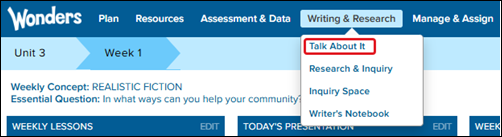
To access, hover over Writing & Research in the Navigation Banner, and select Talk About It from the menu.
Overview
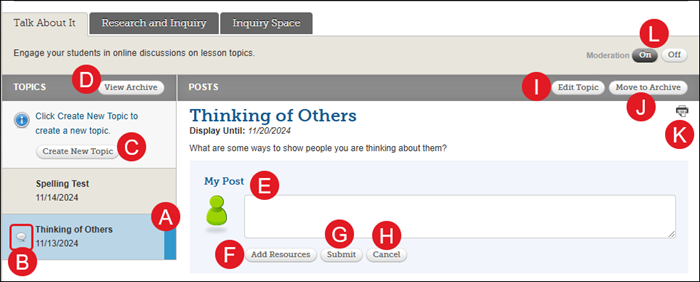
A. Topics - Select a topic to view associated discussion.
B. Comments - The bubble icon indicates there are new comments in the discussion.
C. Create New Topic - Click to make a new discussion.
D. View Archive - Click to view any discussions that were archived. You can also reactivate any archived discussions from here.
E. My Post - Enter a message to include in the discussion.
F. Add Resources - Click to attach additional resources to your post.
G. Submit - Click to send your post to the discussion thread.
H. Cancel - Click to annul your post.
I. Edit Topic - Click to make changes and/or add resources to the post.
J. Move to Archive - Click to deactivate the post. Note: Students will not have access to archived topics.
K. Print - Click the printer button to print out the current discussion and the posts associated.
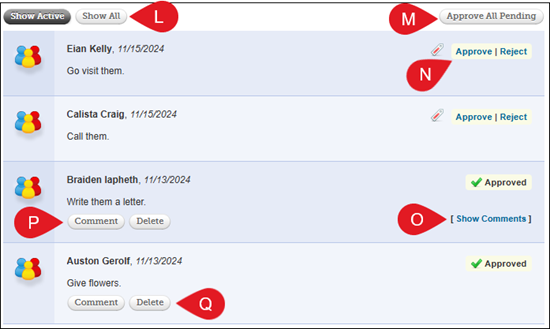
L. Show Active/Show All - Toggle between viewing only posts that were approved or including those that were also declined/deleted.
M. Approve All Pending - Quickly approve all pending posts.
N. Approve/Reject - Click to approve or reject the individual post.
O. Show/Hide Comments - Click to view/hide comments attached to the individual post.
P. Comment - Click to add a comment to an individual post.
Q. Delete - Click to remove the individual post.
Create a New Discussion
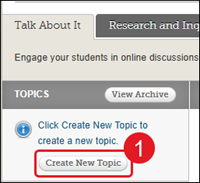
1. On the Talk About It tab, click the Create New Topic button.
2. Select a Display Date by clicking on the calendar icon.
3. Enter a Title for the topic.
4. Enter a Description.
5. Click the Edit button in the Resources section to add a resource for the students to refer to.
6. Click the Save button.
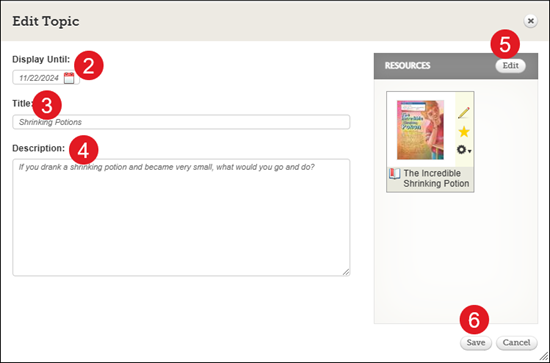
Once you post the topic, it will be immediately visible on the Talk About It tab on your students’ Writing & Research pages.
Add a Teacher Post
1. Select the Topic you want to add a post to.
2. In the My Post section, enter your desired comment into the field.
A. Click Add Resources to attach a resource to your comment.
3. Click the Submit button to add your comment to the thread.
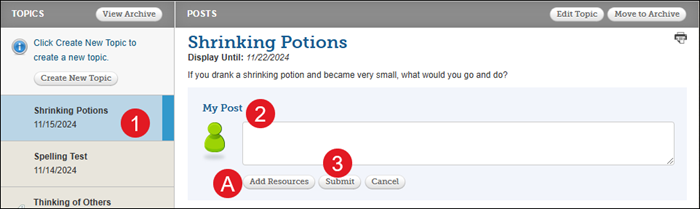
Add Individual Student Comment
1. Select the Topic you want to add a post to.
2. Click the Comment button under the student's post.

3. Enter desired comment in the space provided.
A. Click Add Resources to attach a resource to your comment.
4. Click the Submit button.
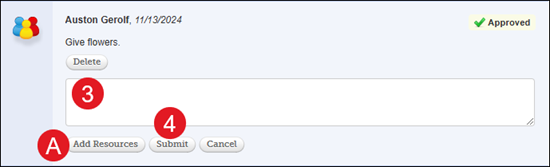
Note: You can only add individual comments to a student's post after it has been approved.
Delete a Post/Comment
When it comes to deleting a comment, there is an option to delete a post and an option to delete a comment. They are close together when viewing the posts and comments at once, so be mindful of which one you want to click.
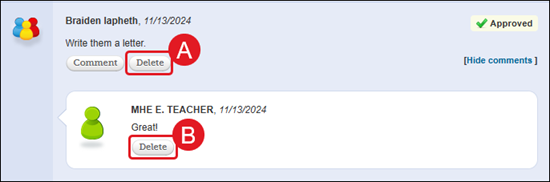
A. This Delete button will remove the student's post from the discussion.
B. This Delete button will remove a comment that was added to the student's post.
Manage Archived Posts
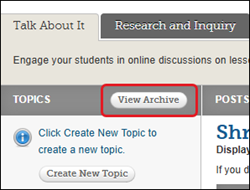
To view archived posts, click the View Archive button in the Topics section.
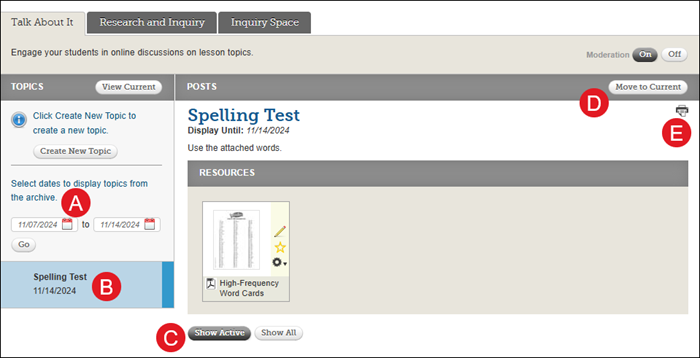
A. Date Range - Select a date range to view specific archived topics.
B. Topic - Click to view an archived topic.
C. Show Active/Show All - Toggle between viewing active posts that are attached to the topic, or all posts which include the declined ones.
D. Move to Current - Click to reactivate the topic.
E. Print - Click the printer icon to print the selected topic and its associated posts.