This is a guide to the Wonders Student Center Dashboard. It will help you navigate the site and use the program features.
Overview
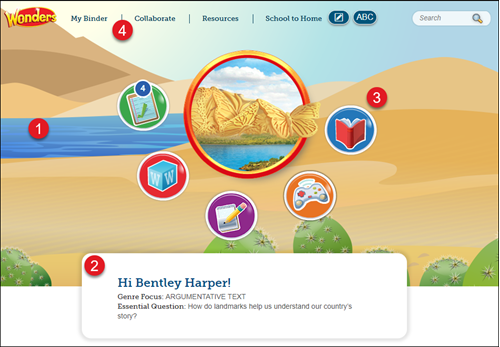
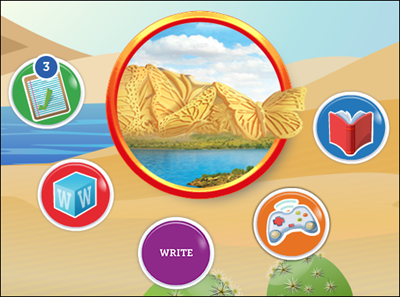
1. When you log in to Wonders, you see the Student Dashboard.
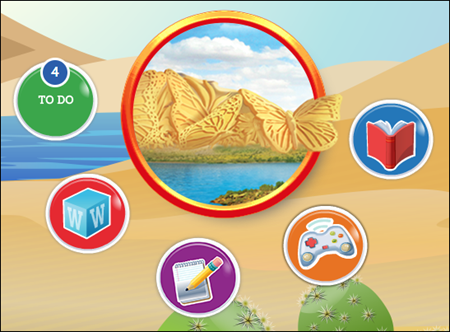
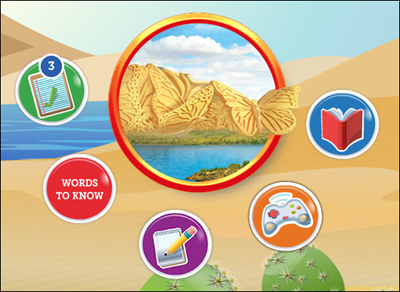
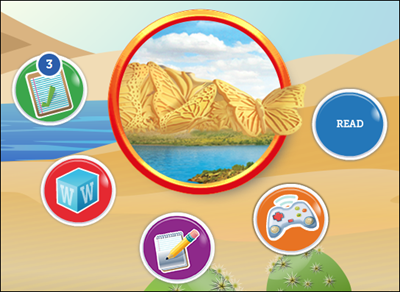
2. The Weekly Concept and Essential Question for the current week also appear at the bottom of the screen.
3. Surrounding the weekly image are Navigation icons that let you quickly access resources needed for that week.
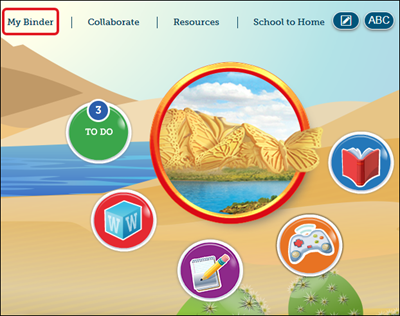
4. The Navigation Banner at the top of the screen allows you to access the pages in the program.
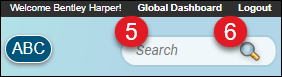
5. In the upper-right corner of the screen, select Global Dashboard to return to your My Classes page.
6. Click Logout to exit the program.
Navigation Banner
Links to specific pages appear at the top of the screen throughout the site.
Click the Wonders image to return to the Student Dashboard at any time.
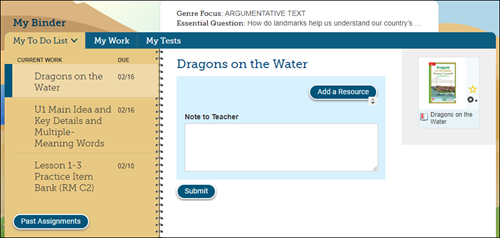
Click My Banner to access My To Do List, where assignments and assessments are located.
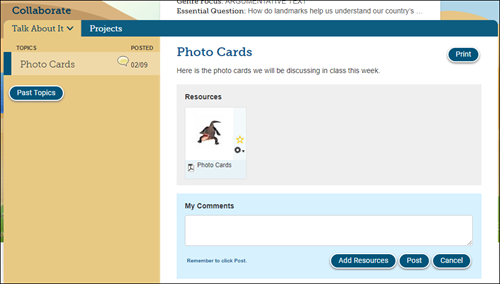
The Collaborate section provides a place where you can interact with your teacher and other students. Your teacher will pose a specific question and you and your classmates can have a conversation around those questions.
In the My Comments section at the bottom, enter your response to the teacher’s message. Click Post to send the message.
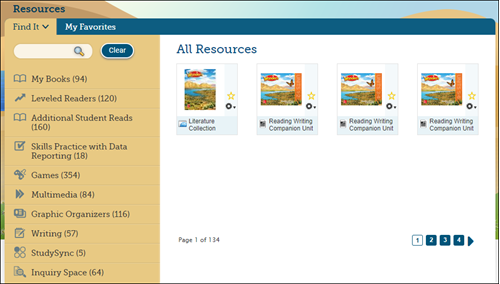
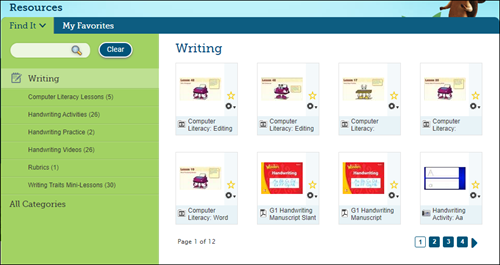
The Resources section provides you with all the online resources in the program.
You can use the menu on the left to navigate through the different resources available. To open a resource, click on the resource tile on the right.
The available resources in the Resources section will vary based on the grade level the student has access to.
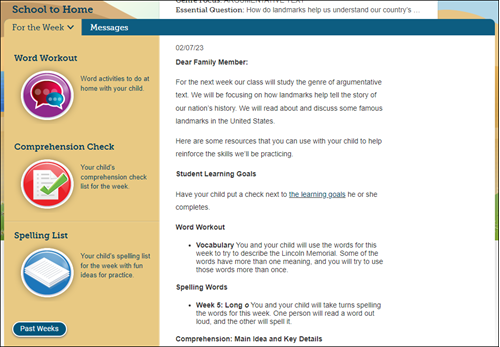
The School to Home section provides you with the letter of the week that for you and your family have received. This also includes word workouts, comprehension checks, and spelling lists.
This is also where you will see the messages to the class from the teacher.
Other tools available in the Navigation Banner include the note taker, the course glossary, and the program search engine.
Navigation Icons
Surrounding the center character are Navigation icons where you can quickly access resources needed for that week.
The name of the icon appears when you hover over it. These icons are also available on all pages in the program at the bottom of the screen.
To Do
The To Do section provides you with a list of the work assigned by your teacher. The To Do section can also be accessed by clicking on My Binder in the Navigation Banner.
In addition, this is the area where you can access past and present assessments.
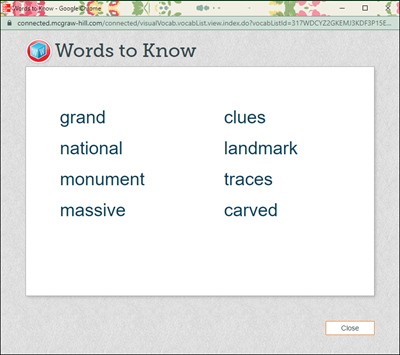
Words to Know
The Words to Know section gives you access to key academic and domain vocabulary that are infused into all the text that you will read during the week.
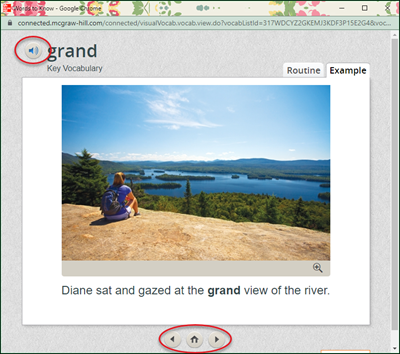
Click any of the Words to Know in the pop-up window to access the definition and an example of how the word is used.
Click the audio button to have each word’s pronunciation and definition read aloud.
Click the back and forward arrows at the bottom to move between the available weekly words. Click the Home button to go back to the list of words.
Write
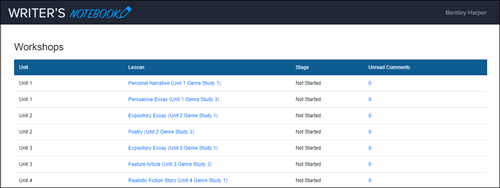
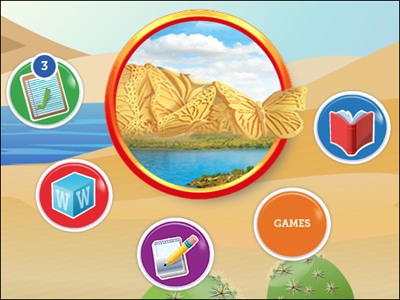
The Write section is where you can access the Writer’s Notebook resources.
In grades K and 1, The resources are online mini-lessons that are focused on a variety of facets of the writing process.
For grades 2-6, the Write section takes you to the Writer’s Notebook, a resource where you can access online mini-lessons that are focused on the writing process.
Games
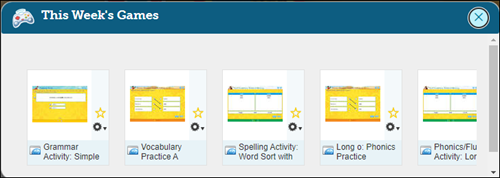
The Games section provides you with a wide range of games that support foundational skills, vocabulary, and spelling.
Click on the game tile in the This Week’s Games pop-up to open the resource.
Read
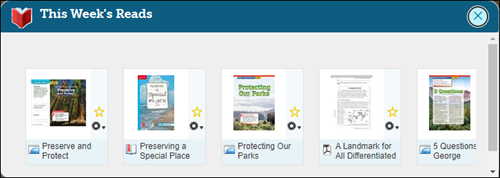
In the Read section, you can access all of your weekly eBooks.
Click on the book tile in the This Week’s Reads pop-up to open the resource.
wonders
maravillas
student
school-parent
prek-12
Getting Started & Orientation, Dashboard & Navigation Overview, Literacy, SSO & Manual-Rostering, Customer Support, Direct Login & Auto-Rostering, Wonders 2014, Maravillas 2020 & 2017, School Student, Core, Direct Login & Manual-Rostering, Wonders Balanced Literacy 2016, Wonders 2023 2020 2017, School Parent, SSO & Auto-Rostering, PreK-12, Elementary School, Kindergarten, 1st Grade, 2nd Grade, 3rd Grade, 4th Grade, 5th Grade, 6th Grade, Middle School
dts
2026-03-24T18:30:01.882-03:00
This is a guide to the Wonders Student Center Dashboard. It will help you navigate the site and use the program features. Overview 1. When you log in to Wonders, you see the Student Dashboard. 2. The Weekly Concept and Essential Question for the current week also appear at the bottom of the screen. 3. Surrounding the weekly image are Navigation icons that let you quickly access resources needed for that week. 4. The Navigation Banner at the top of the screen allows you to access the pages in the program. 5. In the upper-right corner of the screen, select Global Dashboard to return to your My Classes page. 6. Click Logout to exit the program. Navigation Banner Links to specific pages appear at the top of the screen throughout the site. Click the Wonders image to return to the Student Dashboard at any time. Click My Banner to access My To Do List, where assignments and assessments are located. The Collaborate section provides a place where you can interact with your teacher and other students. Your teacher will pose a specific question and you and your classmates can have a conversation around those questions. In the My Comments section at the bottom, enter your response to the teacher’s message. Click Post to send the message. The Resources section provides you with all the online resources in the program. You can use the menu on the left to navigate through the different resources available. To open a resource, click on the resource tile on the right. The available resources in the Resources section will vary based on the grade level the student has access to. The School to Home section provides you with the letter of the week that for you and your family have received. This also includes word workouts, comprehension checks, and spelling lists. This is also where you will see the messages to the class from the teacher. Other tools available in the Navigation Banner include the note taker, the course glossary, and the program search engine. Navigation Icons Surrounding the center character are Navigation icons where you can quickly access resources needed for that week. The name of the icon appears when you hover over it. These icons are also available on all pages in the program at the bottom of the screen. To Do The To Do section provides you with a list of the work assigned by your teacher. The To Do section can also be accessed by clicking on My Binder in the Navigation Banner. In addition, this is the area where you can access past and present assessments. Words to Know The Words to Know section gives you access to key academic and domain vocabulary that are infused into all the text that you will read during the week. Click any of the Words to Know in the pop-up window to access the definition and an example of how the word is used. Click the audio button to have each word’s pronunciation and definition read aloud. Click the back and forward arrows at the bottom to move between the available weekly words. Click the Home button to go back to the list of words. Write The Write section is where you can access the Writer’s Notebook resources. In grades K and 1, The resources are online mini-lessons that are focused on a variety of facets of the writing process. For grades 2-6, the Write section takes you to the Writer’s Notebook, a resource where you can access online mini-lessons that are focused on the writing process. Games The Games section provides you with a wide range of games that support foundational skills, vocabulary, and spelling. Click on the game tile in the This Week’s Games pop-up to open the resource. Read In the Read section, you can access all of your weekly eBooks. Click on the book tile in the This Week’s Reads pop-up to open the resource.