
Completing Wonders/Maravillas Assignments in Student Binder
Learn how students use Wonders 2020 My Binder to view assignments, submit work, manage resources, and access tests.
- Literacy
- SSO & Manual-Rostering
- Customer Support
- Grades & Assignments
- Direct Login & Auto-Rostering
- Wonders 2014
- Maravillas 2020 & 2017
- School Student
- Core
- Direct Login & Manual-Rostering
- Wonders Balanced Literacy 2016
- Wonders 2023 2020 2017
- School Parent
- SSO & Auto-Rostering
- PreK-12
- Elementary School
- Student Resources
- Kindergarten
- 1st Grade
- 2nd Grade
- 3rd Grade
- 4th Grade
- 5th Grade
- 6th Grade
- Middle School


Access Student Binder
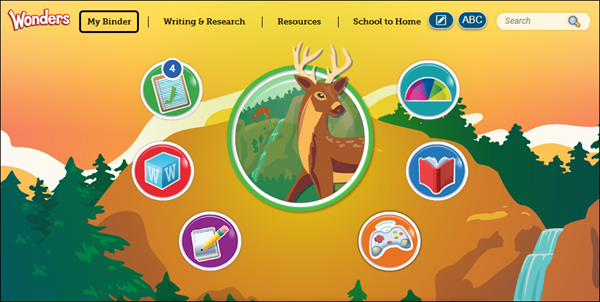
Click My Binder at the top of the page.
My To Do List
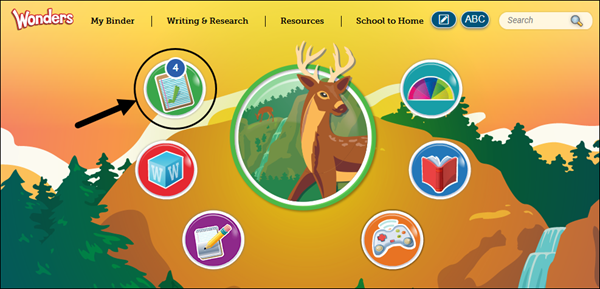
To access your current assignments, click the To Do icon on your dashboard. The numbered icon indicates if you have any new assignments.
You can also click on My Binder and then the My To Do List tab.
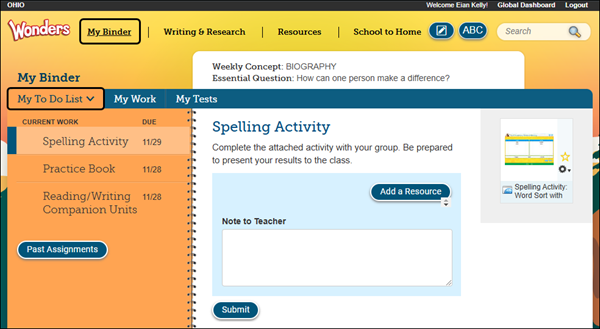
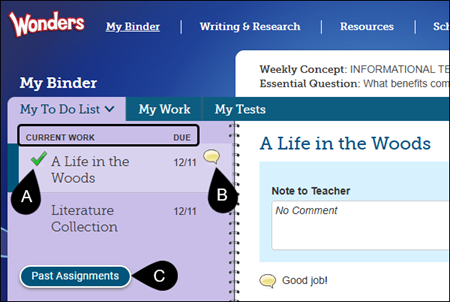
Current Work that has been assigned is listed on the left panel by Due date. Click an assignment to view it.
A. A checkmark next to an assignment indicates it has been submitted.
B. A comments icon indicates there is a new note from your teacher.
C. Click the Past Assignments button to see your older assignments.
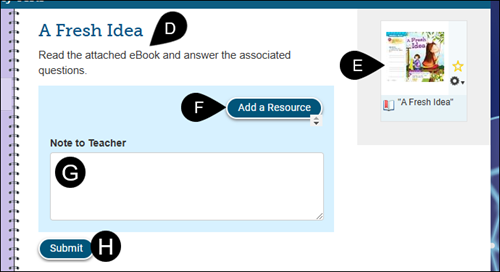
D. Any instructions provided by the teacher will be located under the assignment title.
E. Click on the attached resource to open it.
F. Click the Add a Resource button to attach any resources.
G. Enter a note to the teacher in the field, if needed.
H. Click the Submit button to submit the assignment.
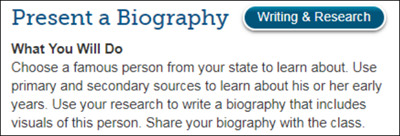
If it's a project assignment, click the Writing & Research button to go to your group discussion.
Add a Resource
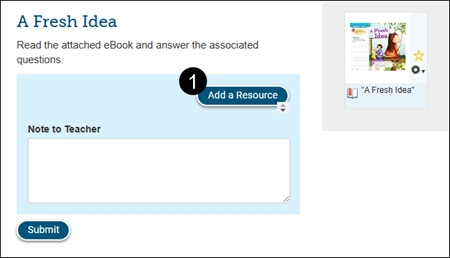
1. Click the Add a Resource button.
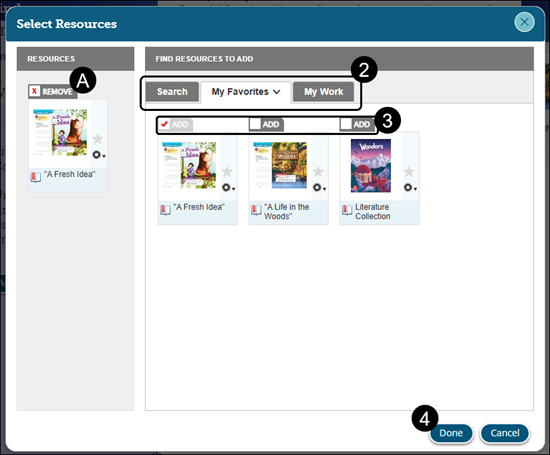
2. Click on the Search, My Favorites, or My Work tab to attach the desired resource.
3. Click the check box next to Add to select the resource.
A. Click the Remove checkbox in the Resources panel to remove the selection.
4. Click the Done button.
Upload New Files
1. Click the Add a Resource button.
2. Click the My Work tab.
3. Click the Upload New Files button.
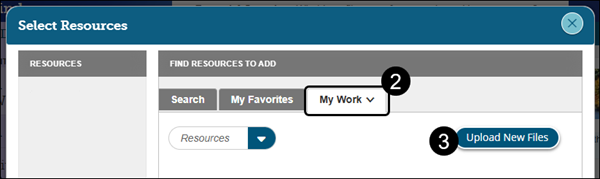
4. On the File Upload pop-up, drag and drop the selected files into the window, or click the Select Files button.
5. Click the Upload button.
6. Click the Done button once all files are uploaded successfully.
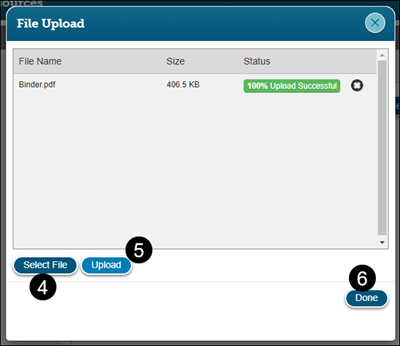
7. Check the box next to Add to select the resource.
A. Click the Remove checkbox in the Resources panel to remove the selection.
8. Click the Done button to attach the selected resource(s) to the assignment.
My Work
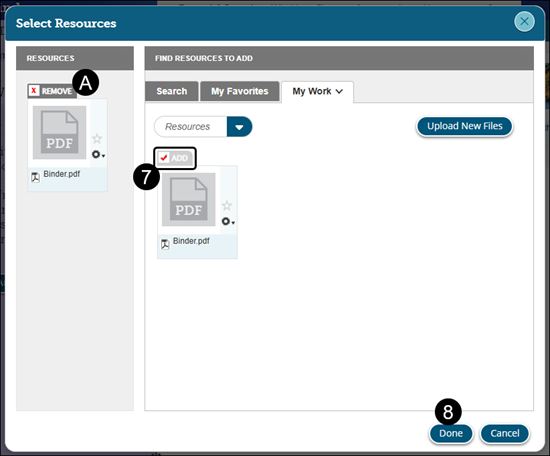
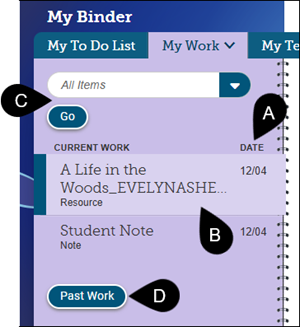
To access notes, certain resources, audio recordings, etc., click on the My Work tab.
A. All work is listed in the left panel, listed by creation Date.
B. Click on the item listed to view anything attached, written, etc.
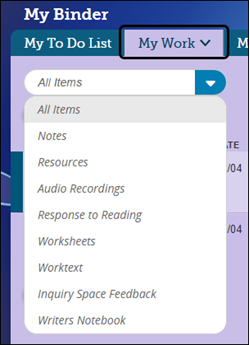
C. To filter items, select an Item type on the drop-down list and click the Go button.
D. Only the work for the current week appears on the My Work tab. Click the Past Work button to view older notes.
My Tests
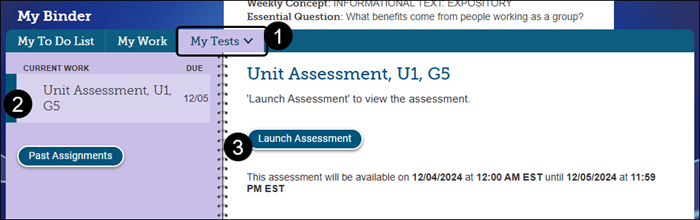
1. To access your online tests, click the My Tests tab. All current tests are listed along with the dates of availability and the Due date.
2. Click on the test you need to complete from the left side panel.
3. Click the Launch Assessment button.
Note: You will only be able to access a test when the teacher has opened it. Once you have submitted a test, you will not be able to open it to edit your answers unless your teacher reopens it for you.
3. Click the Start Assignment button at the bottom of the page.
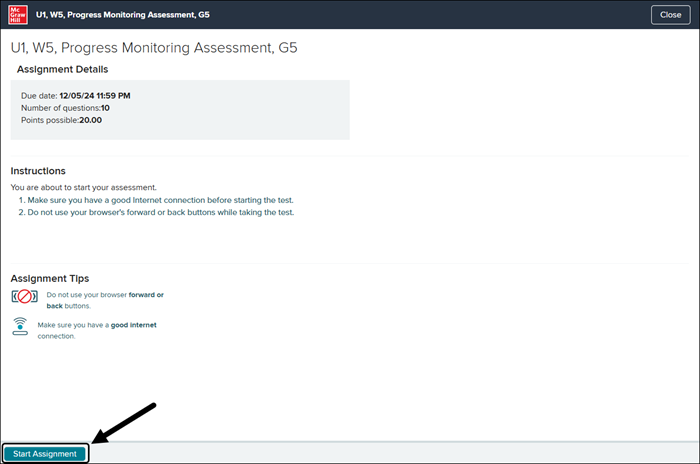
For more details on how to complete a test, refer to ConnectED - Take an Online Assessment.