Import and Manage Resource Files
Manage instructional files using My Files to upload, organize, and share resources with students for select programs.
Tags
- Customer Support
- PreK-12
- Classroom Teacher
- Elementary School
- Middle School
- High School
- Direct Login & Auto-Rostering
- Direct Login & Manual-Rostering
- SSO & Auto-Rostering
- SSO & Manual-Rostering
- Core
- Literacy
- Math
- Science
- Social Studies
- Health
- Visual & Performing Arts
- World Languages
- Glencoe Health 2014
- McGraw Hill Health 2014
- Glencoe Algebra 1 2014
- Glencoe Algebra 1 2018
- Glencoe Algebra 2 2014
- Glenoce Algebra 2 2018
- Glencoe Math
- Glencoe Geometry 2014
- Glencoe Geometry 2018
- Glencoe Math Course 1
- Glencoe Math Course 2
- Glencoe Math Course 3
- Glencoe Math Accelerated
- McGraw Hill My Math
- McGraw Hill My Math 2018
- McGraw Hill My Math 2013 & 2016
- Glencoe Science 2017
- Glencoe Science
- Inspire Science 2017
- iScience 2017
- Asi se Dice 2016
- Networks 2014 (K-5)
- Plan & Present
- Tools & Resources


Article Contents
Upload Resource Files
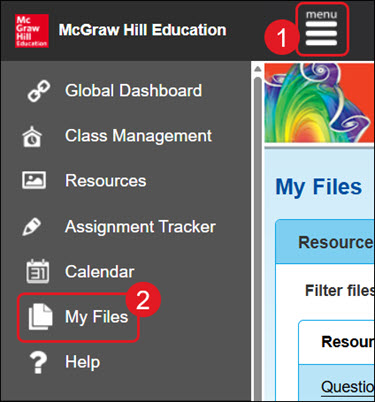
- Click on Menu at the top left.
- Click My Files from the menu.
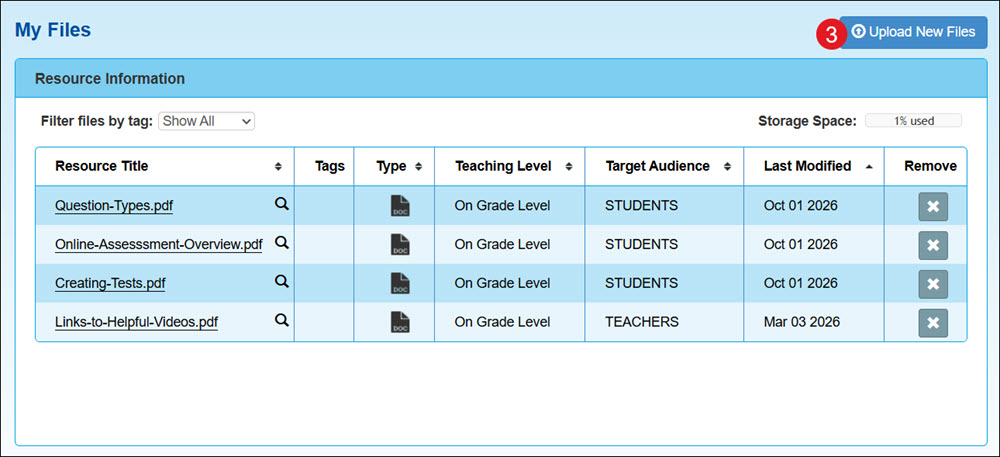
- Click the Upload New Files button.
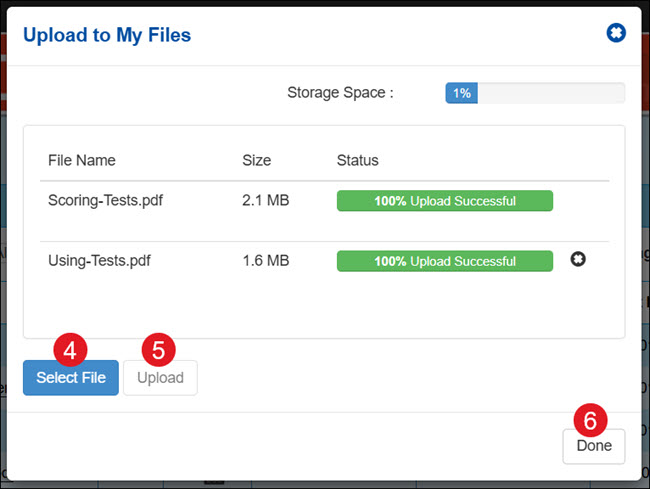
- On the pop-up, click the Select File button and select the files you want to add. You can also drag and drop the files into the file space.
Note: File names cannot contain spaces, or they will not upload into the program.
The following file types are supported for upload:
-Audio – mp3, wav
-Video – flv, m4v, mp4
-Docs – doc, docx, pdf, ppt, pptx, pps, ppsx, xls, xlsx, rft, txt, htm, html
-Other – zip, sit, sitx, der, tns, 8xv, kmz, kml, gsp, ftm, tp
- Click the Upload button.
- Once the files show as 100% Upload Successful, click the Done button.
Edit a Resource File
- Click on Menu at the top left.
- Click My Files from the menu.
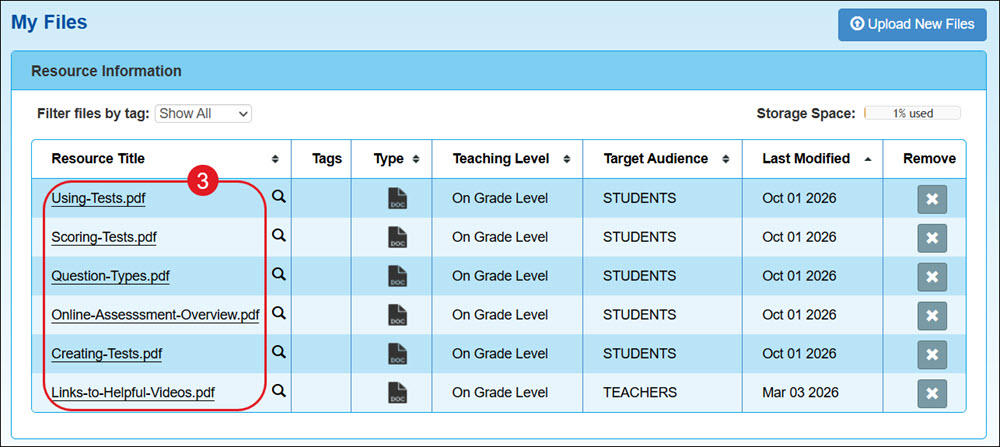
- Click on a Resource Title link.
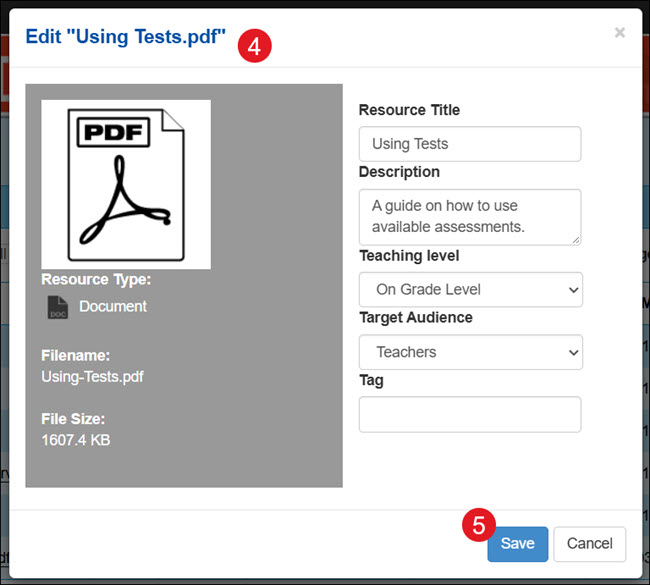
- On the Edit pop-up, you can make changes to the Resource Title, Description, Teaching level, Target Audience, and Tag.
Note: To be able to assign an uploaded resource to students, the target audience has to be set to Students. Resource Titles can have spaces, unlike when they are first uploaded.
- Click the Save button.
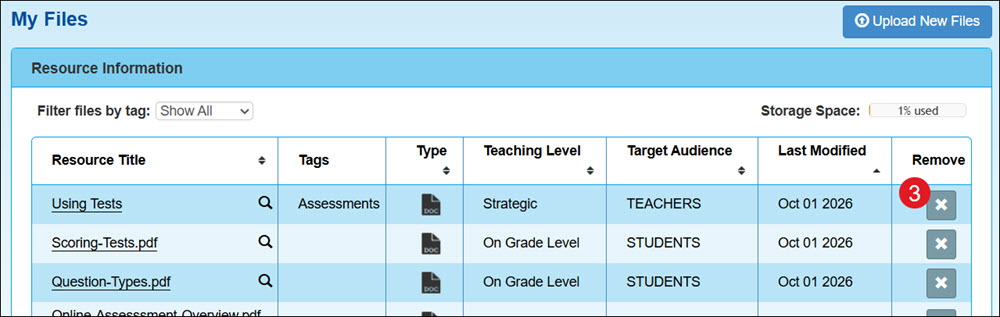
A. Changes that have been made reflect in the Resource Information table. The table will show the updated Resource Title, any Tags that were added, the Type of resource file it is, the selected Teaching Level and Target Audience, as well as the date it was Last Modified.
B. To view the list of uploaded resources with a specific tag, select the option from the Filter files by tag drop-down.

Delete Resource Files
Keep in mind that once a file has been deleted the only option to get it back is to reupload it.
- Click on Menu at the top left.
- Click My Files from the menu.
- Click the Remove button to the right of the file.
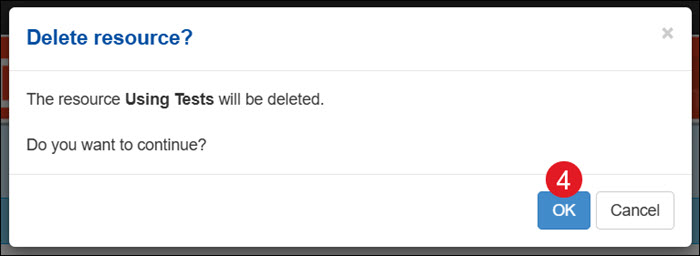
- On the pop-up, click the OK button to confirm.