Create and Manage Messages to and from Students
Send and manage messages to communicate with students using the teacher messaging tools.
Tags
- Customer Support
- PreK-12
- Classroom Teacher
- Elementary School
- Middle School
- High School
- Direct Login & Auto-Rostering
- Direct Login & Manual-Rostering
- SSO & Auto-Rostering
- SSO & Manual-Rostering
- Core
- Literacy
- Math
- Science
- Social Studies
- Health
- Visual & Performing Arts
- World Languages
- Networks 2014 (K-5)
- Asi se Dice 2016
- Inspire Science 2017
- Glencoe Science 2017
- iScience 2017
- Glencoe Health 2014
- McGraw Hill Health 2014
- McGraw Hill My Math 2013 & 2016
- McGraw Hill My Math 2018
- McGraw Hill My Math
- Glencoe Math Course 1
- Glencoe Math Course 2
- Glencoe Math Course 3
- Glencoe Math Accelerated
- Glencoe Math
- Glencoe Algebra 1 2014
- Glencoe Algebra 2 2014
- Glencoe Algebra 1 2018
- Glenoce Algebra 2 2018
- Glencoe Geometry 2014
- Glencoe Geometry 2018
- Tools & Resources
- Plan & Present
- Dashboard & Navigation Overview


Article Contents
Navigate the Messages Page
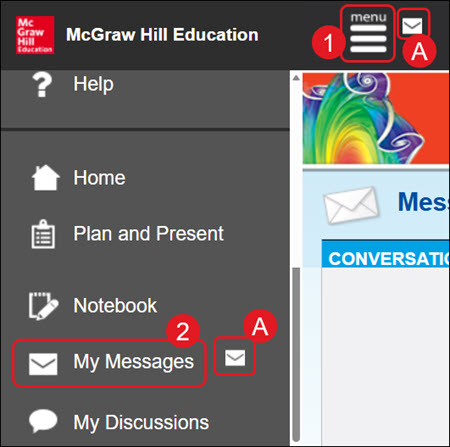
To send and receive messages, click Menu (1), and then click on My Messages (2).
- If a new message has been received, an envelope icon will appear beside the Menu icon as well as My Messages on the menu.
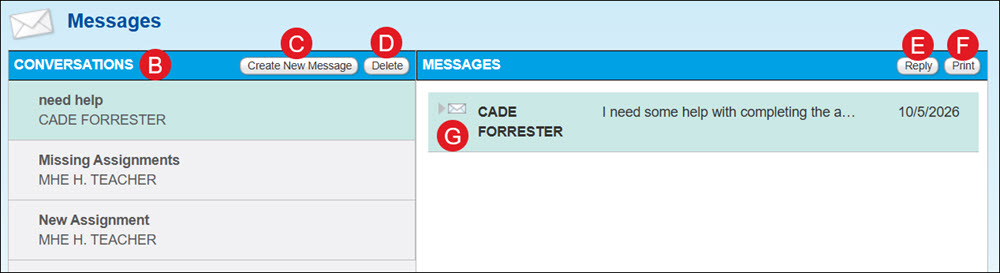
- All active Conversations will show in the left-hand panel.
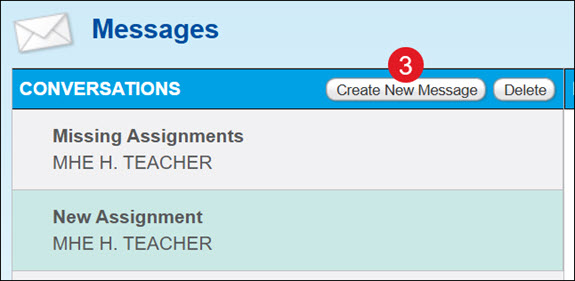
- Send students a message by clicking the Create New Message button.
- Click the Delete button to permanently remove messages.
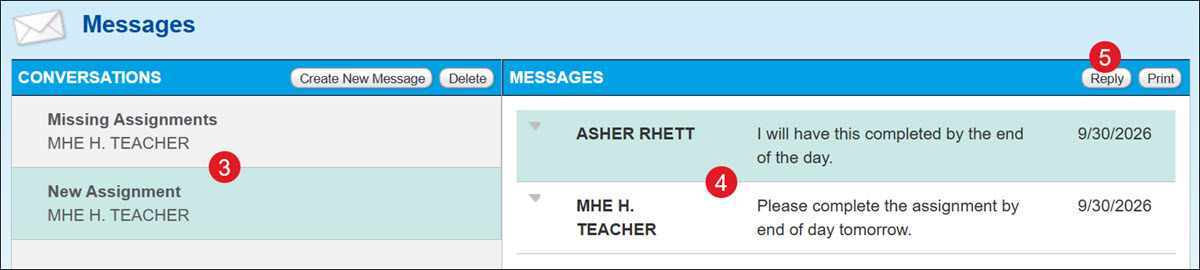
- Click the Reply button to send a response to any messages received.
- Click the Print button to download a PDF of the selected message thread.
Create a New Message
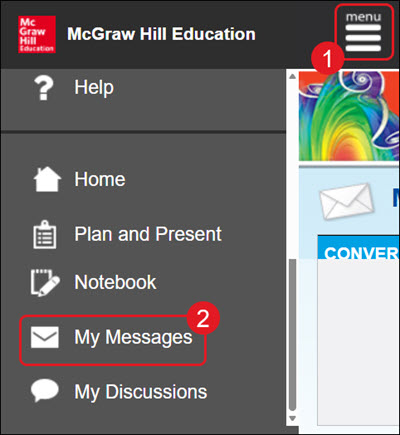
- Click Menu at the top-left.
- Click on My Messages from the menu.
- Click the Create New Message button.
- On the pop-up, select the students you want to send the message to.
- Enter a Subject.
- Enter the Message.
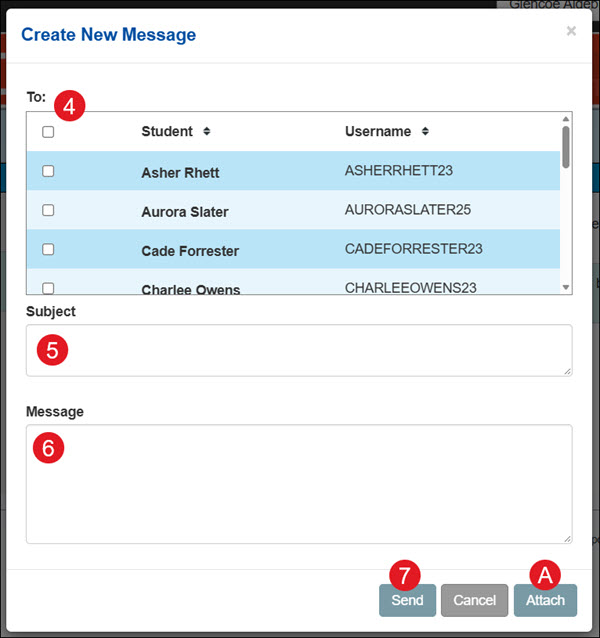
A. To attach resources to the message, click the Attach button. Select the resource by clicking the Add button (B) on the Edit Attachments pop-up, then click the Done button (C) to go back to creating the new message.
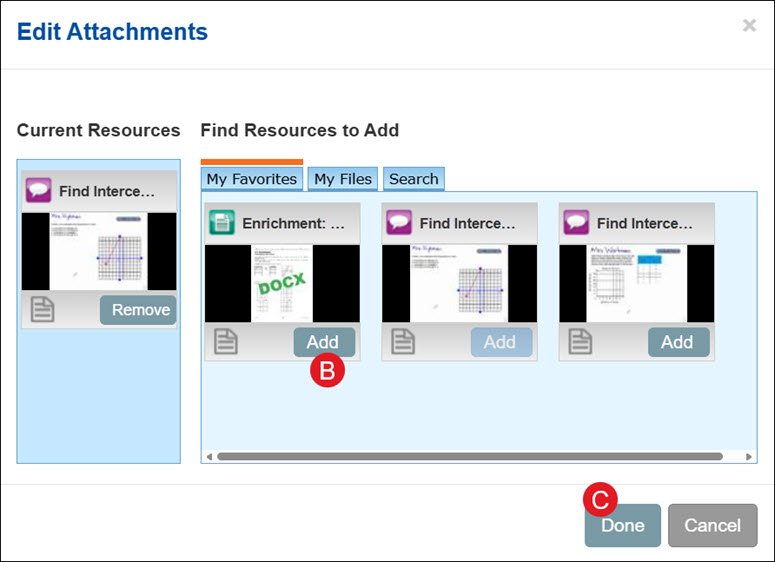
- Click the Send button.
Reply to a Message
If a new message has been received, an envelope icon will appear beside the Menu icon, as well as My Messages in the menu.
- Click Menu at the top-left.
- Click on My Messages from the menu.
- Select the Conversation.
- Select the Message.
- Click the Reply button.
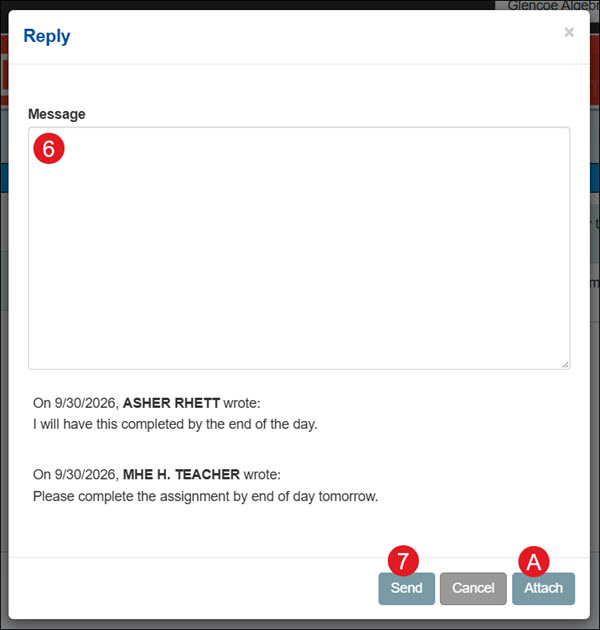
- Enter the Message in the provided field.
Note: If multiple students were selected for the initial message, all students will see your reply.
A. To attach resources to the message, click the Attach button. Select the resource by clicking the Add button (B) on the Edit Attachments pop-up, then click the Done button (C) to go back to creating the new message.
- Click the Send button.
Delete a Message Thread
Keep in mind, once a message thread has been deleted, there isn't a way to get it back.
- Click Menu at the top-left.
- Click on My Messages from the menu.
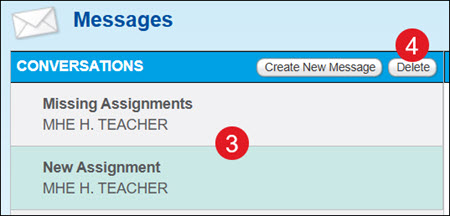
- Select the Conversation.
- Click the Delete button.
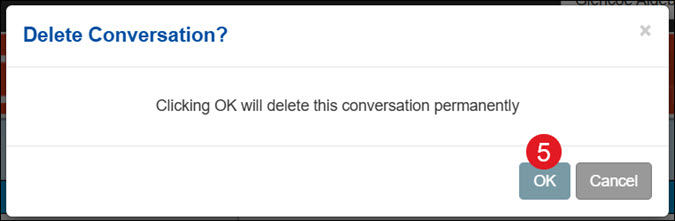
- On the pop-up, click the OK button to confirm.