glencoe-math
glencoe-science
my-math
core-plus-math
inspire-science
iscience
networks
asi-se-dice
student
school-parent
Programs & Solutions
Programs & Solutions/Asi Se Dice
Programs & Solutions/Asi Se Dice/Asi se Dice 2016
Context
Context/Integration Type
Context/Integration Type/Direct Login & Manual-Rostering
Business Unit
Business Unit/PreK-12
Context/Curriculum Type
Context/Curriculum Type/Core
Context/Education Level
Context/Education Level/High School
Programs & Solutions/Glencoe Math
Programs & Solutions/Glencoe Science
Programs & Solutions/McGraw Hill My Math
Context/Subject
Context/Subject/Science
Context/Integration Type/Direct Login & Auto-Rostering
Context/Integration Type/SSO & Auto-Rostering
Context/Subject/World Languages
Programs & Solutions/McGraw Hill My Math/McGraw Hill My Math 2018
Programs & Solutions/Inspire Science
Programs & Solutions/Inspire Science/Inspire Science 2017
Programs & Solutions/Networks
Programs & Solutions/Networks/Networks 2014 (K-5)
Asset Format Type
Asset Format Type/Customer Support
Context/Subject/Social Studies
Programs & Solutions/Glencoe Math/Glencoe Algebra 1 2018
Context/Education Level/Middle School
Programs & Solutions/Glencoe Math/Glencoe Algebra 1 2014
Programs & Solutions/Glencoe Math/Glencoe Geometry 2014
Programs & Solutions/Glencoe Science/Glencoe Science 2017
Personas
Personas/School Parent
Programs & Solutions/Glencoe Math/Glencoe Math Accelerated
Programs & Solutions/Glencoe Math/Glencoe Geometry 2018
Personas/School Student
Context/Education Level/Elementary School
Programs & Solutions/McGraw Hill My Math/McGraw Hill My Math 2013 & 2016
Programs & Solutions/Glencoe Math/Glencoe Algebra 2 2014
Support Topics
Support Topics/Classroom & Course Management
Support Topics/Classroom & Course Management/Student Resources
Context/Subject/Math
Programs & Solutions/Glencoe Math/Glencoe Algebra 2 2018
Programs & Solutions/Glencoe Math/Glencoe Math Course 1
Programs & Solutions/Glencoe Math/Glencoe Math Course 2
Programs & Solutions/Glencoe Math/Glencoe Math Course 3
Programs & Solutions/Core Plus Math
Programs & Solutions/Core Plus Math/Core Plus Math 2015
Programs & Solutions/iScience
Programs & Solutions/iScience/iScience 2017
Context/Integration Type/SSO & Manual-Rostering
prek-12
2026-03-24T18:31:03.195-03:00
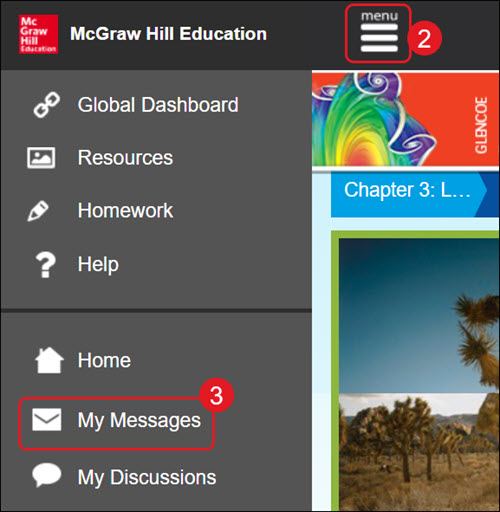
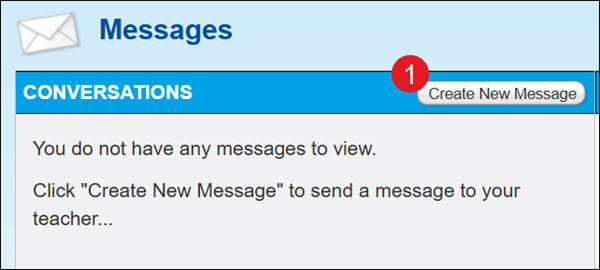
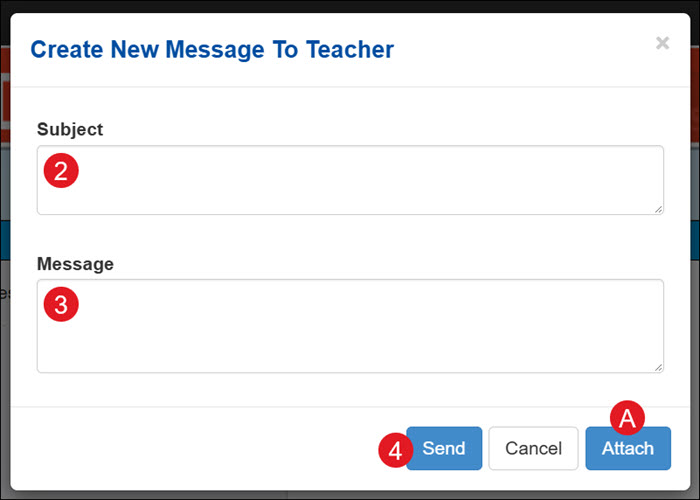
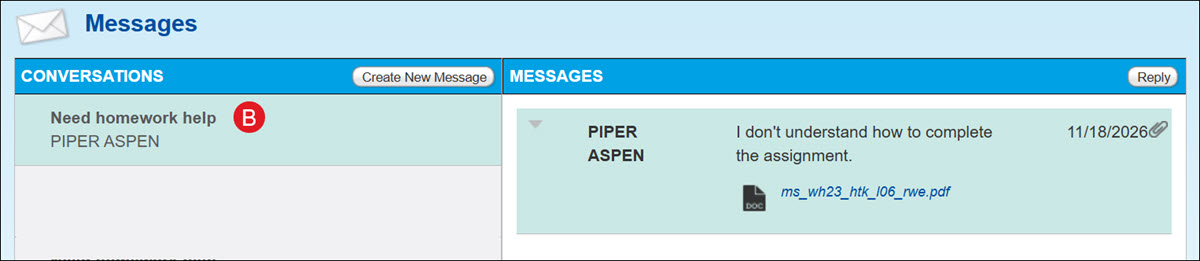
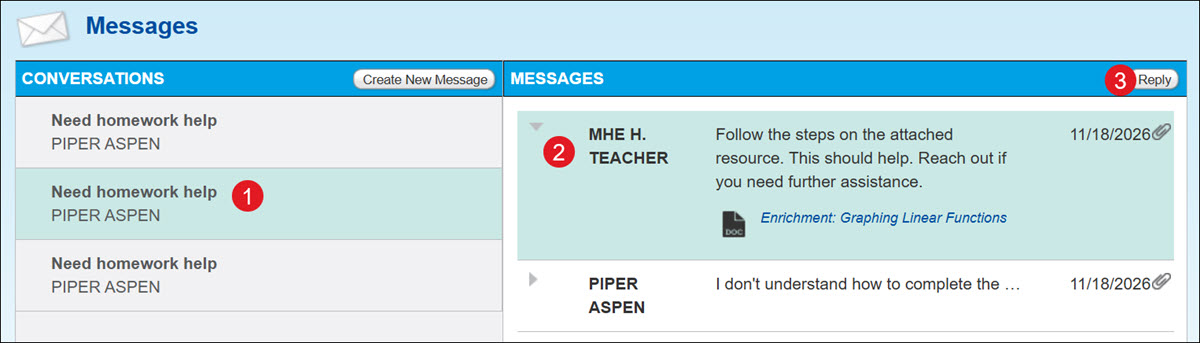
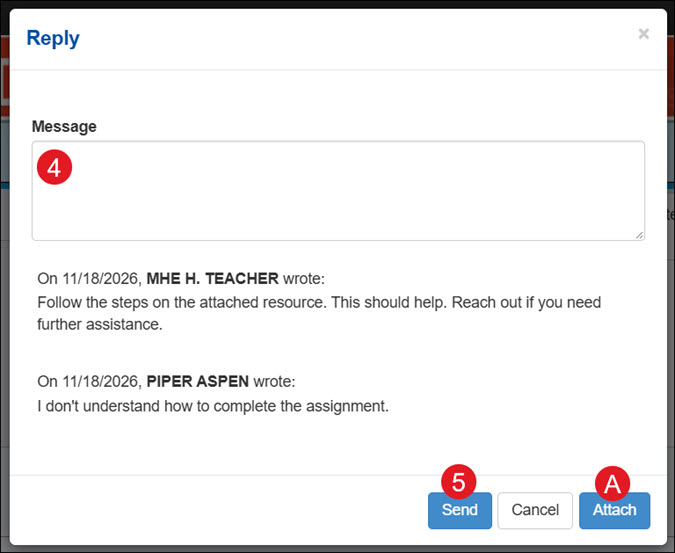
<h2 class="fs-5">Article Contents</h2> <p><a href="#access">Access My Messages</a></p> <p><a href="#create_message">Create a New Message</a></p> <p><a href="#reply_message">Reply to a Message</a></p> <p><a href="#video_walkthrough">Video Walkthrough</a></p> <p> </p> <h3><a name="access" id="access"></a><span><span class="fs-5">Access My Messages</span></span></h3> <ol> <li>Launch your class.<br> <br> </li> <li>Click on <strong>Menu </strong>at the top left.<br> <br> </li> <li>Click on <strong>My Messages</strong> from the menu.<br> <br> <img src="/content/dam/mhe/support/support-images/dts-k12-images/ced-student-messages/ced-student-messages-1.jpg" data-assetref="ced-student-messages-1-1795029941393"></li> </ol> <p> </p> <h3 class="fs-5"><a id="create_message"></a>Create a New Message</h3> <p>Messages can only be sent and received between a student and a teacher. There is not a way to send messages to other classmates.</p> <ol> <li>Click the <strong>Create New Message</strong> button.<br> <br> <img src="/content/dam/mhe/support/support-images/dts-k12-images/ced-student-messages/ced-student-messages-2.jpg" data-assetref="ced-student-messages-2-1795030140394"><br> <br> </li> <li>On the pop-up, enter a <strong>Subject</strong>.<br> <br> </li> <li>Enter the <strong>Message </strong>in the provided field.<br> <br> A. Click the <strong>Attach </strong>button to add resource files to your message.<br> <br> </li> <li>Click the <strong>Send</strong> button.<br> <br> <img src="/content/dam/mhe/support/support-images/dts-k12-images/ced-student-messages/ced-student-messages-3.jpg" data-assetref="ced-student-messages-3-1795030359780"><br> <br> B. All sent messages can be found in the <strong>Conversations </strong>panel. Click on a conversation to view the message and any attachments that were sent.<br> <br> <img src="/content/dam/mhe/support/support-images/dts-k12-images/ced-student-messages/ced-student-messages-4.jpg" data-assetref="ced-student-messages-4-1795030780457"></li> </ol> <p> </p> <h3 class="fs-5"><a id="reply_message"></a>Reply to a Message</h3> <ol> <li>Click on the <strong>Conversation </strong>on the left.<br> <br> </li> <li>Click on the <strong>Message </strong>you want to respond to on the right.<br> <br> </li> <li>Click the <strong>Reply </strong>button.<br> <br> <img src="/content/dam/mhe/support/support-images/dts-k12-images/ced-student-messages/ced-student-messages-5.jpg" data-assetref="ced-student-messages-5-1795031703846"><br> <br> </li> <li>On the pop-up, enter the <strong>Message</strong> in the provided space.<br> <br> A. Click the <strong>Attach </strong>button to include any resources with the message.<br> <br> </li> <li>Click the <strong>Send </strong>button.<br> <br> <img src="/content/dam/mhe/support/support-images/dts-k12-images/ced-student-messages/ced-student-messages-6.jpg" data-assetref="ced-student-messages-6-1795032291676"></li> </ol> <p><a id="video_walkthrough"> </a></p> dts Learn how students send, receive, and manage messages within their learning platform. 2026-11-18 Create and Reply to ConnectED Messages as a Student Learn how students send, receive, and manage messages within their learning platform. Learn how students send, receive, and manage messages within their learning platform.
Learn how students send, receive, and manage messages within their learning platform.
Article Contents Access My Messages Create a New Message Reply to a Message Video Walkthrough Access My Messages Launch your class. Click on Menu at the top left. Click on My Messages from the menu. Create a New Message Messages can only be sent and received between a student and a teacher. There is not a way to send messages to other classmates. Click the Create New Message button. On the pop-up, enter a Subject. Enter the Message in the provided field. A. Click the Attach button to add resource files to your message. Click the Send button. B. All sent messages can be found in the Conversations panel. Click on a conversation to view the message and any attachments that were sent. Reply to a Message Click on the Conversation on the left. Click on the Message you want to respond to on the right. Click the Reply button. On the pop-up, enter the Message in the provided space. A. Click the Attach button to include any resources with the message. Click the Send button.
dts
Customer Support, PreK-12, Glencoe Algebra 2 2018, School Student, School Parent, Elementary School, Middle School, High School, Direct Login & Auto-Rostering, Direct Login & Manual-Rostering, SSO & Auto-Rostering, SSO & Manual-Rostering, Core, Math, Science, Social Studies, World Languages, Core Plus Math 2015, Glencoe Algebra 1 2014, Glencoe Algebra 1 2018, Glencoe Algebra 2 2014, Glencoe Math, Glencoe Geometry 2014, Glencoe Geometry 2018, Glencoe Math Course 1, Glencoe Math Course 2, Glencoe Math Course 3, Glencoe Math Accelerated, McGraw Hill My Math 2013 & 2016, McGraw Hill My Math 2018, McGraw Hill My Math, Glencoe Science, Glencoe Science 2017, Inspire Science 2017, iScience 2017, Networks 2014 (K-5), Asi se Dice 2016, Student Resources