Navigating the Networks Student Course eBook
Access the Networks Student Edition for digital lessons, activities, and assignments.
- SSO & Manual-Rostering
- Customer Support
- Social Studies
- Direct Login & Auto-Rostering
- School Student
- Middle School
- Core
- Direct Login & Manual-Rostering
- High School
- Networks 2018
- School Parent
- SSO & Auto-Rostering
- PreK-12
- Networks 2014 & 2016
- Dashboard & Navigation Overview
- Student Resources


The Student Edition is the online version of your textbook.
1. To access the Student Edition, select the chapter and lesson from the drop-down lists on your Student Center Dashboard, and click the Go button.
2. Or, click the Student Edition tab at the top of the page.
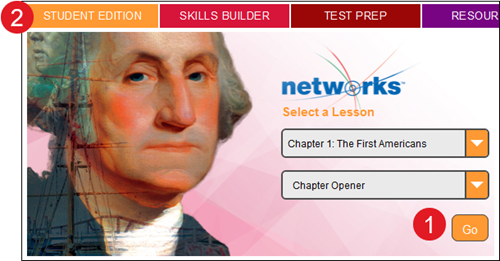
Parts of the Screen
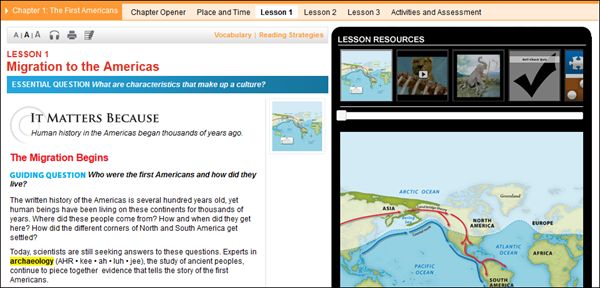
The Student Edition opens to the chapter and lesson indicated on your dashboard.
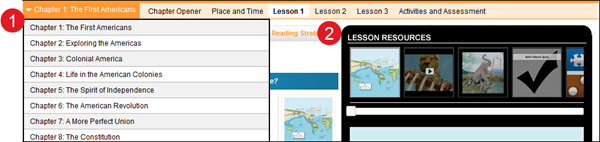
1. Navigate to another chapter by expanding the arrow next to the chapter title, and selecting another chapter title.
2. You can navigate directly to any section in the chapter by clicking it on the top banner.
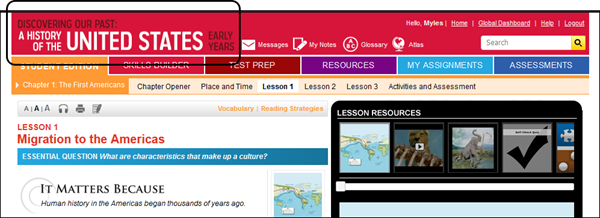
3. When you access a lesson, the lesson text appears on the left side.
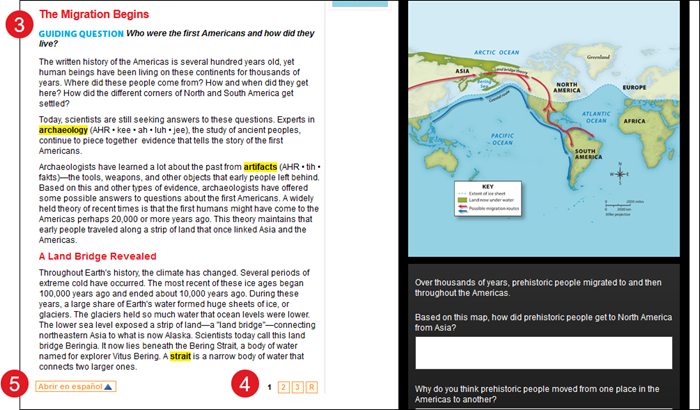
4. Click the page numbers at the bottom of the text to page through the text.
5. Click pop-out in Spanish at the bottom of the page to display the Spanish version of the lesson text.
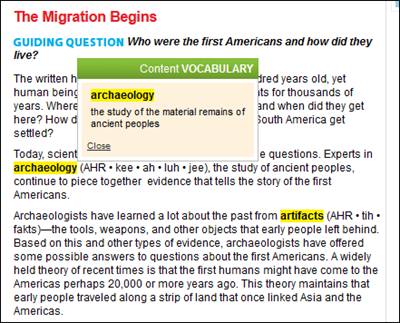
6. Vocabulary words that appear in the text are highlighted. Click a term to see the definition.
7. Online resources that correspond to the current lesson appear just to the right of the lesson text.
8. You can also move the slider under Lesson Resources to view all the resources available for this chapter.
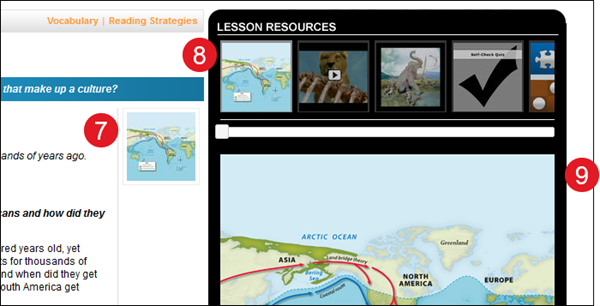
9. Click an icon to display the image, map or text in the Resources player.
Lesson Toolbar
The toolbar at the top of the Student Edition provides tools for reading the lesson text.

1. Click the Text icons to make the page text bigger or smaller.
2. Click the Audio icon to display the audio player.
3. Click the Print icon to print the Student Edition text. You can print the current page or all pages in the chapter, in English or in Spanish.
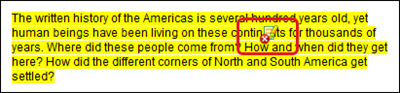
4. Click the Highlighter icon and drag your cursor to highlight selected text.
To remove a highlight, hover over the highlighted portion until you see a red X on the icon. Click again to remove.
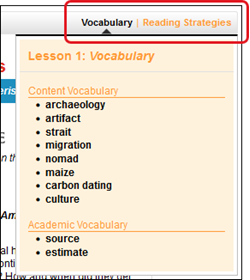
You can also access lesson Vocabulary or Reading Strategies activities related to the current page contents from the toolbar.
Lesson Checks
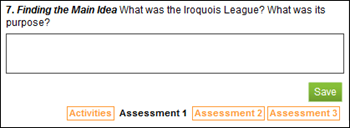
Periodic checks appear throughout the lesson text.
1. Type your answer in the field under the check.
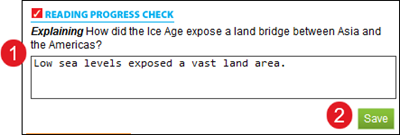
2. Click the Save button.
Chapter Assessment
The final section of the chapter is an online assessment.
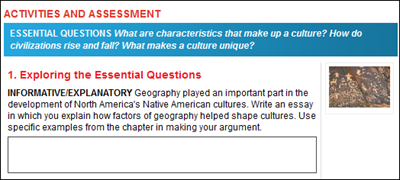
The assessment consists of several pages. Make sure you hit the Save button at the end of each page to save your answers. If you go to another page without saving, you will lose all your answers.