Networks 2018 Student Dashboard Navigation
Understand the Networks student dashboard and how learners access assignments, messages, and discussions.
Tags
- Dashboard & Navigation Overview
- SSO & Manual-Rostering
- Customer Support
- Social Studies
- Direct Login & Auto-Rostering
- School Student
- Middle School
- Core
- Direct Login & Manual-Rostering
- High School
- Networks 2018
- School Parent
- SSO & Auto-Rostering
- PreK-12
- Preschool
- Elementary School


Overview
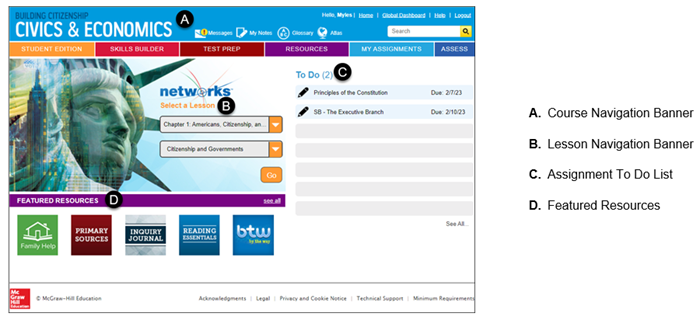
When you log in to your Networks 2018 Student Center, the Student Center Dashboard is the first thing you will see.
Navigation Banner
The Navigation Banner appears at the top of every page in your program. Use this to quickly access all the pages in the program.

1. Click the program title in the upper left corner of the page to return to the Student Center Dashboard.
2. Click the links at the top of the page to directly access specific course pages.
- Messages – Send and receive messages from your teacher.
- My Notes – Access any notes that you have taken through the course.
- Glossary – Access the course glossary, in both English and Spanish.
- Atlas – Access the maps for the course.
3. Click the Home link to return to the Teacher Center Dashboard.
4. Click the Global Dashboard link to return to your My Classes page.
5. Click the Help link to access any help documents in the Resource library for the course.
6. Use the Search field to search the course for specific resources.
7. Click the tabs at the top of the page to quickly access the program pages.
- Student Edition – Access the Student Edition of the selected lesson.
- Skills Builder – Access all the Skills Builder resources available in the Resource library.
- Test Prep – Access all the Test study help resources available in the Resource library.
- Resources – Access the Resource library, including all the online resources for the course.
- My Assignments – Access all your current and submitted assignments.
- Assess – Access all of your online assessments.
Lesson Overview
The current chapter and lesson are displayed on the page. The chapter and lesson correspond to your current class schedule.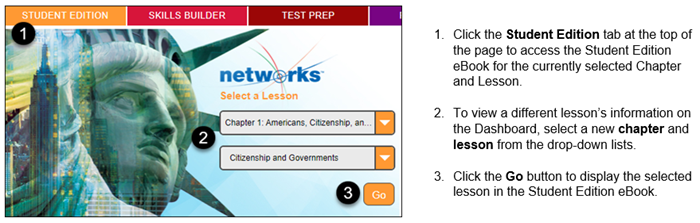
Featured Resources Overview

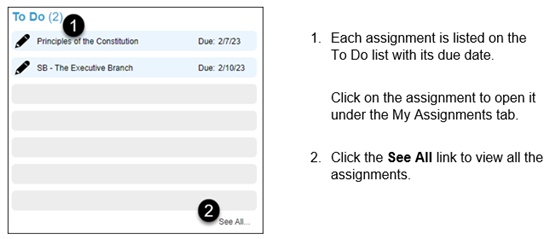
To Do List Overview