Navigating the Open Learning Course Resources Page
Access teacher resources available on my.mheducation.com.
Tags
SSO & Manual-Rostering
Customer Support
Middle School
Direct Login & Manual-Rostering
High School
Classroom Teacher
SSO & Auto-Rostering
PreK-12
Elementary School
World Languages
Supplemental
Math
Health
Intervention
Literacy
Social Studies
Direct Login & Auto-Rostering
Core
AP, Honors & Electives
Science
Preschool
AP Biology
AP Chemistry
AP History & Geography
AP Psychology
AP Economics
AP African American Studies
AP Precalculus
AP Statistics
AP Computer Science
AP Language and Composition
AP Public Speaking
AP Music Theory
5 Steps to a 5 - AP Test Prep
Glencoe Health 2022
Teen Health 2021
Arrive Math
Building Blocks 2024
Building Blocks PreK 2025
Number Worlds 2024
SRA Reading Laboratory 2025
SRA Reading Mastery Transformations
Open Court Reading 2025
CA Reveal Math (K-12)
Illustrative Math
Reveal Math (K-12)
Texas Math
CA Inspire Science 2020
FL Science 2025 (K-12)
Inspire Science 2020
TN Science (K-12)
TX Science 2025 (K-12)
CA Impact 2019
FL Social Studies 2024 (K-12)
Impact Social Studies
McGraw Hill Social Studies
All Sorts 2026 (K-5)
Asi se Dice 2024
CTE - Health Science
CTE - Agriculture
CTE - Computing and Technology
CTE - Culinary Arts
CTE - Early Childhood Education
CTE - Business, Marketing, and Finance
CTE - Criminal Justice
Getting Started & Orientation
Dashboard & Navigation Overview
Share:
Access the Resources Page
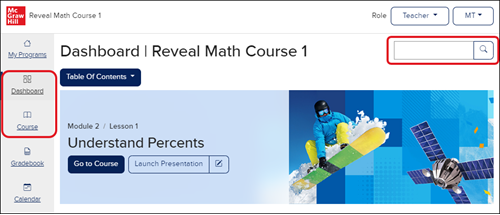
From the Dashboard or Course page, enter a keyword or click on the magnifying glass icon on the Resource search bar.
Course Resource Page Navigation
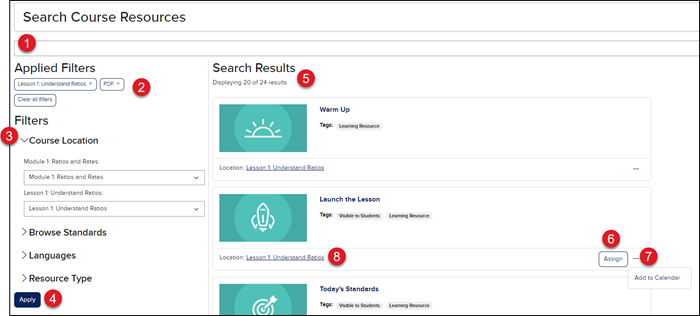
1. Resource Search Bar - Enter a keyword in the Search field at the top of the page to bring up search results that include the keyword(s) entered.
2. Applied Filters - Lists the keyword(s) entered in the Search field and any Filters selected.
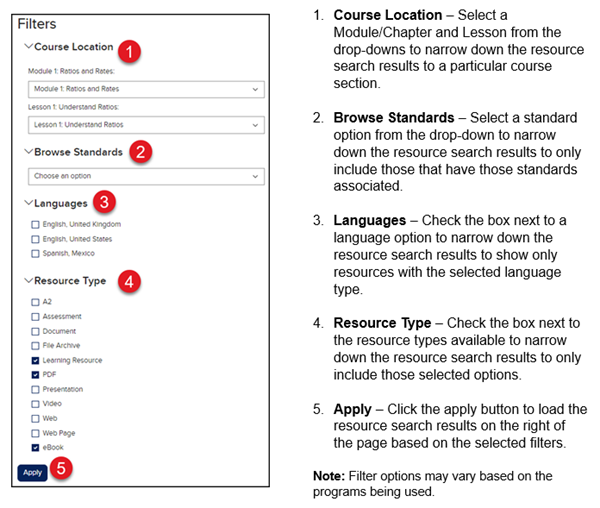
3. Filters - Use the Filters available to narrow down the resource results on the right of the page.
4. Apply - Click the Apply button after selecting the desired Filter options.
5. Search Results - Lists all the resources that correspond with any keywords and/or Filters selected.
6. Assign - Click the Assign button on select resources to assign to students to complete. For more information on assigning resources, read Open Learning Platform - Assignment Management.
7. Action Menu - Click the Action Menu icon to add the resource to the Calendar.
8. Location Link - Click the Location link to navigate to the resource on the Course page.
Filters
ap-edition
5-steps-to-a-5-test-prep
glencoe-health
teen-health
arrive-math
building-blocks
number-worlds
reading-laboratory
reading-mastery
open-court-reading
reveal-math
illustrative-math
mcgraw-hill-math
inspire-science
mcgraw-hill-science
impact
mh-social-studies
all-sorts
asi-se-dice
mcgraw-hill-cte
instructor
prek-12
SSO & Manual-Rostering, Customer Support, Middle School, Direct Login & Manual-Rostering, High School, Classroom Teacher, SSO & Auto-Rostering, PreK-12, Elementary School, World Languages, Supplemental, Math, Health, Intervention, Literacy, Social Studies, Direct Login & Auto-Rostering, Core, AP, Honors & Electives, Science, Preschool, AP Biology, AP Chemistry, AP History & Geography, AP Psychology, AP Economics, AP African American Studies, AP Precalculus, AP Statistics, AP Computer Science, AP Language and Composition, AP Public Speaking, AP Music Theory, 5 Steps to a 5 - AP Test Prep, Glencoe Health 2022, Teen Health 2021, Arrive Math, Building Blocks 2024, Building Blocks PreK 2025, Number Worlds 2024, SRA Reading Laboratory 2025, SRA Reading Mastery Transformations, Open Court Reading 2025, CA Reveal Math (K-12), Illustrative Math, Reveal Math (K-12), Texas Math, CA Inspire Science 2020, FL Science 2025 (K-12), Inspire Science 2020, TN Science (K-12), TX Science 2025 (K-12), CA Impact 2019, FL Social Studies 2024 (K-12), Impact Social Studies, McGraw Hill Social Studies, All Sorts 2026 (K-5), Asi se Dice 2024, CTE - Health Science, CTE - Agriculture, CTE - Computing and Technology, CTE - Culinary Arts, CTE - Early Childhood Education, CTE - Business, Marketing, and Finance, CTE - Criminal Justice, Getting Started & Orientation, Dashboard & Navigation Overview
dts
2026-03-24T18:31:49.568-03:00
Access the Resources Page From the Dashboard or Course page, enter a keyword or click on the magnifying glass icon on the Resource search bar. Course Resource Page Navigation 1. Resource Search Bar - Enter a keyword in the Search field at the top of the page to bring up search results that include the keyword(s) entered. 2. Applied Filters - Lists the keyword(s) entered in the Search field and any Filters selected. 3. Filters - Use the Filters available to narrow down the resource results on the right of the page. 4. Apply - Click the Apply button after selecting the desired Filter options. 5. Search Results - Lists all the resources that correspond with any keywords and/or Filters selected. 6. Assign - Click the Assign button on select resources to assign to students to complete. For more information on assigning resources, read Open Learning Platform - Assignment Management. 7. Action Menu - Click the Action Menu icon to add the resource to the Calendar. 8. Location Link - Click the Location link to navigate to the resource on the Course page. Filters
Top
Regional Page Available
It looks like you're outside the United States. Do you want to see your regional version of this page?