Create and Respond to Discussions as a Student
Learn how students participate in discussions using the My Discussions feature.
Tags
- Networks 2014 (K-5)
- SSO & Manual-Rostering
- Customer Support
- iScience 2017
- Middle School
- Direct Login & Manual-Rostering
- Glencoe Algebra 1 2014
- High School
- Glencoe Algebra 1 2018
- School Parent
- SSO & Auto-Rostering
- Glencoe Science 2017
- PreK-12
- Elementary School
- World Languages
- Visual & Performing Arts
- Inspire Science 2017
- Math
- Asi se Dice 2016
- Health
- Glenoce Algebra 2 2018
- Social Studies
- Glencoe Math Course 1
- Direct Login & Auto-Rostering
- McGraw Hill Health 2014
- Glencoe Math Course 2
- Glencoe Math Course 3
- Glencoe Science
- School Student
- Core
- Core Plus Math 2015
- Glencoe Health 2014
- McGraw Hill My Math 2013 & 2016
- McGraw Hill My Math 2018
- Glencoe Algebra 2 2014
- Glencoe Math
- Science
- Preschool
- Student Resources
- McGraw Hill My Math


Article Contents
Navigate the My Discussions Page
Create a New Comment
Edit or Delete a Comment
Respond Directly to a Student or Teacher Comment
Access My Discussions
Class discussions are available on the Discussions page. Access the page by selecting My Discussions on your Navigation Menu.
If your teacher has not enabled the My Discussions option, you will not see it on your menu. You will also see an envelope icon next to the My Discussions menu option when you have a new topic or comment.
Navigate the My Discussions Page
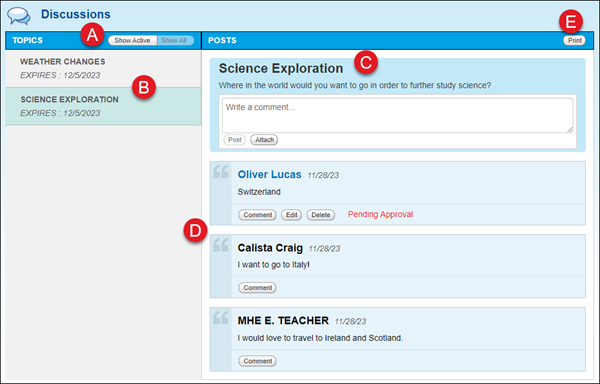
A. The list of Topics is set to Show All as default. To view only those that are currently active, click the Show Active button.
B. All discussion Topics are listed on the left side of the My Discussions page and are arranged by the expiration date. Click on the title of the topic to view the discussion post and responses.
C. The list of Topics is set to Show All as default. To view only those that are currently active, click the Show Active button.
D. The topic will appear to the right of the My Discussions page, along with any resources that are attached.
E. Click the Print button to print the selected discussion.
Create a New Comment
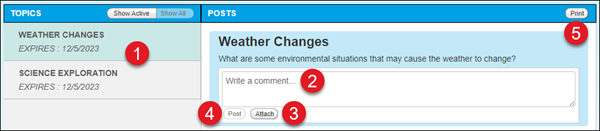
1. Click on the topic you want to add a comment to from the Topics list.
2. In the Write a comment… box, enter the desired comment to your students for the topic.
3. Click the Attach button to add a file to the post. This is optional.
4. Click the Post button to submit your comment to the discussion.
Edit or Delete a Comment
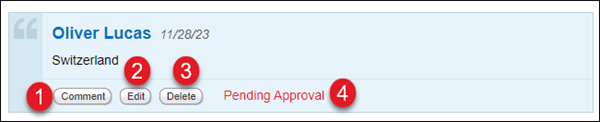
1. Click the Comment button to add a connecting comment to the posted response.
2. Click the Edit button to edit the submitted comment.
3. Click the Delete button to remove the comment from the discussion.
4. You may see Pending Approval on your post until your teacher has approved it.
Respond Directly to a Student or Teacher Comment
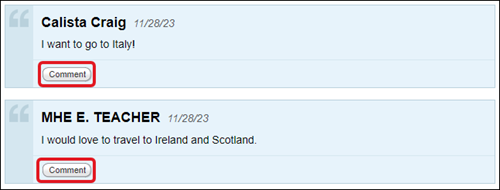
To respond directly to a comment added by another student or your teacher, click the Comment button on the post you want to respond to.