Move Students to a Sub-Class in Classic ALEKS View
Move students to another ALEKS class in classic view while preserving progress and reporting.
- Customer Support
- PreK-12
- Classroom Teacher
- Elementary School
- Middle School
- High School
- Direct Login & Auto-Rostering
- Direct Login & Manual-Rostering
- SSO & Auto-Rostering
- SSO & Manual-Rostering
- Supplemental
- Math
- ALEKS
- ALEKS Adventure
- Class Management
- Getting Started & Orientation
- Back-to-School Setup


Links mentioned in the video:
ALEKS Class Management Resources
Single Sign-On (SSO) and Auto-Rostering Teacher Resources
Create Classic ALEKS View Sub-Classes
Create a Sub-Class Using a Master Template in Classic ALEKS
This article walks through how to move students between sub-classes in ALEKS. Student data will follow the student to their new sub-class if they are assigned the same type of material in both classes. If they are assigned to a different course within the same product family, they will not need to repeat the Initial Knowledge Check. See the ALEKS - K-12 Course Product Families article for a list of ALEKS course product families.
For auto-rostering districts, teachers can only move students between the primary class and its sub-classes. It is not possible for teachers to move students between primary classes. If a student is placed in the wrong primary class and needs to be moved to the correct primary class, teachers should contact their district IT or Curriculum Administrator.
For manual rostering districts, refer to the ALEKS Class Management Resources document for the steps on how to move students between Primary classes.
Note: When moving students between primary classes, the same data transfer behavior will apply as when moving students to sub-classes. This means that if the primary classes are using compatible course products, student data will also follow them to the new primary class.
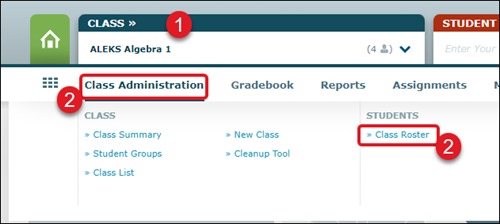
1. Select the Primary class from the Class drop-down at the top.
2. Hover over Class Administration and select Class Roster from under Students in the menu.
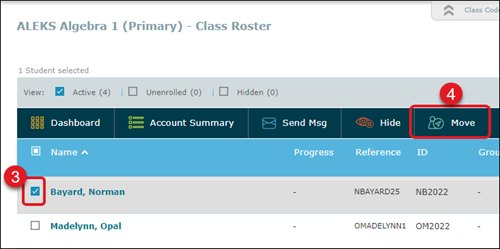
3. Check the box next to the student you want to move to a sub-class.
4. Select Move and then select the class the student should be enrolled in.
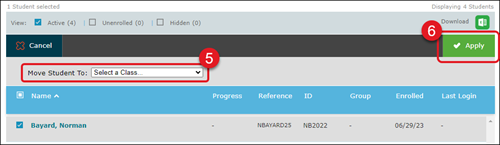
5. Select the class you want to move the student to from the Move Student To drop-down.
6. Click the Apply button.
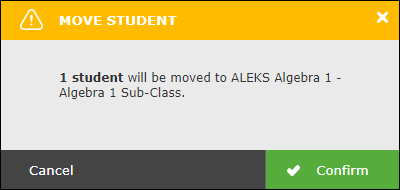
7. On the Move Student pop-up, click Confirm.