Ask an ALEKS Implementation Manager: Susan Piroth on Manually Adjusting Student Scores
Find out how you can manually adjust points for individual questions or adjust an entire assignment grade in ALEKS.
- Higher Education
- Article
- Blog
- ALEKS

How can I manually adjust or edit a student's score in ALEKS?
Hi, Susan Piroth here! I’m the Implementation Manager for the West and South Florida region, and I’m happy to answer your question.
You might want to give students bonus points, remove a late penalty, or update a score based on work completed outside of the ALEKS platform. All of these tasks can be accomplished by manually adjusting a student's score.
Adjusting Points for Individual Questions
Your first option is to adjust points for individual questions within a non-adaptive assignment. To begin, click on the student’s assignment grade in the ALEKS gradebook.
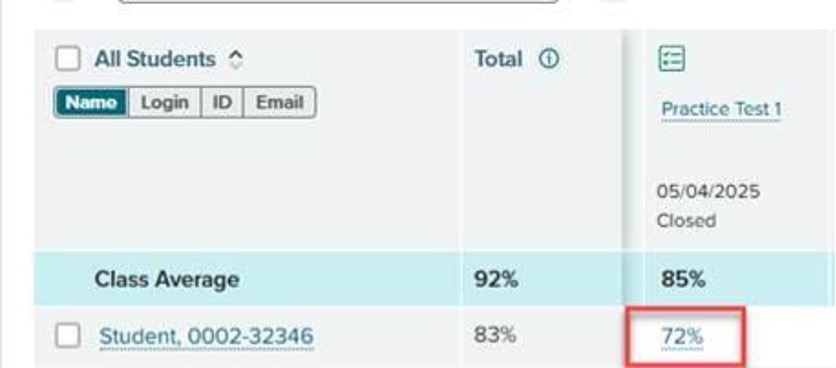
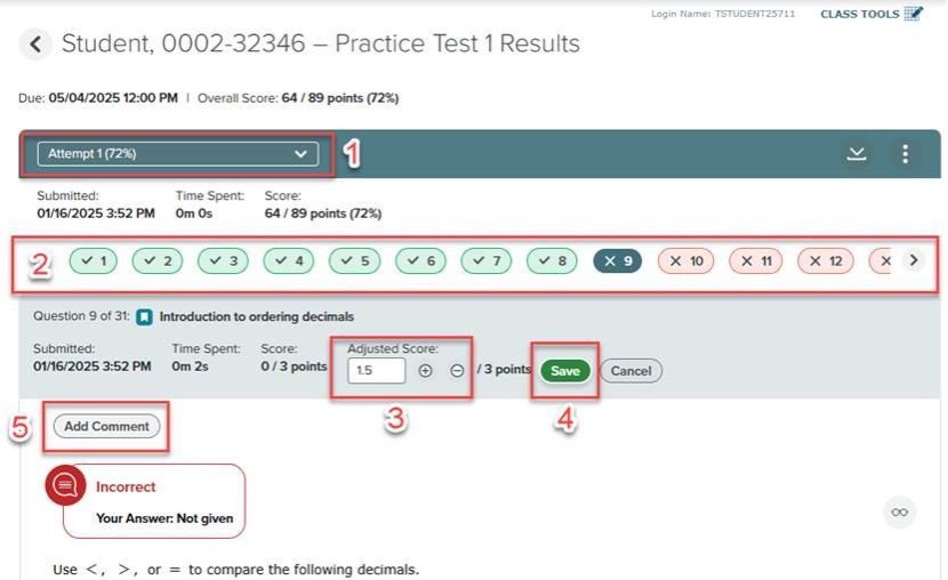
On the next screen:
- Ensure you are viewing the correct attempt if the assignment allows for multiple attempts.
- Navigate to the question that needs adjusting. A green oval indicates the student was awarded full credit during automatic grading, red indicates no credit, and yellow indicates partial credit.
- Type a new score in the adjusted score textbox or use the +/- buttons to modify the score. You can assign partial credit or award points higher than the question's value.
- Click Save to factor the adjusted question score into the overall assessment score.
- (Optional) Leave a comment for the student explaining the change.
If additional questions in the same assignment need adjustments, you can begin again at step 2.
Adjusting an Entire Assignment Grade
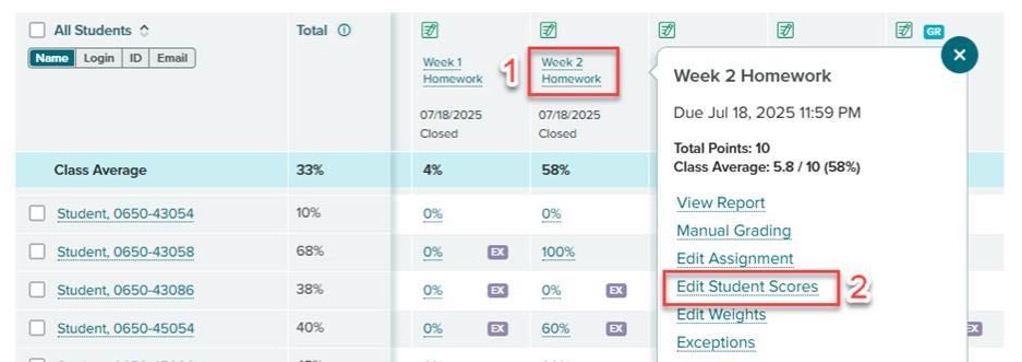
Your other option is to adjust the grade for an entire assignment. To do this:
- Locate the column in the ALEKS gradebook corresponding to the assignment grade that needs adjustment.
- Click on the assignment title.
- Click on the Edit Student Scores link.
- Enter the adjusted scores in the textboxes provided for each student. You can update the score for a single student or multiple students on this page.
- Click Save.
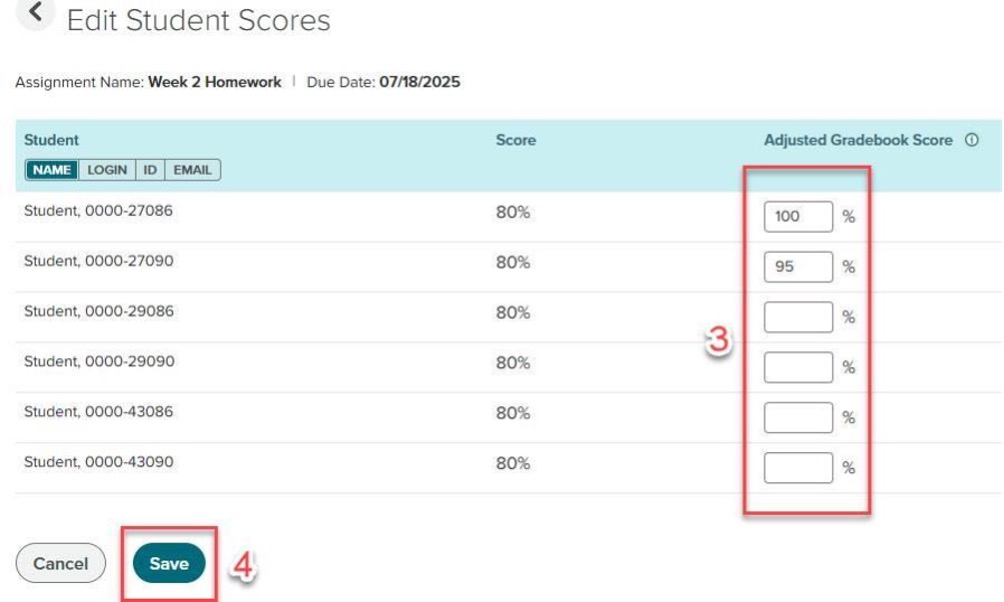
When you return to the class gradebook, the updated assignment scores will be visible.