wonders
maravillas
student
school-parent
Personas
Personas/School Parent
Context
Context/Curriculum Type
Context/Curriculum Type/Core
Context/Integration Type
Context/Integration Type/Direct Login & Manual-Rostering
Business Unit
Business Unit/PreK-12
Context/Education Level
Context/Education Level/Elementary School
Context/Education Level/Elementary School/Kindergarten
Context/Education Level/Elementary School/3rd Grade
Context/Education Level/Elementary School/5th Grade
Context/Subject
Context/Subject/Literacy
Context/Education Level/Elementary School/4th Grade
Personas/School Student
Context/Education Level/Middle School
Context/Education Level/Middle School/6th Grade
Context/Integration Type/Direct Login & Auto-Rostering
Context/Integration Type/SSO & Auto-Rostering
Programs & Solutions
Programs & Solutions/Wonders
Programs & Solutions/Wonders/Wonders 2014
Support Topics
Support Topics/Classroom & Course Management
Support Topics/Classroom & Course Management/Student Resources
Context/Education Level/Elementary School/2nd Grade
Programs & Solutions/Wonders/Wonders Balanced Literacy 2016
Context/Education Level/Elementary School/1st Grade
Asset Format Type
Asset Format Type/Customer Support
Programs & Solutions/Wonders/Wonders 2023 2020 2017
Programs & Solutions/Maravillas
Programs & Solutions/Maravillas/Maravillas 2020 & 2017
Context/Integration Type/SSO & Manual-Rostering
prek-12
2026-03-24T18:25:53.550-03:00
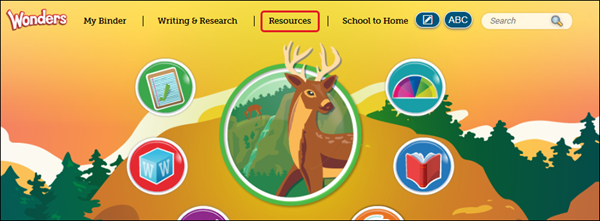
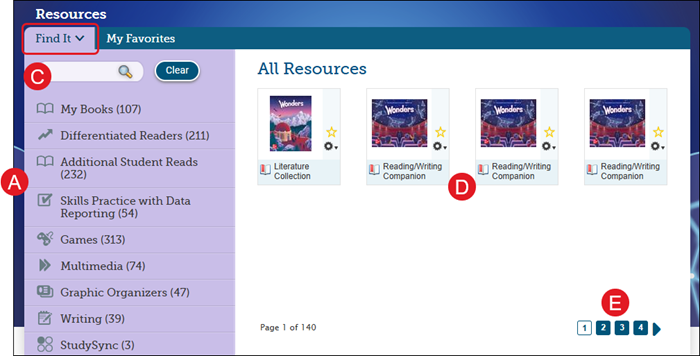
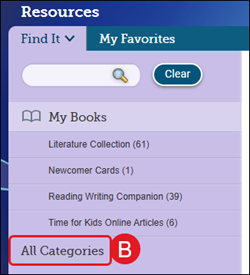
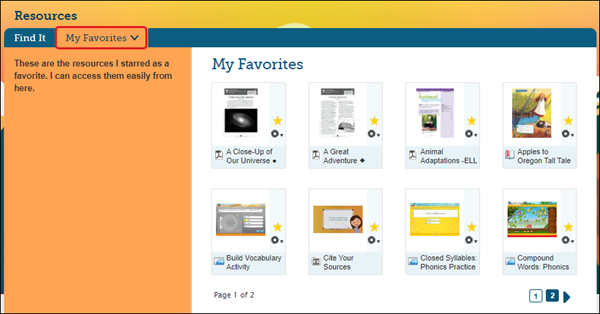
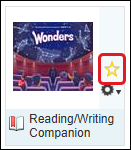
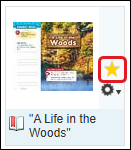
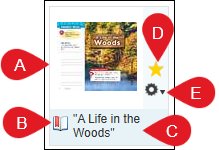
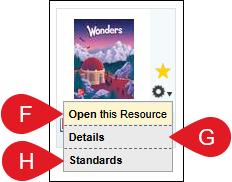
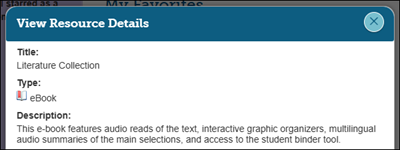
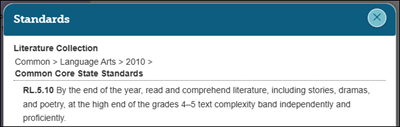
<p>To access your program resources, click <strong>Resources</strong> at the top of the page.</p> <p><img src="/content/dam/mhe/support/support-images/migrated/rtaImage--564842020.jpeg" data-assetref="rtaImage--564842020-1778697578961"></p> <h3>Use Search Tabs</h3> <p>The tabs on the <strong>Resources</strong> page contain a number of ways to access program resources:</p> <h3>Find It</h3> <p>This tab shows all the <em>Wonders</em> resources by default that are available for students.</p> <p>A. Filter the resources by clicking a category on the left.</p> <p><img src="/content/dam/mhe/support/support-images/migrated/rtaImage--564700265.jpeg" data-assetref="rtaImage--564700265-1778697578962"></p> <p>B. Click <strong>All Categories</strong> to the filters back to the default list.</p> <p><img src="/content/dam/mhe/support/support-images/migrated/rtaImage--564701030.jpeg" width="214" height="235" data-assetref="rtaImage--564701030-1778697578962"> </p> <p>C. Search by keyword by entering the term in the <strong>Search</strong> field and click the Search icon.</p> <p>D. Click a resource to open it.</p> <p>E. Use the page numbers/arrow to navigate through the available resource pages.</p> <h3>My Favorites</h3> <p>This tab contains all program resources you have marked as favorites.</p> <p><img src="/content/dam/mhe/support/support-images/migrated/rtaImage--564820444.jpeg" data-assetref="rtaImage--564820444-1778697578962"></p> <p>To add a resource to your My Favorites page, click the <strong>star icon</strong> on the resource tile. </p> <p><img src="/content/dam/mhe/support/support-images/migrated/rtaImage--564700039.jpeg" data-assetref="rtaImage--564700039-1778697578962"></p> <p>To remove a resource from your My Favorites, click the star icon again so it is no longer filled in.</p> <p><img src="/content/dam/mhe/support/support-images/migrated/rtaImage--564699976.jpeg" data-assetref="rtaImage--564699976-1778697578962"></p> <h3>Resource Icons</h3> <p><img src="/content/dam/mhe/support/support-images/migrated/rtaImage--564708697.jpeg" data-assetref="rtaImage--564708697-1778697578962"></p> <p>A. Resource Thumbnail (image)</p> <p>B. File Format Icon (interactive, game, PDF, eBook, etc.)</p> <p>C. Resource Title</p> <p>D. Add/Remove Favorite</p> <p>E. Tools</p> <p><img src="/content/dam/mhe/support/support-images/migrated/rtaImage--564699204.jpeg" data-assetref="rtaImage--564699204-1778697578962"></p> <p>F. <strong>Open this Resource</strong> - Launches the resource.</p> <p>G. <strong>Details </strong>- Provides information on the resource title, type, and provides a description.</p> <p><img src="/content/dam/mhe/support/support-images/migrated/rtaImage--564698889.jpeg" data-assetref="rtaImage--564698889-1778697578963"></p> <p>H. <strong>Standards </strong>- Provides the list of state specific or Common Core State Standards that are associated with the resource.</p> <p><img src="/content/dam/mhe/support/support-images/migrated/rtaImage--564705599.jpeg" data-assetref="rtaImage--564705599-1778697578963"></p> dts Wonders Student Resources: step-by-step guidance, requirements, and tips to help you complete this task successfully. 2025-11-19 Wonders/Maravillas Student Resources Wonders Student Resources: step-by-step guidance, requirements, and tips to help you complete this task successfully. Learn how students access and use Wonders resources, including lessons, activities, favorites, and standards‑aligned materials.
Learn how students access and use Wonders resources, including lessons, activities, favorites, and standards‑aligned materials.
To access your program resources, click Resources at the top of the page. Use Search Tabs The tabs on the Resources page contain a number of ways to access program resources: Find It This tab shows all the Wonders resources by default that are available for students. A. Filter the resources by clicking a category on the left. B. Click All Categories to the filters back to the default list. C. Search by keyword by entering the term in the Search field and click the Search icon. D. Click a resource to open it. E. Use the page numbers/arrow to navigate through the available resource pages. My Favorites This tab contains all program resources you have marked as favorites. To add a resource to your My Favorites page, click the star icon on the resource tile. To remove a resource from your My Favorites, click the star icon again so it is no longer filled in. Resource Icons A. Resource Thumbnail (image) B. File Format Icon (interactive, game, PDF, eBook, etc.) C. Resource Title D. Add/Remove Favorite E. Tools F. Open this Resource - Launches the resource. G. Details - Provides information on the resource title, type, and provides a description. H. Standards - Provides the list of state specific or Common Core State Standards that are associated with the resource.
dts
Literacy, SSO & Manual-Rostering, Customer Support, Direct Login & Auto-Rostering, Wonders 2014, Maravillas 2020 & 2017, School Student, Core, Direct Login & Manual-Rostering, Wonders Balanced Literacy 2016, Wonders 2023 2020 2017, School Parent, SSO & Auto-Rostering, PreK-12, Elementary School, Student Resources, Kindergarten, 1st Grade, 2nd Grade, 3rd Grade, 4th Grade, 5th Grade, 6th Grade, Middle School