
Teacher ConnectED Dashboard Navigation Overview
Explore the teacher dashboard to access classes, reports, and instructional tools.
Tags
- Customer Support
- PreK-12
- Classroom Teacher
- Elementary School
- Middle School
- High School
- Direct Login & Auto-Rostering
- Direct Login & Manual-Rostering
- SSO & Auto-Rostering
- SSO & Manual-Rostering
- Core
- Literacy
- Math
- Science
- Social Studies
- Health
- Visual & Performing Arts
- World Languages
- Glencoe Health 2014
- McGraw Hill Health 2014
- Glencoe Algebra 1 2014
- Glencoe Algebra 1 2018
- Glencoe Algebra 2 2014
- Glenoce Algebra 2 2018
- Glencoe Math
- Glencoe Geometry 2014
- Glencoe Geometry 2018
- Glencoe Math Course 1
- Glencoe Math Course 2
- Glencoe Math Course 3
- Glencoe Math Accelerated
- McGraw Hill My Math 2013 & 2016
- McGraw Hill My Math 2018
- McGraw Hill My Math
- Glencoe Science 2017
- Glencoe Science
- Inspire Science 2017
- iScience 2017
- Asi se Dice 2016
- Networks 2014 (K-5)
- Dashboard & Navigation Overview
- Getting Started & Orientation


Dashboard Home Page
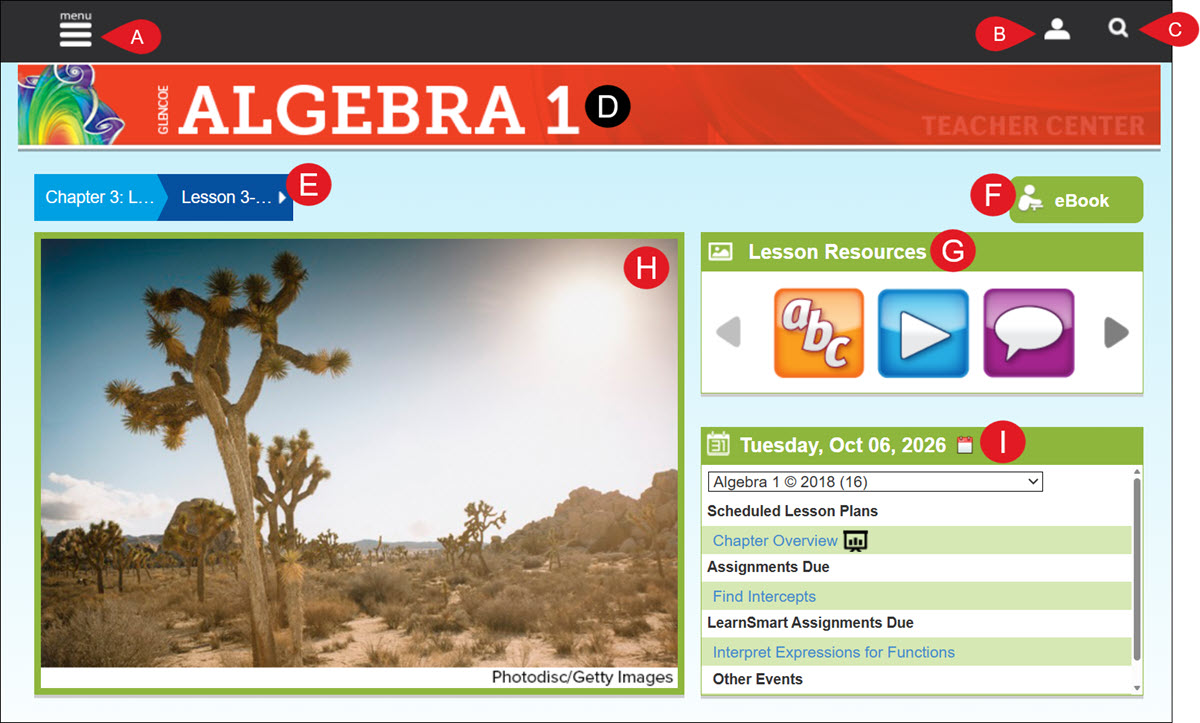
- Click Menu to open the navigation menu and access available instructional pages.
- The Profile icon provides access to additional Help resources on the Resources page and allows you to Logout of your teacher account.
- Click on the magnifying glass to access the Search field to locate a specific program resource.
- Clicking on the program title will take you back to the Home page.
- Select a Chapter and Lesson from the menu to view associated Lesson Resources.
- Click the eBook button to open the digital textbook. The textbook will load to the selected chapter and lesson.
- Lesson Resources vary based on the selected chapter and lesson. Selecting a resource tile opens the Resources page, where the corresponding resource type is automatically preselected based on the tile you chose.
- The Home page image changes based on the selected chapter and lesson. This is not a clickable image.
- The class Calendar adjusts day to day based on what has been assigned and added to the course calendar for the day. The calendar will show the current day's Scheduled Lesson Plans, Assignments Due, LearnSmart/SmartBook Assignments Due (this depends on the program being used), and Other Events. Click on the calendar icon to change the date to view. Click on a link to navigate to the scheduled lesson plan or assignment.
Navigation Menu
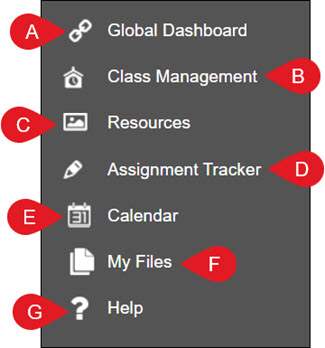
- Global Dashboard - Takes you back to your My Programs page.
- Class Management - Create additional classes and roster students to classes.
- Resources - Access to all digital and printable resources for the course.
- Assignment Tracker - Assign and monitor class assignments.
- Calendar - Add lesson plans and events to the class calendar for easy access and organization.
- My Files - Upload files to use for assignments and additional instructional resources.
- Help - Navigates to the Help Center tab of the Resources page.
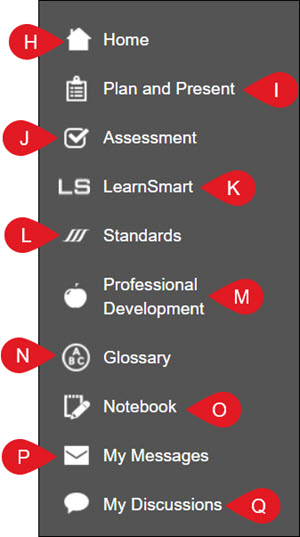
- Home - Returns to the dashboard.
- Plan and Present - View lesson plans, presentations, and corresponding resources.
- Assessment - Create, assign, and/or print assessments for student completion. The resource platform will vary based on the program being used and will show as eAssessment or McGraw Hill Assess.
- LearnSmart/SmartBook - This will vary between showing as LearnSmart and SmartBook. It is only available for select ConnectED programs.
- Standards - Search for various resources for a specific standard or set of standards.
- Professional Development - Access resources to help with teaching the course.
- Glossary - Find definitions of terms used throughout the program.
- Notebook - Create and view custom-created teacher notes for the course.
- My Messages - Send and receive class and student messages.
- My Discussions - Create and monitor class topic discussions.
