Access and Manage the ConnectED Calendar
Use the teacher calendar to manage class schedules, assignments, and instructional planning.
Tags
- Customer Support
- PreK-12
- Classroom Teacher
- Preschool
- Elementary School
- Middle School
- High School
- Direct Login & Auto-Rostering
- Direct Login & Manual-Rostering
- SSO & Auto-Rostering
- SSO & Manual-Rostering
- Core
- Intervention
- Supplemental
- AP, Honors & Electives
- Literacy
- Math
- Science
- Social Studies
- Health
- Visual & Performing Arts
- World Languages
- Glencoe Health 2014
- McGraw Hill Health 2014
- Glencoe Algebra 1 2014
- Glencoe Algebra 1 2018
- Glencoe Algebra 2 2014
- Glenoce Algebra 2 2018
- Glencoe Math
- Glencoe Geometry 2014
- Glencoe Geometry 2018
- Glencoe Math Course 1
- Glencoe Math Course 2
- Glencoe Math Course 3
- Glencoe Math Accelerated
- McGraw Hill My Math 2013 & 2016
- McGraw Hill My Math 2018
- McGraw Hill My Math
- Glencoe Science
- Glencoe Science 2017
- Inspire Science 2017
- iScience 2017
- Networks 2014 (K-5)
- Asi se Dice 2016
- Plan & Present
- Tools & Resources


Article Contents
Access and Navigate the Calendar
Lesson Plans
- Add a Lesson Plan
- View a Lesson Plan from the Calendar
- Reschedule a Lesson Plan
- Delete a Lesson Plan
Events
Access and Navigate the Calendar
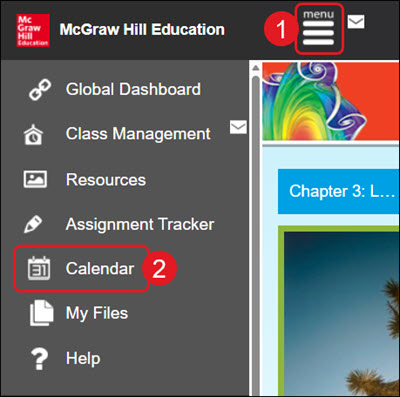
To access the course calendar, click Menu at the top left (1), and then click Calendar from the menu (2).
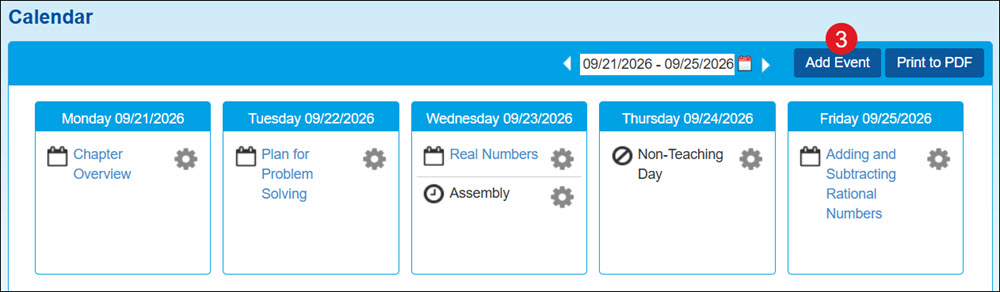
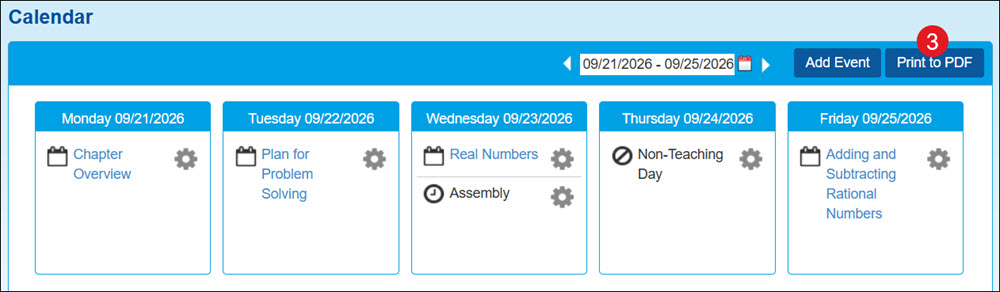
The Calendar defaults to the current week. The calendar will show blank unless lesson plans and events have been added by the teacher.
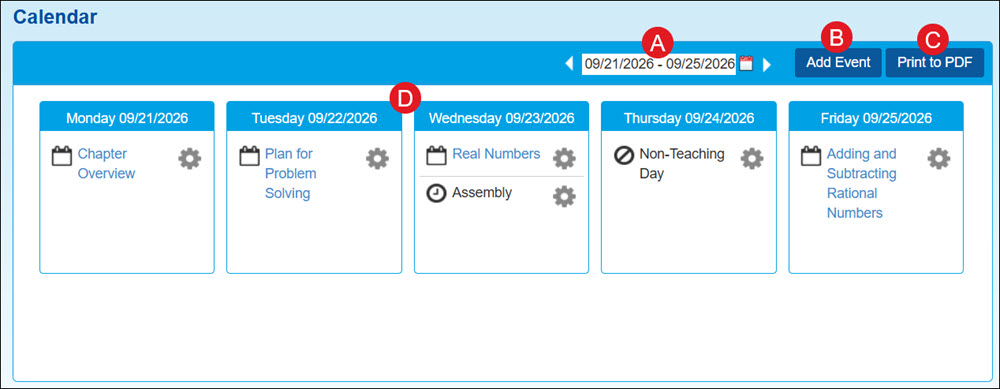
- Click the back-and-forth arrows or the calendar icon to view a specific week.
- Click Add Event to add a school or class event, or a non-teaching day.
- Click Print to PDF to print a specific day or the selected week of the calendar.
- Each day will show in its own tile and list any added lesson plans, events, and/or non-teaching days.
Add Lesson Plan
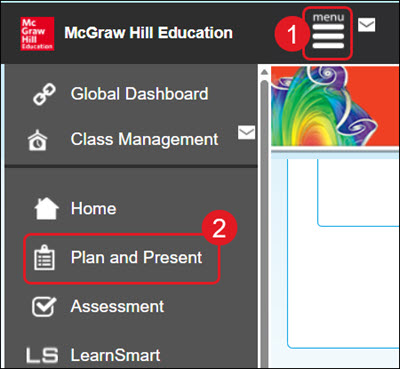
- Click the Menu button at the top left.
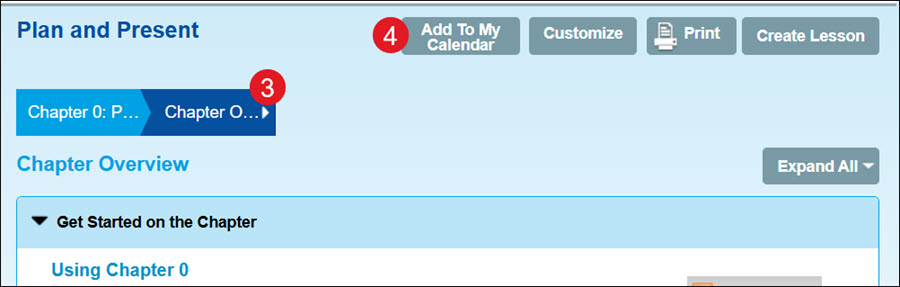
- Click Plan and Present from the menu.
- Click the Chapter/Lesson menu and select the lesson.
- Click the Add to My Calendar button.
- If you have multiple classes, Select a Class calendar you want to add the lesson to.
- Click the calendar icon to Select a Start Date for the lesson.
- Click the OK button.
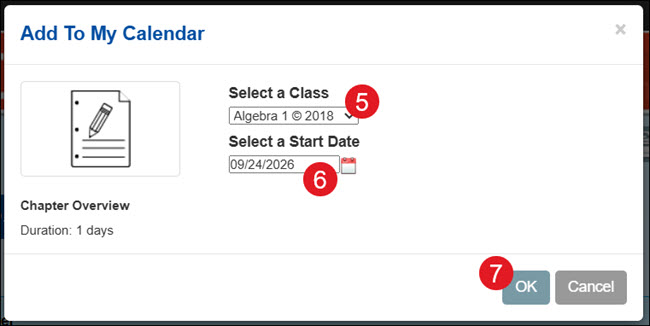
Note: If you want to add the lesson to multiple days within the calendar, you will need to follow these steps for each day.
View a Lesson Plan from the Calendar
- Click on Menu at the top left.
- Click Calendar from the menu.
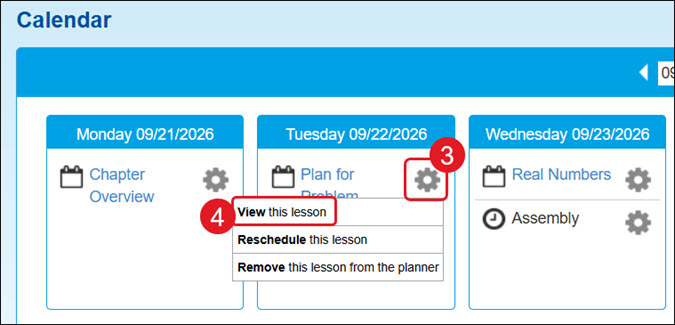
- Click the gear icon on the day tile.
- Click View this lesson from the menu.
You will automatically be taken to the Plan and Preset page for that lesson.
Reschedule a Lesson Plan
- Click on Menu at the top left.
- Click Calendar from the menu.
- Click the gear icon on the day tile.
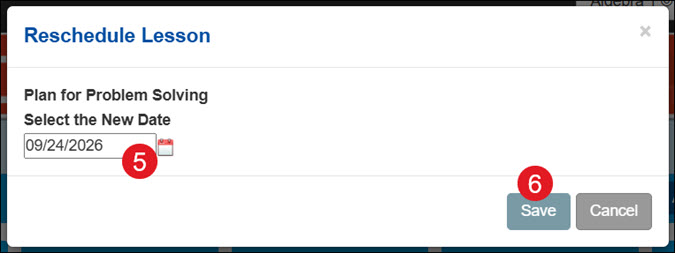
- Click Reschedule this lesson from the menu.
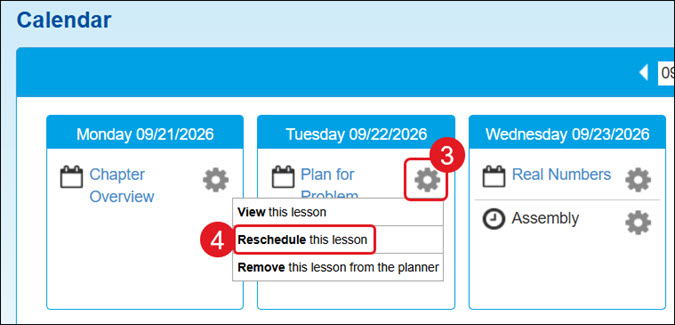
- On the pop-up, Select a New Date by clicking the calendar icon.
- Click the Save button.
Delete a Lesson Plan
- Click on Menu at the top left.
- Click Calendar from the menu.
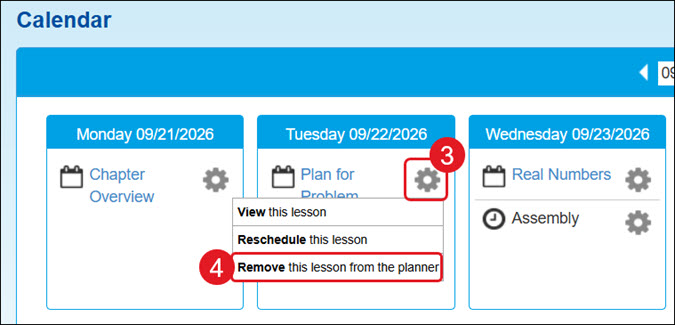
- Click the gear icon on the day tile.
- Click Remove this lesson from the planner on the menu.
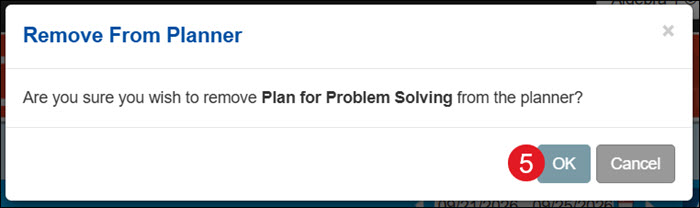
- On the Remove From Planner pop-up, click the OK button to confirm.
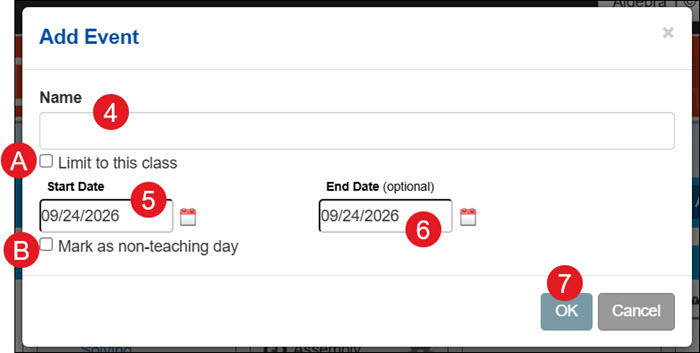
Add a New Event
- Click on Menu at the top left.
- Click Calendar from the menu.
- Click the Add Event button.
- On the Add Event pop-up, enter a Name for the event.
A. If you have multiple classes and only want the event for the selected class, check the Limit to this class box.
- Select the Start Date.
- Select the End Date. This is optional.
B. Check the Mark as non-teaching day box if there should be no lessons scheduled for that day.
- Click the OK button.
Edit an Event
- Click on Menu at the top left.
- Click Calendar from the menu.
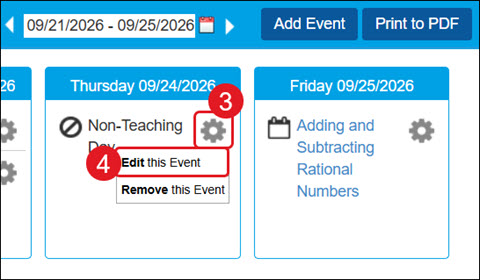
- Click the gear icon on the day tile.
- Click Edit this Event on the menu.
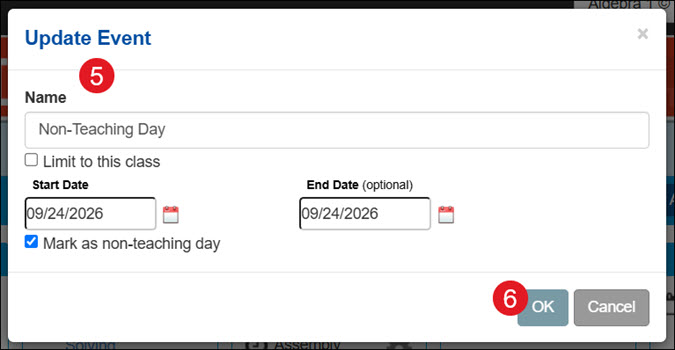
- On the pop-up, make your preferred changes.
- Click the OK button.
Delete an Event
- Click on Menu at the top left.
- Click Calendar from the menu.
- Click the gear icon on the day tile.
- Click Remove this Event on the menu.
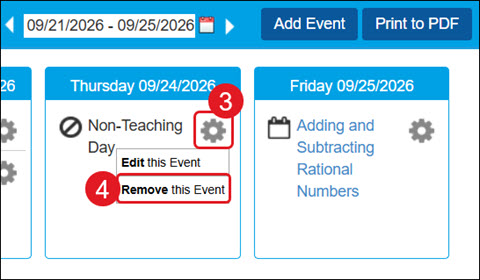
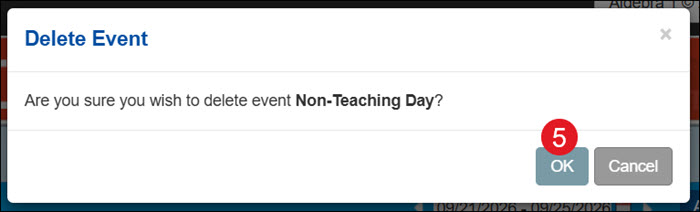
- On the Delete Event pop-up, click OK to confirm.
Print the Calendar
- Click on Menu at the top left.
- Click Calendar from the menu.
- Click the Print to PDF button.
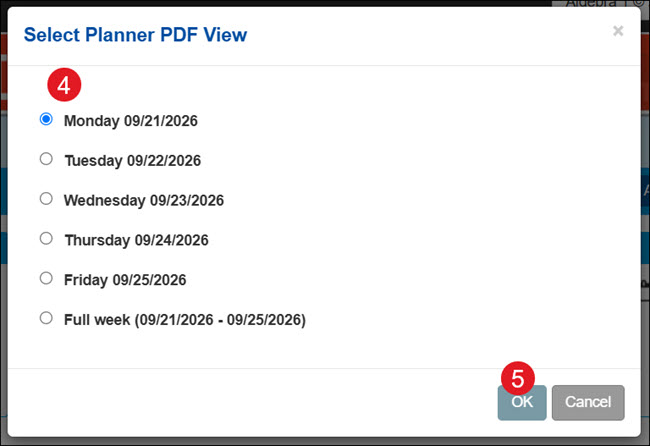
- On the pop-up, select the radio button for a specific day or the full week.
- Click the OK button.