View and Manage ConnectED Class Discussions
Create and moderate discussion boards to facilitate student collaboration and classroom dialogue.
Tags
- Customer Support
- PreK-12
- Classroom Teacher
- Elementary School
- Middle School
- High School
- Direct Login & Auto-Rostering
- Direct Login & Manual-Rostering
- SSO & Auto-Rostering
- SSO & Manual-Rostering
- Core
- Literacy
- Math
- Science
- Social Studies
- Health
- Visual & Performing Arts
- World Languages
- Glencoe Health 2014
- McGraw Hill Health 2014
- Glencoe Algebra 1 2014
- Glencoe Algebra 1 2018
- Glencoe Algebra 2 2014
- Glenoce Algebra 2 2018
- Glencoe Math
- Glencoe Math Course 1
- Glencoe Math Course 2
- Glencoe Math Course 3
- Glencoe Math Accelerated
- Glencoe Geometry 2014
- Glencoe Geometry 2018
- McGraw Hill My Math
- McGraw Hill My Math 2018
- McGraw Hill My Math 2013 & 2016
- Glencoe Science 2017
- Glencoe Science
- Inspire Science 2017
- iScience 2017
- Asi se Dice 2016
- Tools & Resources
- Plan & Present
- Dashboard & Navigation Overview


Article Contents
Access and Activate Class Discussions
Access and Activate Class Discussions
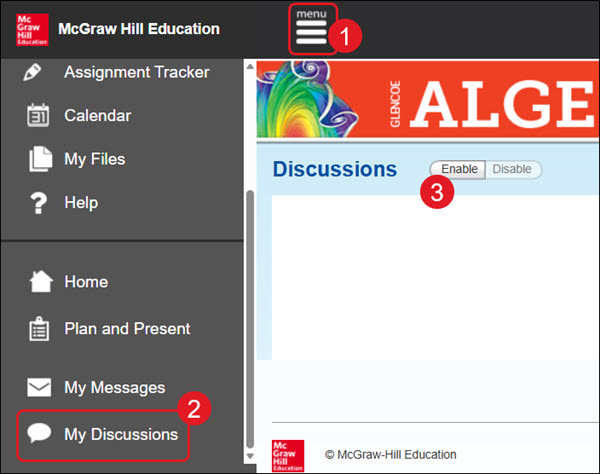
- Click Menu at the top-left.
- Click My Discussions on the menu.
- Click to Enable discussions for the program.
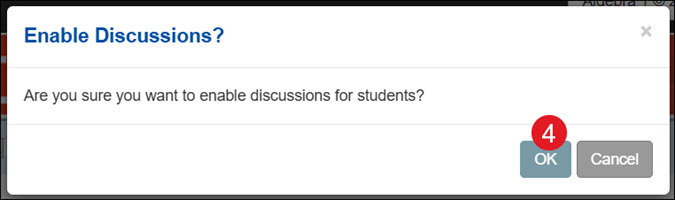
- On the pop-up, click the OK button to confirm.
Create a New Discussion Topic
- Click Menu at the top-left.
- Click My Discussions on the menu.
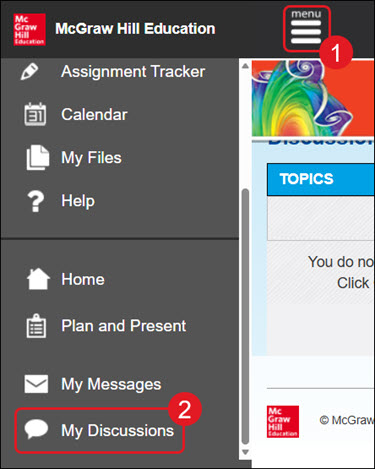
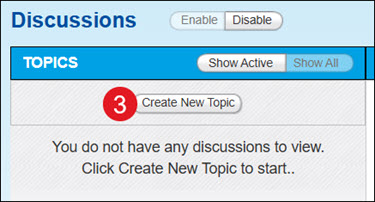
- Click the Create New Topic button.
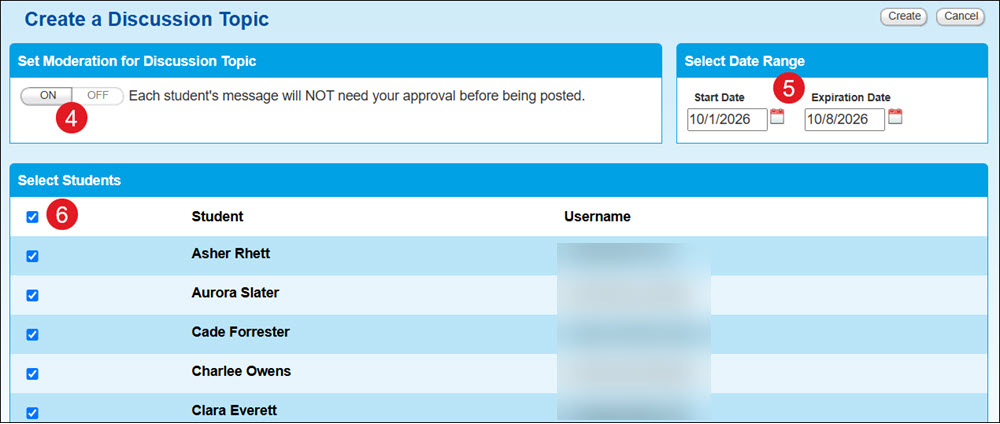
- Click On or Off depending on whether you want to moderate each student's message before it's posted for everyone to see. If this is turned off, student comments are automatically approved to be accessible by everyone for the topic.
- Select Date Range by clicking on the calendar icons. Once the Expiration Date has passed, students will no longer be able to see the discussion.
- Select Students you want to have access to the discussion.
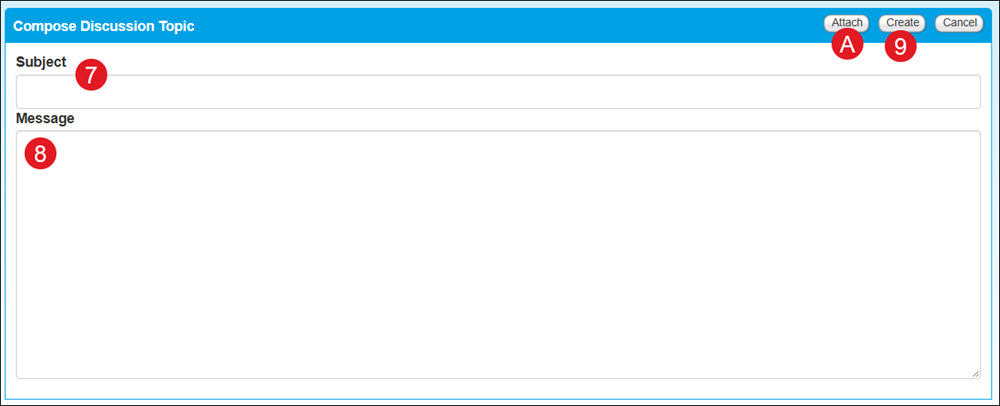
- Beneath the list of students, enter a Subject.
- Enter a Message for the students.
A. Click the Attach button to add resources for the students to access.
- Click the Create button.
Edit a Discussion Topic
- Click Menu at the top-left.
- Click My Discussions on the menu.
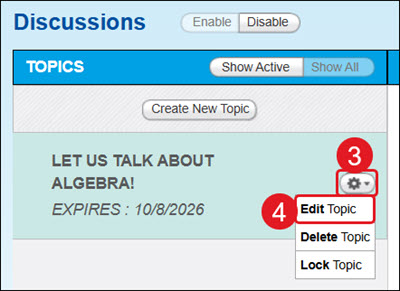
- Click the Tools menu (gear icon) for the topic.
- Click Edit Topic from the menu.
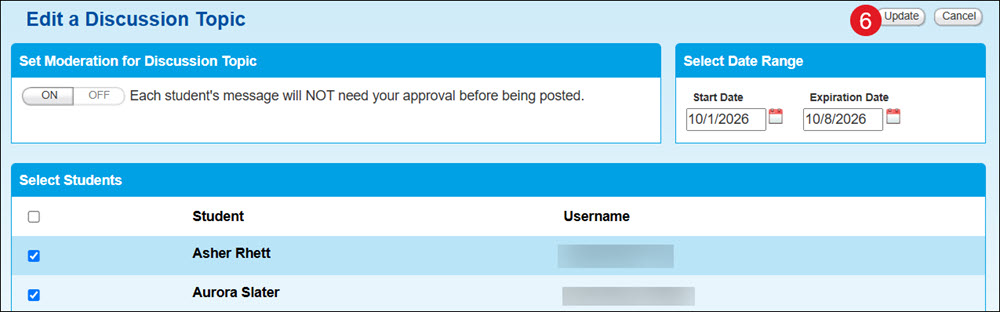
- Make any necessary changes to the moderation, date range, students, subject, and/or message.
- Click the Update button.
Delete a Discussion Topic
- Click Menu at the top-left.
- Click My Discussions on the menu.
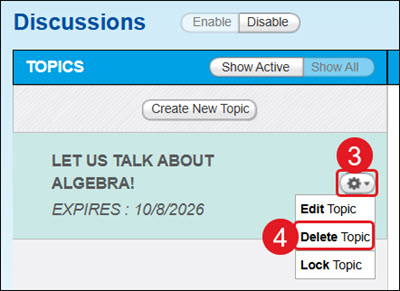
- Click the Tools menu (gear icon) for the topic.
- Click Delete Topic from the menu.
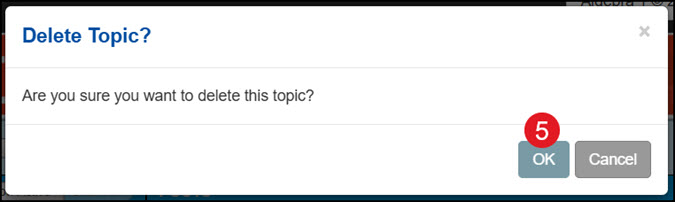
- On the pop-up, click OK to confirm.
Lock a Discussion Topic
- Click Menu at the top-left.
- Click My Discussions on the menu.
- Click the Tools menu (gear icon) for the topic.
- Click Lock Topic from the menu.
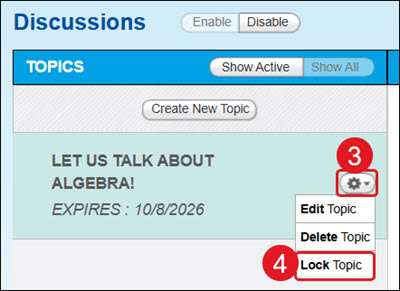
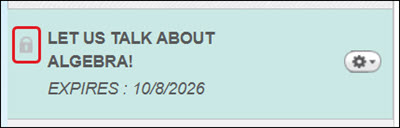
If a discussion is locked, a lock icon will appear on the discussion tile. This means no further comments can be added to the discussion.
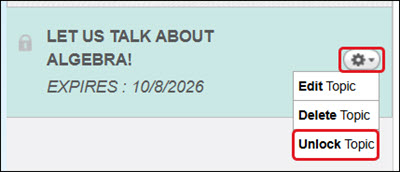
To unlock a topic, click the Tools menu (gear icon) for the discussion and select Unlock from the menu.
Create a New Comment
- Click Menu at the top-left.
- Click My Discussions on the menu.
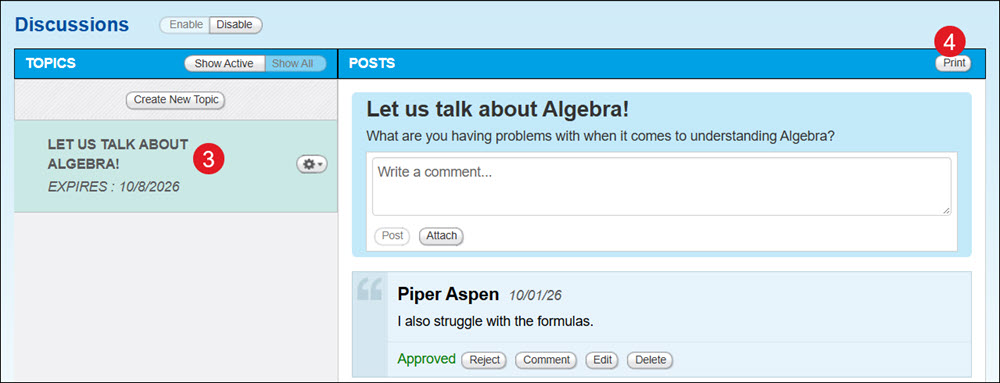
- Click on the Topic.
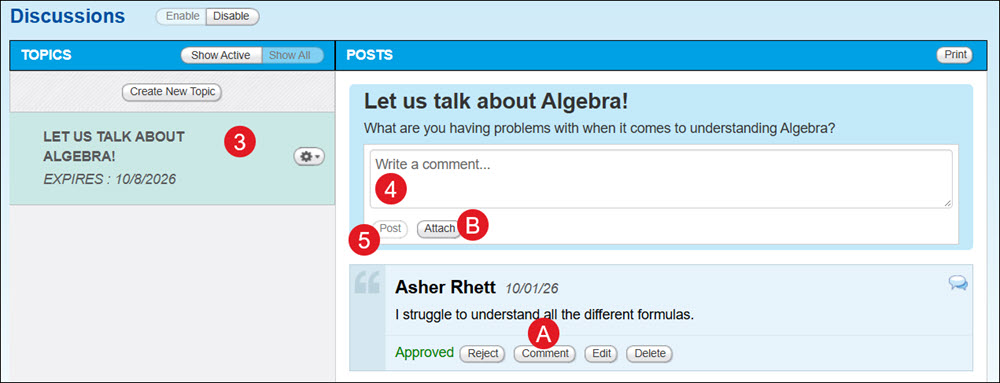
- To add a comment for all those attached to the discussion to see, enter a comment in the main topic section.
A. To add a comment for an individual student who responded to the topic, click the Comment button on their response.
B. Click the Attach button to add a resource for the student(s) to access. This can be added for the main discussion or for an individual student comment.
- Click the Post button.
Manage Topic Comments
- Click Menu at the top-left.
- Click My Discussions on the menu.
A. Click the Comment button on any teacher or student message to reply to that specific comment.
B. Click the Edit button on any teacher or student message to make changes to the comment.
C. Click the Delete button on any teacher or student message to remove it permanently from the discussion.
D. Click the Reject button on a student message to remove the comment from the discussion. This option allows you and the student to see the comment in the discussion, but other students are unable to see it.
When creating the topic, if you selected to moderate student comments, you will get a pending approval message at the top of the Discussions page.
E. Click Show Posts to drop down the list of comments that need to be approved.F. Click Approve or Reject for each comment.
F. You can also click Approve All or Reject All to manage all student comments at once.

Print Discussion Thread
- Click Menu at the top-left.
- Click My Discussions on the menu.
- Select the Topic.
- Click the Print button. This will download a PDF copy of the selected thread.