Access, Navigate, and Customize ConnectED Presentations
A guide on how to access, navigate, and customize presentations within select ConnectED programs.
Tags
- Customer Support
- PreK-12
- Classroom Teacher
- Elementary School
- Middle School
- High School
- Direct Login & Auto-Rostering
- Direct Login & Manual-Rostering
- SSO & Auto-Rostering
- SSO & Manual-Rostering
- Core
- Literacy
- Math
- Science
- Social Studies
- Networks 2014 (K-5)
- Inspire Science 2017
- McGraw Hill My Math 2013 & 2016
- McGraw Hill My Math 2018
- Plan & Present
- Tools & Resources


Article Contents
Access the Presentation
- Click Menu at the top left.
- Click Plan and Present or Lesson Plan from the menu, depending on the program being used.
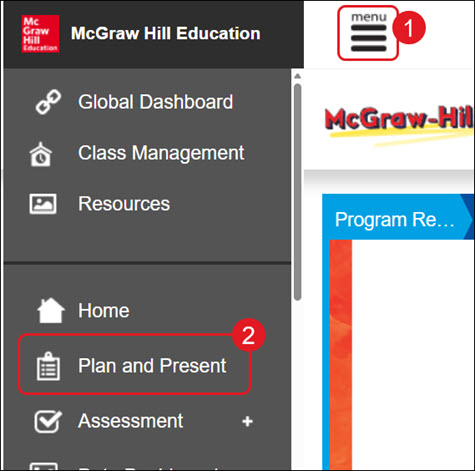
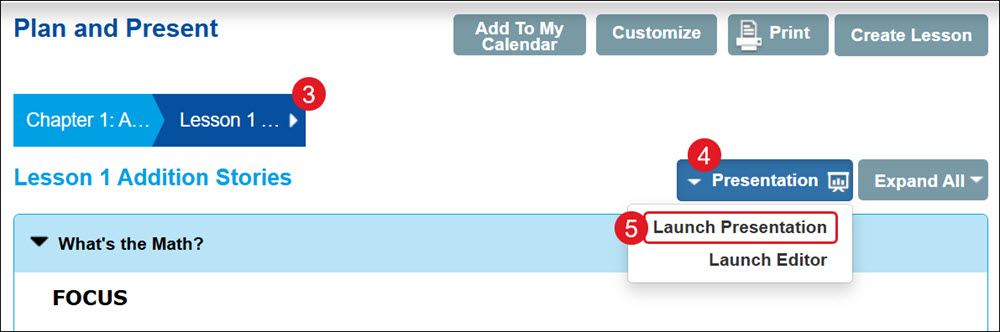
- Select the Chapter/Lesson from the drop-down.
- Click the Presentation button.
- Click Launch Presentation from the menu.
The presentation will open in a new browser tab.
Presentation Tools

- Click the back-and-forth arrows to navigate between the presentation slides.
- Click the Jump to Slide button to quickly navigate to a different slide within the presentation.
- Use the Writing Tools to draw, type, or add lines to the presentation slide.
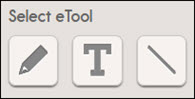
Once an eTool is selected, additional options such as Size, Transparency, and Color can then be selected.

- Click the Refresh button to clear the presentation of any drawing or text that was added.
- The Fit to Screen button allows you to toggle between full screen and regular screen size.
- Click the plus or minus buttons to zoom in and out of the presentation slide.
- The eToolkit button opens the additional resource in another browser tab. This resource is not available for all programs.
Customize the Presentation
- Click Menu at the top left.
- Click Plan and Present or Lesson Plan from the menu, depending on the program being used.
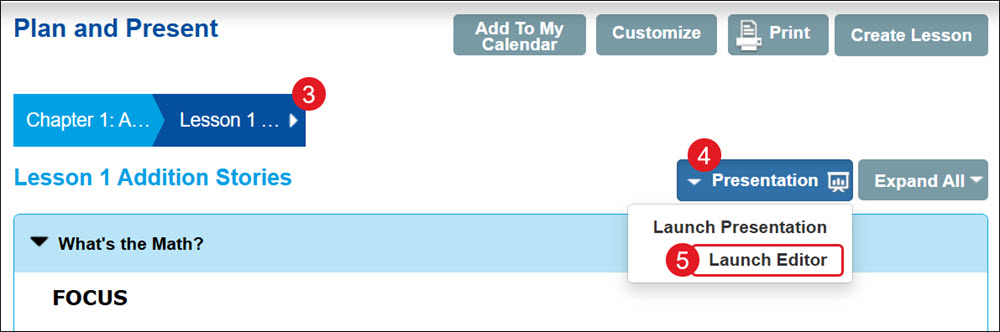
- Select the Chapter/Lesson from the drop-down.
- Click the Presentation button.
- Click Launch Editor from the menu.
The presentation will open in a new browser tab.
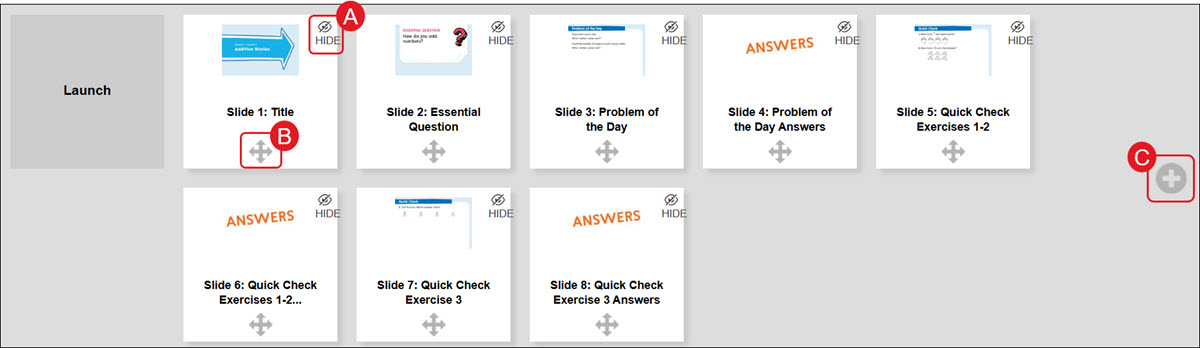
A. Click the Show/Hide button on an individual slide to add or remove it from view when viewing the presentation.
B. Click the Move Slide (arrows) to move the slide to another location within the presentation.
C. Click the Add Resource (plus icon) to add additional resource slides to the presentation.
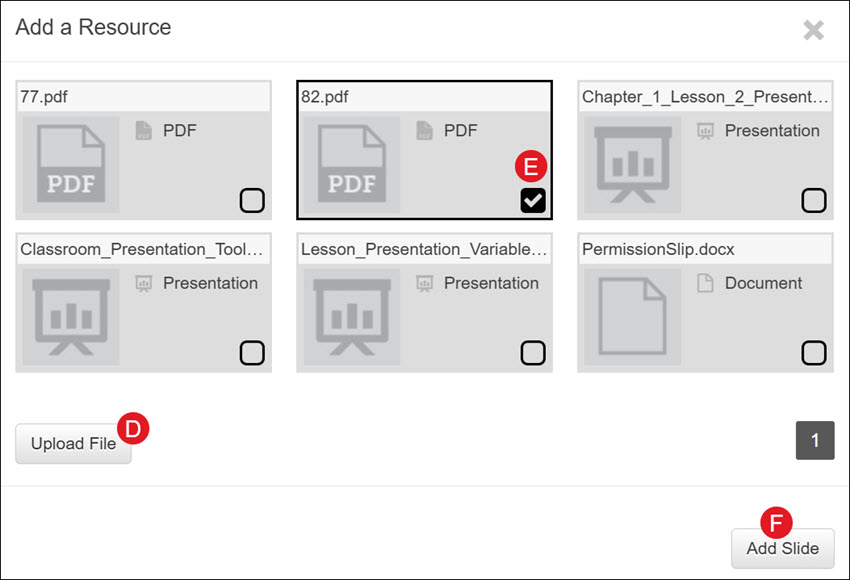
Click the Upload File button (D) to add files to the program/presentation.
On the Add a Resource pop-up, checkmark the resource you want to add (E) and click the Add Slide button (F).
Changes made to the presentation will automatically save.
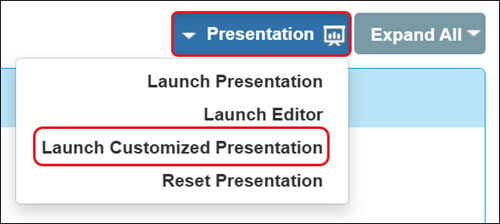
The customized presentation can be accessed by clicking the Presentation button and then clicking Launch Customized Presentation from the menu.
Reset the Presentation
Resetting the presentation will remove any customizations that were made. Keep in mind, once a customized presentation has been deleted, there is not a way to get it back.
- Click Menu at the top left.
- Click Plan and Present or Lesson Plan from the menu, depending on the program being used.
- Select the Chapter/Lesson from the drop-down.
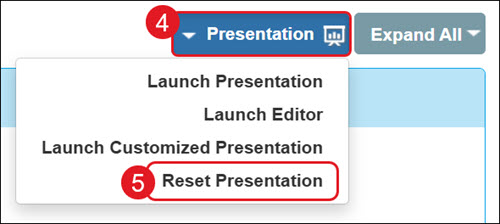
- Click the Presentation button.
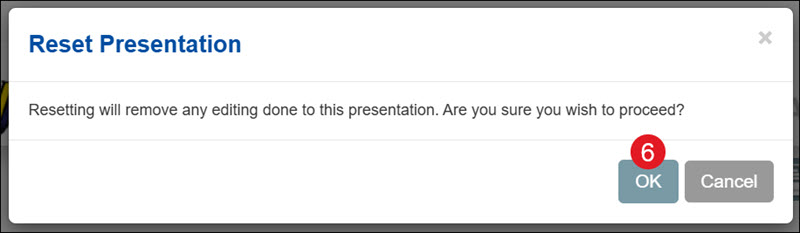
- Click Reset Presentation from the menu.
- On the Reset Presentation pop-up, click the OK button to confirm.