
Implementing the Data Integration with NWEA® Map® Growth™ with McGraw Hill Personalized Learning
Set up and manage NWEA MAP Growth data integration within the McGraw Hill Personalized Learning reports.
- Customer Support
- PreK-12
- School Administrator
- Preschool
- Elementary School
- Middle School
- High School
- Direct Login & Auto-Rostering
- Direct Login & Manual-Rostering
- SSO & Auto-Rostering
- SSO & Manual-Rostering
- Core
- Intervention
- Literacy
- Math
- Reveal Math (K-12)
- CA Reveal Math (K-12)
- McGraw Hill Literacy Emerge!
- McGraw Hill Literacy Summit!
- McGraw Hill Literacy Soar!
- Number Worlds 2024
- NWEA
- Reports & Analytics


View a PDF copy of the article.
NWEA MAP Growth and Personalized Learning Implementation Process
- Integrating NWEA MAP Growth data allows districts to view Grade Level and Domain-Level performance in the Personalized Learning Standards and Skills graph. Additionally, this data powers pre- and post-requisite instructional recommendations for students based on their MAP Growth performance.
- This process applies to districts using the following Reveal Math Editions:
- National
- California
- Florida
- Georgia
- Virginia (Algebra 1, 2, & Geometry)
- W. Virginia
- Tennessee
- Oklahoma
- Additional supported products:
- Emerge!
- Summit!
- Soar!
- Texas Math
- This process applies to districts using the following MAP Growth math assessment versions:
AERO |
Georgia |
Michigan |
Oklahoma |
S. Dakota |
Arkansas |
Idaho |
Minnesota |
Oregon |
Tennessee |
CCSS |
Iowa |
Missouri |
Pennsylvania |
Utah |
Colorado |
Maine |
Nebraska |
Rhode Island |
Virginia |
Florida |
Massachusetts |
Ohio |
S. Carolina |
W. Virginia |
- MAP Growth data can be shared using all Access Service types.
- Districts must have both digital Reveal Math Teacher and Student Editions assigned.
- Both NWEA and McGraw Hill Student IDs must match. This is how the data is pulled and associated from one platform to the other and associated with specific students.
- Once the product integration is set up between McGraw Hill and NWEA, McGraw Hill will sync the MAP Growth data daily at 9 am PST.
- At this time, McGraw Hill Personalized Learning does not support Spanish assessments.
Sharing NWEA Data with McGraw Hill
Enabling the automatic data share feature requires a District Assessment Coordinator to "Accept Consent" in the Manage Data Partners Dashboard.
By accepting consent, the District Assessment Coordinator, on behalf of the district, is agreeing to allow NWEA to share data with McGraw Hill.
For more information and instructions on how to manage data sharing consent, visit the NWEA Connection: Manage Data Partners Dashboard site.
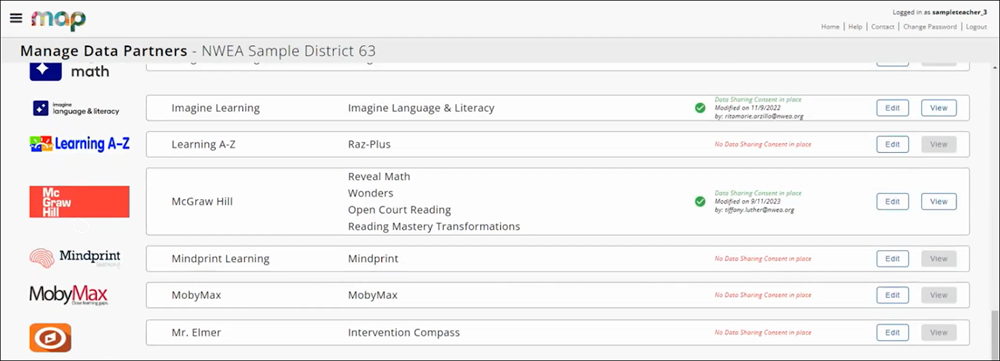
Within 1-3 business days after submitting data sharing consent, the District Assessment Coordinator will receive a registration confirmation email from mheclientservices@mheducation.com. The email will confirm that the pairing of NWEA with McGraw Hill has been completed and includes any additional necessary actions.
It is strongly preferred that the District Assessment Coordinator initiating the data share with McGraw Hill has a McGraw Hill account and is affiliated with the district requested. If these conditions are not met, this can result in a delay in pairing.
If MAP Growth data is shared with McGraw Hill, but the district has not met the product integration requirements, McGraw Hill may deny the request. Further explanation of why the pairing was unsuccessful will be provided to the District Assessment Coordinator who made the request.
Personalized Learning Resources
Teacher Resources:
Personalized Learning Teacher Report
Create Personalized Practice Assignments
Personalized Learning Teacher-Led Mini Lessons
Administrator Resources:
Personalized Learning Administrator Report
MAP Growth Data Not Generating
NWEA and McGraw Hill Student IDs must match to ensure a successful product integration. McGraw Hill's system uses this identifier to match with the student in NWEA, so that the correct student’s data can be pulled for McGraw Hill Pluss. If the Student ID does not match, this can be resolved by modifying rostering with either NWEA or McGraw Hill, depending on the Access Service.
For more information on Access Services, see Access Service Descriptions. Districts will be notified if modification to rostering is needed when they receive their confirmation email from McGraw Hill.
Districts Using Manual Rostering
This includes districts that are Direct Login and Manual Rostering and Single Sign-On and Manual Rostering.
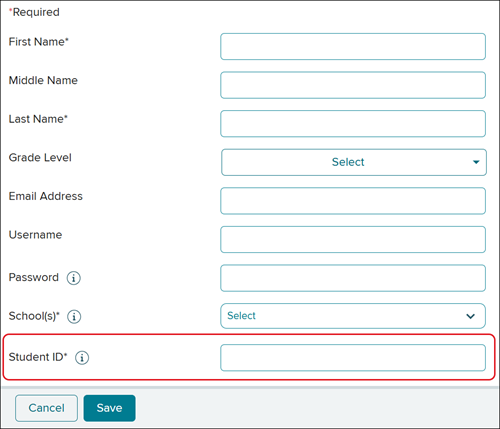
If a student does not have an assigned Student ID in the McGraw Hill system, this will need to be added for existing users. Organization Administrators can manage existing users with the Import Users/Rosters tool in their Administrator Tools.
You can also modify users by editing the Student ID in Manage Users in Admin Tools.
If preferred, teachers can also edit student information to include the Student ID from Roster in the Reveal Math course.
Districts Using Auto-Rostering
This includes districts that are Single Sign-On and Auto-Rostering and Direct Login and Auto-Rostering.
These districts are unable to edit the Student ID from Manage Users as this identifier can only be modified by the Automated Rostering Process. Depending on which type of rostering the district uses, the data may be received directly from the district’s Student Information System (SIS) or Learning Management System (LMS).
For OneRoster® districts, the "UserSourcedID” field received in the roster data is set as the Student ID.
Clever® District Users
Clever Rostering is supported by both McGraw Hill and NWEA.
To sign up to use Clever with NWEA, contact NWEA Partner Support.
To sign up to use Clever with McGraw Hill, submit our McGraw Hill Integration Intake Form.
Note: Clever Rostering does not have to be configured by both platforms for a successful pairing of NWEA and McGraw Hill; however, Student IDs must still match between platforms. If Clever is used by both McGraw Hill and NWEA, but the Student ID's do not match, contact NWEA Partner Support for further instruction.
Additional Support
NWEA Partner Support
Phone: 877-469-3287
Email: connection@nwea.org
McGraw Hill K-12 Technical Support
Phone: 800-437-3715
Email: epgtech@mheducation.com
OneRoster® is a trademark of the IMS Global Learning Consortium, Inc. (www.imsglobal.org)
Clever® is a trademark of Clever, Inc. (www.clever.com)