Create Personalized Practice Assignments
Use Personalized Practice resources to reinforce skills based on individual student needs.
Tags
- Customer Support
- PreK-12
- Classroom Teacher
- Elementary School
- Middle School
- High School
- Direct Login & Auto-Rostering
- Direct Login & Manual-Rostering
- SSO & Auto-Rostering
- SSO & Manual-Rostering
- Core
- Intervention
- Supplemental
- Literacy
- Math
- CA Reveal Math (K-12)
- Reveal Math (K-12)
- Number Worlds 2024
- McGraw Hill Literacy Emerge!
- McGraw Hill Literacy Summit!
- McGraw Hill Literacy Soar!
- Personalized Learning Reports
- Grades & Assignments


View the demo in a separate tab.
View the Spanish version of the demo.
Personalized Practice is a set of independent student resources that teachers can assign directly to a student or group of students.
Article Content
Locate Personalized Practice Recommendations
Assign Personalized Practice Recommendations
Locate Personalized Practice Recommendations
- SSO or log in at my.mheducation.com.
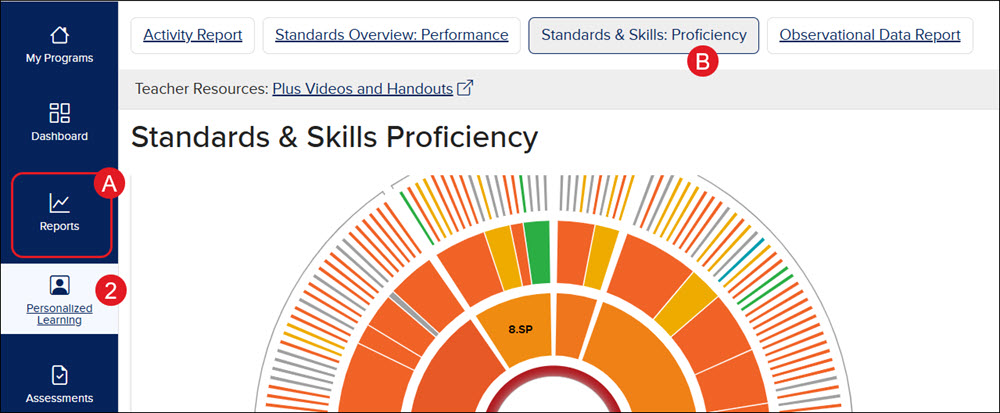
- Click on Personalized Learning from the navigation menu of your course.
Another option is to click on Reports (A) and then the Standards & Skills: Proficiency button (B).
Note: If you do not see these options, this means that Personalized Learning is not activated for your content/account.
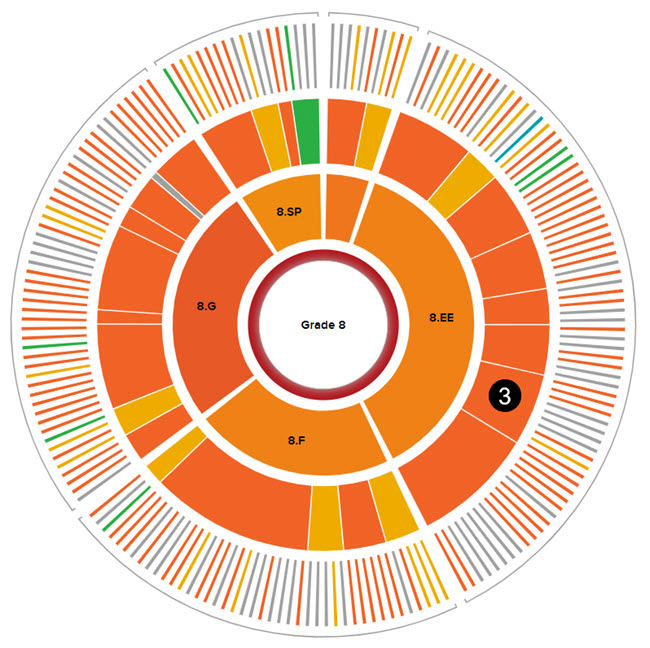
- Click on one of the sections in the third ring of the graph.
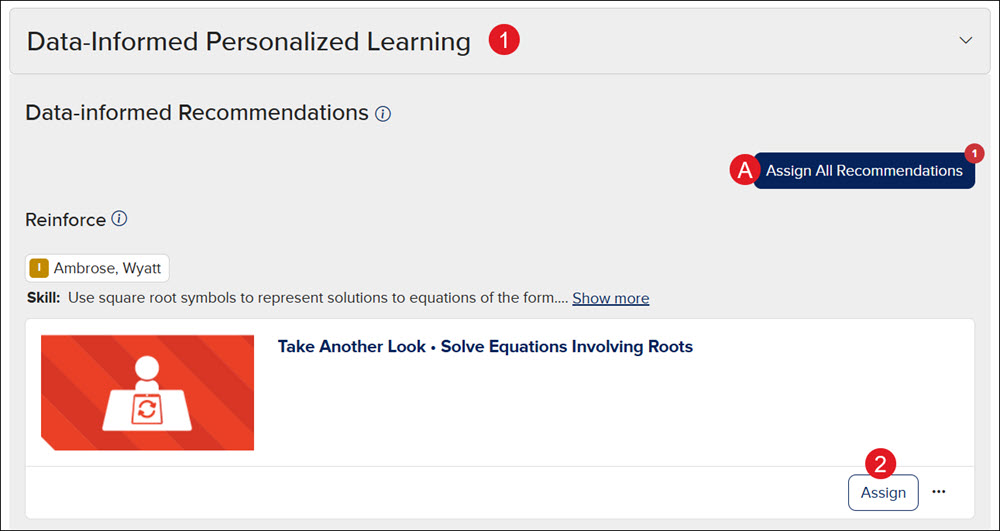
- At the bottom of the page, expand the Data-Informed Personalized Learning blade.
The program automatically identifies the best practice and scaffolding support for each student and auto-groups students by proficiency as demonstrated by their work in the program and interim assessment data (if provided).
Assign Personalized Practice Recommendations
- At the bottom of the page, expand the Data-Informed Personalized Learning blade.
A. To quickly assign all recommended resources to the listed students, click the Assign All Recommendations button. This will set the due date 7 days from the day and time they are assigned.
- Click the Assign button on the resource tile.
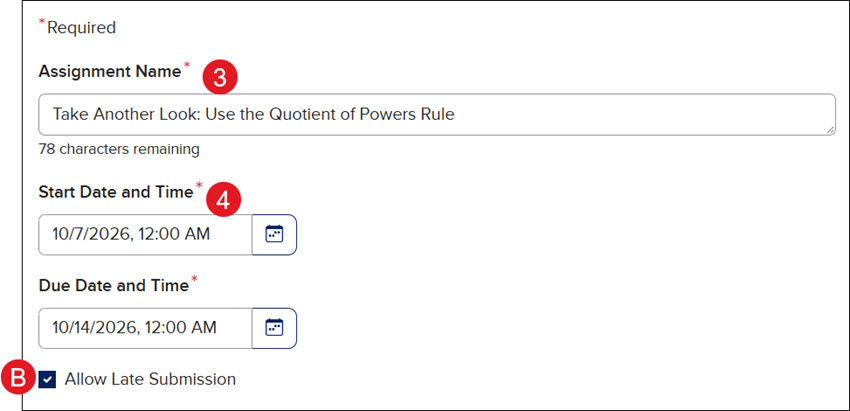
- You can edit the Assignment Name or leave the auto-populated one as is.
- Select a Start and Due Date and Time by clicking on the calendar icon.
B. Allow Late Submission is enabled by default. To prevent students from submitting after the Due Date, uncheck the Allow Late Submission box.
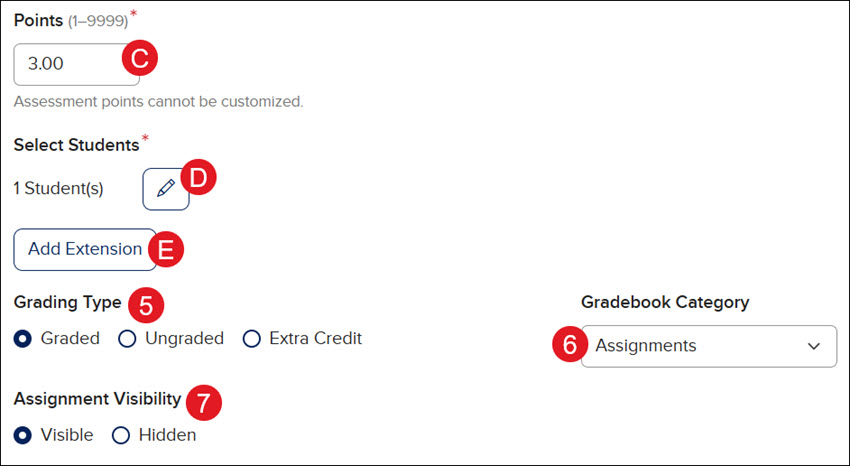
C. The Points are unable to be adjusted. Some resource recommendations will be worth points, while others will be ungraded.
D. The Selected Students are based on the student recommendations for the resource. To add or remove students for the assignment, click the Edit (pencil) button.
E. To provide individual extensions for assignment completion, click the Add Extension button.
- Select the Grading Type to change it from the default selection. This is not an option for all assignments.
- Select the Gradebook Category for the assignment. For steps on adding additional gradebook categories, see the Navigate the Open Learning Gradebook article.
- Select the Assignment Visibility to be Visible or Hidden until you change it to be visible to students.
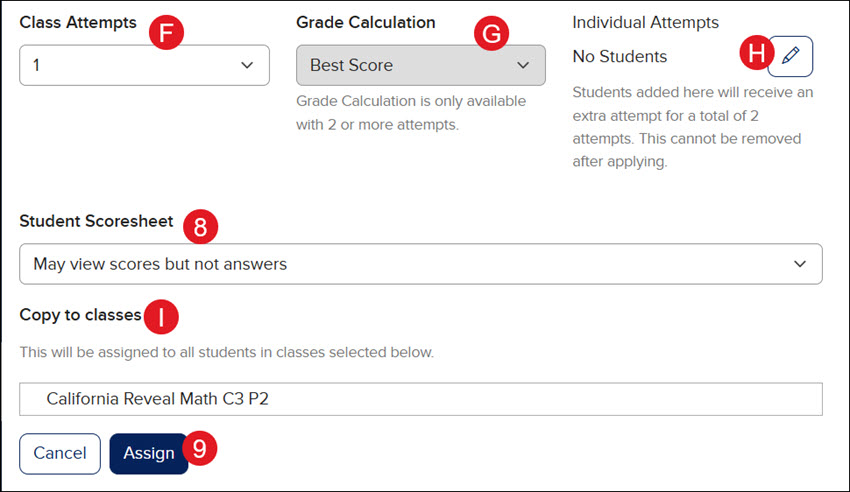
F. For some resources, you have the option to select between 1 and 3 Class Attempts for the assignment.
G. If it is selected to allow more than one attempt, select the preferred Grade Calculation from the drop-down.
H. Select the Edit (pencil) button to allow for Individual Attempts.
- Select the preferred Student Scoresheet view from the drop-down.
I. If you have multiple classes using the same content, you can also select Copy to classes. Keep in mind, this will result in the resource being assigned to all students for that class.
- Click the Assign button.