
Open Learning Teacher Dashboard and Course Page Navigation
Explore the teacher Dashboard and Course pages within the digital content.
Tags
- Customer Support
- PreK-12
- Classroom Teacher
- Preschool
- Elementary School
- Middle School
- High School
- Direct Login & Auto-Rostering
- Direct Login & Manual-Rostering
- SSO & Auto-Rostering
- SSO & Manual-Rostering
- Core
- Intervention
- Supplemental
- AP, Honors & Electives
- Career & Technical Education
- Literacy
- Math
- Science
- Social Studies
- Health
- Visual & Performing Arts
- World Languages
- AP Biology
- AP Chemistry
- AP History & Geography
- AP Psychology
- AP Economics
- AP African American Studies
- AP Precalculus
- AP Statistics
- AP Computer Science
- AP Language and Composition
- AP Public Speaking
- AP Music Theory
- 5 Steps to a 5 - AP Test Prep
- Glencoe Health 2022
- Teen Health 2021
- Arrive Math
- Building Blocks 2024
- Building Blocks PreK 2025
- Number Worlds 2024
- SRA Reading Laboratory 2025
- SRA Reading Mastery Transformations
- McGraw Hill Literacy Emerge!
- McGraw Hill Literacy Summit!
- McGraw Hill Literacy Soar!
- Open Court Reading 2025
- CA Reveal Math (K-12)
- Illustrative Math
- Reveal Math (K-12)
- Texas Math
- CA Inspire Science 2020
- FL Science 2025 (K-12)
- Inspire Science 2020
- TN Science (K-12)
- TX Science 2025 (K-12)
- CA Impact 2019
- FL Social Studies 2024 (K-12)
- Impact Social Studies
- McGraw Hill Social Studies
- All Sorts 2026 (K-5)
- Asi se Dice 2024
- CTE - Health Science
- CTE - Computing and Technology
- CTE - Agriculture
- CTE - Culinary Arts
- CTE - Early Childhood Education
- CTE - Criminal Justice
- CTE - Business, Marketing, and Finance
- Level Up K–5
- Level Up 6–8
- Level Up 9–12
- Dashboard & Navigation Overview
- Getting Started & Orientation
- Back-to-School Setup


Please note that the Dashboard and Course pages will vary based on the Open Learning program being used.
Dashboard Overview
Video overview of the Dashboard
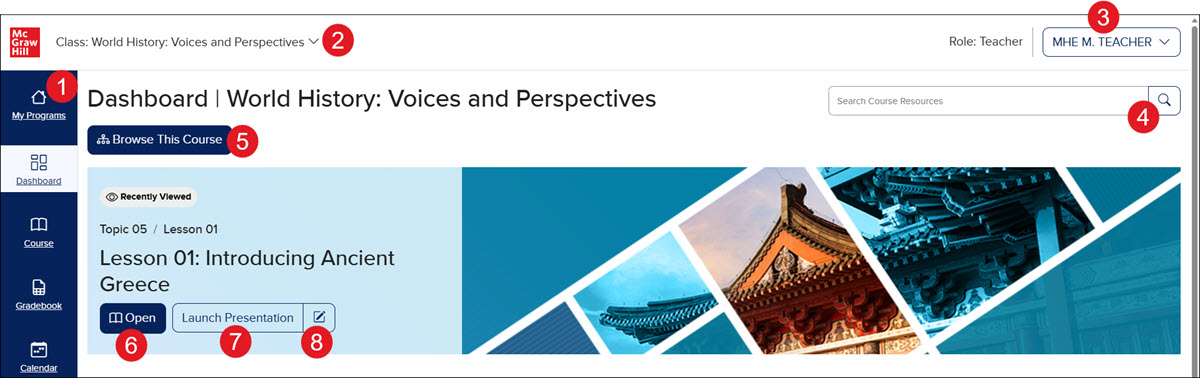
- Course Navigation Menu
- Class Navigation Menu - Click the drop-down menu to quickly and easily navigate between your classes.
Note: If you are trying to navigate to the Roster page for ALEKS, ALEKS Adventure, StudySync, Redbird, Actively Learn, or Achieve3000 Literacy, you will need to do so from the My Programs page by clicking on the Classroom Actions button and then Manage Class Roster from the menu.
- Profile Menu - Learn more about the profile menu on our Access Assigned Roles, View Organizations, and Change Profile Settings article.
- Course Resources Search - Enter a keyword in the search field or click the magnifying glass to access the Course Resources page. Learn more about the course resources page by referring to our Navigating the Open Learning Course Resources Page article.
- Course Table of Contents - Click on the Browse This Course button to navigate to available lesson pages, resources, and tools within the course.
- Navigate to Latest Course Page Selection - The most recent course page that was selected will show as available. Click the Open button to quickly and easily navigate to where you left off in the course.
- Launch Lesson Presentation - Presentation availability will depend on the course being used and the lesson selected. If no presentation is available, the button will be grayed out.
- Edit Lesson Presentation - To learn more about the available presentations, navigate to the Access, Navigate, and Customize Open Learning Presentations article.
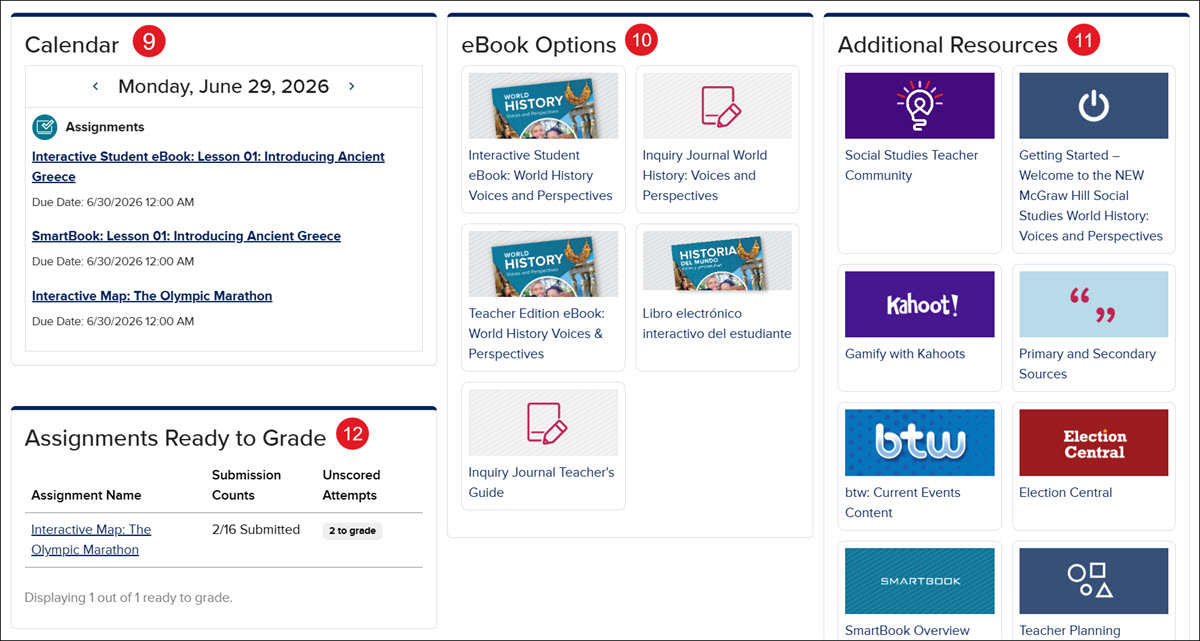
- Course Calendar - Easily view any assigned assignments, events, or lesson materials for the day. Click the back-and-forth arrows to navigate through the days. For more information about the course calendar, refer to the Access and Navigate the Open Learning Teacher Calendar article.
- Assignments Ready to Grade - The widget shows a list of assignments that are ready to be graded. Click the Assignment Name link to navigate to the assignment overview page. For details on grading assignments, consult the Grade Open Learning Assignments article.
- eBook Resources - If the course has any eBooks associated with it, they can be easily found in the eBook Options widget.
- Additional Course Resources - Most courses will have a collection of additional resources available for teachers to use to help them learn more about the program they are using, or help with teaching the material.
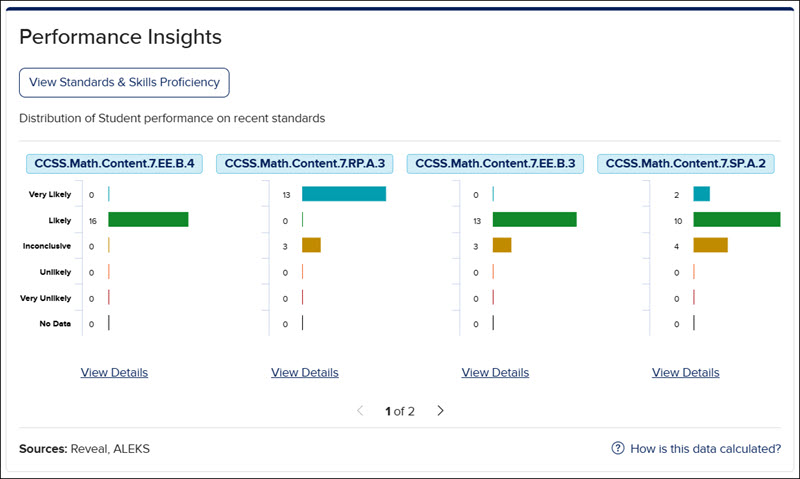
- Performance Insights - For programs such as Reveal Math, the Performance Insights widget is also available on the Dashboard. This corresponds with the data that can be found on the Standards & Skills Proficiency report page. To learn more about this report, see the Personalized Learning Teacher Report article.
Course Page Overview
Video overview of the Course page
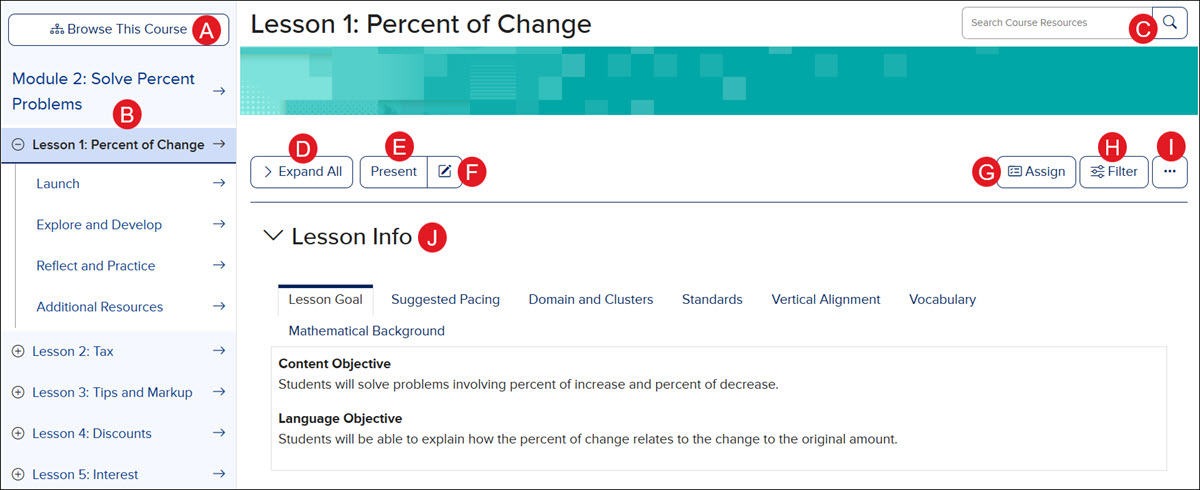
- Course Table of Contents - Click on the Browse This Course button to navigate to available lesson pages, resources, and tools within the course.
- Course Navigation Panel - Easily navigate between lessons by selecting an option from the panel. Clicking a lesson automatically expands a drop-down menu, where you can select a specific blade to view its resources.
- Course Resources Search - Enter a keyword in the search field or click the magnifying glass to access the Course Resources page. Learn more about the course resources page by reading our Navigating the Open Learning Course Resources Page article.
- Expand/Collapse All - Click this button to open or close all resource blades at once.
- Launch Lesson Presentation - Presentation availability will depend on the course being used and the lesson selected. If no presentation is available, the button will be grayed out.
- Edit Lesson Presentation - To learn more about the available presentations, navigate to the Access, Navigate, and Customize Open Learning Presentations article.
- Bulk Assign Resources - Click the Assign button to select multiple resources at once to assign to students. For steps on using the bulk assign option, refer to the Create Bulk Open Learning Assignments article.
- Resource Filters- Search for available resources by different filter selections such as resource settings, type, standards, and/or languages.
- Lesson Options Menu - Access the Options menu to view the lesson as students see it, add the lesson to the calendar, or to sync the presentation to additional classes using the same content.
For more information on syncing customized presentations to other classes, view the Access, Navigate, and Customize Open Learning Presentations article.
- Lesson Info - Select courses have access to additional lesson information to help teach the course. The information provided in this section will vary based on the course being used.
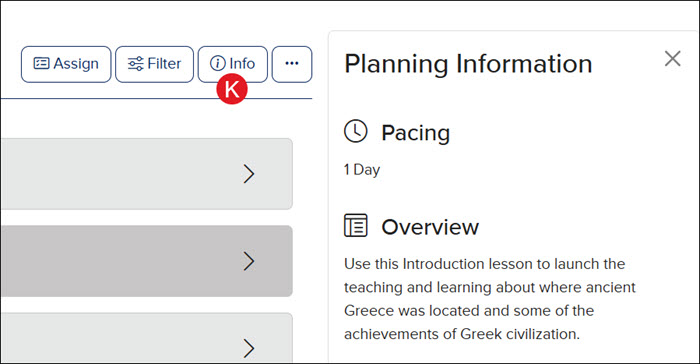
- Info Panel - Select courses will have access to the Planning Information panel instead of the Lesson Info tab. The information provided in this panel will vary based on the course being used.
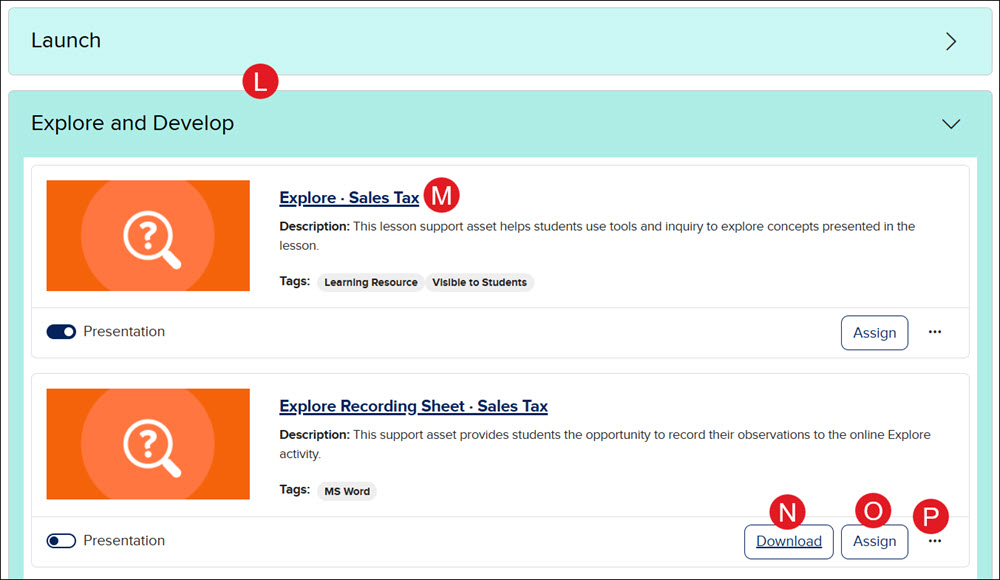
- Resource Blades - Click on a blade to expand the section and access available resources for the selected lesson.
- Resources - Click on a title link to open the resource.
- Download - Certain resources include a download option, allowing you to access them offline at any time.
- Assign - Individual student-facing resources can be assigned by clicking the Assign button. For more information on assigning resources, refer to the Create Open Learning Assignments article.
- Resource Options Menu - Access the resource Options menu to add it to the calendar without assigning it to students, add the resource to the students' Course page, add it to Google Drive, add teacher notes to the resource, or copy the teacher link to add it to items such as presentations and documents.
- For more information about the course calendar, navigate to the Access and Navigate the Open Learning Teacher Calendar article.
- To learn more about adding resources to Google Drive, take a look at the Add Open Learning Resources to Google Drive™ article.
- For more information about the Teacher Link option, see the Use the Open Learning Teacher Asset Linking Feature article.
Navigation Menu
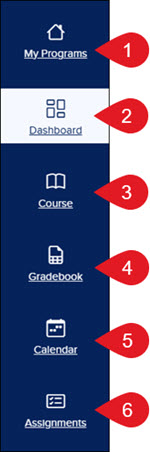
- My Programs - Takes you back to your my.mheducation.com dashboard to view all your classes.
- Dashboard - Navigates to the program's home page.
- Course - Takes you to the lesson page, where you can access resources and available tools. For an in-depth guide on navigating the Course page, visit the Open Learning Course Page Navigation Overview article for a comprehensive overview.
- Gradebook - Access individual student grades across assignments, assessments, and other assigned resources. To learn how to access and navigate the course gradebook, visit the Access and Navigate the Open Learning Gradebook article for a step-by-step guide.
- Calendar - View created events, assignments, and lessons for the class organized by day, week, or month. See the Access and Navigate the Open Learning Teacher Calendar article to learn more about the course calendar.
- Assignments - Access all assigned assignments and assessments, including options to manually grade and view scores. See the Manage Open Learning Assignments article for help with creating and managing assignments.
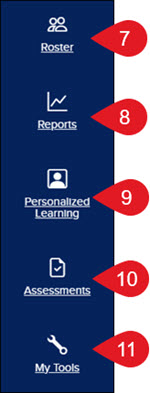
- Roster - Add, remove, and view students assigned to the class. Depending on the course, you can also emulate student accounts, print temporary passwords, and edit student profiles. See the Add and Remove Students from an Open Learning Class Roster article for steps on navigating and managing the student roster.
- Reports - Access class Activity and Standards Overview: Performance reports. Depending on the course and the access provided, access to the Standards & Skills Proficiency report is also available. For more information on available reports, see the Teacher Activity Performance Reports and Teacher Standards Performance Report articles.
- Personalized Learning - Access the Standards & Skills Proficiency report. This report is only available for certain courses. For an in-depth look at navigating the Standards & Skills Proficiency report, refer to the Personalized Learning Teacher Report article.
- Assessments - View, customize, assign, and print course assessments. For more information on assessment management, consult the McGraw Hill Assessment Management Resources article.
- My Tools - Allows teachers to create links which serve as a launch point to custom class resources to share with students. For more information, refer to the Using My Tools on the McGraw Hill Platform article.
