mcgraw hill social studies
illustrative math
5 steps to a 5 - ap test prep
impact social studies
arrive math
open court reading
reveal math (k-12)
ap-edition
5-steps-to-a-5-test-prep
glencoe-health
teen-health
arrive-math
building-blocks
number-worlds
reading-laboratory
reading-mastery
mcgraw-hill-literacy
open-court-reading
reveal-math
illustrative-math
inspire-science
mcgraw-hill-science
impact
mh-social-studies
asi-se-dice
mcgraw-hill-cte
mcgraw-hill-math
level-up
instructor
Programs & Solutions
Programs & Solutions/McGraw Hill Social Studies
Business Unit
Business Unit/PreK-12
Programs & Solutions/AP Edition
Programs & Solutions/AP Edition/AP Precalculus
Context
Context/Education Level
Context/Education Level/High School
Context/Subject
Context/Subject/Science
Programs & Solutions/AP Edition/AP Music Theory
Programs & Solutions/AP Edition/AP Biology
Context/Integration Type
Context/Integration Type/Direct Login & Auto-Rostering
Context/Integration Type/SSO & Auto-Rostering
Programs & Solutions/Glencoe Health
Programs & Solutions/Glencoe Health/Glencoe Health 2022
Programs & Solutions/Impact Social Studies
Programs & Solutions/Impact Social Studies/CA Impact 2019
Programs & Solutions/McGraw Hill Social Studies/FL Social Studies 2024 (K-12)
Programs & Solutions/Open Court Reading
Programs & Solutions/Open Court Reading/Open Court Reading 2025
Context/Subject/World Languages
Programs & Solutions/Illustrative Math
Programs & Solutions/McGraw Hill CTE
Programs & Solutions/McGraw Hill CTE/CTE - Culinary Arts
Asset Format Type
Asset Format Type/Customer Support
Context/Curriculum Type
Context/Curriculum Type/Supplemental
Programs & Solutions/AP Edition/AP Statistics
Programs & Solutions/McGraw Hill Science
Programs & Solutions/McGraw Hill Science/TX Science 2025 (K-12)
Programs & Solutions/AP Edition/AP Public Speaking
Context/Subject/Health
Programs & Solutions/Asi Se Dice
Programs & Solutions/Asi Se Dice/Asi se Dice 2024
Programs & Solutions/5 Steps to a 5 - AP Test Prep
Programs & Solutions/Level Up
Programs & Solutions/Level Up/Level Up 9–12
Context/Curriculum Type/Career & Technical Education
Programs & Solutions/Open Court Reading/Open Court Reading 2016, 2018, 2023
Programs & Solutions/McGraw Hill Literacy
Programs & Solutions/McGraw Hill Literacy/McGraw Hill Literacy Soar!
Programs & Solutions/McGraw Hill CTE/CTE - Agriculture
Support Topics
Support Topics/Assessments & Reporting
Support Topics/Assessments & Reporting/Reports & Analytics
Context/Subject/Math
Programs & Solutions/McGraw Hill Math
Programs & Solutions/McGraw Hill Math/Texas Math
Programs & Solutions/AP Edition/AP Chemistry
Context/Curriculum Type/AP, Honors & Electives
Context/Curriculum Type/Intervention
Programs & Solutions/McGraw Hill CTE/CTE - Computing and Technology
Programs & Solutions/Building Blocks
Programs & Solutions/Building Blocks/Building Blocks 2024
Programs & Solutions/Arrive Math
Context/Curriculum Type/Core
Context/Integration Type/Direct Login & Manual-Rostering
Programs & Solutions/AP Edition/AP Language and Composition
Context/Subject/Literacy
Programs & Solutions/McGraw Hill CTE/CTE - Health Science
Programs & Solutions/AP Edition/AP History & Geography
Programs & Solutions/Inspire Science
Programs & Solutions/Inspire Science/Inspire Science 2020
Context/Subject/Visual & Performing Arts
Programs & Solutions/AP Edition/AP Computer Science
Context/Subject/Social Studies
Programs & Solutions/Reveal Math (K-12)
Programs & Solutions/Reveal Math (K-12)/CA Reveal Math (K-12)
Context/Education Level/Middle School
Programs & Solutions/McGraw Hill CTE/CTE - Early Childhood Education
Programs & Solutions/McGraw Hill Literacy/McGraw Hill Literacy Emerge!
Context/Education Level/Preschool
Programs & Solutions/AP Edition/AP African American Studies
Programs & Solutions/McGraw Hill Science/FL Science 2025 (K-12)
Programs & Solutions/McGraw Hill CTE/CTE - Business, Marketing, and Finance
Programs & Solutions/Number Worlds
Programs & Solutions/Number Worlds/Number Worlds 2024
Context/Education Level/Elementary School
Programs & Solutions/Level Up/Level Up K–5
Programs & Solutions/McGraw Hill Literacy/McGraw Hill Literacy Summit!
Personas
Personas/School Educator
Personas/School Educator/Classroom Teacher
Programs & Solutions/Reading Laboratory
Programs & Solutions/Reading Laboratory/SRA Reading Laboratory 2025
Programs & Solutions/Building Blocks/Building Blocks PreK 2025
Programs & Solutions/AP Edition/AP Economics
Programs & Solutions/AP Edition/AP Psychology
Programs & Solutions/McGraw Hill Science/TN Science (K-12)
Programs & Solutions/McGraw Hill CTE/CTE - Criminal Justice
Programs & Solutions/Teen Health
Programs & Solutions/Teen Health/Teen Health 2021
Programs & Solutions/Inspire Science/CA Inspire Science 2020
Programs & Solutions/Reading Mastery
Programs & Solutions/Reading Mastery/SRA Reading Mastery Transformations
Programs & Solutions/Level Up/Level Up 6–8
Context/Integration Type/SSO & Manual-Rostering
prek-12
2026-03-24T19:01:20.472-03:00
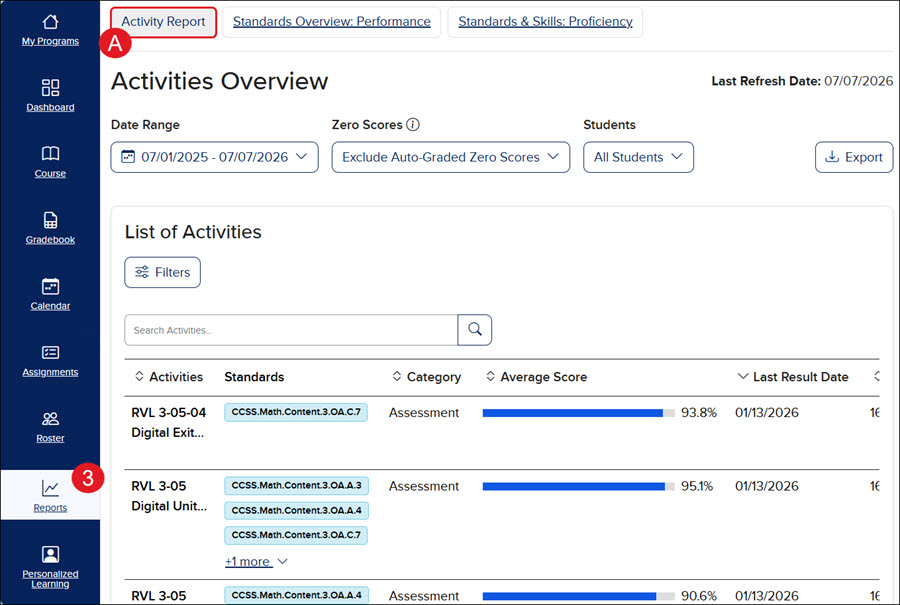
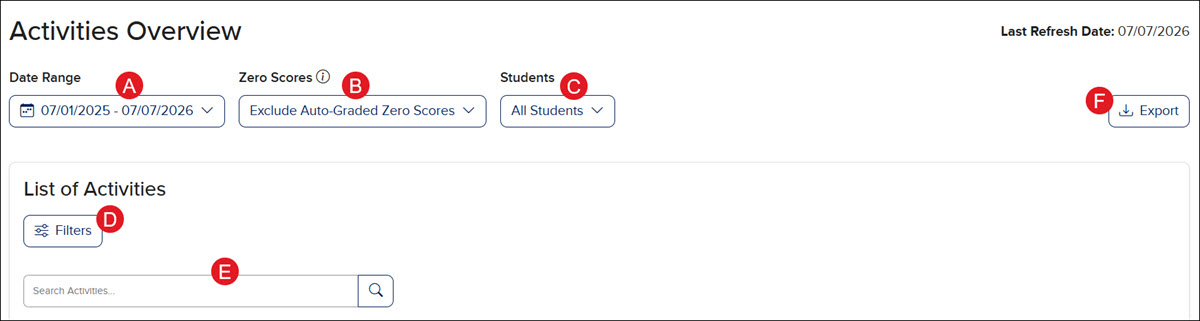
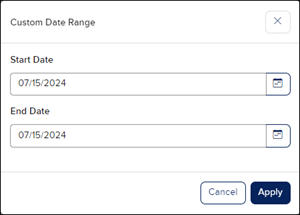
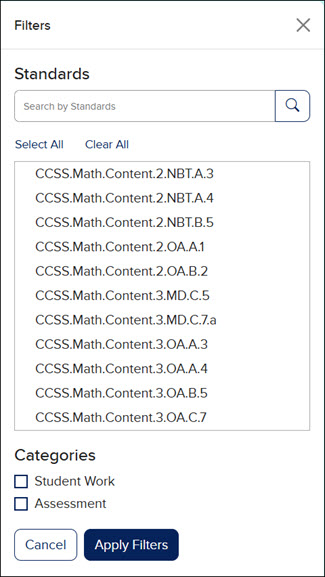
<p><a href="https://hub.mheducation.com/share/eccgrql2xuor" target="_blank">View the demo in a separate tab.</a></p> <p><a href="https://hub.mheducation.com/share/yhdwsgdsfkid" target="_blank">View the Spanish version of the demo.</a></p> <p> </p> <h2 class="fs-5">Article Contents</h2> <div><p><a href="#access_reports" target="_self">Access Activity Performance Reports</a></p> <p><a href="#overview" target="_self">Activity Overview</a></p> <p><a href="#summary" target="_self">Activity Summary</a></p> <p><a href="#Question_Analysis" target="_self">Question Analysis</a></p> </div> <div> </div> <h3 class="fs-5"><a id="access_reports"></a>Access Activity Performance Reports</h3> <ol> <li>SSO or sign in at <a href="https://my.mheducation.com/" target="_blank">my.mheducation.com</a>.<br> <br> </li> <li>Launch your <strong>Open Learning</strong> course.<br> <br> </li> <li>Click on <strong>Reports </strong>from the navigation menu.<br> <br> A. The <strong>Activities Overview </strong>will automatically launch. If you are on a different report, you can click on the <strong>Activity Report </strong>button at the top of the page.<br> <br> <img src="/content/dam/mhe/support/support-images/dts-k12-images/teacher-activity-report/teacher-activity-report-1.jpg" data-assetref="teacher-activity-report-1-1783440423358"></li> </ol> <p> </p> <h3 class="fs-5"><a id="overview"></a>Activity Overview</h3> <p style="margin-left: 40px;"><img src="/content/dam/mhe/support/support-images/dts-k12-images/teacher-activity-report/teacher-activity-report-2.jpg" data-assetref="teacher-activity-report-2-1783440690588"></p> <ol class="list-type-alphabet-uppercase"> <li>Click on the <strong>Date Range</strong> drop-down to view the School year to date (July 1st is considered the first day of school), Last Day, Last 7 Days, Last 30 Days,<strong> </strong>or a<strong> Custom</strong> range of dates for the data provided.<br> <br> </li> <li>If you select <strong>Custom</strong>, select the range of dates you want to filter the data for on the <strong>Custom Date Range</strong> pop-up and click the <strong>Apply </strong>button.<br> <br> <img alt="image.png" src="/content/dam/mhe/support/support-images/migrated/rtaImage-2071274701.jpeg" data-assetref="rtaImage-2071274701-1779114549726"><br> <br> </li> <li>Click the <strong>Zero Scores</strong> drop-down to select <strong>Exclude Auto-Graded Zero Scores</strong> or <strong>Include Auto-Graded Zero Scores</strong> in the report view. The default is set to exclude the zero scores. Students who submitted assignments but scored zero will still appear in the reports.<br> <br> </li> <li>Click the <strong>Students </strong>drop-down to select a specific student to view data for.<br> <br> </li> <li>Click the <strong>Filters </strong>button to open the <strong>Activities Filters</strong> panel to select to view a certain standard and/or category.<br> <br> <img src="/content/dam/mhe/support/support-images/dts-k12-images/teacher-activity-report/teacher-activity-report-3.jpg" data-assetref="teacher-activity-report-3-1783440750236"><br> <br> </li> <li>To view a specific activity, enter the activity name in the <strong>Search Activities</strong> field.<br> <br> </li> <li>Click the <strong>Export </strong>button to download a CSV file of the report.<br> <br> <img src="/content/dam/mhe/support/support-images/dts-k12-images/teacher-activity-report/teacher-activity-report-4.jpg" data-assetref="teacher-activity-report-4-1783441223377"><br> <br> </li> <li>The <strong>Activities </strong>list provides all of the assignments and assessments students have completed for the class.<br> <br> </li> <li>If any standards are associated with the activity, they will be listed in the <strong>Standards </strong>column.<br> <br> Click on an associated standard to view the description. Click the <strong>Overall Performance Details</strong> link on the pop-up to navigate to the <strong><a href="https://www.mheducation.com/prek-12/support/knowledge/open-learning-platform-standards-performance-reports-2-0.html" target="_blank">Standards Overview: Performance</a></strong> report.<br> <br> <img src="/content/dam/mhe/support/support-images/dts-k12-images/teacher-activity-report/teacher-activity-report-5.jpg" data-assetref="teacher-activity-report-5-1783441027629"><br> <br> </li> <li>The <strong>Category </strong>column lists the type of activity.<br> <br> </li> <li>The <strong>Average Score</strong> shows the overall percentage for the class for that activity.<br> <br> </li> <li>The <strong>Last Result Date</strong> is the date on which the activity was last submitted by students.<br> <br> </li> <li>The <strong>Submitted </strong>column shows how many students submitted that activity.<br> <br> </li> <li>The <strong>Action </strong>column contains the <strong>View Details</strong> link that will navigate you to the activity <a href="#summary"><strong>Summary</strong></a> and <a href="#Question_Analysis" target="_self"><strong>Question Analysis</strong></a>.</li> </ol> <p> </p> <h3 class="fs-5"><a name="summary" id="summary"></a>Activity Summary</h3> <p>On the <strong><a href="#overview">Activities Overview</a></strong> page, click the <strong>View Details</strong> link in the <strong>Actions </strong>column to the right of an activity to navigate to the <strong>Summary </strong>page for the activity.</p> <p><img src="/content/dam/mhe/support/support-images/dts-k12-images/teacher-activity-report/teacher-activity-report-6.jpg" data-assetref="teacher-activity-report-6-1783441464583"></p> <p>The <strong>Zero Scores</strong> and <strong>Students </strong>drop-downs will be grayed out on the Summary page. To adjust these selections, click the <strong>Back to Activities Overview</strong> link and make the changes before navigating back to the <strong>Summary </strong>page.</p> <p><img src="/content/dam/mhe/support/support-images/dts-k12-images/teacher-activity-report/teacher-activity-report-16.jpg" data-assetref="teacher-activity-report-16-1783443402590"></p> <p>On the <strong>Summary </strong>tab, teachers can view the Average Score for the activity, the <strong>Type</strong> of activity that was selected, the <strong>Total Questions</strong> included in the activity, and the <strong>Last result</strong> date.</p> <p><img src="/content/dam/mhe/support/support-images/dts-k12-images/teacher-activity-report/teacher-activity-report-7.jpg" data-assetref="teacher-activity-report-7-1783441504996"></p> <p>In the <strong>Submitted</strong> section, teachers can view a breakdown of student percentages for the activity. Click the <strong>View </strong>drop-down to arrange the list in the preferred manner.</p> <p><img src="/content/dam/mhe/support/support-images/dts-k12-images/teacher-activity-report/teacher-activity-report-8.jpg" data-assetref="teacher-activity-report-8-1783441688221"></p> <p>In the <strong>Standards Assessed</strong> section, if there are standards associated with the activity, they will be listed in this section with the average class percentage for each standard.</p> <p>It also provides the questions in which the standards are associated. Click on a question number to navigate to that question on the <a href="#Question_Analysis"><strong>Question Analysis</strong></a> tab.</p> <p><img src="/content/dam/mhe/support/support-images/dts-k12-images/teacher-activity-report/teacher-activity-report-9.jpg" data-assetref="teacher-activity-report-9-1783441729917"></p> <p>Click on an associated standard to view the description. Click the <strong>Overall Performance Details</strong> link on the pop-up to navigate to the <strong><a href="https://www.mheducation.com/prek-12/support/knowledge/open-learning-platform-standards-performance-reports-2-0.html">Standards Overview: Performance</a></strong> report.</p> <p><img src="/content/dam/mhe/support/support-images/dts-k12-images/teacher-activity-report/teacher-activity-report-10.jpg" data-assetref="teacher-activity-report-10-1783441798183"></p> <p>Click the <strong>View Details</strong> link in the <strong>Action</strong> column to the right of the standard to open a panel to view a student breakdown of that standard.</p> <p>The panel includes each student who submitted the assignment and the percentage of their answer for that standard. Click on the standard link at the top of the panel to navigate to the <strong><a href="https://www.mheducation.com/prek-12/support/knowledge/open-learning-platform-standards-performance-reports-2-0.html">Standards Overview: Performance</a></strong> report.</p> <p><img src="/content/dam/mhe/support/support-images/dts-k12-images/teacher-activity-report/teacher-activity-report-11.jpg" data-assetref="teacher-activity-report-11-1783441935350"></p> <p> </p> <h3 class="fs-5"><a id="Question_Analysis"></a>Question Analysis</h3> <p>Click on the <strong>Question Analysis</strong> tab to view the average score for each question in the activity. Hover over each question in the bar graph to view the <strong>Average Score per Question</strong> in a pop-up.</p> <p><img src="/content/dam/mhe/support/support-images/dts-k12-images/teacher-activity-report/teacher-activity-report-12.jpg" data-assetref="teacher-activity-report-12-1783442079529"></p> <p>Below the bar graph teachers can view the <strong>Question Details</strong>. The details include the question the students answered and Student Responses. In the <strong>Student Responses</strong> section, teachers can view how many students selected a specific answer, and who those students are.</p> <p><img src="/content/dam/mhe/support/support-images/dts-k12-images/teacher-activity-report/teacher-activity-report-13.jpg" data-assetref="teacher-activity-report-13-1783442126164"></p> <p>In the <strong>Additional Information</strong> section at the bottom, teachers can view the <strong>Question Type</strong>, <strong>Average Score</strong> for the activity, the <strong>Cognitive Levels</strong>, and the <strong>Standards Covered</strong>. </p> <p>Click on an associated standard to view the description. Click the <strong>Overall Performance Details</strong> link on the pop-up to navigate to the <strong><a href="https://www.mheducation.com/prek-12/support/knowledge/open-learning-platform-standards-performance-reports-2-0.html">Standards Overview: Performance</a></strong> report.</p> <p><img src="/content/dam/mhe/support/support-images/dts-k12-images/teacher-activity-report/teacher-activity-report-15.jpg" data-assetref="teacher-activity-report-15-1783442592553"></p> dts Use the new activity performance report to evaluate student engagement and results by activity. 2026-07-07 Teacher Activity Performance Reports Use the new activity performance report to evaluate student engagement and results by activity. Use the new activity performance report to evaluate student engagement and results by activity.
Use the new activity performance report to evaluate student engagement and results by activity.
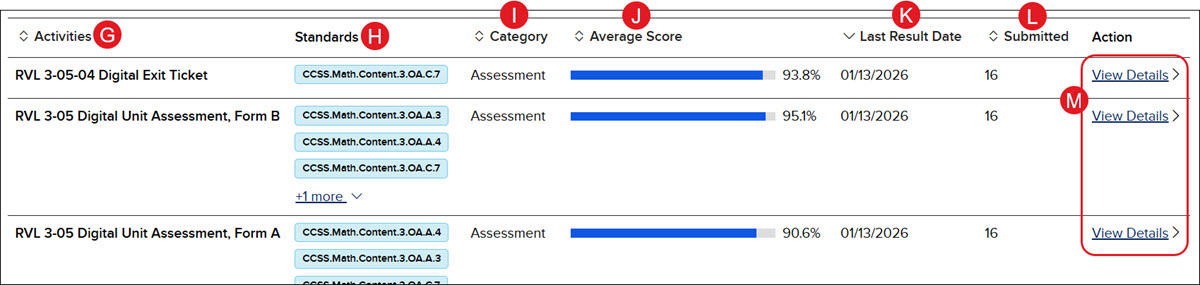
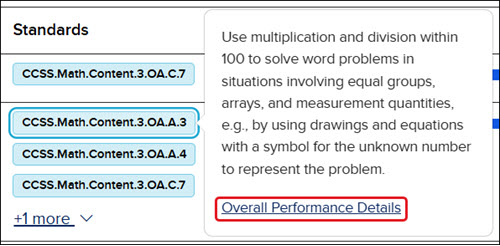
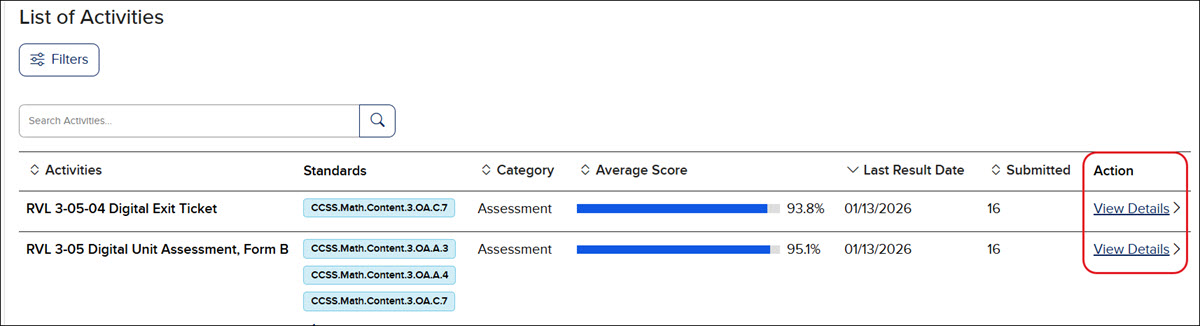
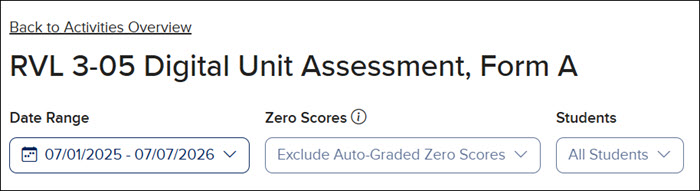
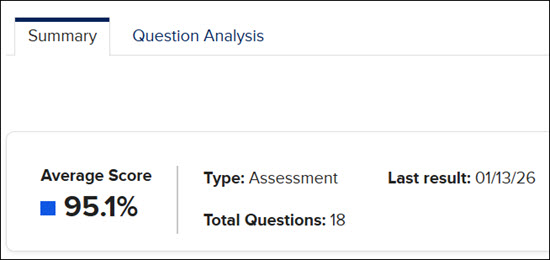
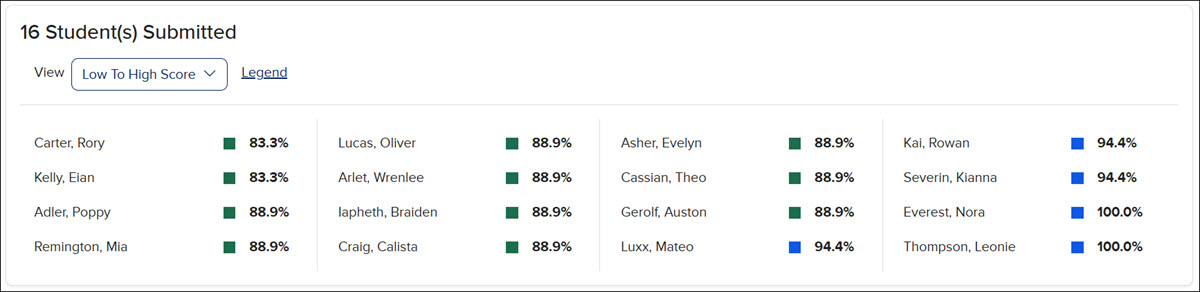
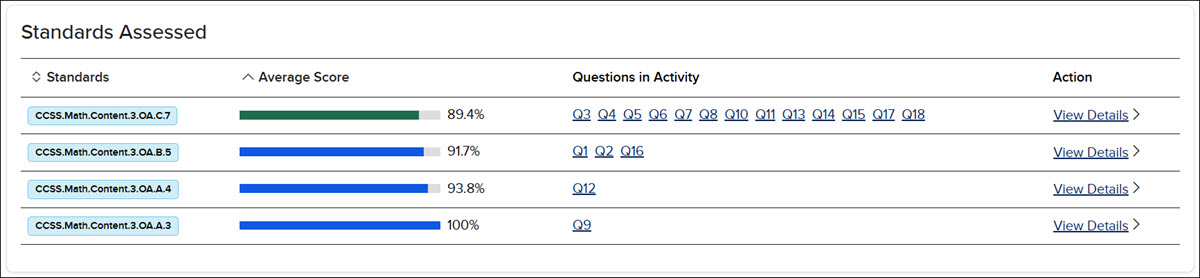
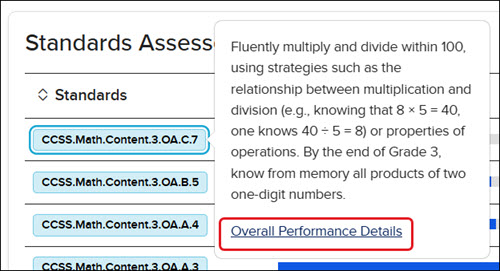
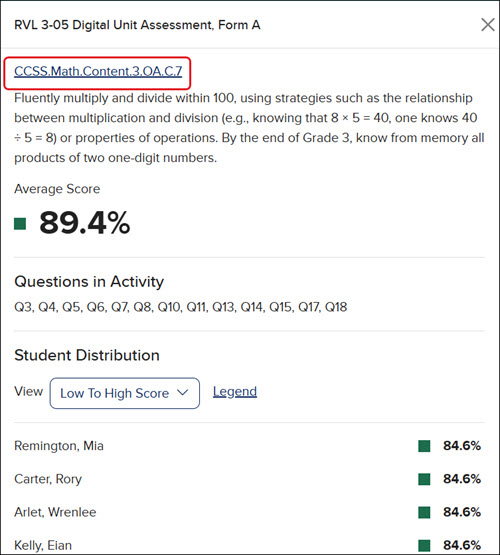
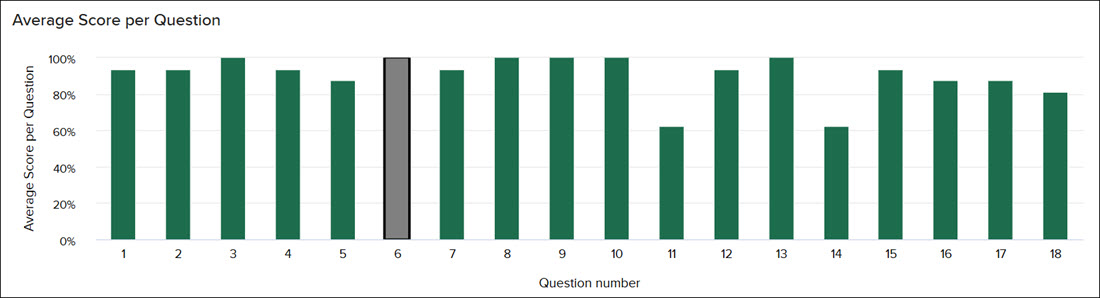
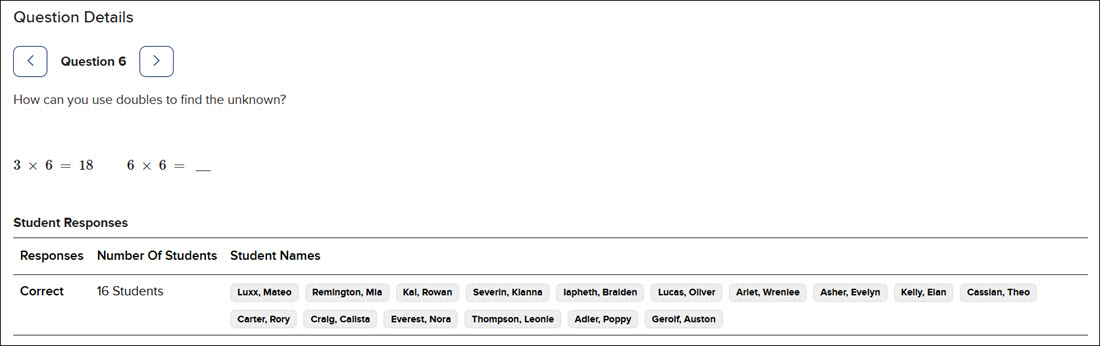
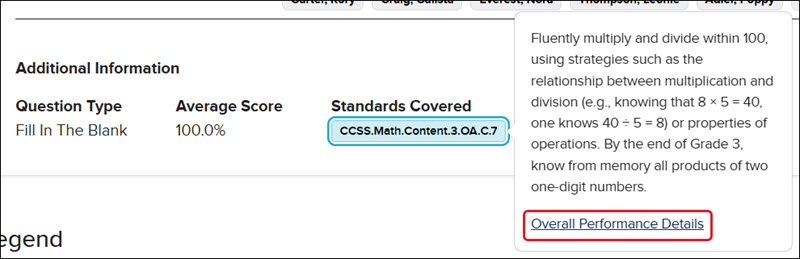
View the demo in a separate tab. View the Spanish version of the demo. Article Contents Access Activity Performance Reports Activity Overview Activity Summary Question Analysis Access Activity Performance Reports SSO or sign in at my.mheducation.com. Launch your Open Learning course. Click on Reports from the navigation menu. A. The Activities Overview will automatically launch. If you are on a different report, you can click on the Activity Report button at the top of the page. Activity Overview Click on the Date Range drop-down to view the School year to date (July 1st is considered the first day of school), Last Day, Last 7 Days, Last 30 Days, or a Custom range of dates for the data provided. If you select Custom, select the range of dates you want to filter the data for on the Custom Date Range pop-up and click the Apply button. Click the Zero Scores drop-down to select Exclude Auto-Graded Zero Scores or Include Auto-Graded Zero Scores in the report view. The default is set to exclude the zero scores. Students who submitted assignments but scored zero will still appear in the reports. Click the Students drop-down to select a specific student to view data for. Click the Filters button to open the Activities Filters panel to select to view a certain standard and/or category. To view a specific activity, enter the activity name in the Search Activities field. Click the Export button to download a CSV file of the report. The Activities list provides all of the assignments and assessments students have completed for the class. If any standards are associated with the activity, they will be listed in the Standards column. Click on an associated standard to view the description. Click the Overall Performance Details link on the pop-up to navigate to the Standards Overview: Performance report. The Category column lists the type of activity. The Average Score shows the overall percentage for the class for that activity. The Last Result Date is the date on which the activity was last submitted by students. The Submitted column shows how many students submitted that activity. The Action column contains the View Details link that will navigate you to the activity Summary and Question Analysis. Activity Summary On the Activities Overview page, click the View Details link in the Actions column to the right of an activity to navigate to the Summary page for the activity. The Zero Scores and Students drop-downs will be grayed out on the Summary page. To adjust these selections, click the Back to Activities Overview link and make the changes before navigating back to the Summary page. On the Summary tab, teachers can view the Average Score for the activity, the Type of activity that was selected, the Total Questions included in the activity, and the Last result date. In the Submitted section, teachers can view a breakdown of student percentages for the activity. Click the View drop-down to arrange the list in the preferred manner. In the Standards Assessed section, if there are standards associated with the activity, they will be listed in this section with the average class percentage for each standard. It also provides the questions in which the standards are associated. Click on a question number to navigate to that question on the Question Analysis tab. Click on an associated standard to view the description. Click the Overall Performance Details link on the pop-up to navigate to the Standards Overview: Performance report. Click the View Details link in the Action column to the right of the standard to open a panel to view a student breakdown of that standard. The panel includes each student who submitted the assignment and the percentage of their answer for that standard. Click on the standard link at the top of the panel to navigate to the Standards Overview: Performance report. Question Analysis Click on the Question Analysis tab to view the average score for each question in the activity. Hover over each question in the bar graph to view the Average Score per Question in a pop-up. Below the bar graph teachers can view the Question Details. The details include the question the students answered and Student Responses. In the Student Responses section, teachers can view how many students selected a specific answer, and who those students are. In the Additional Information section at the bottom, teachers can view the Question Type, Average Score for the activity, the Cognitive Levels, and the Standards Covered. Click on an associated standard to view the description. Click the Overall Performance Details link on the pop-up to navigate to the Standards Overview: Performance report.
dts
Customer Support, PreK-12, Classroom Teacher, Preschool, Elementary School, Middle School, High School, Direct Login & Auto-Rostering, Direct Login & Manual-Rostering, SSO & Auto-Rostering, SSO & Manual-Rostering, Core, Intervention, Supplemental, AP, Honors & Electives, Career & Technical Education, Literacy, Math, Science, Social Studies, Health, Visual & Performing Arts, World Languages, AP Biology, AP Chemistry, AP History & Geography, AP Psychology, AP Economics, AP African American Studies, AP Precalculus, AP Statistics, AP Computer Science, AP Language and Composition, AP Public Speaking, AP Music Theory, 5 Steps to a 5 - AP Test Prep, Glencoe Health 2022, Teen Health 2021, Arrive Math, Building Blocks 2024, Building Blocks PreK 2025, Number Worlds 2024, SRA Reading Laboratory 2025, SRA Reading Mastery Transformations, McGraw Hill Literacy Emerge!, McGraw Hill Literacy Summit!, McGraw Hill Literacy Soar!, Open Court Reading, Open Court Reading 2025, Open Court Reading 2016, 2018, 2023, CA Reveal Math (K-12), Illustrative Math, Reveal Math (K-12), CA Inspire Science 2020, FL Science 2025 (K-12), Inspire Science 2020, TN Science (K-12), TX Science 2025 (K-12), CA Impact 2019, FL Social Studies 2024 (K-12), Impact Social Studies, McGraw Hill Social Studies, Asi se Dice 2024, CTE - Business, Marketing, and Finance, CTE - Health Science, CTE - Computing and Technology, CTE - Agriculture, CTE - Culinary Arts, CTE - Early Childhood Education, CTE - Criminal Justice, Texas Math, Level Up K–5, Level Up 6–8, Level Up 9–12, Reports & Analytics