
McGraw Hill Literacy Dashboard and Course Page Navigation
Explore the teacher Dashboard and Course pages within the Emerge, Summit, and Soar digital content.
- PreK-12
- Customer Support
- Classroom Teacher
- Elementary School
- Middle School
- High School
- Direct Login & Auto-Rostering
- Direct Login & Manual-Rostering
- SSO & Auto-Rostering
- SSO & Manual-Rostering
- Core
- Literacy
- McGraw Hill Literacy Emerge!
- McGraw Hill Literacy Summit!
- McGraw Hill Literacy Soar!
- Dashboard & Navigation Overview
- Getting Started & Orientation


Dashboard Overview
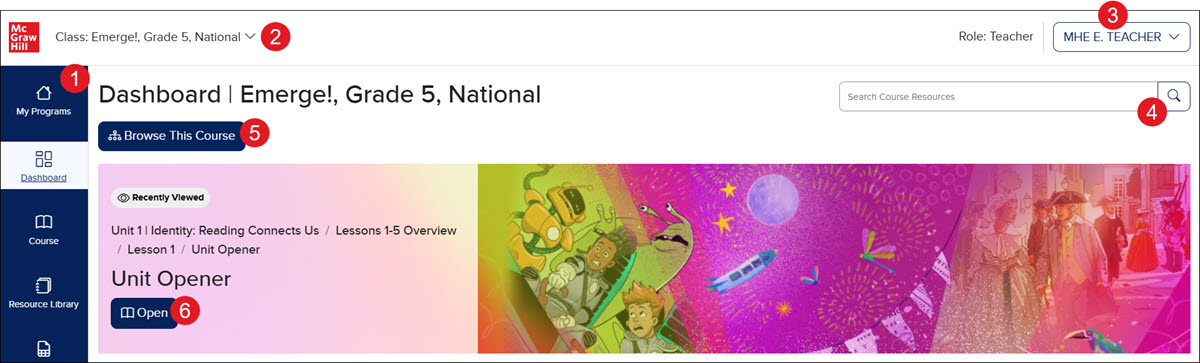
1. Course Navigation Menu
2. Class Navigation Menu - Click the drop-down menu to quickly and easily navigate between your classes.
Note: If you are trying to navigate to the Roster page for ALEKS, ALEKS Adventure, StudySync, Redbird, Actively Learn, or Achieve3000 Literacy, you will need to do so from the My Programs page by clicking on the Classroom Actions button and then Manage Class Roster from the menu.
3. Profile Menu - Learn more about the profile menu on our Access Assigned Roles, View Organizations, and Change Profile Settings article.
4. Course Resources Search - Enter a keyword in the search field or click the magnifying glass to access the Course Resources page. Learn more about the course resources page by referring to our Navigating the Open Learning Course Resources Page article.
5. Course Table of Contents - Click on the Browse This Course button to navigate to available lesson pages, resources, and tools within the course.
6. Navigate to Latest Course Page Selection - The most recent course page that was selected will show as available. Click the Open button to quickly and easily navigate to where you left off in the course.
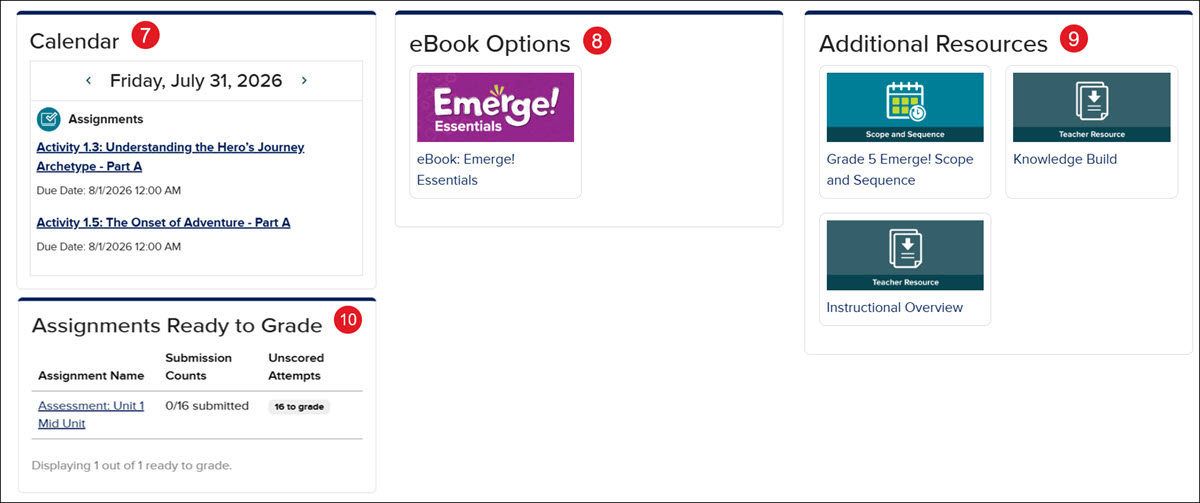
7. Course Calendar - Easily view any assigned assignments, events, or lesson materials for the day. Click the back-and-forth arrows to navigate through the days. For more information about the course calendar, refer to the Access and Navigate the Open Learning Teacher Calendar article.
8. Assignments Ready to Grade - The widget shows a list of assignments that are ready to be graded. Click the Assignment Name link to navigate to the assignment overview page. For details on grading assignments, consult the Grade Open Learning Assignments article.
9. eBook Resources - If the course has any eBooks associated with it, they can be easily found in the eBook Options widget.
10. Additional Course Resources - Most courses will have a collection of additional resources available for teachers to use to help them learn more about the program they are using, or help with teaching the material.
Course Page Navigation
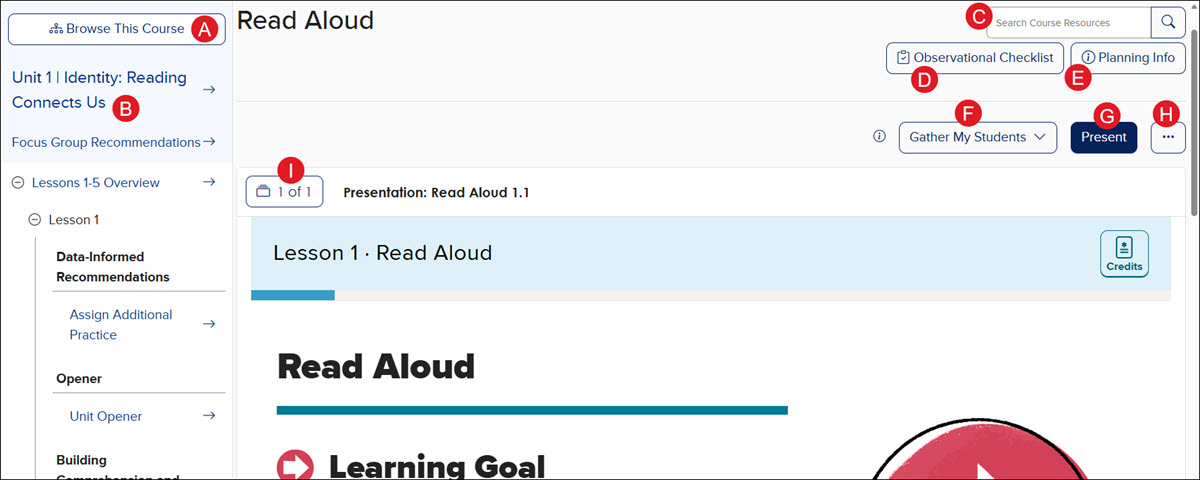
A. Course Table of Contents - Click on the Browse This Course button to navigate to available lesson pages, resources, and tools within the course.
B. Course Navigation Panel - Easily navigate between lessons by selecting an option from the panel. Clicking a lesson automatically expands a drop-down menu, where you can select a specific blade to view its resources.
C. Course Resources Search - Enter a keyword in the search field or click the magnifying glass to access the Course Resources page. Learn more about the course resources page by reading our Navigating the Open Learning Course Resources Page article.
D. Observational Checklist - Use the checklist to gauge skills, concepts, and practices that aren't formally assessed to measure student progress. For more on using this tool, see the Observational Checklist Resource article.
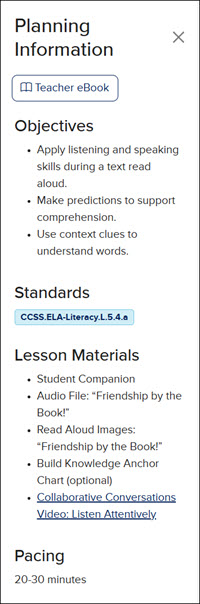
E. Planning Info - Click this button to open the Planning Information panel on the right of the lesson page. This panel varies based on the lesson that is currently selected.
F. Gather My Students - Enables teachers to pull students into a live instruction session where students can see what the teacher is presenting on their screens and respond to activities during the session.
G. Present - Click to open the presentation in full-screen mode.
H. Presentation Options - Provides the option to open the presentation in a separate browser tab.
I. Resource Navigation - Click the 1 of # button to open a panel that lists all the available resources for the presentation.
Below the lesson presentation, teachers will find the Instructional Support section. Keep in mind, this section will vary and may not be available for every lesson.
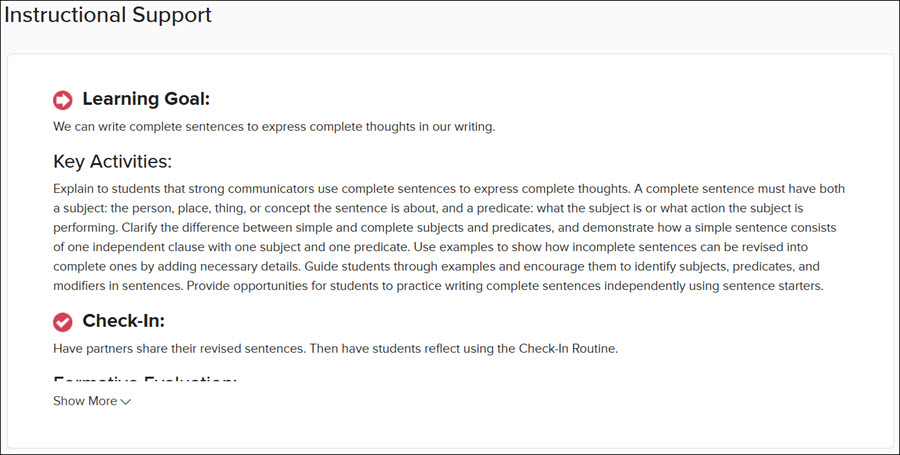
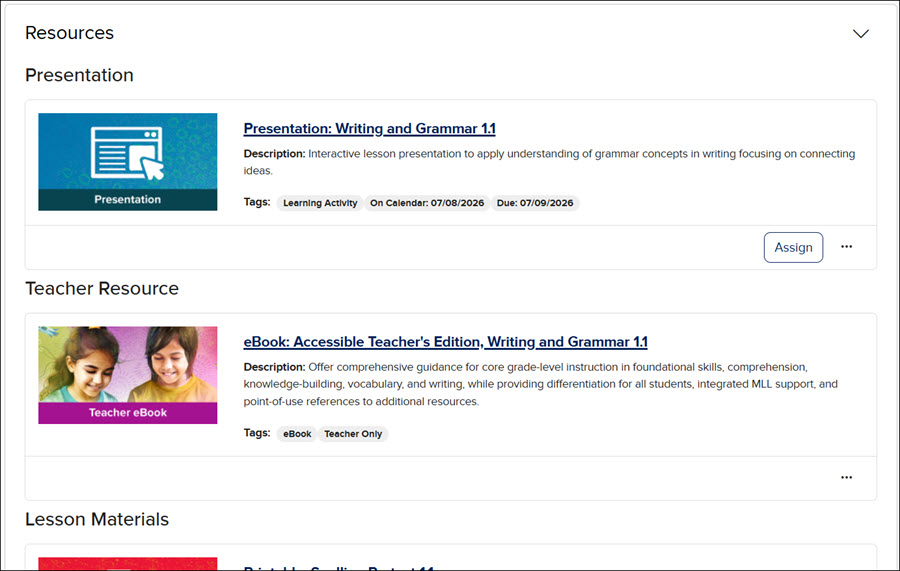
Further down the lesson page are assorted Resources that correspond with the selected lesson. Some lessons may not have extra resources available.
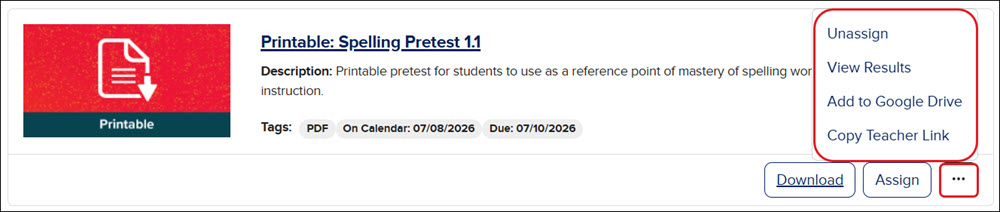
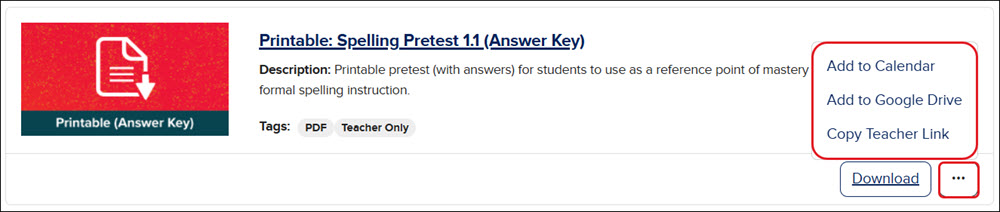
Depending on the lesson resource, different selections are available from the Options menu.
Links to articles for additional steps for the available resource options:
Manage Open Learning Assignments
Add Open Learning Resources to Google Drive™
Use the Open Learning Teacher Asset Linking Feature
Access and Navigate the Open Learning Teacher Calendar
Navigation Menu
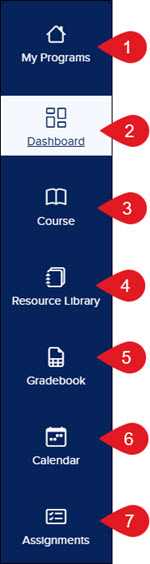
1. My Programs - Takes you back to your my.mheducation.com dashboard to view all your classes.
2. Dashboard - Navigates to the program's home page.
3. Course - Takes you to the lesson page, where you can access resources and available tools.
4. Resource Library - Provides access to Focus Group Lesson Resources and Professional Learning Resources.
5. Gradebook - Access individual student grades across assignments, assessments, and other assigned resources. To learn how to access and navigate the course gradebook, visit the Access and Navigate the Open Learning Gradebook article for a step-by-step guide.
6. Calendar - View created events, assignments, and lessons for the class organized by day, week, or month. See the Access and Navigate the Open Learning Teacher Calendar article to learn more about the course calendar.
7. Assignments - Access all assigned assignments and assessments, including options to manually grade and view scores. See the Manage Open Learning Assignments article for help with creating and managing assignments.
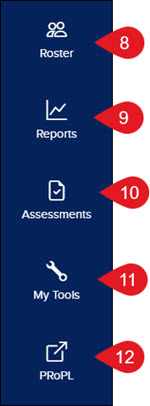
8. Roster - Add, remove, and view students assigned to the class. Depending on the course, you can also emulate student accounts, print temporary passwords, and edit student profiles. See the Add and Remove Students from an Open Learning Class Roster article for steps on navigating and managing the student roster.
9. Reports - Access class Activity and Standards Overview: Performance reports. Depending on the course and the access provided, access to the Standards & Skills Proficiency report is also available. For more information on available reports, see the Teacher Activity Performance Reports and Teacher Standards Performance Report articles. For an in-depth look at navigating the Standards & Skills Proficiency report, refer to the Personalized Learning Teacher Report article.
10. Assessments - View, customize, assign, and print course assessments. For more information on assessment management, consult the McGraw Hill Assessment Management Resources article.
11. My Tools - Allows teachers to create links which serve as a launch point to custom class resources to share with students. For more information, refer to the Using My Tools on the McGraw Hill Platform article.
12. PRoPL - Launches into the Pearson Review of Progress & Learning scheduler. For more about PRoPL, see the available PRoPL Resources.
