
Distributing ConnectED Digital Content to Teachers
Learn about the various ways available to distribute ConnectED digital materials for teacher use.
- PreK-12
- Customer Support
- School Administrator
- Preschool
- Elementary School
- Middle School
- High School
- Direct Login & Manual-Rostering
- SSO & Manual-Rostering
- Core
- Intervention
- Supplemental
- AP, Honors & Electives
- Career & Technical Education
- Literacy
- Math
- Science
- Social Studies
- Health
- Visual & Performing Arts
- World Languages
- Glencoe Health 2014
- McGraw Hill Health 2014
- 2Inform
- Building Blocks 2015
- Connecting Math Concepts
- Number Worlds 2015
- Corrective Reading
- Early Interventions in Reading
- Spelling Mastery
- WonderWorks 2022 & 2014
- Maravillas 2020 & 2017
- OCR Foundational Skills Kit
- OCR Word Analysis Kit
- Open Court Reading 2016, 2018, 2023
- StudySync 2015 & 2017
- Wonders
- Wonders 2014
- Wonders 2023 2020 2017
- Wonders Balanced Literacy 2016
- Wonders EL 2016
- World of Wonders 2017
- Core Plus Math 2015
- Everyday Mathematics 4 (K-6)
- Glencoe Algebra 1 2014
- Glencoe Algebra 1 2018
- Glencoe Algebra 2 2014
- Glenoce Algebra 2 2018
- Glencoe Math
- Glencoe Geometry 2014
- Glencoe Geometry 2018
- Glencoe Math Course 1
- Glencoe Math Course 2
- Glencoe Math Course 3
- Glencoe Math Accelerated
- McGraw Hill My Math
- McGraw Hill My Math 2013 & 2016
- McGraw Hill My Math 2018
- Pre-Algebra 2012
- Glencoe Science 2017
- Glencoe Science
- Inspire Science 2017
- iScience 2017
- Networks
- Networks 2014 (K-5)
- Networks 2014 & 2016
- Networks 2018
- Music! Its Role
- Spotlight on Music
- Asi se Dice 2016
- Class Management
- Products & Licenses
- Getting Started & Orientation
- Back-to-School Setup
- Account Management


Direct Login and Manual Rostering
Single Sign-On (SSO) and Manual Rostering
This article applies to Manual Rostering districts. Manual Rostering means that teachers manually redeem program content and roster their own classes.
SSO applies to districts that use an SSO portal, district website, or Learning Management System (LMS) to access McGraw Hill digital programs, and Direct Login means that teachers, students, and administrators log in at my.mheducation.com.
Not sure which Access Service your district uses? Click here to learn more about the four Access Services that we support.
There are multiple options for distributing digital resources for ConnectED:
Option 1: Teachers select digital content from the ConnectED Library
As an Organization Administrator, you can enable or disable the Library feature. This allows teachers to redeem content as needed without the need of entering a Master Code.
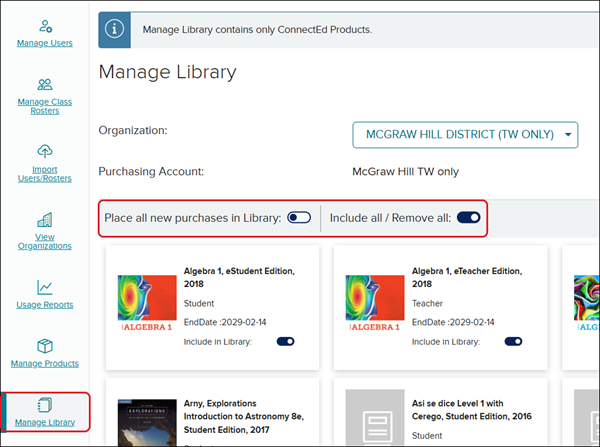
To manage the ConnectED Library, from the administrator tools, select Manage Library from the navigation menu. Click on the toggle to turn on/off the preferred options: Place all new purchases in the Library and Include all/Remove all. Keep in mind, this is for ConnectED programs only.
Take a look at the Manage the ConnectED Product Library article for more information.
Option 2: Provide Teachers with Master Codes
Master Codes are 16-digit alphanumeric codes that teachers redeem to access content through ConnectED. Use the sample letter below to provide teachers with the appropriate master code for their teacher account. They should receive codes for both a Teacher Edition and Student Edition, if available, for each title they need access to.
Master Codes are meant for teachers only and should never be shared with students.
Codes are account specific and should not be shared outside of your school or district. These are subscription licenses with specific quantities; they should be managed much like physical textbooks.
Refer to the Manage Purchased McGraw Hill Products article for steps on locating Master Codes.
Option 3: Assign Content via Auto-Rostering
If you’re interested in an automated option for license management instead of handling the process manually, complete the McGraw Hill Integrations Intake Form to schedule a call to discuss our automated rostering options with our Integrated Services team.
Additional Assistance
For online help and tutorials, visit our PreK-12 Support site.
For further assistance, feel free to reach out to our PreK-12 Technical Support team by phone, chat, or email.
For assistance with license dates or quantities, contact your Sales Representative.
Sample Master Code Letter
Copy/paste the following to teachers via email for those that will be redeeming content manually.
Below are the Master Code(s) you will use to access your McGraw Hill Education digital resources on ConnectED. If you do not already have an account, follow the steps in the Create a McGraw Hill Teacher Account to create a new teacher account. Once you have created your account, you will then able to add your digital content by selecting content from the ConnectED Library or manually redeeming the Master Code.
Note: Do not distribute Master Codes to students. When you add a Student Edition Master Code to ConnectED as a teacher, it will generate a 12-digit alphanumeric Redemption Code. You can then provide the Redemption Code to your students for them to manually redeem to their account, or you can manually assign content to them.
Students will want to refer to the How to Join a McGraw Hill Class and Redeem Content article for steps on manually redeeming content.
Refer to the Assign the ConnectED Student Edition article for steps on manually assigning students to the Student Edition.
Master Codes
[Product Title Teacher Edition]
[Master Code 1]
[Product Title Student Edition]
[Master Code 2]
See the Redeem a ConnectED Master Code article for steps on how to manually redeem the provided Master Code(s).
Take a look at the Using the Available ConnectED Products Library article for steps on redeeming content without a Master Code. If the Library feature is not turned on, you will need to reach out to your Organization Administrator to have the option activated.
Additional Resources for Teachers
Students/Rosters Import Process Resources for Teachers
Options for Distributing ConnectED Student Editions
Open Learning Class Management Resources
ConnectED Class Management Resources
Additional Assistance
For additional help and tutorials, visit our PreK-12 Support Site.
For further assistance, feel free to reach out to our PreK-12 Technical Support team by phone, chat, or email.