Manage the ConnectED Product Library
Use administrator tools to manage the digital library and available resources.
- Customer Support
- PreK-12
- School Administrator
- Preschool
- Elementary School
- Middle School
- High School
- Direct Login & Auto-Rostering
- Direct Login & Manual-Rostering
- SSO & Auto-Rostering
- SSO & Manual-Rostering
- Core
- Intervention
- Supplemental
- AP, Honors & Electives
- Career & Technical Education
- Literacy
- Math
- Science
- Social Studies
- Health
- Visual & Performing Arts
- World Languages
- Glencoe Health 2014
- McGraw Hill Health 2014
- 2Inform
- Building Blocks 2015
- Connecting Math Concepts
- Number Worlds 2015
- Corrective Reading
- Early Interventions in Reading
- Spelling Mastery
- WonderWorks 2022 & 2014
- Maravillas 2020 & 2017
- OCR Foundational Skills Kit
- OCR Word Analysis Kit
- Open Court Reading 2016, 2018, 2023
- StudySync 2015 & 2017
- Wonders
- Wonders 2014
- Wonders 2023 2020 2017
- Wonders Balanced Literacy 2016
- Wonders EL 2016
- World of Wonders 2017
- Core Plus Math 2015
- Everyday Mathematics 4 (K-6)
- Glencoe Algebra 1 2014
- Glencoe Algebra 1 2018
- Glencoe Algebra 2 2014
- Glenoce Algebra 2 2018
- Glencoe Math
- Glencoe Geometry 2014
- Glencoe Geometry 2018
- Glencoe Math Course 1
- Glencoe Math Course 2
- Glencoe Math Course 3
- Glencoe Math Accelerated
- McGraw Hill My Math
- McGraw Hill My Math 2013 & 2016
- McGraw Hill My Math 2018
- Pre-Algebra 2012
- Glencoe Science 2017
- Glencoe Science
- Inspire Science 2017
- iScience 2017
- Networks
- Networks 2014 (K-5)
- Networks 2014 & 2016
- Networks 2018
- Music! Its Role
- Spotlight on Music
- Asi se Dice 2016
- Products & Licenses
- Account Management


View the demo in a separate tab.
View the Spanish version of the demo.
Teachers can redeem content using Master Codes provided by an Administrator, or they can self-select ConnectED products from the Available Product Library. Allowing teachers access to the ConnectED program Library is the easiest form of distribution.
If you decide to have teachers self-select content from the Library, you will need to first set up the ConnectED Product Library from Manage Library in your administrator tools.
1. SSO or log into your Administrator account at my.mheducation.com.
If you have both a Teacher role and Administrator role, you will need to toggle over to your Administrator role to access the administrator tools.
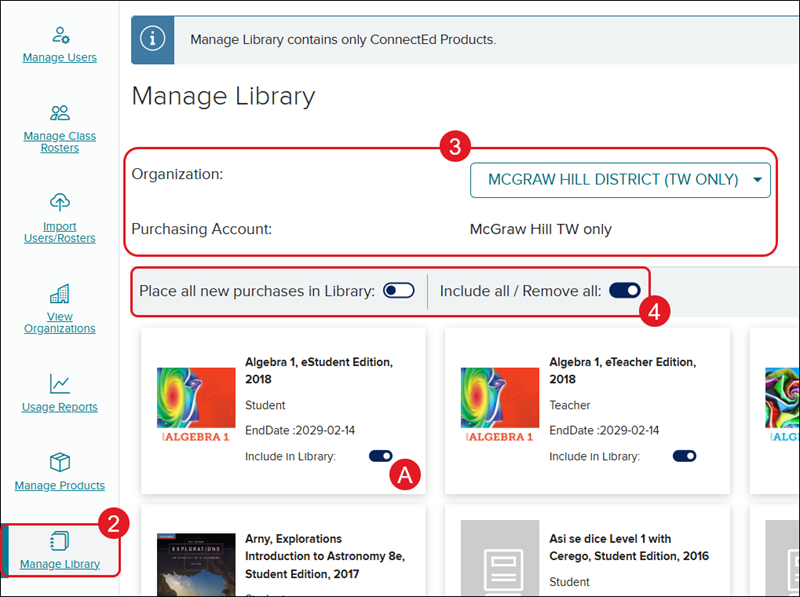
2. Click on Manage Library from the navigation menu.
If the Library is turned off for the purchasing account, you will get the message: The selected account does not have the Manage Library feature enabled. Contact PreK-12 Technical Support if you would like to enable this feature.
If you are not the Organization Administrator with access to the purchasing account, you will get the message: There is no purchasing account associated with this organization. You will need to contact a district-level administrator with access to the purchasing account. They can either set up the ConnectED Library or update your account with access to make changes at the district level.
3. If assigned to more than one purchasing account, select the Organization and Purchasing Account from the drop-downs.
4. Click the toggle on/off for the provided options: Place all new purchases in Library and Include all/Remove all.
A. You also have the option to toggle on/off individual programs.
Selected settings will automatically save.