Actively Learn Teacher Assignment Views
Learn how to navigate through different assignment views in Actively Learn as a teacher.
- Customer Support
- PreK-12
- Classroom Teacher
- Elementary School
- Middle School
- High School
- Direct Login & Auto-Rostering
- Direct Login & Manual-Rostering
- SSO & Auto-Rostering
- SSO & Manual-Rostering
- Supplemental
- Literacy
- Science
- Social Studies
- Actively Learn
- Dashboard & Navigation Overview
- Grades & Assignments


Teachers can view their assignments in two locations: in My Workspace and from the class Assignments page. Depending on where you are viewing your assignment, you will have different options within the text and see a different top assignment menu banner.
Article Contents
From Assignments Page
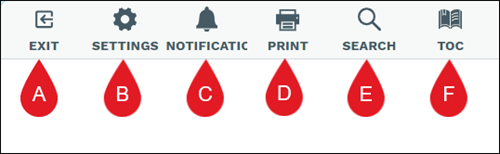
A. Exit - Takes you back to the Assignments page.
B. Settings - Allows you to make changes to the Margin and Spacing, Text size, Font, Theme, Paragraph and Page Numbering, and Dyslexic settings.
C. Notifications - Notifications alert you about students requesting a question reset or have tagged you in a note while reading. Notifications can be enabled or disabled from the assignment settings.
D. Print - Allows you to print the assignment with all question and notes associated. Keep in mind, printing the assignment from this location will print all questions with the answers marked.
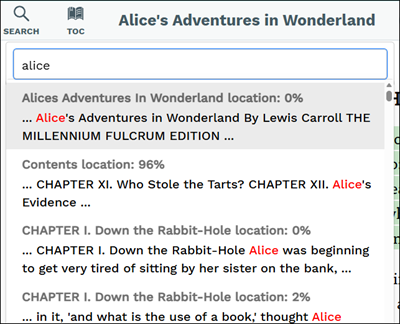
E. Search - Easily locate a specific word within the text. Click on an option from the pop-up to quickly navigate to that location within the text.
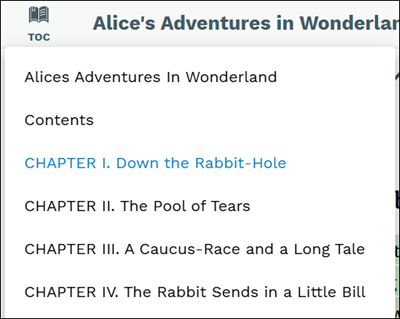
F. TOC - The Table of Contents if only available for text assignments and provides you with the list of chapters within the text. Click on an option from the pop-up to quickly navigate to that location within the text.

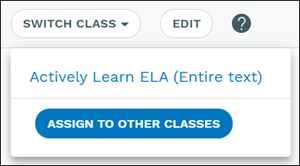
G. Switch Class - Provides you with a drop-down with all the classes that are assigned to the text. You can also assign the text to other classes from this option.
H. Edit - Allows you to make customizations to the assignment. Refer to Customize Actively Learn Text Assignments and Customize Actively Learn Video Assignments for steps on making adjustments to an assignment.
I. Present - Teachers can use Present Mode for a variety of instructional strategies, including leading a whole class read, modeling effective annotation, or discussing the answer to a question as a class.
J. Read Aloud - This option is different from the Hear It option as Read Aloud reads the entire text aloud while Hear It only reads allowed the selected text.
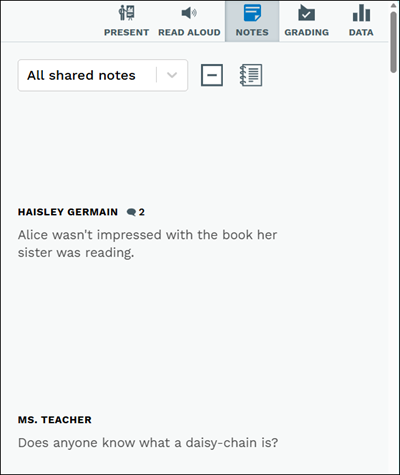
K. Notes - Opens a side panel to easily view all the student and teacher notes added throughout the assignment.
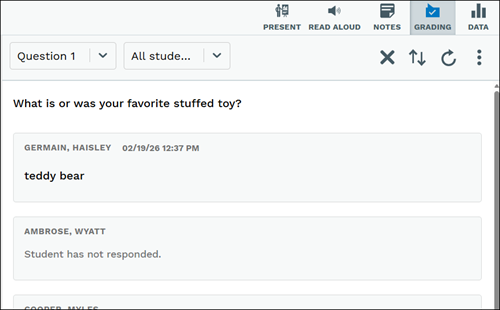
L. Grading - Opens a side panel to allow you to easily grade all student responses to the questions throughout the text.
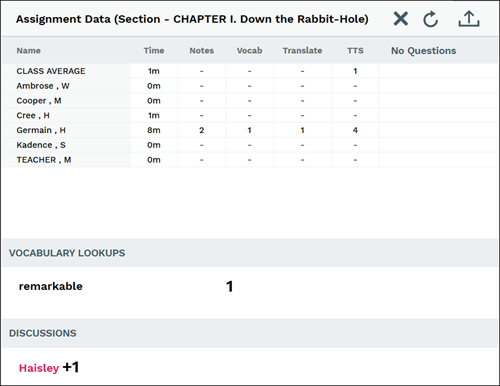
M. Data - Opens a side panel and provides information about student performance is generated when they interact with text and assignments are graded. Assignment data gives you a great overview how your class, or individual students, are doing for that assignment.
From My Workspace
Every assignment a teacher has ever assigned, saved, customized, imported, or received from another teacher will be located in the Workspace. Texts in the Workspace are always editable, and do not have student work attached to them.
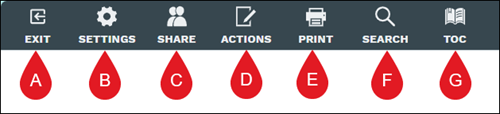
A. Exit - Takes you back to the Assignments page.
B. Settings - Allows you to make changes to the Margin and Spacing, Text size, Font, Theme, Paragraph and Page Numbering, and Dyslexic settings.
C. Share - When you want a colleague to have a copy of an assignment you can send a copy to colleagues. Recipients can independently edit the assignment, and use it in their own classes, and it will not affect your original assignment.
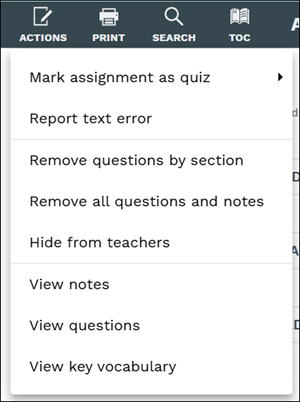
D. Actions - Provides options to make the assignment into a quiz, report text errors, remove questions, and view notes, questions, and key vocabulary. If the teacher also has administrator privileges, they have the additional option of hiding the text from teachers.
E. Print - Allows you to print the assignment with all question and notes associated. Keep in mind, printing the assignment from this location will print all questions with the answers marked.
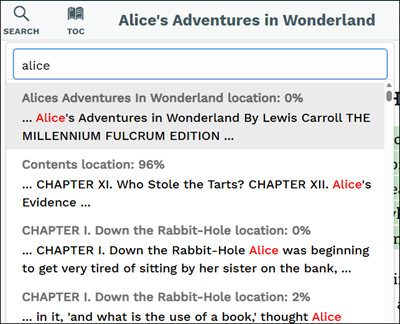
F. Search - Easily locate a specific word within the text. Click on an option from the pop-up to quickly navigate to that location within the text.
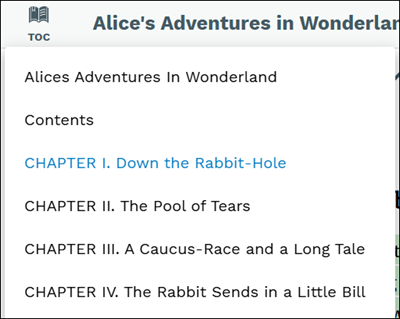
G. TOC - The Table of Contents if only available for text assignments and provides you with the list of chapters within the text. Click on an option from the pop-up to quickly navigate to that location within the text.

H. Grade - Clicking this option opens a drop-down to select the assignment you want to score the questions for. This will automatically navigate you to the Assignments page.
I. Student Preview - Allows teachers to view the text how the students would see it.
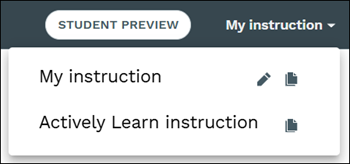
J. My instruction - Allows teachers to toggle between the different versions of the text as well as create duplicate assignments.
K. Read Aloud - This option is different from the Hear It option as Read Aloud reads the entire text aloud while Hear It only reads allowed the selected text.
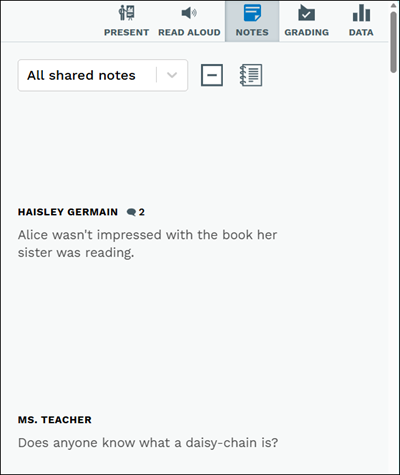
L. Notes - Opens a side panel to easily view all the student and teacher notes added throughout the assignment.
M. Assign to Your Classes - Click the button at the bottom of the page to create a new assignment.