View Actively Learn Assignment, Student, and Class Data
View Actively Learn assignment, student, and class reports.
- Customer Support
- PreK-12
- Classroom Teacher
- Elementary School
- Middle School
- High School
- Direct Login & Auto-Rostering
- Direct Login & Manual-Rostering
- SSO & Auto-Rostering
- SSO & Manual-Rostering
- Supplemental
- Literacy
- Science
- Social Studies
- Actively Learn
- Reports & Analytics


Article Contents
Assignment Data
Information about student performance is generated when students interact with the text and assignments are graded. Assignment data gives teachers a great overview how students are doing for that assignment.
1. Click on Menu at the top-left.
2. Click on a class to view the assignments.
3. Click on an assignment tile.
4. Click Data at the top-right.
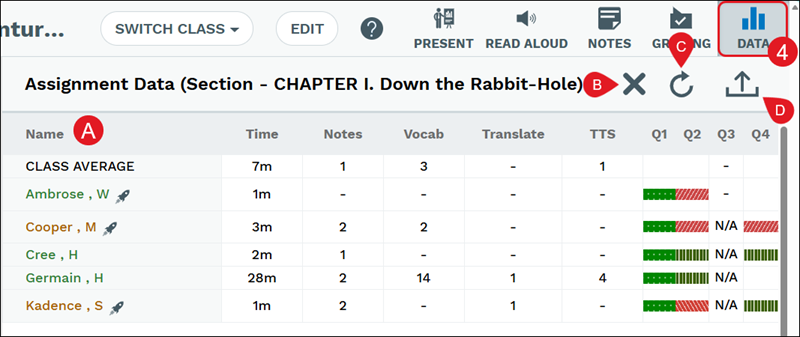
A. Each student that has launched Actively Learn will show listed with the amount of Time they have spent within the assignment, the number of Notes they've created, and the number of words they've defined (Vocab) and Translated.
The scoring for each question will also show listed with corresponding grading of Advanced, Proficient, Developing, Incomplete, or Zero.

B. Click the X icon to close out of the Data panel.
C. Click the Refresh icon to reload the Data panel.
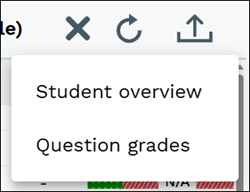
D. Click the Export to CSV to download the Student overview or the Question grades.
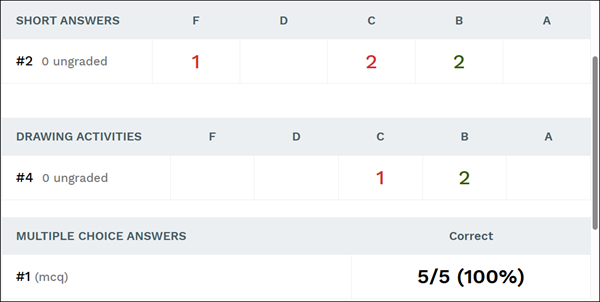
Each graded type question is individually listed, indicating the number for each selected grade.
Teachers will be able to view every Vocabulary Lookup students have done within the text. Click on a word to view the location within the text the word was defined.
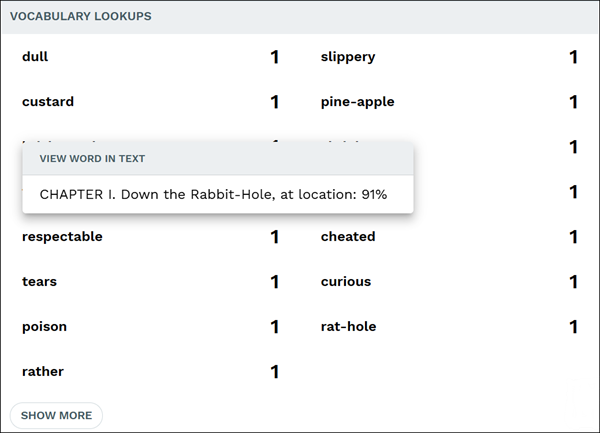
At the bottom of the panel, the Discussions information is available. This section shows each student and teacher that has responded to notes will show listed with the number of responses they provided.
Click on a name in the list to open that discussion.

Student Data
For each assignment you give your students in Actively Learn, information on their progress is generated when you grade assignments, and students interact with the text.
Reviewing student work on a daily basis can provide insights and help you direct your focus to areas students need the most support. The various data reports across Actively Learn at the Assignment, Class, and Student levels provide real-time metrics on how their students are engaging with texts.
Check out this blog on Data-Driven Instruction.
1. Click on Menu at the top-left.
2. Click on a class.
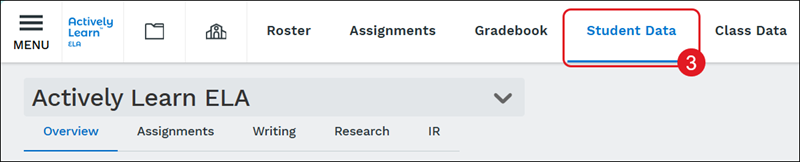
3. Click on Student Data from the navigation menu.
Overview
The Overview page provides details of the student's current Grade, Reading Pace, Words Written, Words Looked Up, and Notes Created.
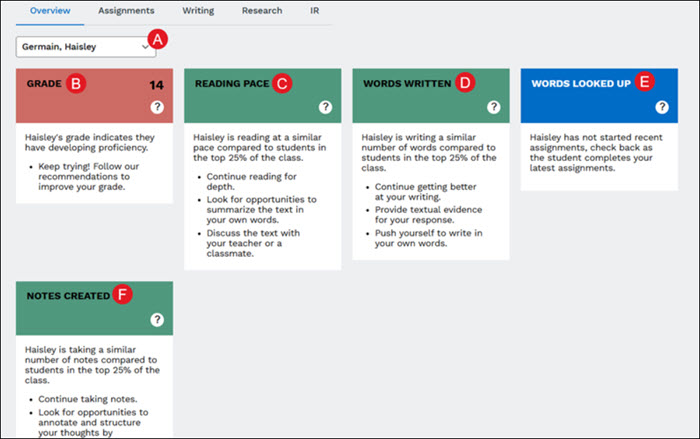
A. Select a student from the dropdown to view their Overview details.
B. Grade - This is an overall grade, reflecting the total points earned to the total points possible across all assignments in this class.
C. Reading Page - This reflects your reading pace compared to the average reading pace of the top 25% of performers in this class based on grades in the most recent five assignments.
D. Words Written - This reflects the average number of words you're writing in short answer questions as compared to the 5th percentile and 33rd percentile of top performers by grade in this class. This calculation is only based on the most recent five assignments.
E. Words Looked Up - This is based on the total amount of words you've looked up as compared to the median total looked up by the top 25% performers in the class. This calculation is only based on the most recent five assignments.
F. Notes Created - This is based on the total amount of notes you've taken as compared to the median total taken by the top 25% performers in the class. This calculation is only based on the most recent five assignments.
Assignments
This page lists all assignments that have been assigned to students. These include completed assignments, future-dated assignments, and those that have not been started.
Note: Total grade excludes any grades from assignments with a future start date.
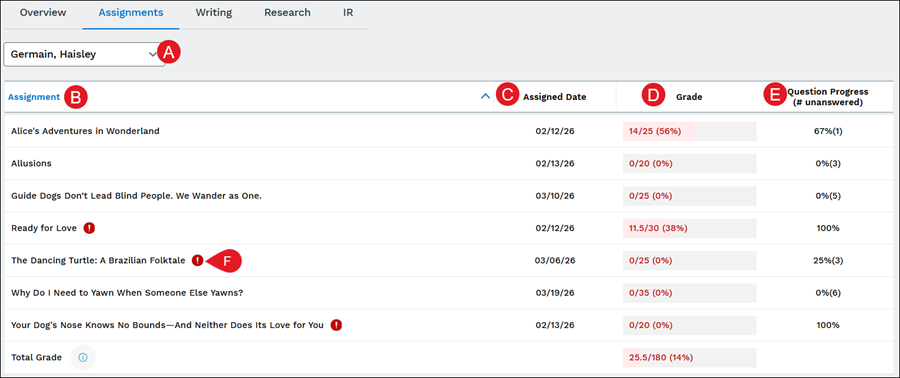
A. Select a student from the dropdown to view their Assignment details.
B. All active assignments will be listed in the Assignment column.
C. The Assigned Date is the date the teacher assigned it to the student/class.
D. The Grade column shows the number and percentage of the grade received for answered questions. This will not be fully accurate if there are questions the teacher needs to score.
E. The Question Progress column shows the percentage of questions answered and the number of questions that have not yet been answered.
F. A red exclamation point will show for any assignment that has ungraded questions.
Writing
The Writing page shows every short answer question for every assignment and all answers students have provided for each.
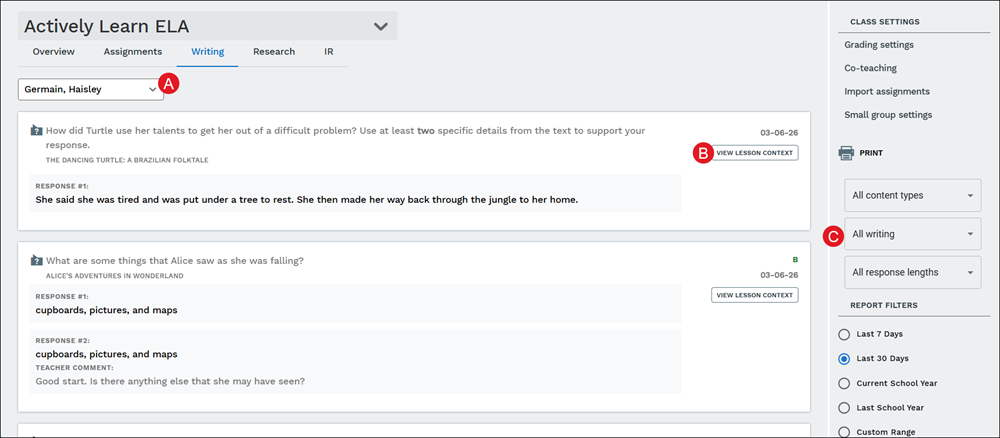
A. Select a student from the dropdown to view their Writing details.
B. Click the View Lesson Context button on the question tile to navigate within the assignment where the context for the question can be located.
C. Use the Filters to narrow down the view by content types, writing, and response lengths.
Research
The Research page shows all of the student Research Projects that have been created. The data includes the Title, who added the project, the date in which it was added, the reading time, the source, any labels that were attached to it, and any notes that were created.
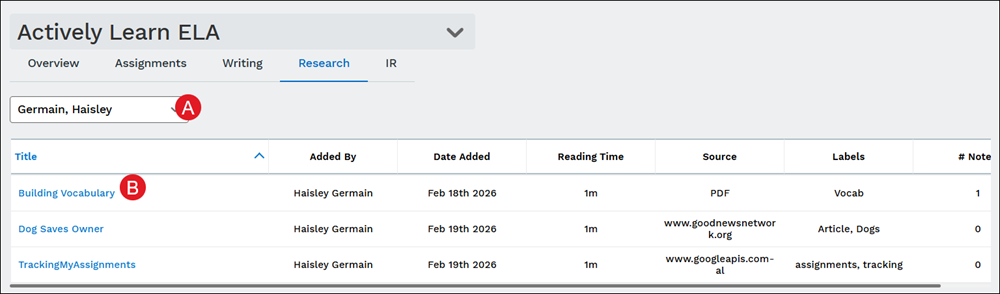
A. Select a student from the dropdown to view their Research details.
B. Click on the Title to navigate to that project.
Independent Reading (IR)
The Independent Reading page lists all texts the student has read from within the Library. It provides the name of the text, the topic, any reviews they have provided about the text, the length of the text, the time spent reading it, and how long ago they finished reading the text.
For steps on managing the student library, refer to the Actively Learn - Manage Student Library article.
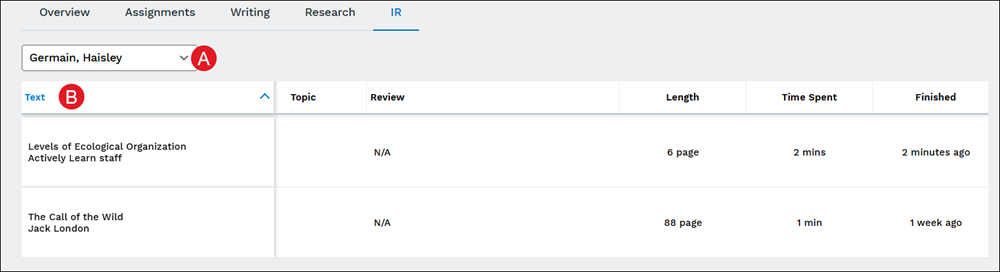
A. Select a student from the dropdown to view their IR details.
B. The table shows the Text title that was read, the Topic associated to it, if the student submitted a Review, the Length of the text, the Time Spent within the text, and how long it took to Finish reading the text.
Class Data
The Class Data page provides data for Proficiency, gives Recommendations, and lists Vocabulary defined by students.
1. Click on Menu at the top-left.
2. Click on a class.
3. Click on Student Data from the navigation menu.

Proficiency
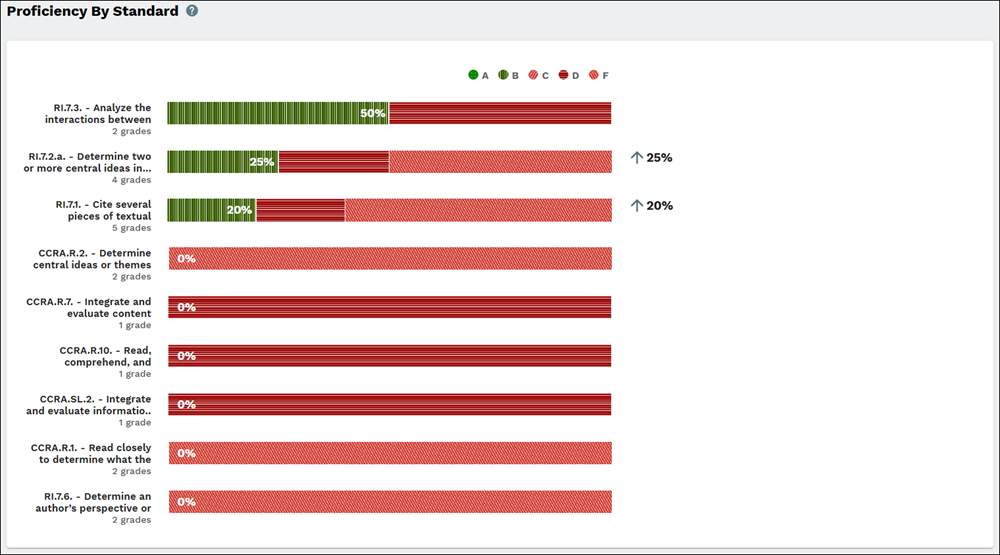
The proficiency page provides details of Proficiency by Standard, DoK Level, Content, and by Reading Level.
Proficiency By Standard - See which skills require more work. The bars show the number of B or A answers versus the number of C, D or answers. If the trend is changing in the past 30 days, you will see that to the right of the bar.
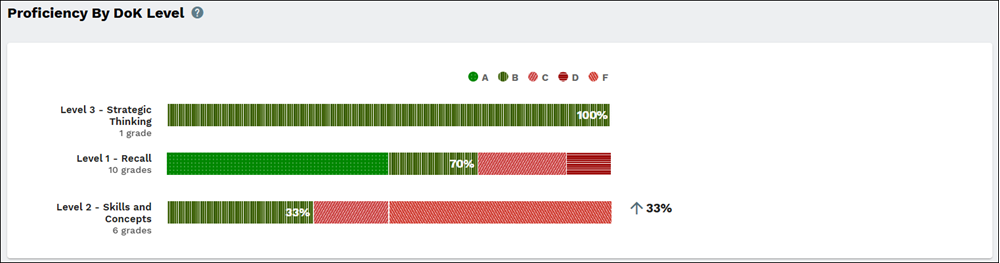
Proficiency By DoK Level - See which DoK levels require more work. The bars show the number of B or A answers versus the number of C, D or answers. If the trend is changing in the past 30 days, you will see that to the right of the bar.
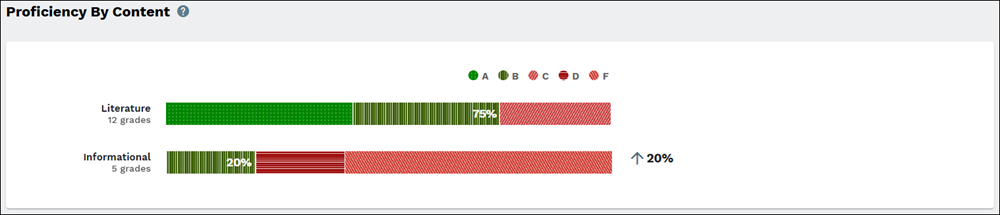
Proficiency By Content - See which content areas require more work. The bars show the number of B or A answers versus the number of C, D or answers. If the trend is changing in the past 30 days, you will see that to the right of the bar.
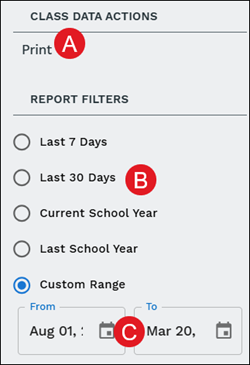
The report can be saved/downloaded by clicking the Print icon (A) in the right-hand panel. This panel also provides Report filters (B) for the Last 7 Days, Last 30 Days, Current School Year, Last School Year, and Custom Range.
If Custom Range is selected, click on the From and To fields to select a specific date range (C).
Recommendations
The Recommendations page provides information on how to spend more time on assignments, have students writing more, asking students to define words, and encourage more student annotations.
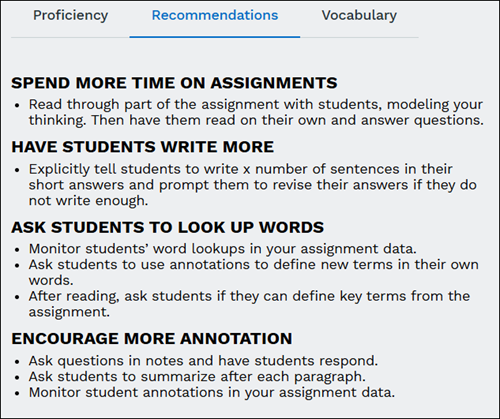
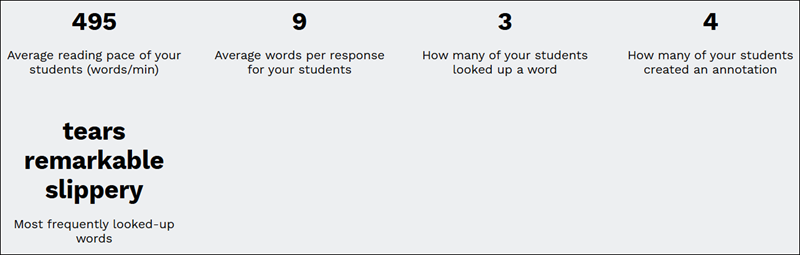
The page also provides the average reading page of students with words per minute, the average words per response to questions, how many students looked up words and created annotations, as well as the most frequently defined words.
Vocabulary
See which words your students have looked up while reading.
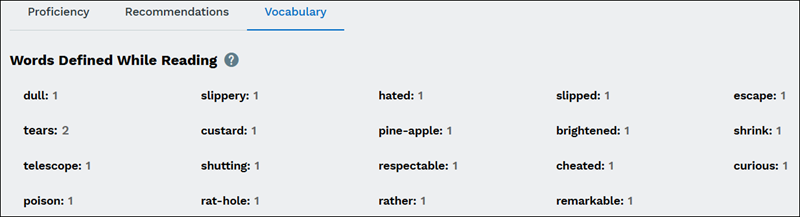
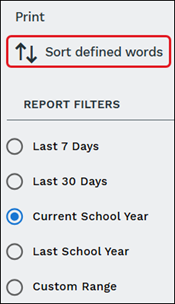
Sort by recency or frequency by clicking the Sort defined words option in the right panel.