View Actively Learn Teacher Notifications
Learn how to manage teacher notifications in Actively Learn to support classroom communication.
- Customer Support
- PreK-12
- Classroom Teacher
- Elementary School
- Middle School
- High School
- Direct Login & Auto-Rostering
- Direct Login & Manual-Rostering
- SSO & Auto-Rostering
- SSO & Manual-Rostering
- Supplemental
- Literacy
- Science
- Social Studies
- Actively Learn
- Dashboard & Navigation Overview
- Tools & Resources


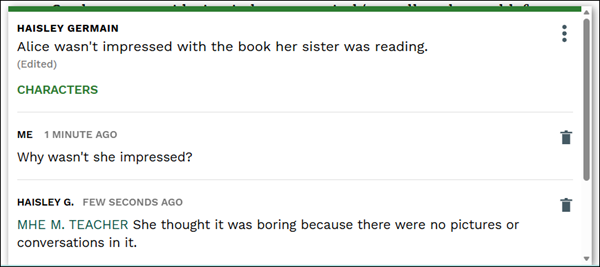
Notifications alert you about students requesting a question reset or have tagged you in a note while reading. Notifications can be enabled or disabled from the assignment settings.
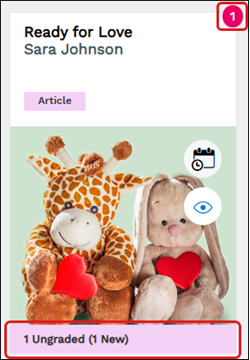
A number notification will show at the top-right of the assignment tile as well as a notification bar across the bottom.
Notifications are also available on the toolbar after clicking into the assignment. They can be accessed by clicking on the Notifications (bell) icon.
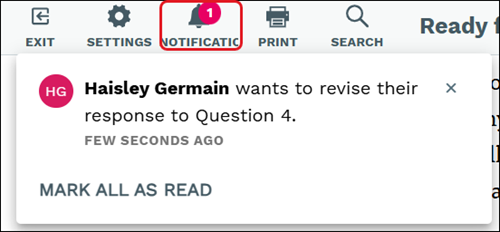
White notifications mean that the message has not been clicked on while gray means they have been.
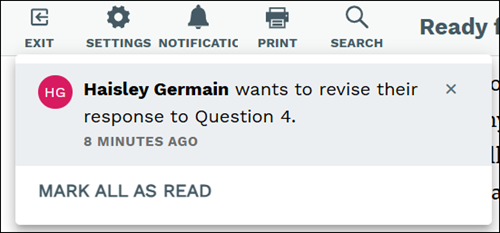
Click the X on the notification to remove it.
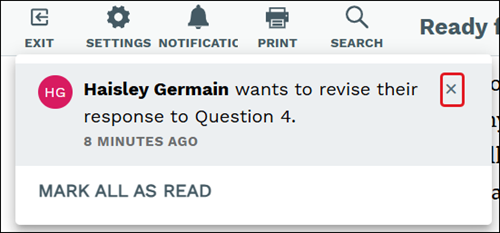
When the notification is clicking on, it will navigation you directly to the question or note that the student submitted for review. Questions will have a Revision Requested button. Refer to the Revise Student Answers in Actively Learn Assignments article for more information.
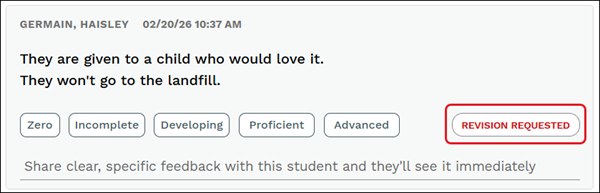
The note will open at the bottom with all replies or can be viewed within the Notes panel.