actively-learn
instructor
Business Unit
Business Unit/PreK-12
Context
Context/Integration Type
Context/Integration Type/Direct Login & Manual-Rostering
Context/Education Level
Context/Education Level/High School
Context/Subject
Context/Subject/Literacy
Context/Subject/Science
Context/Education Level/Elementary School
Context/Integration Type/Direct Login & Auto-Rostering
Context/Integration Type/SSO & Auto-Rostering
Personas
Personas/School Educator
Personas/School Educator/Classroom Teacher
Asset Format Type
Asset Format Type/Customer Support
Context/Curriculum Type
Context/Curriculum Type/Supplemental
Context/Subject/Social Studies
Programs & Solutions
Programs & Solutions/Actively Learn
Context/Education Level/Middle School
Support Topics
Support Topics/Assessments & Reporting
Support Topics/Assessments & Reporting/Grades & Assignments
Context/Integration Type/SSO & Manual-Rostering
prek-12
2026-05-28T11:56:21.567-04:00
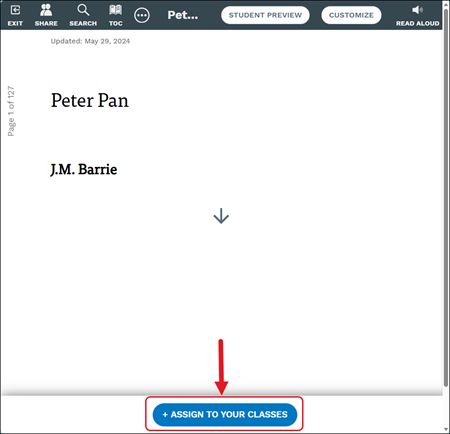
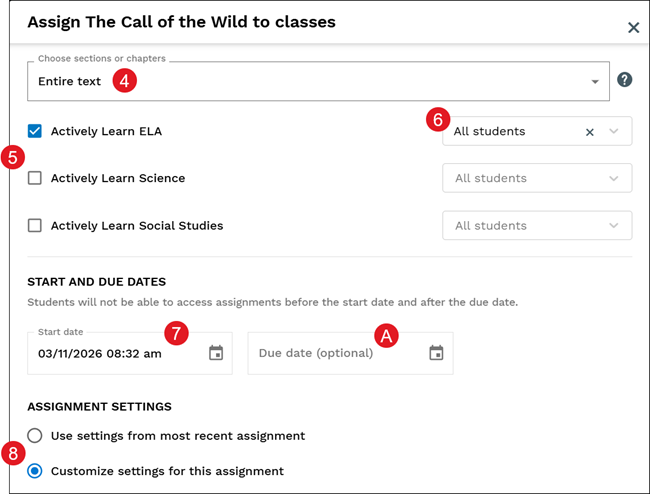
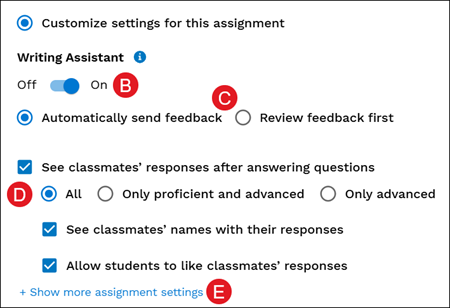
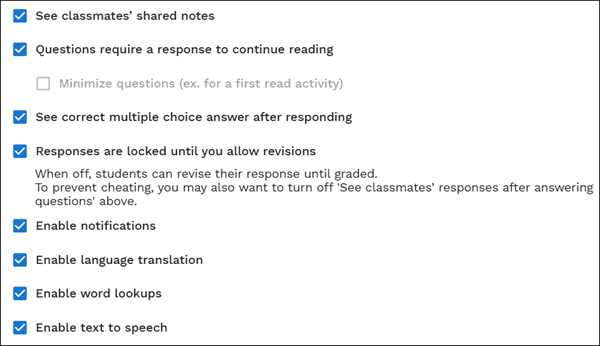
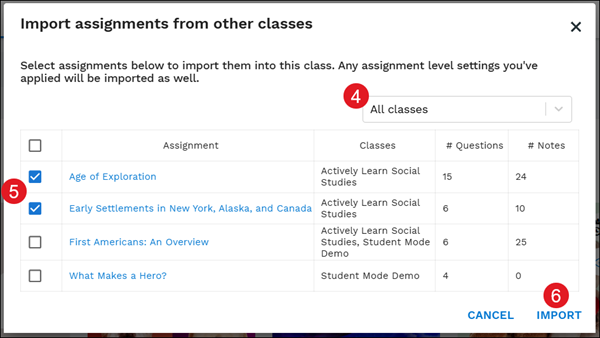
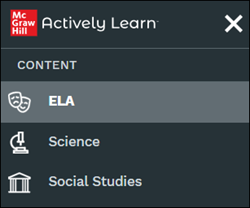
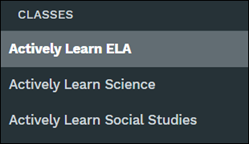
<h2><span class="fs-5">Article Content</span></h2> <p><a href="#create_assignments">Create Assignments</a></p> <p><a href="#duplicate_assignments">Duplicate Assignments</a></p> <p><a href="#merge_assignments">Merge Assignments</a></p> <p><a href="#import_assignments">Import Assignments</a></p> <p><a href="#label_assignment">Label Assignments</a></p> <p><a href="https://mh.my.site.com/DTS/s/article/Actively-Learn---Unassign-Archive-or-Delete-Assignments" target="_blank">Unassign, Archive, or Delete Assignments</a></p> <p> </p> <h3 class="fs-5"><a></a><a id="create_assignments"></a>Create Assignments</h3> <p><strong>Note:</strong> When creating assignments, the settings available for selection will vary based on what is being assigned.</p> <ol> <li>Click on <strong>Menu </strong>at the top left.<br> <br> <img src="/content/dam/mhe/support/support-images/dts-k12-images/al-create-assignments/al-create-assignments-1.jpg" data-assetref="al-create-assignments-1-1779978477955"><br> <br> </li> <li>From the <strong>Content </strong>section, select <strong>ELA</strong>, <strong>Social Studies</strong>, or <strong>Science</strong>.<br> <br> <strong>Note:</strong> Options available for content will depend on what was purchased by the district.<br> <br> <img src="/content/dam/mhe/support/support-images/dts-k12-images/al-create-assignments/al-create-assignments-2.jpg" data-assetref="al-create-assignments-2-1779978490862"><br> <br> You can also assign resources from the <strong>District Library</strong> by clicking on the school icon.<br> <br> <img src="/content/dam/mhe/support/support-images/dts-k12-images/al-create-assignments/al-create-assignments-3.jpg" data-assetref="al-create-assignments-3-1779978507922"><br> <br> </li> <li>Hover over the resource tile and click the <strong>Click here to assign to classes</strong> (plus icon) button.<br> <br> <img src="/content/dam/mhe/support/support-images/dts-k12-images/al-create-assignments/al-create-assignments-4.jpg" data-assetref="al-create-assignments-4-1779978518071"><br> <br> Another option is to click on the resource tile and clicking the <strong>+Assign to Your Classes</strong> button at the bottom.<br> <br> <img src="/content/dam/mhe/support/support-images/dts-k12-images/al-create-assignments/al-create-assignments-5.jpg" data-assetref="al-create-assignments-5-1779978533968"><br> <br> </li> <li>If assigning a book/text, <strong>Choose sections or chapters</strong> from the drop-down.<br> <br> </li> <li>Check the class(es) to assign to.<br> <br> </li> <li>Select to assign to <strong>All students</strong> or select specific students from the drop-down.<br> <br> </li> <li>Select a <strong>Start date</strong>.<br> <br> A. Select a <strong>Due date</strong>. This is optional.<br> <br> <strong>Note:</strong> Students will not be able to access the assignments before or after the start and due dates.<br> <br> </li> <li>If you've created previous assignments, you'll have the option to select <strong>Use settings from most recent assignment</strong> or <strong>Customize settings for this assignment</strong>.<br> <br> <img src="/content/dam/mhe/support/support-images/dts-k12-images/al-create-assignments/al-create-assignments-6.jpg" data-assetref="al-create-assignments-6-1779978546889"><br> <br> If <strong>Customize settings for this assignment</strong> was selected:<br> <br> B. Toggle <strong>On/Off</strong> the <strong>Writing Assistant</strong>. This will allow students access to the AI-powered tool for short answer/essay type questions. For more information on the Writing Assistant, refer to the <a href="https://www.mheducation.com/prek-12/support/knowledge/actively-learn---writing-assistant.html" target="_blank">Activate the Actively Learn Writing Assistant</a> article.<br> <br> <strong>Note:</strong> If you do not have this option, it may be turned off for the district. You will need to reach out to your Organization Administrator about this access.<br> <br> C. If the <strong>Writing Assistant</strong> is toggled <strong>On</strong>, select to <strong>Automatically send feedback</strong> or <strong>Review feedback first</strong>.<br> <br> D. Check/uncheck to allow students to <strong>See classmates' responses after answering questions</strong>.<br> <br> If selected, select the radio button for <strong>All </strong>responses, <strong>Only proficient and advanced</strong>, or <strong>Only advanced</strong> responses. You can also check/uncheck for them to be able to see names and/or allow the Like option to be available.<br> <br> E. Click the <strong>Show more assignment settings</strong> link for more options to select.<br> <br> <img src="/content/dam/mhe/support/support-images/dts-k12-images/al-create-assignments/al-create-assignments-7.jpg" data-assetref="al-create-assignments-7-1795013508615"><strong><br> <br> Additional assignment settings include:<br> </strong><ul> <li>See classmates' shared notes<br> </li> <li>Questions require a response to continue reading<br> </li> <li>See correct multiple choice answer after responding </li> <li>Responses are locked until you allow revisions<br> <ul> <li>When off, students can review their response until graded</li> <li>To prevent cheating, you may also want to turn off 'See classmates' responses after answering questions'</li> </ul> </li> <li>Enable notifications<br> </li> <li>Enable language translation<br> </li> <li>Enable word lookups<br> </li> <li>Enable text-to-speech<br> <br> <img src="/content/dam/mhe/support/support-images/dts-k12-images/al-create-assignments/al-create-assignments-8.jpg" data-assetref="al-create-assignments-8-1779978573889"><br> </li> </ul> </li> <li>Click the <strong>Assign </strong>button.<br> <br> Once the assignment is created, on the <strong>Assignments </strong>page, teachers can copy the assignment URL by clicking on the <strong>Post URL</strong> option in the side panel.<br> <br> <img src="/content/dam/mhe/support/support-images/dts-k12-images/al-create-assignments/al-create-assignments-9.jpg" data-assetref="al-create-assignments-9-1779978587319"></li> </ol> <p> </p> <h3 class="fs-5"><a></a><a id="duplicate_assignments"></a>Duplicate Assignments</h3> <p>Duplicating text assignments allows teachers to create multiple assignments for the same text while also allowing different customizations for each assignment. Duplicating assignments is helpful for teachers that want to create reading groups within a class create a different assignment for each group.</p> <ol> <li>Click on <strong>Menu</strong>.<br> <br> <img src="/content/dam/mhe/support/support-images/dts-k12-images/al-create-assignments/al-create-assignments-10.jpg" data-assetref="al-create-assignments-10-1779978599345"><br> <br> </li> <li>From the <strong>Content </strong>section, select <strong>ELA</strong>, <strong>Social Studies</strong>, or <strong>Science</strong>.<br> <br> <strong>Note:</strong> Options available for content will depend on what was purchased by the district.<br> <br> <img src="/content/dam/mhe/support/support-images/dts-k12-images/al-create-assignments/al-create-assignments-11.jpg" data-assetref="al-create-assignments-11-1779978610273"><br> <br> </li> <li>Click on a text tile.<br> <br> </li> <li>Click the <strong>Customize </strong>button.<br> <br> <img src="/content/dam/mhe/support/support-images/dts-k12-images/al-create-assignments/al-create-assignments-12.jpg" data-assetref="al-create-assignments-12-1779978624900"><br> <br> </li> <li>Click on the <strong>My Instruction</strong> drop-down.<br> <br> </li> <li>Click the <strong>Duplicate </strong>(paper) icon next to the preferred option.<br> <br> <img src="/content/dam/mhe/support/support-images/dts-k12-images/al-create-assignments/al-create-assignments-13.jpg" data-assetref="al-create-assignments-13-1779978637017"><br> <br> </li> <li>Enter a <strong>Label </strong>for the duplicated assignment.<br> <br> <strong>Note:</strong> The label entered will be visible to students.<br> <br> </li> <li>Click the <strong>Duplicate </strong>button.<br> <br> <img src="/content/dam/mhe/support/support-images/dts-k12-images/al-create-assignments/al-create-assignments-14.jpg" data-assetref="al-create-assignments-14-1779978649252"><br> <br> All assignment versions will then be listed on the <strong>My instruction</strong> drop-down. Select an option to make customizations for each text assignment before assigning it to students.<br> <br> <img src="/content/dam/mhe/support/support-images/dts-k12-images/al-create-assignments/al-create-assignments-15.jpg" data-assetref="al-create-assignments-15-1779978661419"></li> </ol> <p> </p> <h3 class="fs-5"><a></a><a id="merge_assignments"></a>Merge Assignments</h3> <p>Teachers may have more than one internet article or text that has been assigned or uploaded that are on the same topic. Merging assignments allows everything for that same topic to be merged into one assignment for students to access.</p> <p><strong>Note:</strong> Copyrighted texts from the catalog, PDFs, and video assignments cannot be merged.</p> <ol> <li>Click on <strong>Menu</strong>.<br> <br> </li> <li>Click the <strong>My Workspace & Imports</strong> (folder) button.<br> <br> <img src="/content/dam/mhe/support/support-images/dts-k12-images/al-create-assignments/al-create-assignments-16.jpg" data-assetref="al-create-assignments-16-1779978675300"><br> <br> </li> <li>Hover over the resource or assignment tile and click the <strong>more info</strong> (kebob) icon.<br> <br> </li> <li>Click <strong>Merge assignment</strong> on the menu.<br> <br> Do this for every assignment resource you want merged into one assignment.<br> <br> <img src="/content/dam/mhe/support/support-images/dts-k12-images/al-create-assignments/al-create-assignments-17.jpg" data-assetref="al-create-assignments-17-1779978684602"><br> <br> </li> <li>Click <strong>Next </strong>at the bottom.<br> <br> <img src="/content/dam/mhe/support/support-images/dts-k12-images/al-create-assignments/al-create-assignments-18.jpg" data-assetref="al-create-assignments-18-1795450572823"><br> <br> <ol class="list-type-alphabet-uppercase"> <li>On the <strong>Merge text</strong> pop-up, hover over an assignment option to reorganize it in the list.<br> <br> </li> </ol> </li> <li>Enter a <strong>Title of new assignment</strong>.<br> <br> </li> <li>Click the <strong>Merge </strong>button.<br> <br> <img src="/content/dam/mhe/support/support-images/dts-k12-images/al-create-assignments/al-create-assignments-19.jpg" data-assetref="al-create-assignments-19-1779978701054"><br> <br> The merged resources will be added as a new assignment resource to <a href="#create_assignments">assign to students</a>.<br> <br> <img src="/content/dam/mhe/support/support-images/dts-k12-images/al-create-assignments/al-create-assignments-20.jpg" data-assetref="al-create-assignments-20-1779978708313"></li> </ol> <p> </p> <h3 class="fs-5"><a></a><a id="import_assignments"></a>Import Assignments</h3> <p>Teachers have the option to import assignments from another class with a few simple steps. This makes it easy for teachers to teach the same class and provide the same assignments year after year. Assignments can be imported from active and archived classes.</p> <p>Any assignment settings that were set for the assignment in the other class will transfer over with the imported version as well. Also, <a href="https://mh.my.site.com/DTS/s/article/Actively-Learn---Unassign-Archive-or-Delete-Assignments?dc=Getting_Started_Teacher" target="_blank">unassigning, archiving, or deleting</a> the assignment in one class does not do the same to the assignment in the class it was imported from.</p> <ol> <li>Click on <strong>Menu</strong>.<br> <br> </li> <li>Click the <strong>My Workspace & Imports</strong> (folder) button.<br> <br> <img src="/content/dam/mhe/support/support-images/dts-k12-images/al-create-assignments/al-create-assignments-21.jpg" data-assetref="al-create-assignments-21-1779978715936"><br> <br> </li> <li>From under <strong>Class Settings</strong>, click <strong>Import assignments</strong>.<br> <br> <img src="/content/dam/mhe/support/support-images/dts-k12-images/al-create-assignments/al-create-assignments-22.jpg" data-assetref="al-create-assignments-22-1779978722191"><br> <br> </li> <li>On the pop-up, select <strong>All classes</strong> or a specific class from the drop-down.<br> <br> </li> <li>Check the box next to the assignment(s) to import.<br> <br> </li> <li>Click the <strong>Import </strong>button.<br> <br> <img src="/content/dam/mhe/support/support-images/dts-k12-images/al-create-assignments/al-create-assignments-23.jpg" data-assetref="al-create-assignments-23-1779978730307"></li> </ol> <p> </p> <h3 class="fs-5"><a></a><a id="label_assignment"></a>Label Assignments</h3> <p>Labels are visible to both teachers and students and can be used to differentiate assignments in a class. Students can then filter their assignments using a teacher's labels.</p> <ol> <li>Click on <strong>Menu</strong>.<br> <br> <img src="/content/dam/mhe/support/support-images/dts-k12-images/al-create-assignments/al-create-assignments-24.jpg" data-assetref="al-create-assignments-24-1779978738225"><br> <br> </li> <li>From the <strong>Content </strong>section, select <strong>ELA</strong>, <strong>Social Studies</strong>, or <strong>Science</strong>.<br> <br> <strong>Note:</strong> Options available for content will depend on what was purchased by the district.<br> <br> <img src="/content/dam/mhe/support/support-images/dts-k12-images/al-create-assignments/al-create-assignments-25.jpg" data-assetref="al-create-assignments-25-1779978744288"><br> <br> </li> <li>Click on a text tile.<br> <br> </li> <li>Click the <strong>Customize </strong>button.<br> <br> <img src="/content/dam/mhe/support/support-images/dts-k12-images/al-create-assignments/al-create-assignments-26.jpg" data-assetref="al-create-assignments-26-1779978755381"><br> <br> They can also be added/changed once an assignment is created by clicking on the <strong>Class </strong>from the <strong>Menu </strong>and going to <strong>Assignments</strong>.<br> <br> <img src="/content/dam/mhe/support/support-images/dts-k12-images/al-create-assignments/al-create-assignments-27.jpg" data-assetref="al-create-assignments-27-1779978768954"> <img src="/content/dam/mhe/support/support-images/dts-k12-images/al-create-assignments/al-create-assignments-28.jpg" data-assetref="al-create-assignments-28-1779978778871"><br> <br> Click on an assignment tile and click the <strong>Edit </strong>button.<br> <br> <img src="/content/dam/mhe/support/support-images/dts-k12-images/al-create-assignments/al-create-assignments-29.jpg" data-assetref="al-create-assignments-29-1779978788209"><br> <br> </li> <li>Click on the <strong>My Instruction</strong> drop-down.<br> <br> </li> <li>Click the <strong>Edit </strong>(pencil) icon.<br> <br> <img src="/content/dam/mhe/support/support-images/dts-k12-images/al-create-assignments/al-create-assignments-30.jpg" data-assetref="al-create-assignments-30-1779978796491"><br> <br> </li> <li>On the <strong>Edit assignment details</strong> pop-up, enter a label in the provided field.<br> <br> </li> <li>Click the <strong>Save </strong>button.<br> <br> <img src="/content/dam/mhe/support/support-images/dts-k12-images/al-create-assignments/al-create-assignments-31.jpg" data-assetref="al-create-assignments-31-1779978807863"><br> <br> Click the <strong>X </strong>on the label to delete the label and click the <strong>Save </strong>button.<br> <br> <img src="/content/dam/mhe/support/support-images/dts-k12-images/al-create-assignments/al-create-assignments-32.jpg" data-assetref="al-create-assignments-32-1779978815635"></li> </ol> dts Create assignments in Actively Learn to engage students with reading content. 2026-11-23 Create, Duplicate, Merge, and Import Actively Learn Assignments Create assignments in Actively Learn to engage students with reading content. Create assignments in Actively Learn to engage students with reading content.
Create assignments in Actively Learn to engage students with reading content.
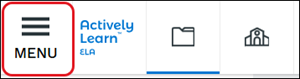
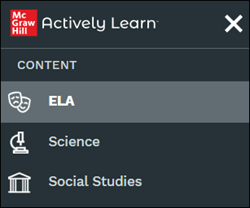
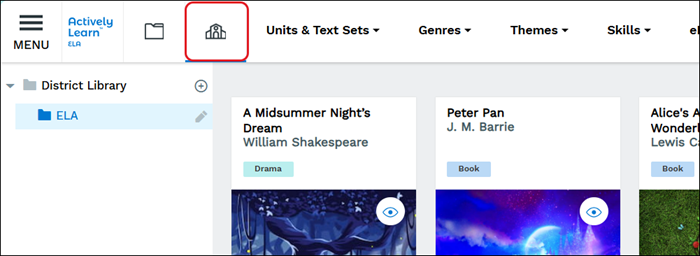
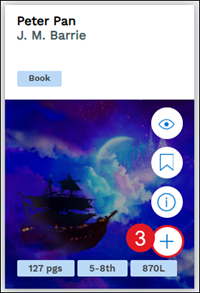
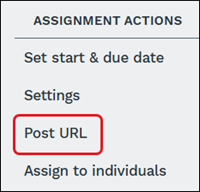
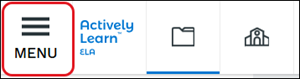
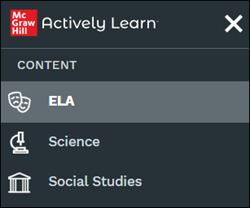
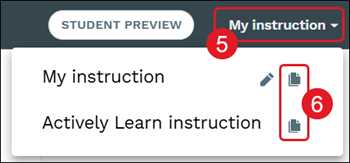
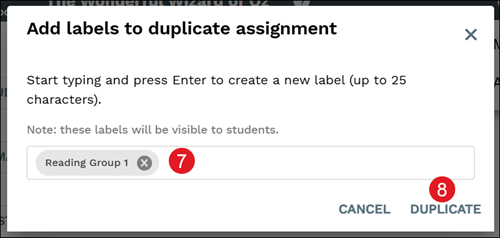
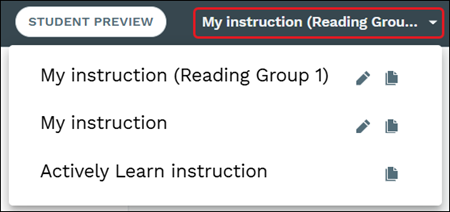
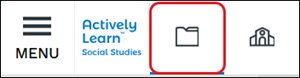
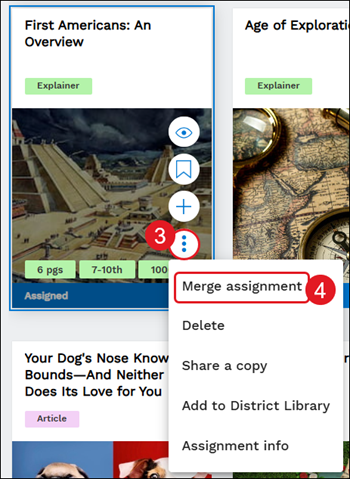
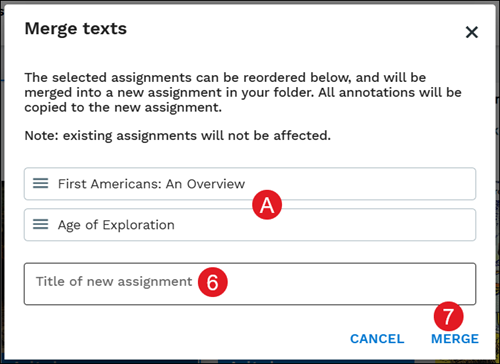
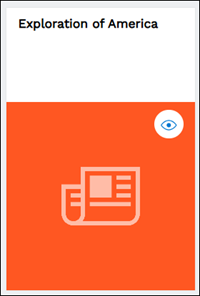
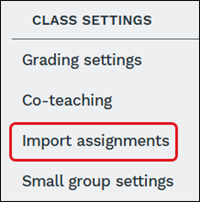
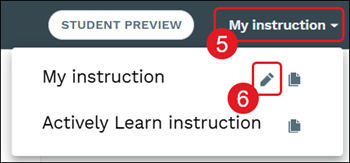
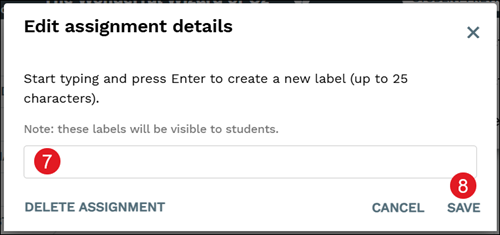
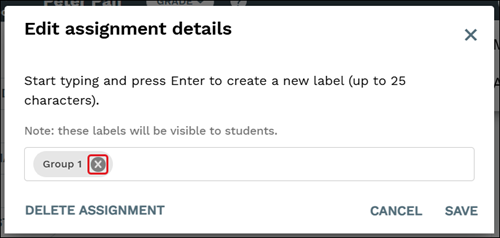
Article Content Create Assignments Duplicate Assignments Merge Assignments Import Assignments Label Assignments Unassign, Archive, or Delete Assignments Create Assignments Note: When creating assignments, the settings available for selection will vary based on what is being assigned. Click on Menu at the top left. From the Content section, select ELA, Social Studies, or Science. Note: Options available for content will depend on what was purchased by the district. You can also assign resources from the District Library by clicking on the school icon. Hover over the resource tile and click the Click here to assign to classes (plus icon) button. Another option is to click on the resource tile and clicking the +Assign to Your Classes button at the bottom. If assigning a book/text, Choose sections or chapters from the drop-down. Check the class(es) to assign to. Select to assign to All students or select specific students from the drop-down. Select a Start date. A. Select a Due date. This is optional. Note: Students will not be able to access the assignments before or after the start and due dates. If you've created previous assignments, you'll have the option to select Use settings from most recent assignment or Customize settings for this assignment. If Customize settings for this assignment was selected: B. Toggle On/Off the Writing Assistant. This will allow students access to the AI-powered tool for short answer/essay type questions. For more information on the Writing Assistant, refer to the Activate the Actively Learn Writing Assistant article. Note: If you do not have this option, it may be turned off for the district. You will need to reach out to your Organization Administrator about this access. C. If the Writing Assistant is toggled On, select to Automatically send feedback or Review feedback first. D. Check/uncheck to allow students to See classmates' responses after answering questions. If selected, select the radio button for All responses, Only proficient and advanced, or Only advanced responses. You can also check/uncheck for them to be able to see names and/or allow the Like option to be available. E. Click the Show more assignment settings link for more options to select. Additional assignment settings include: See classmates' shared notes Questions require a response to continue reading See correct multiple choice answer after responding Responses are locked until you allow revisions When off, students can review their response until graded To prevent cheating, you may also want to turn off 'See classmates' responses after answering questions' Enable notifications Enable language translation Enable word lookups Enable text-to-speech Click the Assign button. Once the assignment is created, on the Assignments page, teachers can copy the assignment URL by clicking on the Post URL option in the side panel. Duplicate Assignments Duplicating text assignments allows teachers to create multiple assignments for the same text while also allowing different customizations for each assignment. Duplicating assignments is helpful for teachers that want to create reading groups within a class create a different assignment for each group. Click on Menu. From the Content section, select ELA, Social Studies, or Science. Note: Options available for content will depend on what was purchased by the district. Click on a text tile. Click the Customize button. Click on the My Instruction drop-down. Click the Duplicate (paper) icon next to the preferred option. Enter a Label for the duplicated assignment. Note: The label entered will be visible to students. Click the Duplicate button. All assignment versions will then be listed on the My instruction drop-down. Select an option to make customizations for each text assignment before assigning it to students. Merge Assignments Teachers may have more than one internet article or text that has been assigned or uploaded that are on the same topic. Merging assignments allows everything for that same topic to be merged into one assignment for students to access. Note: Copyrighted texts from the catalog, PDFs, and video assignments cannot be merged. Click on Menu. Click the My Workspace & Imports (folder) button. Hover over the resource or assignment tile and click the more info (kebob) icon. Click Merge assignment on the menu. Do this for every assignment resource you want merged into one assignment. Click Next at the bottom. On the Merge text pop-up, hover over an assignment option to reorganize it in the list. Enter a Title of new assignment. Click the Merge button. The merged resources will be added as a new assignment resource to assign to students. Import Assignments Teachers have the option to import assignments from another class with a few simple steps. This makes it easy for teachers to teach the same class and provide the same assignments year after year. Assignments can be imported from active and archived classes. Any assignment settings that were set for the assignment in the other class will transfer over with the imported version as well. Also, unassigning, archiving, or deleting the assignment in one class does not do the same to the assignment in the class it was imported from. Click on Menu. Click the My Workspace & Imports (folder) button. From under Class Settings, click Import assignments. On the pop-up, select All classes or a specific class from the drop-down. Check the box next to the assignment(s) to import. Click the Import button. Label Assignments Labels are visible to both teachers and students and can be used to differentiate assignments in a class. Students can then filter their assignments using a teacher's labels. Click on Menu. From the Content section, select ELA, Social Studies, or Science. Note: Options available for content will depend on what was purchased by the district. Click on a text tile. Click the Customize button. They can also be added/changed once an assignment is created by clicking on the Class from the Menu and going to Assignments. Click on an assignment tile and click the Edit button. Click on the My Instruction drop-down. Click the Edit (pencil) icon. On the Edit assignment details pop-up, enter a label in the provided field. Click the Save button. Click the X on the label to delete the label and click the Save button.
dts
Customer Support, PreK-12, Classroom Teacher, Elementary School, Middle School, High School, Direct Login & Auto-Rostering, Direct Login & Manual-Rostering, SSO & Auto-Rostering, SSO & Manual-Rostering, Supplemental, Literacy, Science, Social Studies, Actively Learn, Grades & Assignments