Adjust Actively Learn Assignment Dates and Settings
Manage Actively Learn settings, including start and due dates, ability to share notes between students, and accessibility tools.
- Customer Support
- PreK-12
- Elementary School
- Middle School
- High School
- Direct Login & Auto-Rostering
- Direct Login & Manual-Rostering
- SSO & Auto-Rostering
- SSO & Manual-Rostering
- Supplemental
- Literacy
- Science
- Social Studies
- Actively Learn
- Tools & Resources
- Grades & Assignments


Article Contents
Set Start & Due Dates
When creating an assignment, teachers are required to set a Start Date, however, adjustments can also be made to the Start and Due Dates once the assignment has been created.
1. Click on Menu.

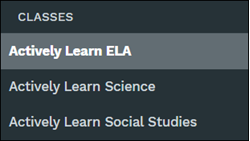
2. In the Classes section, select the class.
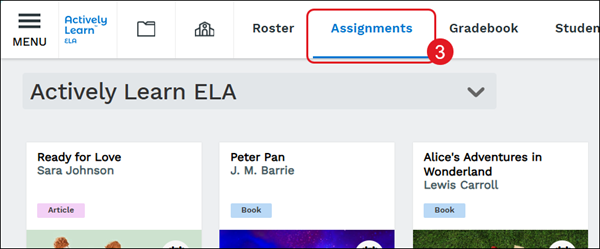
3. Click on Assignments.
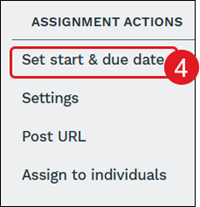
4. Under Assignment Actions on the right-hand panel, click Set start & due date.
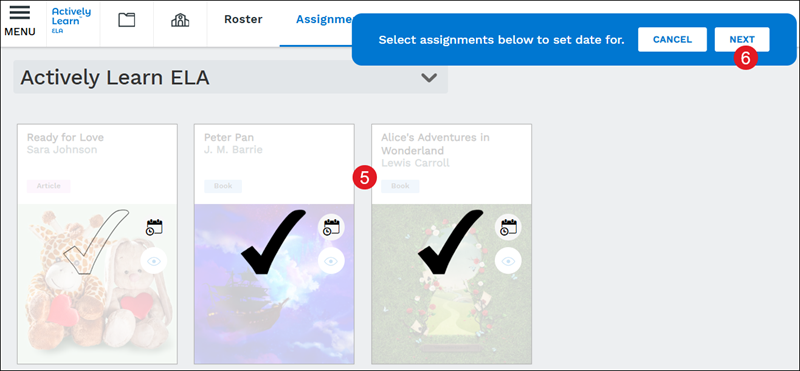
5. Select the assignment(s) to change.
6. Click the Next button.
Note: Selecting more than one assignment at a time results in the start and due dates being changed in bulk.
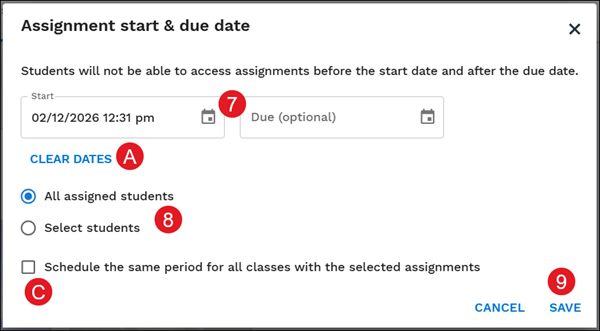
7. On the Assignments start & due date pop-up, click in the Start and Due fields to select a date.
A. Click the Clear Dates link to delete the current Start and Due date selections.
8. Click the radio button to change the dates for All assigned students or for Select students.
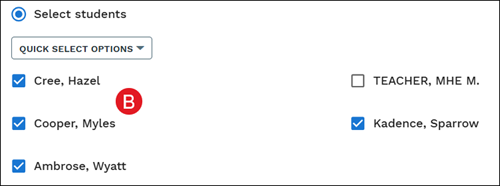
B. If Select students is marked, check the student names for who you want to change the assignment dates for.
C. If All assigned students is selected, check the box if you want to Schedule the same period for all classes with the selected assignments.
9. Click the Save button to confirm changes.
Assignment Settings
1. Click on Menu.
2. In the Classes section, select the class.
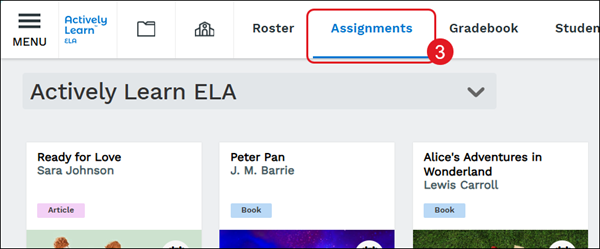
3. Click on Assignments.
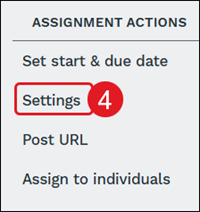
4. Under Assignment Actions on the right-hand panel, click Settings.
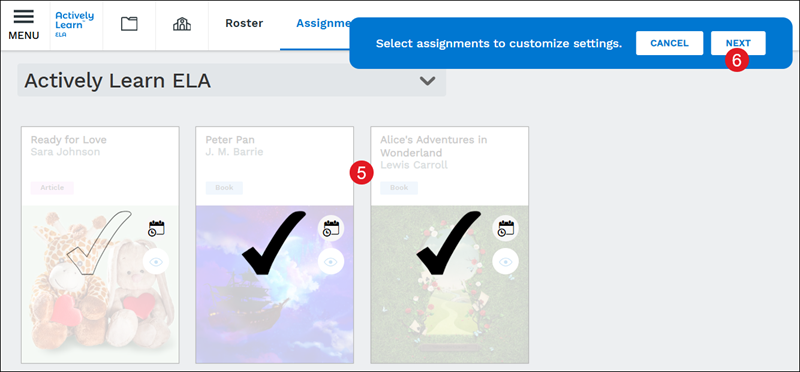
5. Select the assignment(s).
6. Click the Next button.
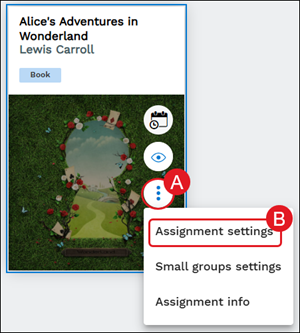
Another option to change the settings for an individual assignment is by hovering over the assignment tile and clicking the kebob icon (A). Click on Assignment Settings (B) from the menu.
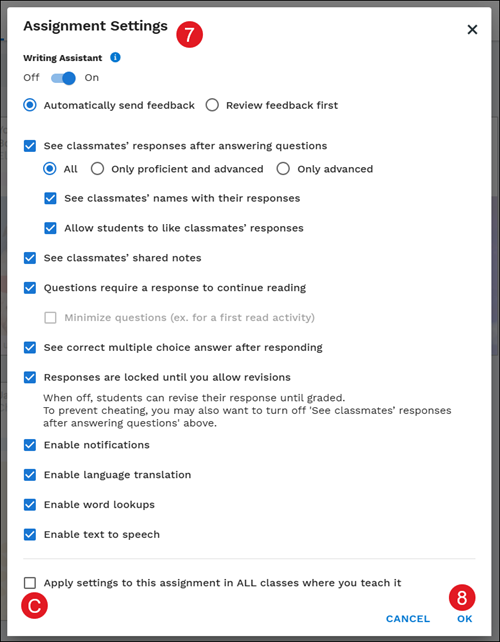
7. On the Assignment Settings pop-up, select the preferred setting options which include the following:
- Writing Assistant
- Feedback
- This option is only activated if the Writing Assistant is turned on for the assignment.
- See classmates' responses
- See classmates' shared notes
- Questions require a response to continue reading
- See correct multiple choice answers
- Responses are locked until revisions are allowed
- Enable notifications
- Enable language translation
- Enable word lookups
- Enable text to speech
C. If the assignment is assigned to multiple classes, you will also have the option to apply the selected settings to the assignment in all classes.
8. Click the OK button.