Grades 6–12
Learning Levels
-
PreK–12

Grades 6–12
McGraw Hill Networks™ gathers everything you need in one easy-to-use Online Teacher Center:
You can view the Quick-Start Brochure to get started or view the steps below.
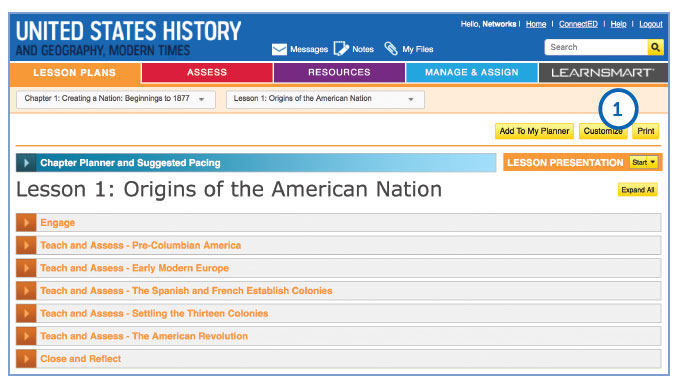
1. LECTURE NOTES
Expand the sections to view the lecture notes. If you click on "Customize," you can edit and save them as a custom lesson plan.
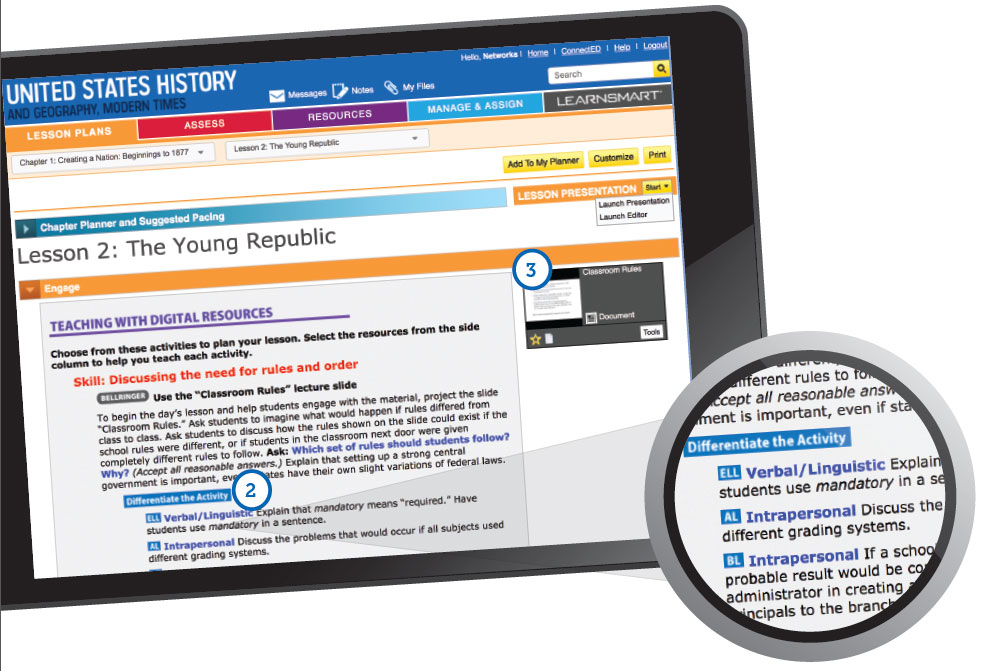
2. LEVELED AND DIFFERENTIATED ACTIVITIES
Differentiation strategies are available for activities to support Approaching Level (AL), Beyond Level (BL), or English Language Learners (ELL).
3. ACTIVITIES AND WORKSHEETS
Within each section of the lesson is a list of interactive activities, printable worksheets, and other.
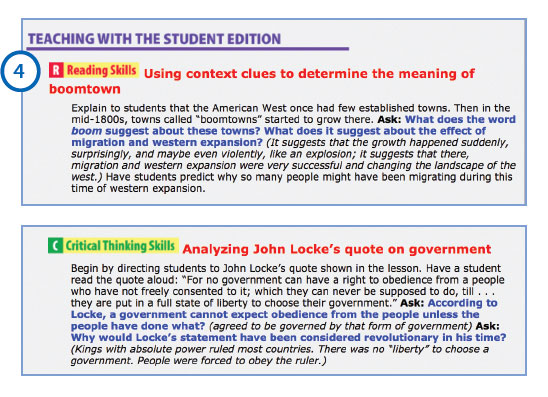
4. TEACHING WITH THE STUDENT EDITION
Lesson plans also contain activities and questions for using the student edition content within the lesson. The activities are coded by the type of skills they help to develop, including reading, visual, and critical thinking skills.
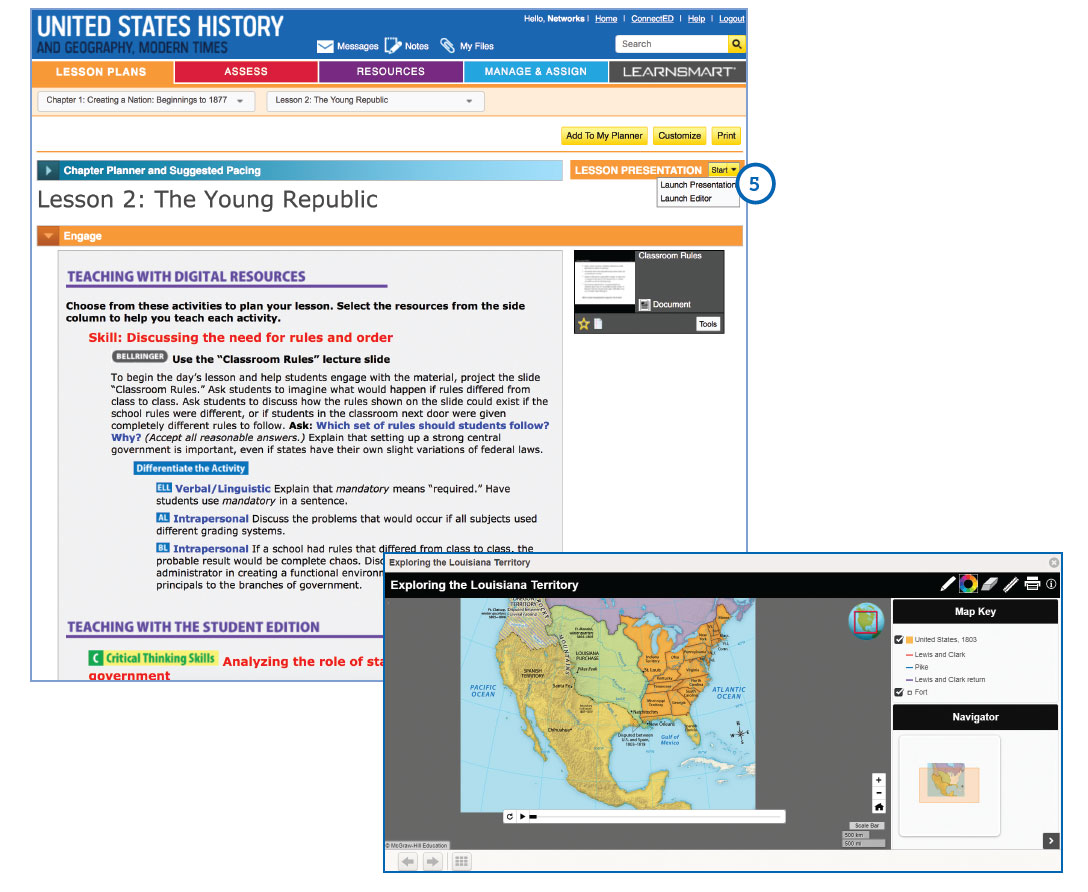
5. LESSON PRESENTATIONS
Click "Lesson Presentation" to launch a pre-built presentation. Each presentation is made up of a series of slides showing resources, interactive activities, and worksheets suitable for whole-class instruction.
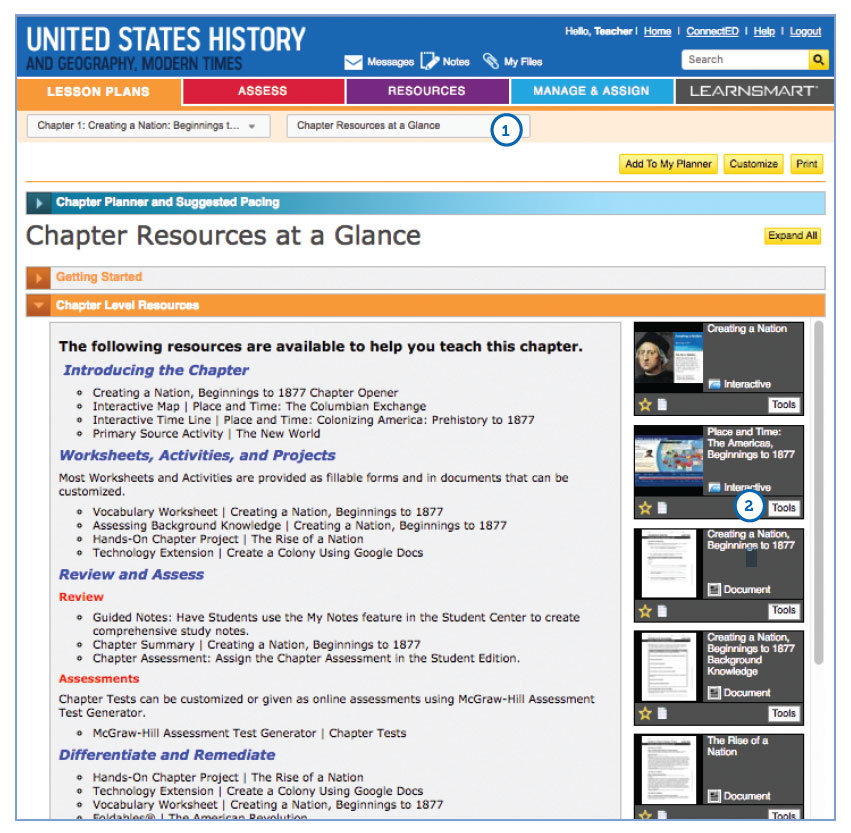
1. USING CHAPTER RESOURCES
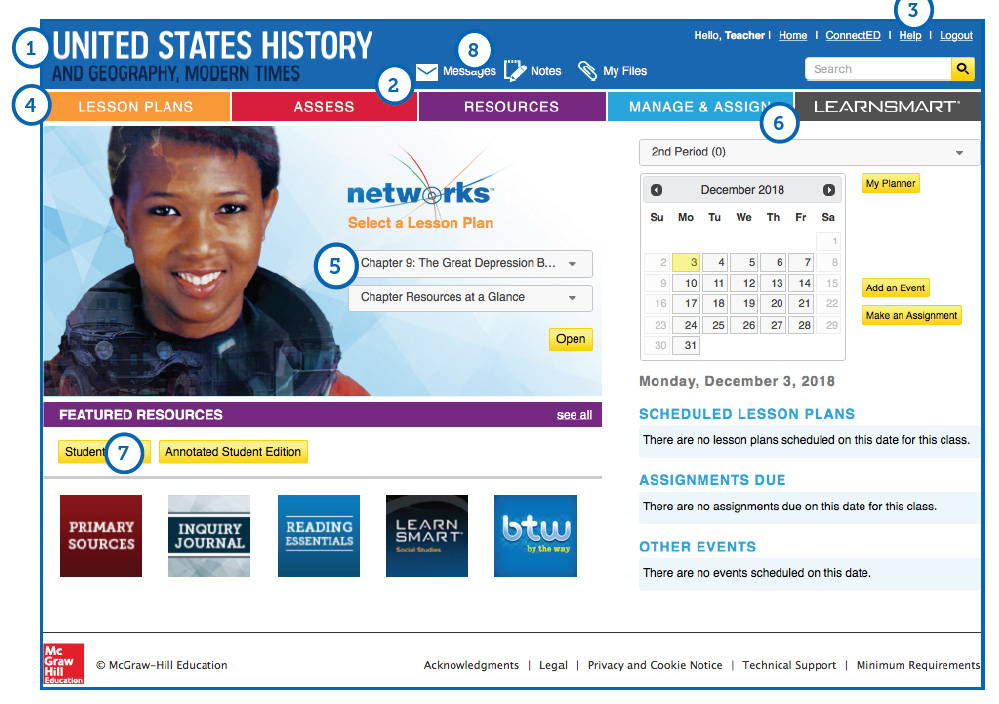
From the top drop down menu, select "Chapter Resources at a Glance." Open the sections to view all the resources for the particular chapter or lesson. You can quickly identify worksheets, projects, and options to review, assess, remediate, and differentiate.
2. LAUNCH RESOURCES
Click on the image of each resource to launch it and view its content.
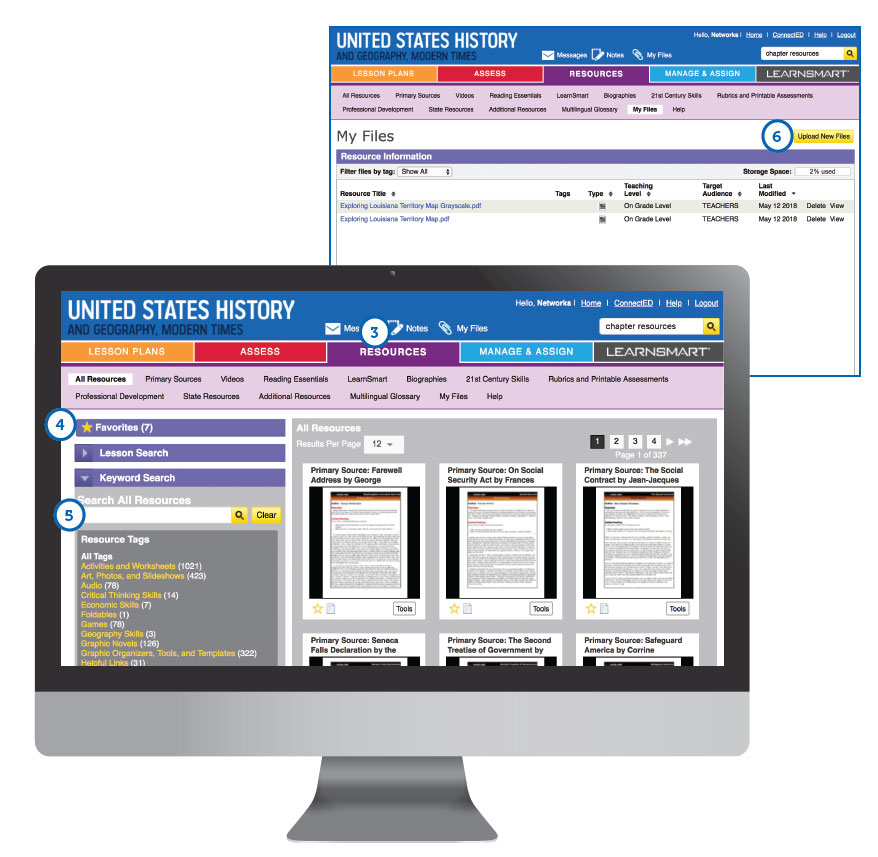
3. RESOURCES LIBRARY
Hundreds of additional resources are available in the Resource Library. Click the "Resources" tab to enter the library.
4. RESOURCES MENU
Click the resource tabs to find collections of Primary Sources, Biographies, Social Studies Skills activities, Foldables®, PD materials, and printable files of the Reading Essentials and Study Guide workbook.
5. SEARCH
Quickly search through hundreds of additional resources available in the Resource Library.
6. UPLOAD YOUR OWN RESOURCES
Under the "Resources" tab, click on "My Files." Here you will be able to upload your own resources, including presentations, documents, audio, images, and videos. Watch the video below to learn more.
This 5-minute video demonstrates how teachers can add their own external files to Networks Social Studies using My Files.
The Inquiry Journal is an interactive worktext that provides activities that focus on primary source analysis and evidence-based writing. Students make real-world connections with a culminating Taking Action activity.
1. ACCESSING THE INQUIRY JOURNAL
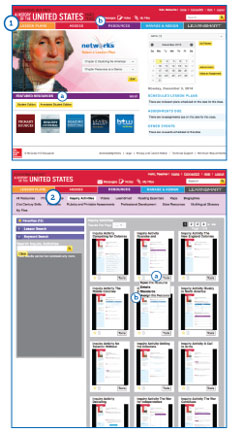
You can locate the Inquiry Journal in two places on the Online Teacher Lesson Center Home Page:
(a) The Featured Resources Tab or
(b) the Resource Library in the Main Menu.
2. ASSIGNING THE INQUIRY JOURNAL
First, select the Inquiry Journal Activity you wish to assign to your students.
(a) You will then see a Tools drop down menu on the right hand side of the resource.
(b) Once you click on this menu you will then see an option to Assign this Resource.
This 45-second video provides an overview of how to bring inquiry to life using the Inquiry Journal in your social studies classroom.
All of your chapter tests, lesson quizzes, and editable worksheets are available in the McGraw Hill Online Assessment Center. You can use the existing test questions, edit them to meet classroom needs, or create your own questions and tests from scratch.
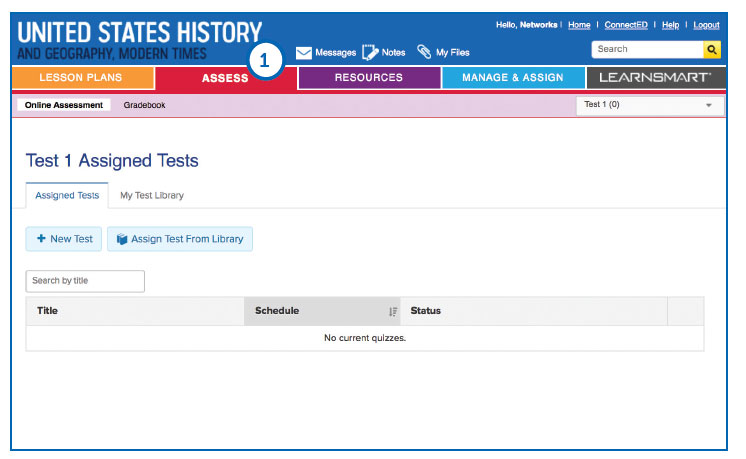
1. ASSESS
Click on the "Assess" tab to enter into the McGraw Hill Online Assessment Center.
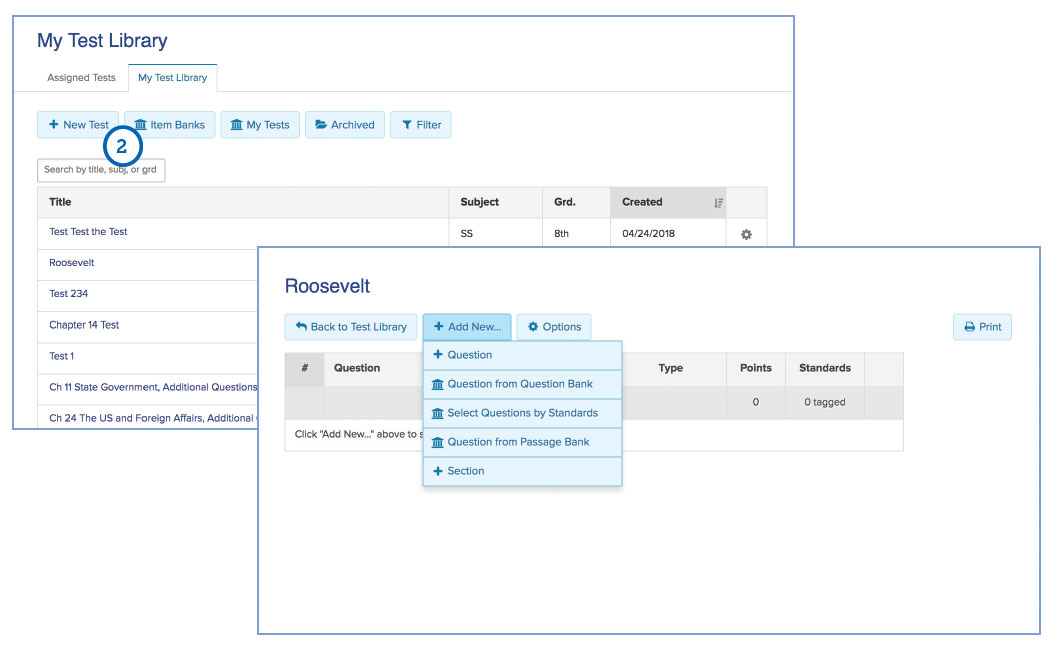
2. CREATING TESTS
Click "New Test" and add questions from your Question Bank or write new questions.
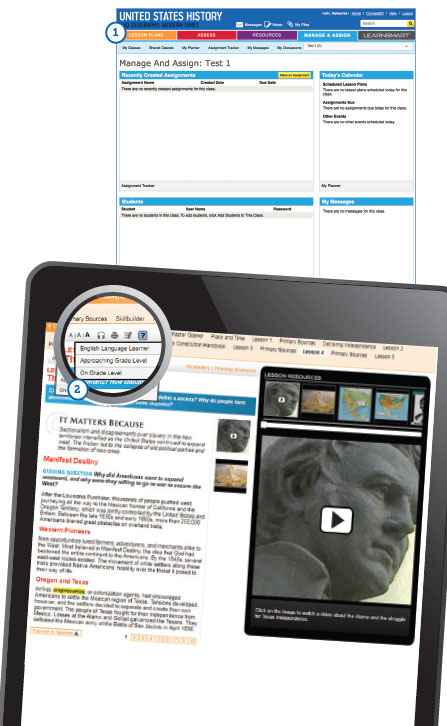
1. MANAGE YOUR CLASS
Click "Manage and Assign' to set up your classes, send assignments to students, or check student messages.
2. ASSIGNING DIFFERENT READING LEVELS FOR ONLINE STUDENT EDITION
Once classes are set up in your Manage and Assign center, you can assign an Approaching Level edition of the text narrative to individual students. The Approaching Level text is written two levels below the regular student edition text. High School programs also include an English Language Learner edition of the text. The ELL edition uses the Approaching Level text but includes additional activities and support to help English language learners.
SyncBlasts™, powered by StudySync®, provides daily reading and writing assignments called Blasts that cover social studies and current events topics relevant to students' lives and their world. Available as an additional option with Networks, Grades 6–12.
1. ACCESSING SYNCBLASTS™
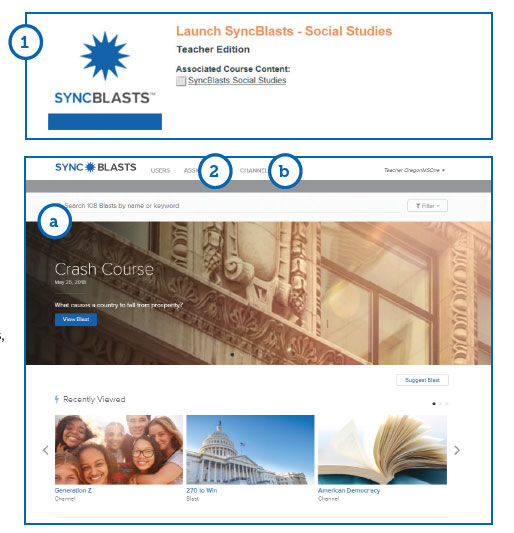
To access SyncBlasts™, go to your bookbag. Locate SyncBlasts™, then click on Launch SyncBlasts™ – Social Studies.
2. SEARCHING SYNCBLASTS™
Click on the "Assess" tab to enter into the McGraw Hill Online Assessment Center.
a. From the SyncBlasts™ homepage, use the Search Bar to browse Blasts by subject, keyword, published date, or standard. This is a robust and ever-expanding library with brand new Blasts posted each school day.
b. To search for a Blast covering a specific social studies topic, click on Channels at the top navigation bar to review the different categories available, including US History, World History, Economics, Government, Civics, Media Literacy, and Current Events.
3. ASSIGNING SYNCBLASTS™
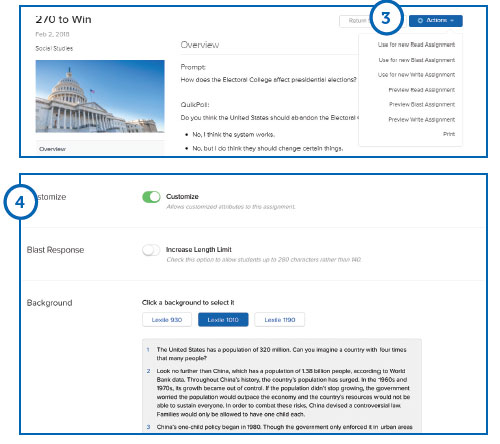
First, select a Blast that you would like to assign to your students by clicking on the Blast image. You will then see an overview of the Blast assignment. Click on the Actions drop-down menu on the right to create a new assignment.
4. CUSTOMIZING SYNCBLASTS™
You can customize any assignment: