glencoe-math
glencoe-science
my-math
core-plus-math
inspire-science
iscience
asi-se-dice
student
school-parent
Programs & Solutions
Programs & Solutions/Asi Se Dice
Programs & Solutions/Asi Se Dice/Asi se Dice 2016
Context
Context/Integration Type
Context/Integration Type/Direct Login & Manual-Rostering
Business Unit
Business Unit/PreK-12
Context/Curriculum Type
Context/Curriculum Type/Core
Context/Education Level
Context/Education Level/High School
Programs & Solutions/Glencoe Math
Programs & Solutions/Glencoe Science
Programs & Solutions/McGraw Hill My Math
Context/Subject
Context/Subject/Science
Context/Integration Type/Direct Login & Auto-Rostering
Context/Integration Type/SSO & Auto-Rostering
Context/Subject/World Languages
Programs & Solutions/McGraw Hill My Math/McGraw Hill My Math 2018
Programs & Solutions/Inspire Science
Programs & Solutions/Inspire Science/Inspire Science 2017
Asset Format Type
Asset Format Type/Customer Support
Context/Subject/Social Studies
Programs & Solutions/Glencoe Math/Glencoe Algebra 1 2018
Context/Education Level/Middle School
Programs & Solutions/Glencoe Math/Glencoe Algebra 1 2014
Programs & Solutions/Glencoe Math/Glencoe Geometry 2014
Programs & Solutions/Glencoe Science/Glencoe Science 2017
Personas
Personas/School Parent
Programs & Solutions/Glencoe Math/Glencoe Math Accelerated
Programs & Solutions/Glencoe Math/Glencoe Geometry 2018
Support Topics
Support Topics/Getting Started & Orientation
Personas/School Student
Context/Education Level/Elementary School
Programs & Solutions/McGraw Hill My Math/McGraw Hill My Math 2013 & 2016
Programs & Solutions/Glencoe Math/Glencoe Algebra 2 2014
Support Topics/Classroom & Course Management
Support Topics/Classroom & Course Management/Dashboard & Navigation Overview
Context/Subject/Math
Programs & Solutions/Glencoe Math/Glencoe Algebra 2 2018
Programs & Solutions/Glencoe Math/Glencoe Math Course 1
Programs & Solutions/Glencoe Math/Glencoe Math Course 2
Programs & Solutions/Glencoe Math/Glencoe Math Course 3
Programs & Solutions/Core Plus Math
Programs & Solutions/Core Plus Math/Core Plus Math 2015
Programs & Solutions/iScience
Programs & Solutions/iScience/iScience 2017
Context/Integration Type/SSO & Manual-Rostering
prek-12
2026-03-24T18:48:15.819-03:00
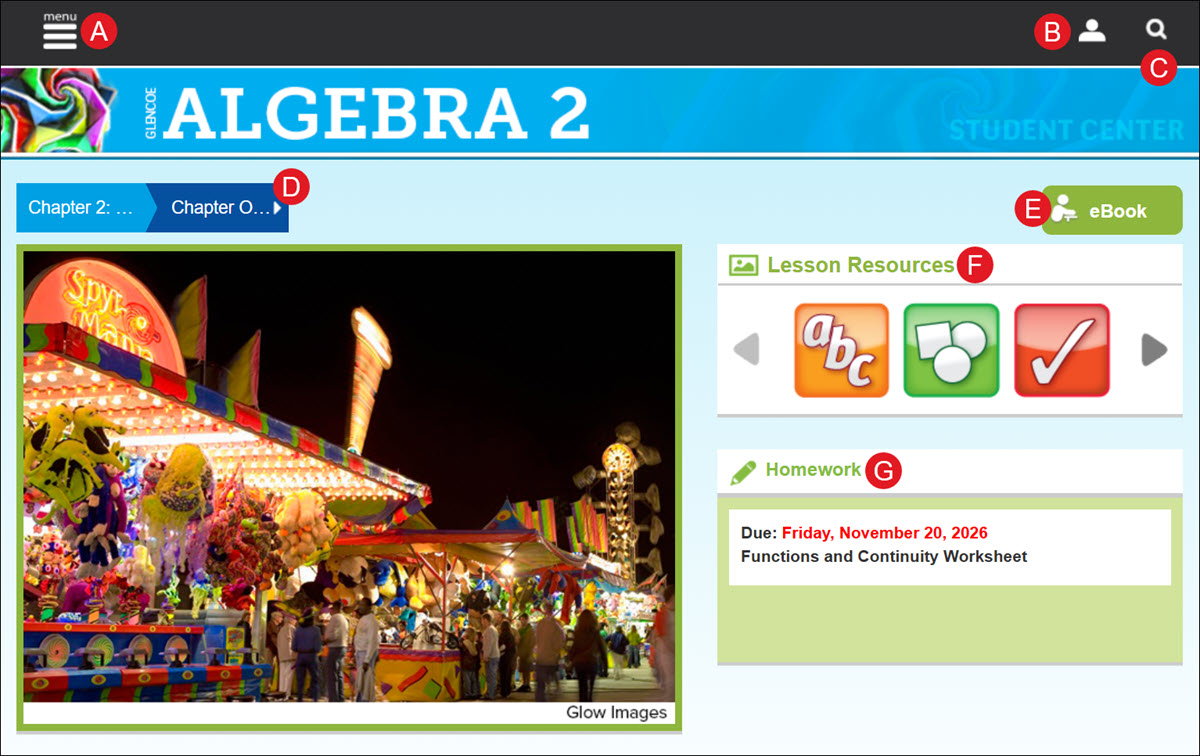
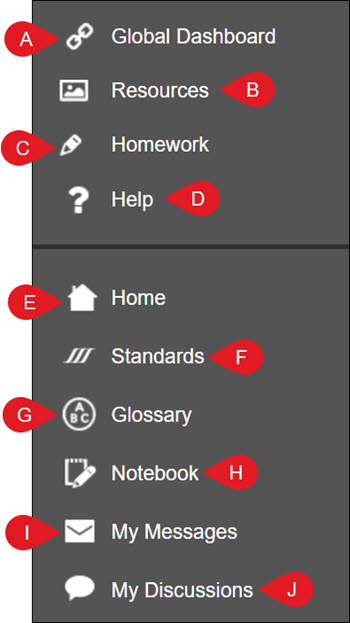
<p><a href="https://www.youtube.com/embed/_HrJ_ZQGbY8" target="_blank">View a video walkthrough.</a></p> <p> </p> <h2 class="fs-5">Article Contents</h2> <p><a href="#dashboard_overview">Dashboard Overview</a></p> <p><a href="#menu_navigation">Menu Navigation</a></p> <p> </p> <h3 class="fs-5"><a id="dashboard_overview"></a>Dashboard Overview</h3> <p><img src="/content/dam/mhe/support/support-images/dts-k12-images/ced-student-dashboard/ced-student-dashboard-1.jpg" data-assetref="ced-student-dashboard-1-1795106790553"></p> <ol class="list-type-alphabet-uppercase"> <li>The <strong>Menu </strong>provides access to additional pages, such as <a href="https://www.mheducation.com/prek-12/support/knowledge/student-search-and-filter-resources.html" target="_blank">Resources</a>, Homework, Notebook, <a href="https://www.mheducation.com/prek-12/support/knowledge/student-messages.html" target="_blank">My Messages</a>, and <a href="https://www.mheducation.com/prek-12/support/knowledge/connected-my-discussions-students.html" target="_blank">My Discussions</a>.<br> <br> </li> <li>From the <strong>Profile </strong>menu, students have quick access to the course Help Center and to log out of their account.<br> <br> </li> <li>Use the <strong>Search </strong>option to locate specific resources within the course.<br> <br> </li> <li>Click on the <strong>Navigation Menu </strong>to select the chapter and lesson to view.<br> <br> </li> <li>The <strong>eBook </strong>button provides access to the digital version of the print student edition for the course.<br> <br> </li> <li>Various <strong>Lesson Resources</strong> are available based on the chapter and lesson selected from the Navigation Menu.<br> <br> </li> <li>Any <strong>Homework </strong>assignments that need to be completed are listed in the available widget on the Home page. Click on the <strong>More </strong>button to navigate to the Homework page.</li> </ol> <p> </p> <h3 class="fs-5"><a id="menu_navigation"></a>Menu Navigation</h3> <p><img src="/content/dam/mhe/support/support-images/dts-k12-images/ced-student-dashboard/ced-student-dashboard-2.jpg" data-assetref="ced-student-dashboard-2-1795107871623"></p> <ol class="list-type-alphabet-uppercase"> <li><strong>Global Dashboard</strong> navigates the student back to their My Classes page.<br> <br> </li> <li><strong><a href="https://www.mheducation.com/prek-12/support/knowledge/student-search-and-filter-resources.html" target="_blank">Resources</a> </strong>navigates to the course resource page where students can access various worksheets, activities, and videos.<br> <br> </li> <li>The <strong>Homework </strong>page gives students a centralized view of all their current and past homework assignments.<br> <br> </li> <li>The <strong>Help </strong>option opens the Help Center tab on the Resources page, giving students easy access to guidance and support for using the program.<br> <br> </li> <li>Clicking the <strong>Home </strong>menu option navigates the student back to the Student Center dashboard.<br> <br> </li> <li><strong>Standards </strong>allows students to search for resources based on a specific standard assigned in the course.<br> <br> </li> <li>Students can open the <strong>Glossary </strong>to search for key terms and view their definitions.<br> <br> </li> <li>Students can write and keep notes for the course by going to the <strong>Notebook </strong>menu option.<br> <br> </li> <li>Students can send and receive messages to and from their teacher through the <strong><a href="https://www.mheducation.com/prek-12/support/knowledge/student-messages.html" target="_blank">My Messages</a></strong> page.<br> <br> </li> <li>If the teacher has started a topic discussion, students can join the conversation on the <strong><a href="https://www.mheducation.com/prek-12/support/knowledge/connected-my-discussions-students.html" target="_blank">My Discussions</a></strong> page. This option is only available if there is an active discussion that has been created by the teacher.</li> </ol> dts Get an overview of the ConnectED student dashboard and available learning tools. 2026-11-19 Student ConnectED Dashboard Navigation Overview Get an overview of the ConnectED student dashboard and available learning tools. Get an overview of the ConnectED student dashboard and available learning tools.
Get an overview of the ConnectED student dashboard and available learning tools.
View a video walkthrough. Article Contents Dashboard Overview Menu Navigation Dashboard Overview The Menu provides access to additional pages, such as Resources, Homework, Notebook, My Messages, and My Discussions. From the Profile menu, students have quick access to the course Help Center and to log out of their account. Use the Search option to locate specific resources within the course. Click on the Navigation Menu to select the chapter and lesson to view. The eBook button provides access to the digital version of the print student edition for the course. Various Lesson Resources are available based on the chapter and lesson selected from the Navigation Menu. Any Homework assignments that need to be completed are listed in the available widget on the Home page. Click on the More button to navigate to the Homework page. Menu Navigation Global Dashboard navigates the student back to their My Classes page. Resources navigates to the course resource page where students can access various worksheets, activities, and videos. The Homework page gives students a centralized view of all their current and past homework assignments. The Help option opens the Help Center tab on the Resources page, giving students easy access to guidance and support for using the program. Clicking the Home menu option navigates the student back to the Student Center dashboard. Standards allows students to search for resources based on a specific standard assigned in the course. Students can open the Glossary to search for key terms and view their definitions. Students can write and keep notes for the course by going to the Notebook menu option. Students can send and receive messages to and from their teacher through the My Messages page. If the teacher has started a topic discussion, students can join the conversation on the My Discussions page. This option is only available if there is an active discussion that has been created by the teacher.
dts
Customer Support, PreK-12, Glencoe Algebra 2 2018, School Student, School Parent, Elementary School, Middle School, High School, Direct Login & Auto-Rostering, Direct Login & Manual-Rostering, SSO & Auto-Rostering, SSO & Manual-Rostering, Core, Math, Science, Social Studies, World Languages, Core Plus Math 2015, Glencoe Algebra 1 2014, Glencoe Algebra 1 2018, Glencoe Algebra 2 2014, Glencoe Math, Glencoe Geometry 2014, Glencoe Geometry 2018, Glencoe Math Course 1, Glencoe Math Course 2, Glencoe Math Course 3, Glencoe Math Accelerated, McGraw Hill My Math 2013 & 2016, McGraw Hill My Math 2018, McGraw Hill My Math, Glencoe Science 2017, Glencoe Science, Inspire Science 2017, iScience 2017, Asi se Dice 2016, Dashboard & Navigation Overview, Getting Started & Orientation