glencoe-math
glencoe-science
my-math
core-plus-math
inspire-science
iscience
networks
asi-se-dice
student
school-parent
Programs & Solutions
Programs & Solutions/Asi Se Dice
Programs & Solutions/Asi Se Dice/Asi se Dice 2016
Context
Context/Integration Type
Context/Integration Type/Direct Login & Manual-Rostering
Business Unit
Business Unit/PreK-12
Context/Curriculum Type
Context/Curriculum Type/Core
Context/Education Level
Context/Education Level/High School
Programs & Solutions/Glencoe Math
Programs & Solutions/Glencoe Science
Programs & Solutions/McGraw Hill My Math
Context/Subject
Context/Subject/Science
Context/Integration Type/Direct Login & Auto-Rostering
Context/Integration Type/SSO & Auto-Rostering
Context/Subject/World Languages
Programs & Solutions/McGraw Hill My Math/McGraw Hill My Math 2018
Programs & Solutions/Inspire Science
Programs & Solutions/Inspire Science/Inspire Science 2017
Programs & Solutions/Networks
Programs & Solutions/Networks/Networks 2014 (K-5)
Asset Format Type
Asset Format Type/Customer Support
Context/Subject/Social Studies
Programs & Solutions/Glencoe Math/Glencoe Algebra 1 2018
Context/Education Level/Middle School
Programs & Solutions/Glencoe Math/Glencoe Algebra 1 2014
Programs & Solutions/Glencoe Math/Glencoe Geometry 2014
Programs & Solutions/Glencoe Science/Glencoe Science 2017
Personas
Personas/School Parent
Programs & Solutions/Glencoe Math/Glencoe Math Accelerated
Programs & Solutions/Glencoe Math/Glencoe Geometry 2018
Personas/School Student
Context/Education Level/Elementary School
Programs & Solutions/McGraw Hill My Math/McGraw Hill My Math 2013 & 2016
Programs & Solutions/Glencoe Math/Glencoe Algebra 2 2014
Support Topics
Support Topics/Classroom & Course Management
Support Topics/Classroom & Course Management/Student Resources
Context/Subject/Math
Programs & Solutions/Glencoe Math/Glencoe Algebra 2 2018
Programs & Solutions/Glencoe Math/Glencoe Math Course 1
Programs & Solutions/Glencoe Math/Glencoe Math Course 2
Programs & Solutions/Glencoe Math/Glencoe Math Course 3
Programs & Solutions/Core Plus Math
Programs & Solutions/Core Plus Math/Core Plus Math 2015
Programs & Solutions/iScience
Programs & Solutions/iScience/iScience 2017
Context/Integration Type/SSO & Manual-Rostering
prek-12
2026-03-24T18:31:52.918-03:00
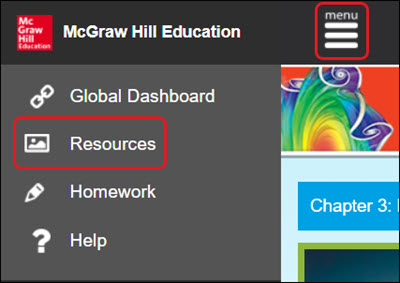
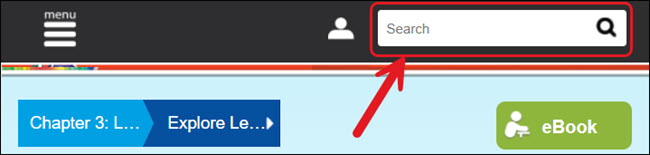
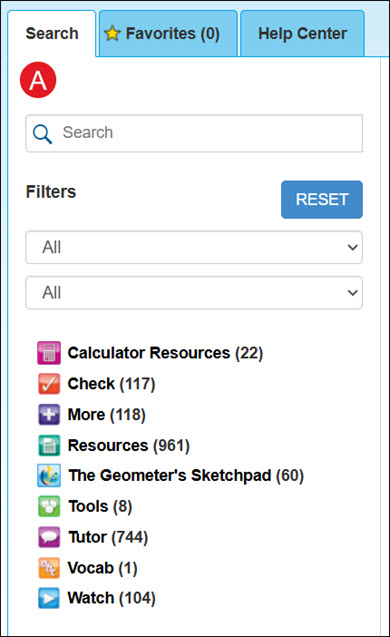
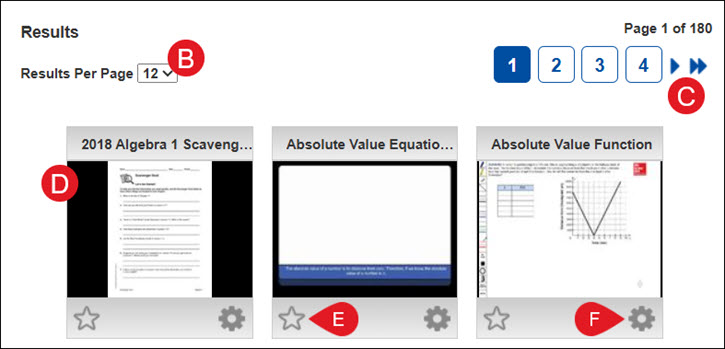
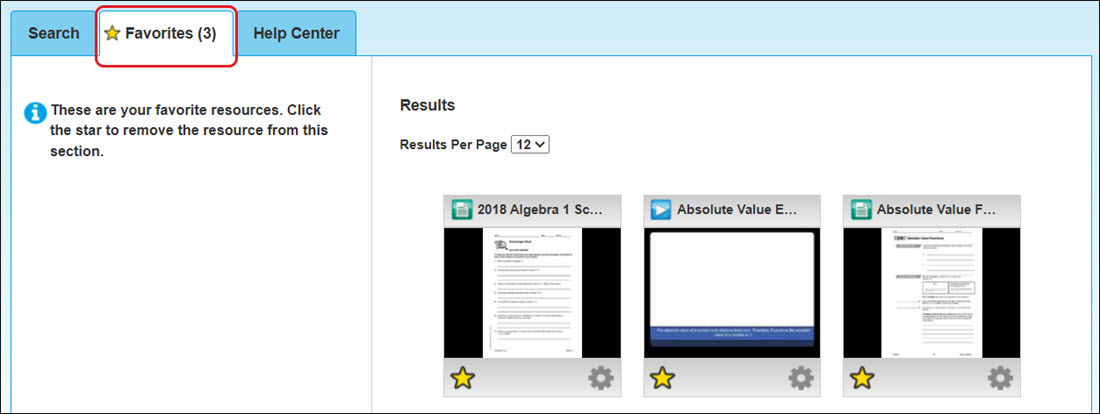
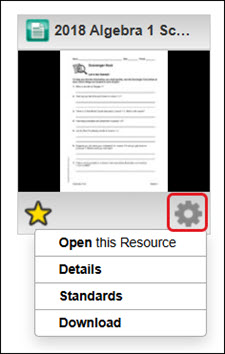
<h2 class="fs-5">Article Contents</h2> <p><a href="#access_resources">Access Course Resources</a></p> <p><a href="#navigate_page">Navigate the Resources Page</a></p> <p><a href="#video_walkthrough">Video Walkthrough</a></p> <p> </p> <h3 class="fs-5"><a id="access_resources"></a>Access Course Resources</h3> <p>Course resources can be found in a few ways. One option is to click on <strong>Menu </strong>at the top left and then click on <strong>Resources</strong>.</p> <p><img src="/content/dam/mhe/support/support-images/dts-k12-images/how-students-can-search-and-filter-resources/ced-student-resources-1.jpg" data-assetref="ced-student-resources-1-1795095827384"></p> <p>Students can also locate course resources using the <strong>Search </strong>field at the top right by entering a keyword and clicking the magnifying glass icon.</p> <p><img src="/content/dam/mhe/support/support-images/dts-k12-images/how-students-can-search-and-filter-resources/ced-student-resources-2.jpg" data-assetref="ced-student-resources-2-1795095982874"></p> <p> </p> <h3 class="fs-5"><a id="navigate_page"></a>Navigate the Resources Page</h3> <ol class="list-type-alphabet-uppercase"> <li>On the <strong>Resources </strong>page, students have the option to use <strong>Search </strong>and <strong>Filters </strong>to narrow down the choices to locate what they need.<br> <br> <img src="/content/dam/mhe/support/support-images/dts-k12-images/how-students-can-search-and-filter-resources/ced-student-resources-3.jpg" data-assetref="ced-student-resources-3-1795096147997"><br> <br> <img src="/content/dam/mhe/support/support-images/dts-k12-images/how-students-can-search-and-filter-resources/ced-student-resources-4.jpg" data-assetref="ced-student-resources-4-1795096626808"><br> <br> </li> <li>The default <strong>Results per Page</strong> is set to 12 resources at a time. Students can click on the drop-down to view 12, 24, or 28 resources at a time.<br> <br> </li> <li>Use the <strong>previous </strong>and <strong>next arrows</strong> to navigate through the pages of available resources or click on a page number.<br> <br> </li> <li>Click on a resource tile to open it.<br> <br> </li> <li>Students can click on the star icon to add the resource to their <strong>Favorites</strong>.<br> <br> All resources with the star marked can be found on the <strong>Favorites </strong>tab of the <strong>Resources </strong>page. Clicking the star again removes the resource from the Favorites.<br> <br> <img src="/content/dam/mhe/support/support-images/dts-k12-images/how-students-can-search-and-filter-resources/ced-student-resources-5.jpg" data-assetref="ced-student-resources-5-1795096632885"><br> <br> </li> <li>Click on the <strong>Tools </strong>menu (gear icon) to open the resource, view the details and standards, and/or download the resource.<br> <br> <strong>Note:</strong> The download option is only available for PDF or Word Doc resource types.<br> <br> <img src="/content/dam/mhe/support/support-images/dts-k12-images/how-students-can-search-and-filter-resources/ced-student-resources-6.jpg" data-assetref="ced-student-resources-6-1795096802437"></li> </ol> <p><a id="video_walkthrough"></a> </p> dts Learn how students search and filter resources to quickly find instructional materials. 2026-11-19 How Students Can Search and Filter Resources Learn how students search and filter resources to quickly find instructional materials. Learn how students search and filter resources to quickly find instructional materials.
Learn how students search and filter resources to quickly find instructional materials.
Article Contents Access Course Resources Navigate the Resources Page Video Walkthrough Access Course Resources Course resources can be found in a few ways. One option is to click on Menu at the top left and then click on Resources. Students can also locate course resources using the Search field at the top right by entering a keyword and clicking the magnifying glass icon. Navigate the Resources Page On the Resources page, students have the option to use Search and Filters to narrow down the choices to locate what they need. The default Results per Page is set to 12 resources at a time. Students can click on the drop-down to view 12, 24, or 28 resources at a time. Use the previous and next arrows to navigate through the pages of available resources or click on a page number. Click on a resource tile to open it. Students can click on the star icon to add the resource to their Favorites. All resources with the star marked can be found on the Favorites tab of the Resources page. Clicking the star again removes the resource from the Favorites. Click on the Tools menu (gear icon) to open the resource, view the details and standards, and/or download the resource. Note: The download option is only available for PDF or Word Doc resource types.
dts
Customer Support, PreK-12, Glencoe Algebra 2 2018, School Student, School Parent, Elementary School, Middle School, High School, Direct Login & Auto-Rostering, Direct Login & Manual-Rostering, SSO & Auto-Rostering, SSO & Manual-Rostering, Core, Math, Science, Social Studies, World Languages, Core Plus Math 2015, Glencoe Algebra 1 2014, Glencoe Algebra 1 2018, Glencoe Algebra 2 2014, Glencoe Math, Glencoe Geometry 2014, Glencoe Geometry 2018, Glencoe Math Course 1, Glencoe Math Course 2, Glencoe Math Course 3, Glencoe Math Accelerated, McGraw Hill My Math 2013 & 2016, McGraw Hill My Math 2018, McGraw Hill My Math, Glencoe Science 2017, Glencoe Science, Inspire Science 2017, iScience 2017, Networks 2014 (K-5), Asi se Dice 2016, Student Resources