Create and Reply to Messages as a Student
Learn how students send, receive, and manage messages within their learning platform.
Tags
- Networks 2014 (K-5)
- SSO & Manual-Rostering
- Customer Support
- iScience 2017
- Middle School
- Direct Login & Manual-Rostering
- Glencoe Algebra 1 2014
- High School
- Glencoe Algebra 1 2018
- Building Blocks 2015
- School Parent
- SSO & Auto-Rostering
- Glencoe Science 2017
- PreK-12
- Elementary School
- World Languages
- Visual & Performing Arts
- Inspire Science 2017
- Math
- Asi se Dice 2016
- Health
- Direct Instruction
- Glenoce Algebra 2 2018
- Intervention
- Social Studies
- Glencoe Math Course 1
- Direct Login & Auto-Rostering
- McGraw Hill Health 2014
- Glencoe Math Course 2
- Glencoe Math Course 3
- Glencoe Science
- Number Worlds 2015
- School Student
- Core
- Core Plus Math 2015
- Glencoe Health 2014
- McGraw Hill My Math 2013 & 2016
- McGraw Hill My Math 2018
- Glencoe Algebra 2 2014
- Glencoe Math
- Science
- Preschool
- Student Resources
- McGraw Hill My Math


On the Messages page, you can view messages between yourself and your teacher.
Article Contents
Access Messages
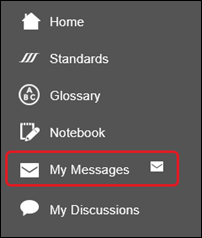
To open your Messages page, select My Messages on your navigation menu. If you have new messages an icon appears next to the My Messages menu item.
Navigate the Messages Page
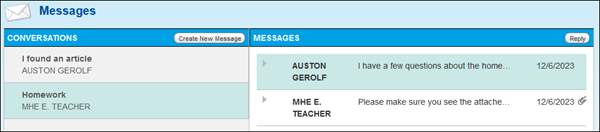
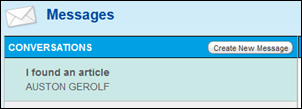
1. Current messages are listed on the left side of the Messages page in the Conversations section. Messages are arranged by date, with the latest on top.
2. A new message is indicated by the New Message icon.
3. Select the title to view that message on the right side of the page.

4. If there is an attachment, it is indicated on the message. Click the paper clip icon to see the attachment.
5. Click the Create New Message button to send a new message.
6. Click the Reply button to reply to the current message.
Create a New Message
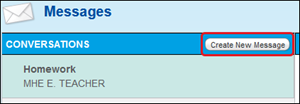
1. Click the Create New Message button to send a new message to your teacher.
2. On the Create New Message to Teacher pop-up, enter Subject in the text field.
3. Enter the Message in the text field.
4. Click the Attach button to attach program files to your message. You can attach favorites, as well as files you have uploaded from your computer.
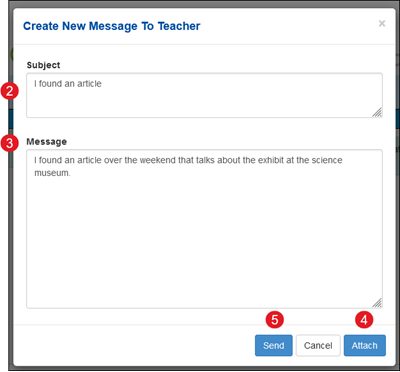
5. Click the Send button to send the message to the selected students.
Your new message appears at the top of the Conversations list.
Reply to a Message
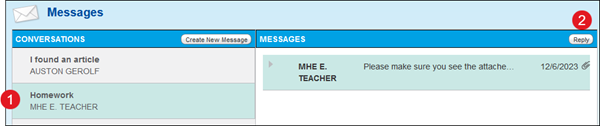
1. To reply to a teacher’s message, select the message in the Conversations list.
2. Click the Reply button.
3. Complete your reply in the Reply pop-up box, including any attachments.
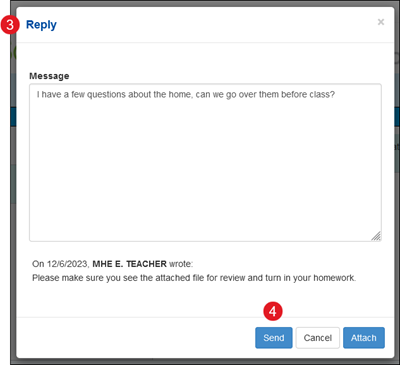
4. Click the Send button.
Your reply appears above the original message. Only you and your teacher will see your reply, even if the original message went to the whole class.