Edit or Delete a ConnectED Class
Learn how to edit and delete ConnectED classes.
Tags
- Customer Support
- PreK-12
- Classroom Teacher
- Preschool
- Elementary School
- Middle School
- High School
- Direct Login & Auto-Rostering
- Direct Login & Manual-Rostering
- SSO & Auto-Rostering
- SSO & Manual-Rostering
- Core
- Intervention
- Supplemental
- AP, Honors & Electives
- Career & Technical Education
- Literacy
- Math
- Science
- Social Studies
- Health
- Visual & Performing Arts
- World Languages
- Asi se Dice 2016
- Core Plus Math 2015
- Glencoe Math
- Glencoe Algebra 1 2014
- Glencoe Algebra 2 2014
- Glencoe Algebra 1 2018
- Glenoce Algebra 2 2018
- Glencoe Geometry 2014
- Glencoe Geometry 2018
- Glencoe Math Course 1
- Glencoe Math Course 2
- Glencoe Math Course 3
- Glencoe Math Accelerated
- Glencoe Health 2014
- Glencoe Science 2017
- Glencoe Science
- Inspire Science 2017
- iScience 2017
- McGraw Hill My Math 2013 & 2016
- McGraw Hill My Math 2018
- McGraw Hill My Math
- Networks 2014 (K-5)
- Class Management


View the demo in a separate tab.
View the Spanish version of the demo.
Article Contents
Edit a Class
- SSO or sign in at my.mheducation.com.
- Click on your Teacher Edition.
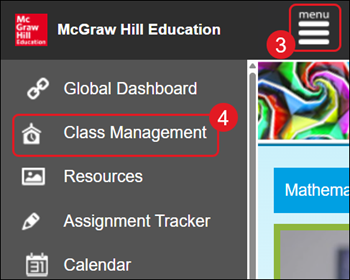
- Click on the Menu button at the top-left.
- Click on Class Management.
- Click the Edit Class button.

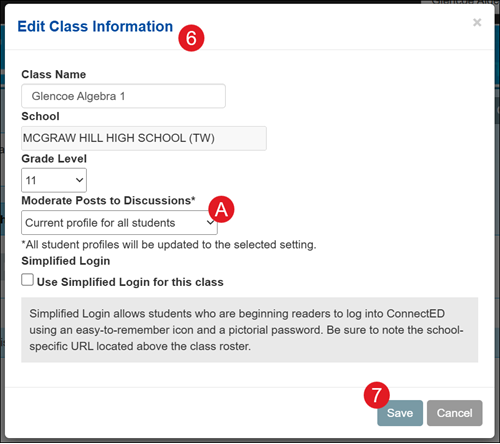
- On the Edit Class Information pop-up, edit preferred fields.
A. When editing the class information, you have the additional option for certain classes to Moderate Posts to Discussions. For more information on managing discussion posts, refer to the Create and Respond to Discussions as a Student article.
- Click the Save button.
Delete a Class
Note: Removing the class will result in the loss of student data. This is also different from archiving the class.
- SSO or sign in at my.mheducation.com.
- Click on your Teacher Edition.
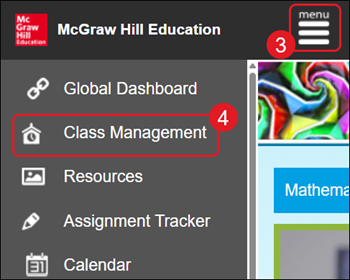
- Click on the Menu button at the top-left.
- Click on Class Management.
- Click the Delete class button.

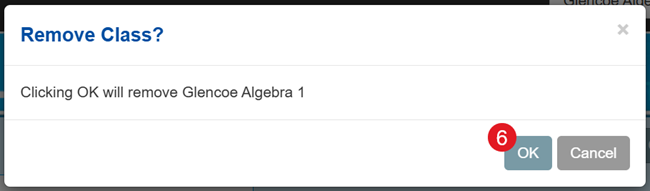
- On the Remove Class pop-up, click the OK button to confirm.