Article Contents
Access Class Summary Page
Class Information and Content
Class Options
Class Customization
Additional Settings
Class Duplication Settings
Share Class Access
Student Groups
Access the Class Summary Page
1. SSO or log in at my.mheducation.com.
2. Launch ALEKS Adventure.
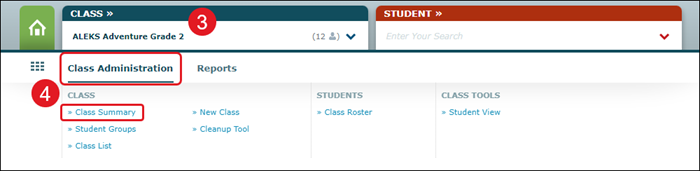
3. Select a class from the Class drop-down.
4. Hover over Class Administration and select Class Summary from the menu.
Class Information and Content
In the Class Information section, teachers can view who is set as the Instructor, the Name of the class, if a Period/Section is assigned, as well as the Start and End Dates.
In the Content section, there is an option to view or download the Syllabus for the class and view the Correlation for the assigned Standards.
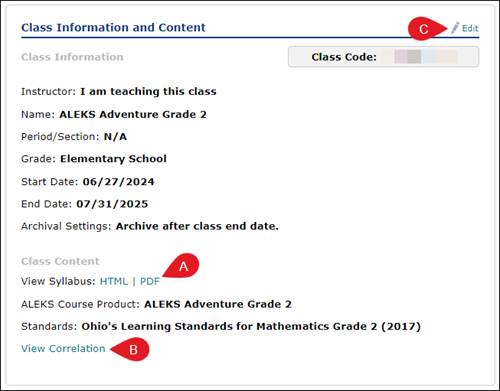
A. Click the HTML link to open a secondary browser tab to view the class syllabus or click the PDF link to download it.
B. Click the View Correlation link to download the Standards Correlation PDF.
C. Click the Edit link to make changes to the Period/Section and the Standards selection.
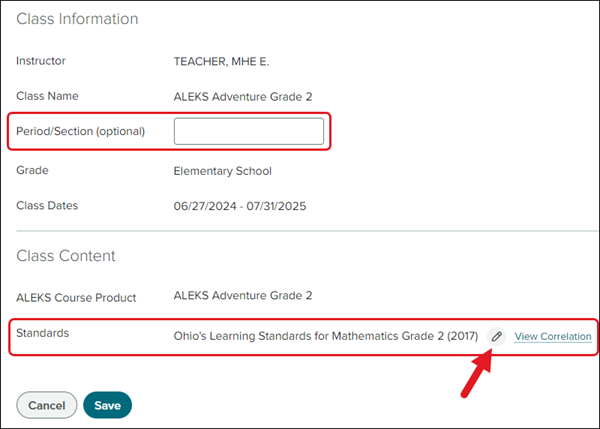
Click the pencil icon to select a different set of standards from the drop-down. In some cases, depending on your state, there may only be one standards option or to have no standards associated.
Class Options
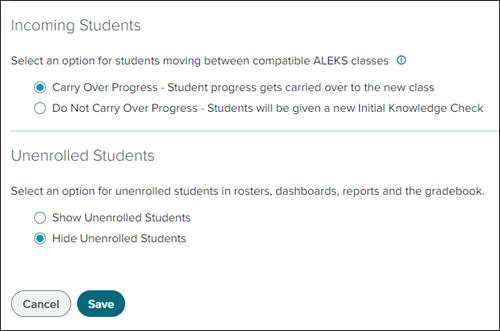
In the Class Options section, teachers can adjust the settings for Incoming Students and Unenrolled Students.
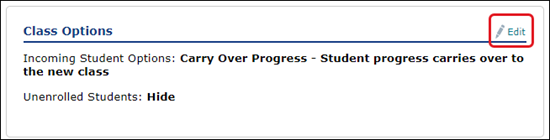
Click the Edit link to allow student progress to Carry Over to a new class if they are moved and to Show or Hide Unenrolled Students from the rosters, dashboards, and reports.
Class Customization
In the Class Customization section, teachers can view how many ALEKS Pie topics are associated with the course.
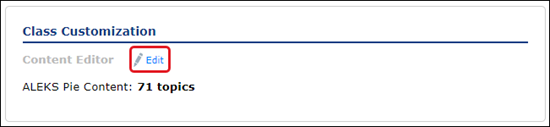
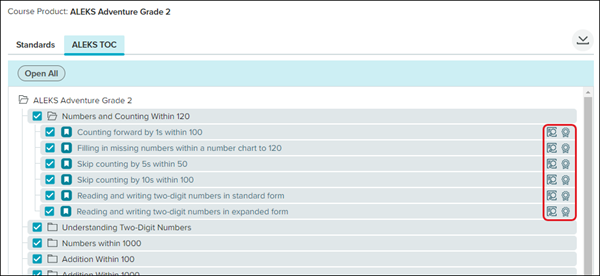
Click the Edit link to to select or deselect to topics and sections for students to complete in the program. Keep in mind, deselecting topics will remove them from your class.
Click on the Standards and ALEKS TOC tabs to select or deselect the different options. Click on the folders to expand the different sections.
Click on the magnifying glass to the right of the selection to view an example question. On the ALEKS TOC page, click the ribbon icon to the right of the selection to view the associated standards.
Additional Settings
In the Additional Settings section, teachers can make changes to the class Archived Status, Parent Notifications, and the student access to the Fact Fluency Game on their ALEKS Adventure homepage.
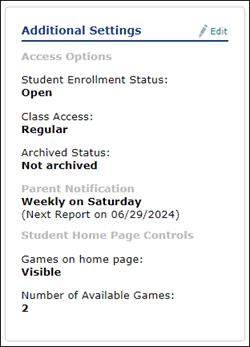
Click the Edit link to make changes.
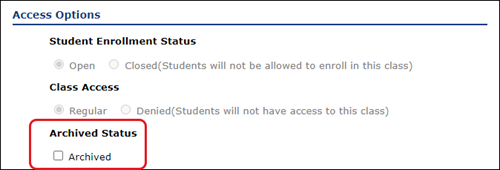
In the Access Options section, you will only have the option to Archive the class. This is only recommended if you no longer want the class to be active for students. This does not archive the class on your Open Learning My Programs page.
In the Student Home Page Controls section, you can mark that the Fact Fluency Game is Hidden from students on their ALEKS Adventure home page. If it is marked to be Visible, you can also adjust the number of times a student can play the game from their home page a day. The default is set to one time a day.
Keep in mind, students will still be able to access the game from their Topics Rewards page even if it is Hidden from their home page.

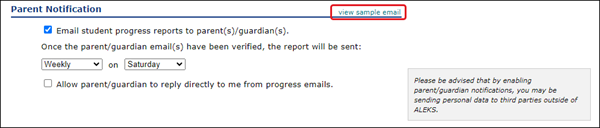
In the Parent Notification section, you can check/uncheck to have a student progress report emailed to parents/guardians on a regular basis. You can select to have the report sent weekly, bi-weekly, or monthly. You also have the option to allow parents/guardians to reply directly to you from the progress emails that are sent.
Click the view sample email link to see a preview of what the parents/guardians will receive.
Class Duplication Settings
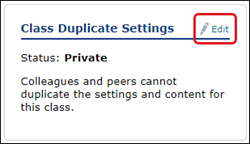
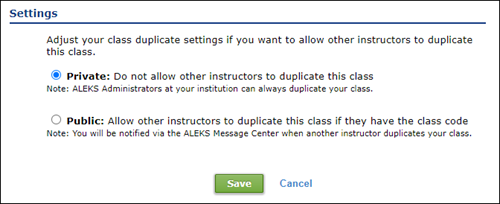
The Class Duplicate Settings option allows other teachers to duplicate your class settings to use when setting up their own class. This option is turned off by default. Once you have made your class Public, teachers will be able to follow the steps in the Create Classic ALEKS View Sub-Classes article to copy the class into their own.
Click the Edit link to switch between allowing your class to be Public or stay Private.
Share Class Access
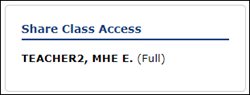
The Share Class Access is managed through your Open Learning My Programs page. Refer to the Add Co-Teachers and Share ALEKS Class Access article for more information on sharing your ALEKS Adventure class.
Student Groups
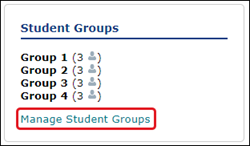
In the Student Groups section, you will be able to view the list of groups you have created and how many students are associated with each group. Click the Manage Student Groups link to create and/or edit the student groups. For steps on creating and managing your student groups, refer to the Create and Manage Student Groups in Classic ALEKS article.
aleks-adventure
instructor
prek-12
Customer Support, PreK-12, Classroom Teacher, Elementary School, Direct Login & Auto-Rostering, Direct Login & Manual-Rostering, SSO & Auto-Rostering, SSO & Manual-Rostering, Supplemental, Math, ALEKS Adventure, Class Management, Tools & Resources
dts
2026-03-24T19:00:04.181-03:00
Teachers have the ability to adjust a few of the settings for the class and the students from the Class Summary page. Article Contents Access Class Summary Page Class Information and Content Class Options Class Customization Additional Settings Class Duplication Settings Share Class Access Student Groups Access the Class Summary Page 1. SSO or log in at my.mheducation.com. 2. Launch ALEKS Adventure. 3. Select a class from the Class drop-down. 4. Hover over Class Administration and select Class Summary from the menu. Class Information and Content In the Class Information section, teachers can view who is set as the Instructor, the Name of the class, if a Period/Section is assigned, as well as the Start and End Dates. In the Content section, there is an option to view or download the Syllabus for the class and view the Correlation for the assigned Standards. A. Click the HTML link to open a secondary browser tab to view the class syllabus, or click the PDF link to download it. B. Click the View Correlation link to download the Standards Correlation PDF. C. Click the Edit link to make changes to the Period/Section and the Standards selection. Click the pencil icon to select a different set of standards from the drop-down. In some cases, depending on your state, there may only be one standards option or to have no standards associated. Class Options In the Class Options section, teachers can adjust the settings for Incoming Students and Unenrolled Students. Click the Edit link to allow student progress to Carry Over to a new class if they are moved and to Show or Hide Unenrolled Students from the rosters, dashboards, and reports. Class Customization In the Class Customization section, teachers can view how many ALEKS Pie topics are associated with the course. Click the Edit link to to select or deselect to topics and sections for students to complete in the program. Keep in mind, deselecting topics will remove them from your class. Click on the Standards and ALEKS TOC tabs to select or deselect the different options. Click on the folders to expand the different sections. Click on the magnifying glass to the right of the selection to view an example question. On the ALEKS TOC page, click the ribbon icon to the right of the selection to view the associated standards. Additional Settings In the Additional Settings section, teachers can make changes to the class Archived Status, Parent Notifications, and the student access to the Fact Fluency Game on their ALEKS Adventure homepage. Click the Edit link to make changes. In the Access Options section, you will only have the option to Archive the class. This is only recommended if you no longer want the class to be active for students. This does not archive the class on your Open Learning My Programs page. In the Student Home Page Controls section, you can mark that the Fact Fluency Game is Hidden from students on their ALEKS Adventure home page. If it is marked to be Visible, you can also adjust the number of times a student can play the game from their home page a day. The default is set to one time a day. Keep in mind, students will still be able to access the game from their Topics Rewards page even if it is Hidden from their home page. In the Parent Notification section, you can check/uncheck to have a student progress report emailed to parents/guardians on a regular basis. You can select to have the report sent weekly, bi-weekly, or monthly. You also have the option to allow parents/guardians to reply directly to you from the progress emails that are sent. Click the view sample email link to see a preview of what the parents/guarians will receive. Class Duplication Settings The Class Duplicate Settings option allows other teachers to duplicate your class settings to use when setting up their own class. This option is turned off by default. Once you have made your class Public, teachers will be able to follow the steps in the ALEKS - How to Create Sub-Classes article to copy the class into their own. Click the Edit link to switch between allowing your class to be Public or stay Private. Share Class Access The Share Class Access is managed through your Open Learning My Programs page. Refer to the ALEKS - Class Sharing & Co-Teaching article for more information on sharing your ALEKS Adventure class. Student Groups In the Student Groups section, you will be able to view the list of groups you have created and how many students are associated with each group. Click the Manage Student Groups link to create and/or edit the student groups. For steps on creating and managing your student groups, refer to the ALEKS Adventure - Student Groups article.



