Archive or Unarchive Classes
Learn how teachers archive and unarchive classes to manage student access and past courses.
- Customer Support
- PreK-12
- Classroom Teacher
- Preschool
- Elementary School
- Middle School
- High School
- Direct Login & Auto-Rostering
- Direct Login & Manual-Rostering
- SSO & Auto-Rostering
- SSO & Manual-Rostering
- Core
- Intervention
- Supplemental
- AP, Honors & Electives
- Career & Technical Education
- Literacy
- Math
- Science
- Social Studies
- Health
- Visual & Performing Arts
- World Languages
- AP Biology
- AP Chemistry
- AP History & Geography
- AP Psychology
- AP Economics
- AP African American Studies
- AP Precalculus
- AP Statistics
- AP Computer Science
- AP Language and Composition
- AP Public Speaking
- AP Music Theory
- 5 Steps to a 5 - AP Test Prep
- Glencoe Health 2022
- Teen Health 2021
- Arrive Math
- Building Blocks 2024
- Building Blocks PreK 2025
- Number Worlds 2024
- SRA Reading Laboratory 2025
- SRA Reading Mastery Transformations
- Achieve3000 Literacy
- Actively Learn
- McGraw Hill Literacy Emerge!
- McGraw Hill Literacy Summit!
- McGraw Hill Literacy Soar!
- Open Court Reading 2025
- Redbird
- StudySync 2021
- ALEKS
- ALEKS Adventure
- CA Reveal Math (K-12)
- Illustrative Math
- Redbird Math
- Reveal Math (K-12)
- CA Inspire Science 2020
- FL Science 2025 (K-12)
- Inspire Science 2020
- TN Science (K-12)
- TX Science 2025 (K-12)
- CA Impact 2019
- FL Social Studies 2024 (K-12)
- Impact Social Studies
- McGraw Hill Social Studies
- All Sorts 2026 (K-5)
- Asi se Dice 2024
- CTE - Business, Marketing, and Finance
- CTE - Health Science
- CTE - Computing and Technology
- CTE - Agriculture
- CTE - Culinary Arts
- CTE - Early Childhood Education
- CTE - Criminal Justice
- Glencoe Health 2014
- McGraw Hill Health 2014
- 2Inform
- Building Blocks 2015
- Connecting Math Concepts
- Number Worlds 2015
- Corrective Reading
- Early Interventions in Reading
- Spelling Mastery
- WonderWorks 2022 & 2014
- Maravillas 2020 & 2017
- OCR Foundational Skills Kit
- OCR Word Analysis Kit
- Open Court Reading 2016, 2018, 2023
- StudySync
- StudySync 2015 & 2017
- Wonders
- Wonders 2014
- Wonders 2023 2020 2017
- Wonders Balanced Literacy 2016
- Wonders EL 2016
- World of Wonders 2017
- Core Plus Math 2015
- Everyday Mathematics 4 (K-6)
- Glencoe Algebra 1 2014
- Glencoe Algebra 1 2018
- Glencoe Algebra 2 2014
- Glenoce Algebra 2 2018
- Glencoe Math
- Glencoe Geometry 2014
- Glencoe Geometry 2018
- Glencoe Math Course 1
- Glencoe Math Course 2
- Glencoe Math Course 3
- Glencoe Math Accelerated
- McGraw Hill My Math
- McGraw Hill My Math 2013 & 2016
- McGraw Hill My Math 2018
- Pre-Algebra 2012
- Glencoe Science 2017
- Glencoe Science
- Inspire Science 2017
- iScience 2017
- Networks
- Networks 2014 (K-5)
- Networks 2014 & 2016
- Networks 2018
- Music! Its Role
- Spotlight on Music
- Asi se Dice 2016
- Texas Math
- Level Up K–5
- Level Up 6–8
- Level Up 9–12
- Class Management
- End-of-Year Tasks


View the demo in a separate tab.
View the Spanish version of the demo.
McGraw Hill Education does not archive classes from previous years for teachers. This means that those classes will continue to appear on your My Programs page unless you manually archive them.
If you plan to keep the same names for your classes, such as naming them after the class period, you will see duplicate class names in your class list, which could cause confusion as to which is the current class.
At the end of every school year, if you want to keep the same class name and/or any assignments and customizations that were made, you should make a copy of the class and then archive the old class. But please note, making a copy of the class is not available for every program.
If making a copy of the class is not an option for the program you use, we recommend archiving the old class and creating a new one or changing the name of the previous year's class to include the school year.
Note for ConnectED Programs: If the class was deleted within the program, the archive option will not be available. You will first need to create a class by clicking on the title of the program before being able to remove it from your teacher account.
Article Contents
Archive a Class
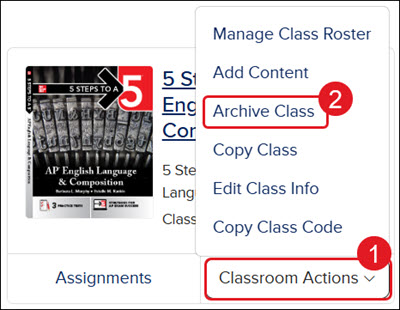
- On your My Programs page, click the Classroom Actions button.
- Click Archive Class from the menu.
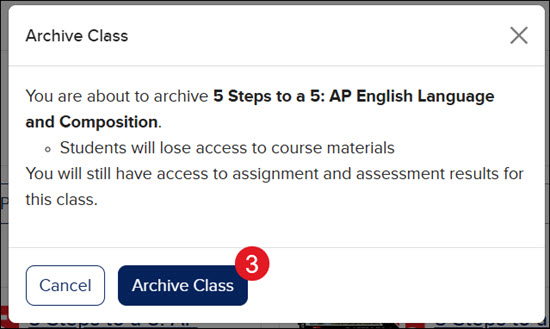
- On the Archive Class pop-up, click the Archive Class button.
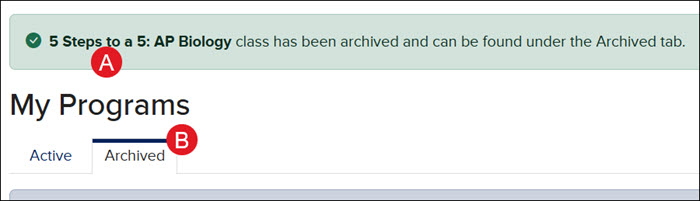
A. You will see a message at the top of the screen that the class was successfully archived.
B. The class will then move to your Archived tab on your My Programs page.
The class is still accessible to you as a teacher, but the students will no longer see it on their dashboard unless you Unarchive the class.
Unarchive a Class
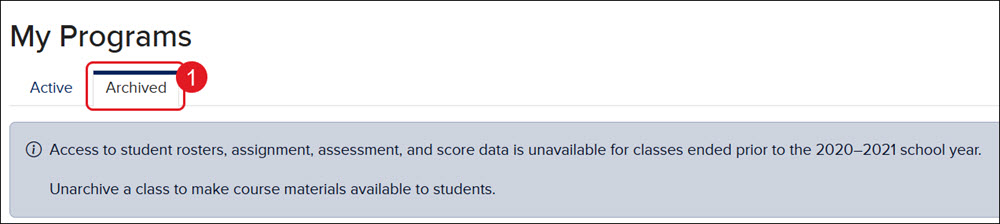
If a class was removed by mistake, or you decide you still want to use the class, you can unarchive the class. Any students assigned to the roster will have access to the class once again. All scores will also still be available for the assignments.
- On your My Programs page, click the Archived tab.
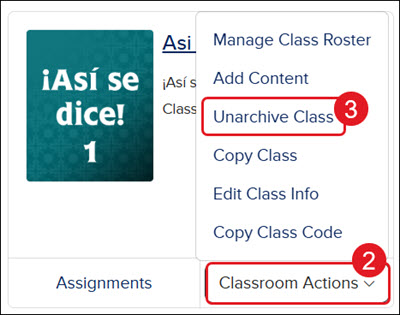
- Click on the Classroom Actions button.
- Click Unarchive Class from the menu.
- On the Unarchive Class pop-up, click the Unarchive Class button to confirm.
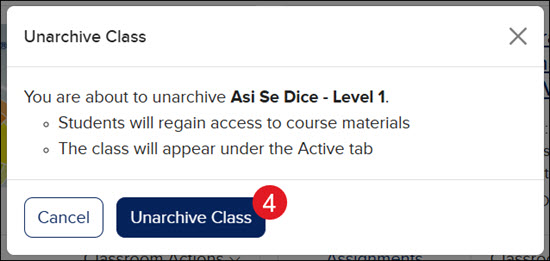
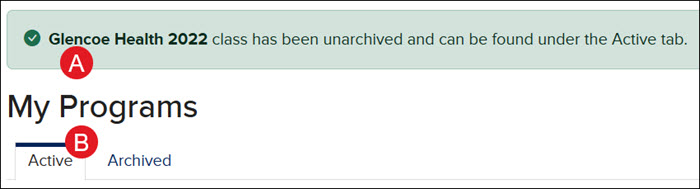
A. You will see a message at the top of the screen that the class was successfully unarchived.
B. The class will then move back to your Active tab on your My Programs page.