
Add Co-Teachers and Share ALEKS Class Access
Share ALEKS classes for co-teaching and collaborative instruction.
- Customer Support
- PreK-12
- Classroom Teacher
- Elementary School
- Middle School
- High School
- Direct Login & Auto-Rostering
- Direct Login & Manual-Rostering
- SSO & Auto-Rostering
- SSO & Manual-Rostering
- Supplemental
- Math
- ALEKS
- ALEKS Adventure
- Class Management


View the demo in a separate tab.
View the Spanish version of the demo.
Class sharing in ALEKS (accessed from the my.mheducation.com platform) is supported for both manual rostering and auto-rostering districts. Co-teachers in ALEKS have full access to the class, meaning they have the same permissions as the class's primary teacher. The only limitation is that the primary teacher is the only teacher who can create sub-classes and move students between the primary class and sub-classes.
Article Contents
Share Class Access (New ALEKS view only)
Add Co-Teacher
1. SSO or log in at my.mheducation.com.
2. Click the Classroom Actions button on the class you want to share.
3. Click on Manage Class Roster from the menu.
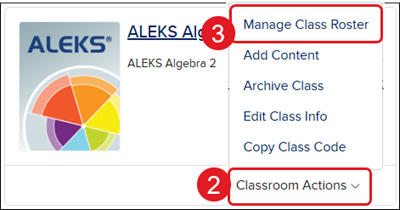
4. Click on the Teachers button.
5. Click on the Edit Teacher Roster button.
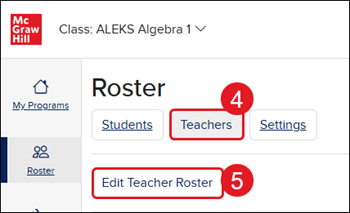
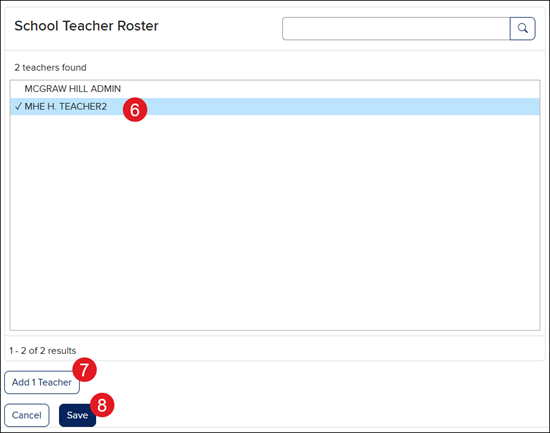
6. In the School Teacher Roster box, click on the teacher(s) you want to share the class with.
7. Click the Add Teacher button.
8. Click the Save button.
Share Class Access (New ALEKS view only)
Note: This option is only available from within the New ALEKS view.
Co-teachers in ALEKS can be granted full access, read-only access, or access per student. If a co-teacher is given full access, they have the same permissions as the primary teacher with the exception that only the primary teacher can create sub-classes and move students between the primary and sub-classes.
1. Launch ALEKS.
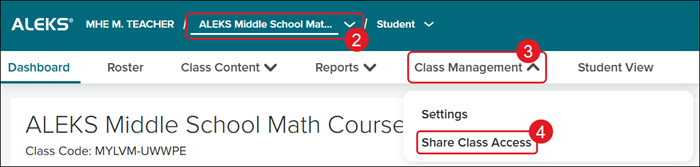
2. On the New ALEKS view, select the Class from the drop-down.
3. Click on Class Management.
4. Click Share Class Access from the menu.
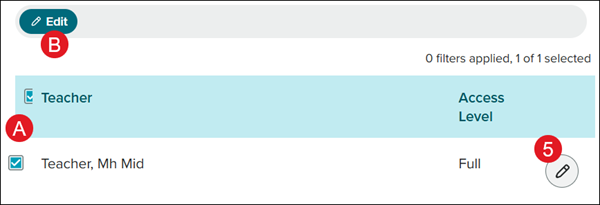
5. Click the Edit access level (pencil icon) button to the right.
You can also checkmark the box next to the Teacher(s) (A) and click the Edit button (B) to make changes to multiple teachers at once.
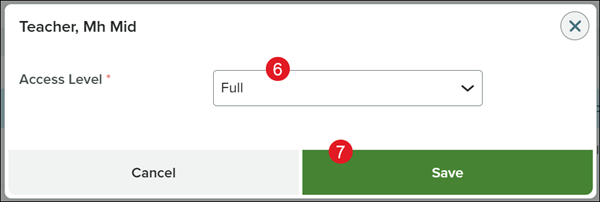
6. On the pop-up, select an option from the Access Level drop-down.
7. Click the Save button.
Remove Co-Teacher
1. SSO or log in at my.mheducation.com.
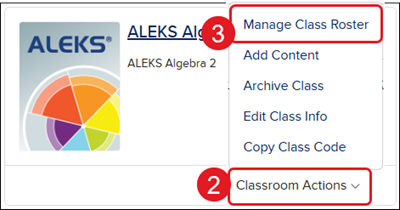
2. Click the Classroom Actions button on the class you want to share.
3. Click on Manage Class Roster from the menu.
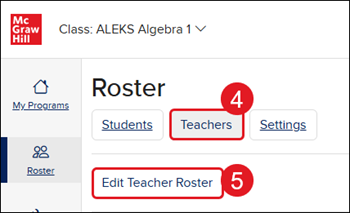
4. Click on the Teachers button.
5. Click on the Edit Teacher Roster button.
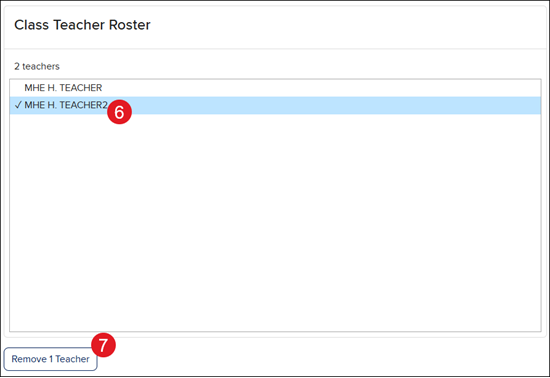
6. In the Class Teacher Roster box, click on the teacher(s) you want to remove.
7. Click the Remove Teachers button.
8. Click the Save button.
