ALEKS Adventure Grades 3-5 Program Navigation
Navigate the ALEKS Adventure Grades 3-5 program and student interface.
- Customer Support
- PreK-12
- School Student
- School Parent
- Elementary School
- Direct Login & Auto-Rostering
- Direct Login & Manual-Rostering
- SSO & Auto-Rostering
- SSO & Manual-Rostering
- Supplemental
- Math
- ALEKS Adventure
- Dashboard & Navigation Overview
- Getting Started & Orientation


View the demo in a separate tab.
View the Spanish version of the demo.
The following information is for grades 3-5 ALEKS Adventure users only. If you are looking for how to navigate the home page for grades K-2, please see the ALEKS Adventure Grades K-2 Program Navigation article.
Article Contents
Knowledge Check Portal Homepage
There are three different versions of the ALEKS Adventure home page for grades 3-5:
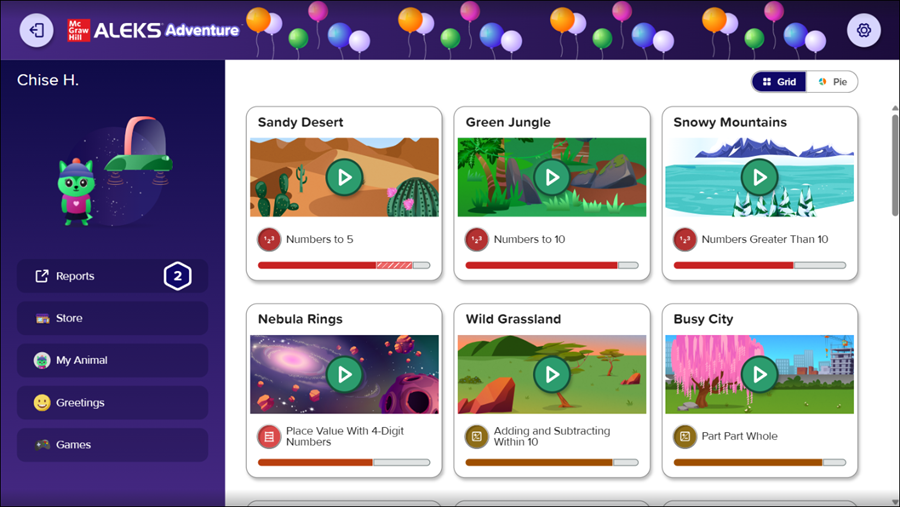
Standard: Appears when students log in while working on the course and displays the student’s topic portals along with the Fact Fluency Game.
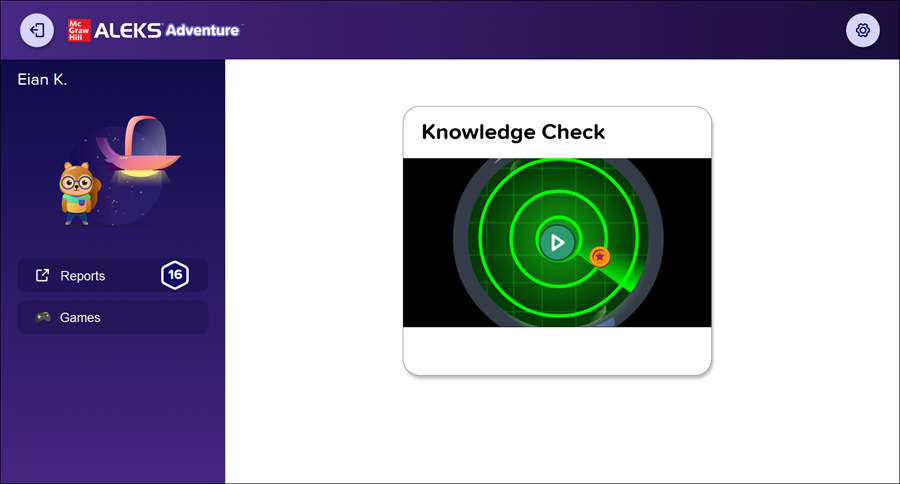
Knowledge Check Portal: Appears after the Topic Rewards page when students successfully complete a topic and displays the portal for the Progress Knowledge Check and the icon for the Fact Fluency Game. The knowledge check must be completed for the standard ALEKS Adventure Homepage to be available again.
Course Completion: Appears when students complete the course and displays all post-course completion rewards as well as the topic portals for review.
Standard Homepage
The Standard ALEKS Adventure Homepage has a consistent format for grades 3-5, with background and land elements customized to match the theme of the grade level.
Grid View
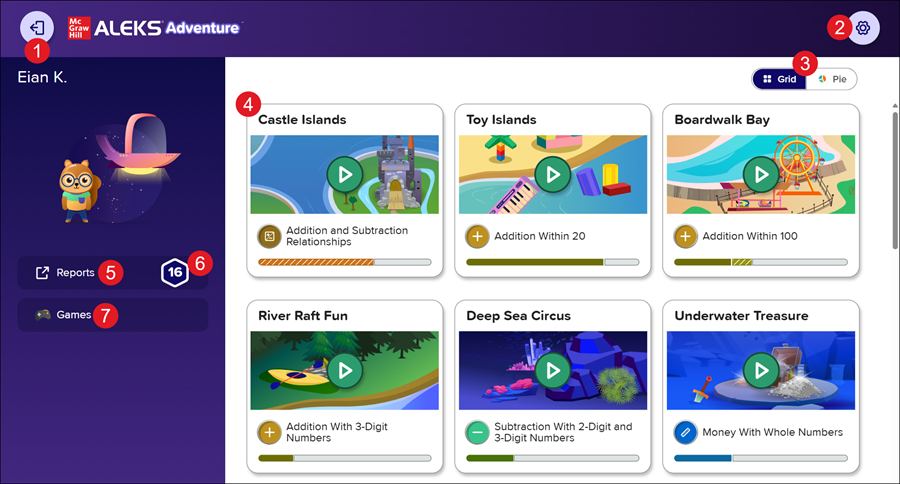
1. Exit Button: Returns students to Open Learning.
2. Settings Button - Opens the Settings panel where students can toggle buttons on and off to change their environment in ALEKS Adventure. The Settings button is available in the top-right corner of every page in ALEKS Adventure.
3. Grid/Pie Toggle: There are two different views for the 3-5 grade home page: Grid or Pie. Students can toggle between views and choose their default view by selecting a tab. The view selected displays on their homepage each time they log into ALEKS Adventure. The homepage display can be changed anytime.
- Grid (Default View): This view shows a land card for every topic the student will learn in the class.
- Pie: This view shows the ALEKS pie chart to represent every topic (or pie slice) the student will learn in the class.
4. Land Cards: Land cards represent different topics that can be used to navigate to a land of topics available within that land to work on. Each land correlates to a sub-slice of the ALEKS Pie.
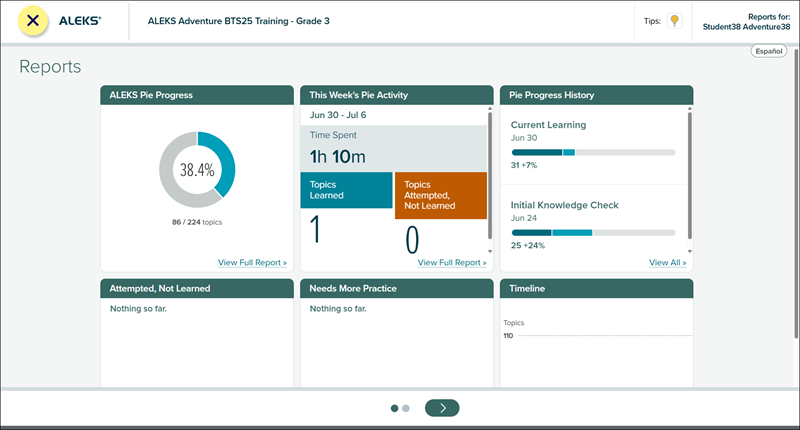
5. Reports Button: Students and parents/guardians can view the student’s pie progress using the Reports button.
Clicking the Report button opens the Student Module Report in a separate tab without needing an additional login (such as when using the Parent Portal), and it shows all tiles with links to the appropriate reports. The student/parent can select the X button in the top left corner to close the tab.
6. Topics Completed: The number of topics the student has completed displays in the hexagon. This number does not include Knowledge Checks or any topics ALEKS Adventure has marked as complete due to the results of the Initial Knowledge Check.
7. Games: Students can choose from two different fact fluency games to play by selecting the Games button. Selecting the button navigates to the game selection screen that allows students to choose which game they want to play.
When they first log in, they can choose a single game to practice one time from the homepage by default. After they play one game from the homepage, the option appears grayed out and locked. To play the game additional times or to play a different game, students must choose the Games option as their reward on the Topic Rewards page after completing a new topic.
Hidden Lands
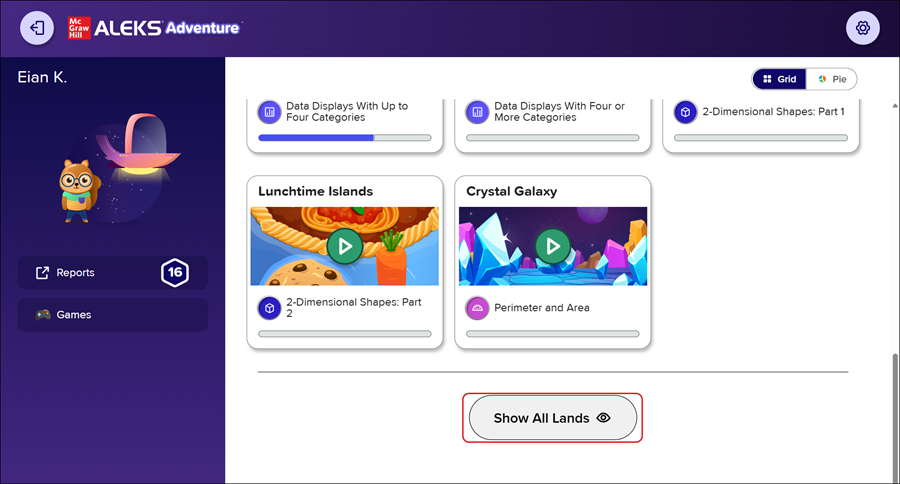
Lands that students are not yet ready to play (i.e., locked and completed lands) are hidden by default on the grid view of the homepage. Students can view the hidden portals by selecting Show All Lands from the bottom of the homepage. This makes all lands visible regardless of status. If the page is refreshed or the student logs out and logs back in, the homepage resets to the default view and the lands that are not yet ready to play are hidden in the grid view.
Note: All lands are still visible in the pie view, even when they are locked or completed.
Pie View
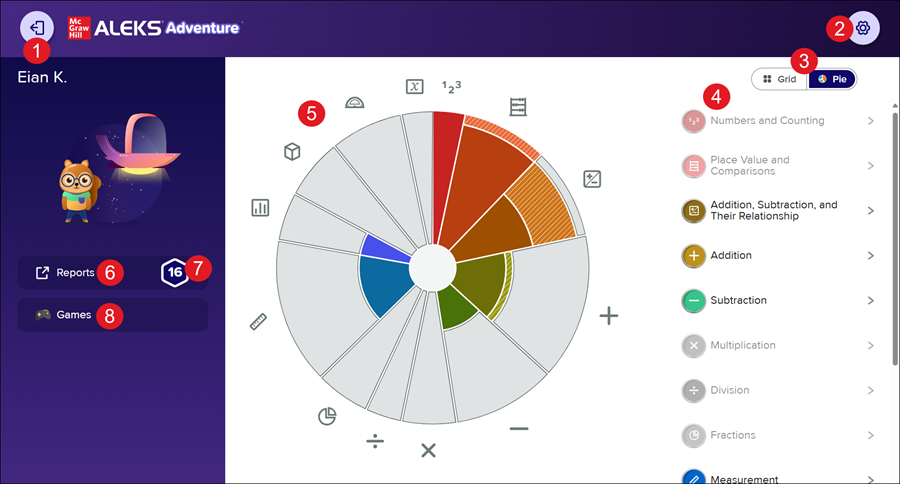
1. Exit Button: Returns students to Open Learning.
2. Settings Button - Opens the Settings panel where students can toggle buttons on and off to change their environment in ALEKS Adventure. The Settings button is available in the top-right corner of every page in ALEKS Adventure.
3. Grid/Pie Toggle: There are two different views for the 3-5 grade home page: Grid or Pie. Students can toggle between views and choose their default view by selecting a tab. The view selected displays on their homepage each time they log into ALEKS Adventure. The homepage display can be changed anytime.
- Grid (Default View): This view shows a land card for every topic the student will learn in the class.
- Pie: This view shows the ALEKS pie chart to represent every topic (or pie slice) the student will learn in the class.
4. Topic List: Shows a list of all topics within the ALEKS Pie broken down by topic names. Topics where all lessons in the topic are unavailable appear faded.
A. Selecting a topic from the list slides the topic list over to show the land cards within that topic. This also highlights the slice corresponding to the topic in the pie. Students can select another pie slice from the ALEKS Pie to quickly open the list of land cards under that topic.
B. Students can select Back to list at the top of the list to go back to the topic list.
Each land correlates to a sub-slice of the ALEKS Pie, with some topics having only one land card (one sub-slice) while others contain multiple land cards (multiple sub-slices) to indicate that the student must complete lessons in multiple lands to complete the topic.
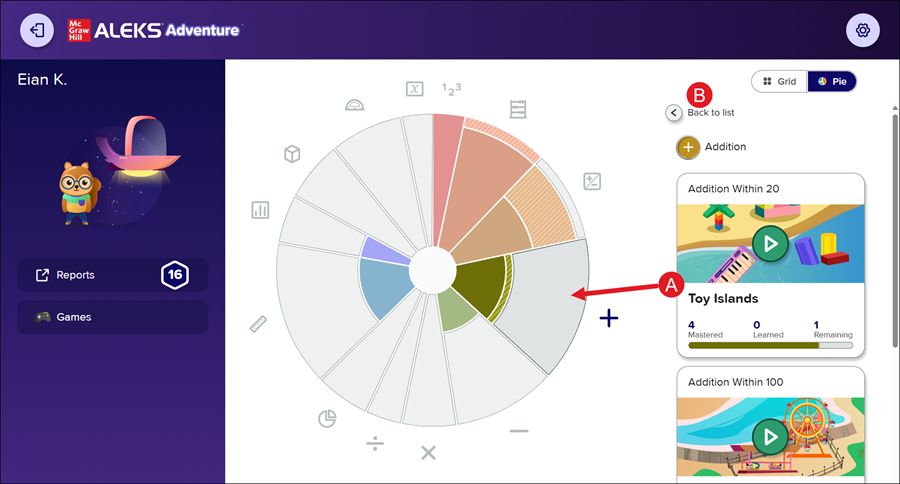
Note: While the land cards in the Grid view and Pie view both contain the same information, they appear slightly different. Refer to the Land Card Comparison section to see a side-by-side comparison of the elements in the land cards and detailed information.
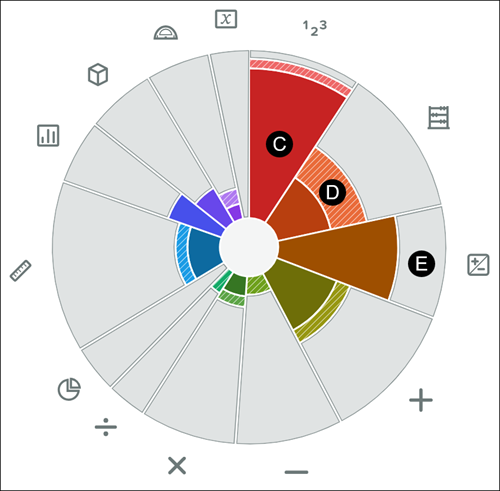
5. ALEKS Pie: The ALEKS Pie shows the amount of progress the student has made in the course. Each pie slice is color-coded and has an icon representing the corresponding land card.
Each slice is shaded up to three ways to show the progress the student has made on the topic:
C. Solid Color Shading: Indicates what the student has mastered.
D. Striped Color Shading: Indicates what the student has learned, but not yet mastered.
E. Gray: Indicates what the student has yet to learn.
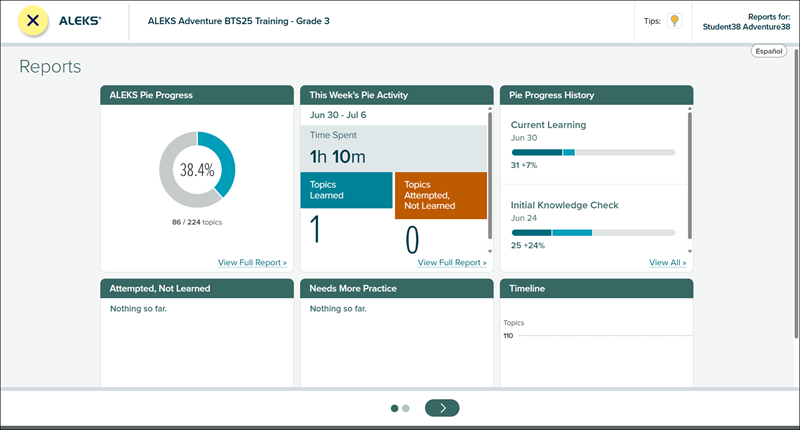
6. Reports Button: Students and parents/guardians can view the student’s pie progress using the Reports button.
Clicking the Report button opens the Student Module Report in a separate tab without needing an additional login (such as when using the Parent Portal), and it shows all tiles with links to the appropriate reports. The student/parent can select the X button in the top left corner to close the tab.
7. Topics Completed: The number of topics the students has completed displays in the hexagon. This number does not include Knowledge Checks or any topics ALEKS Adventure has marked as complete due to the results of the Initial Knowledge Check.
8. Games: Students can choose from two different fact fluency games to play by selecting the Games button. Selecting the button navigates to the game selection screen that allows students to choose which game they want to play.
When they first log in, they can choose a single game to practice one time from the homepage by default. After they play one game from the homepage, the option appears grayed out and locked. To play the game additional times or to play a different game, students must choose the Games option as their reward on the Topic Rewards page after completing a new topic.
Land Comparison
The following elements are available on the land cards from the Grid view or the Pie view homepages:
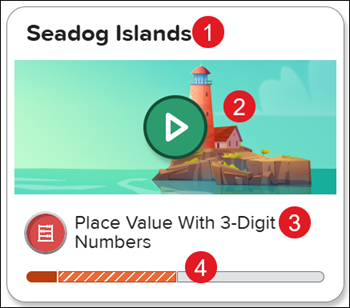
| Grid View Land Card Example | Pie View Land Card Example |
 |
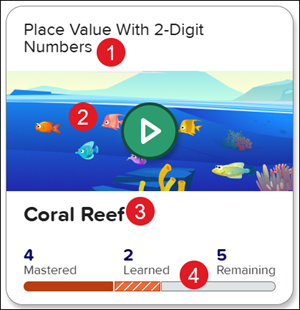 |
1. Land Name: Displays the name of the land.
2. Image & Status: Shows a preview image of the land the card leads to and the state of the topic.
Land Cards have four different states: Ready to Play, Nothing to Play, Completed, and Locked. These states are indicated by the appearance of the card and the icon on the land’s image. If a Ready to Play land card is selected, students navigate to a land of the topics available within that land where they can begin working on a topic.
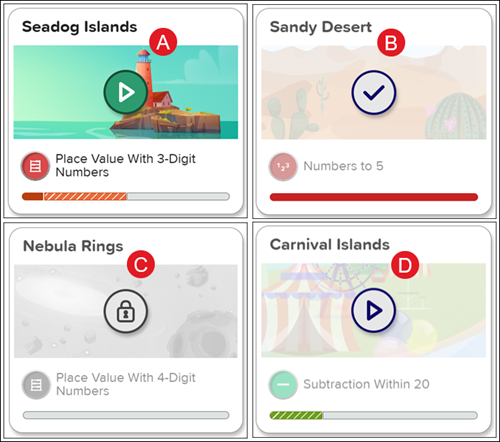
A. Ready to Play: There are topics in this land that are ready for students to play. This status is indicated by a green play button icon on the land’s image.
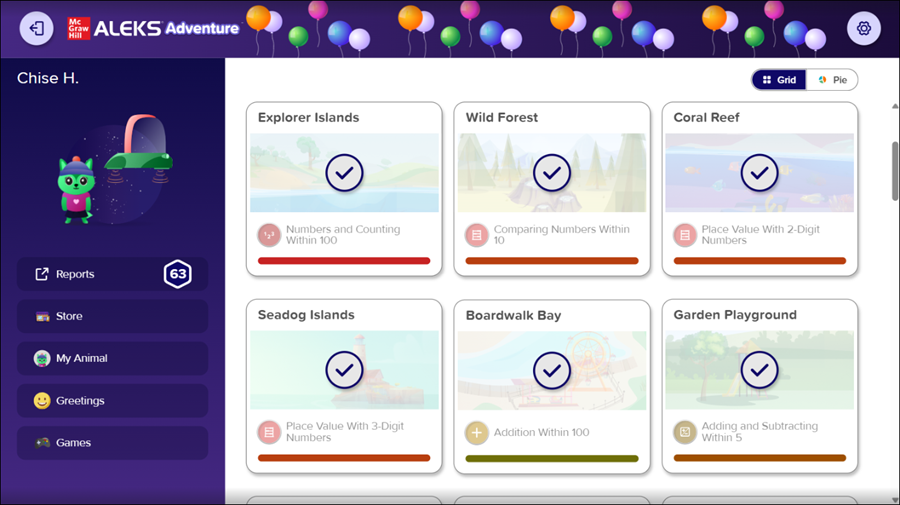
B. Completed: Lands switch to this status after students complete all the topics available in the land. This status is indicated by a gray check mark icon on the land’s image, and the land’s image appears slightly faded. They may still enter the land to replay completed topics if desired.
C. Locked: Lands show as locked if students have not yet unlocked them. The land unlocks when students complete the appropriate prerequisites by finishing topics in other lands. This status is indicated by a gray lock icon on the land’s image, and the land image appears in black and white.
D. Nothing to Play: If students complete all unlocked topics in a land but have not unlocked all the topics, the status is indicated by a gray play button icon on the land’s image, and the land appears slightly faded. Students need to complete topics in other lands to unlock more topics in this land. They may still enter the land to replay completed topics if desired.
3. Topic Name: Shows the name of the topic learned in the land. In the grid view, an icon representing the corresponding ALEKS Pie slice is shown next to the topic name. In the pie view, the icon is shown next to the topic listing that the land card is under.
4. Progress Bar: Shows the student’s progress on the topic represented by a progress indicator. This helps students visually see how close they are to their goal of mastering the topic. Within the progress bar, students see their progress made on the topic represented by the amount of shading colored in the progress bar.
The bar is shaded up to three ways to show the progress the student has made on the topic:
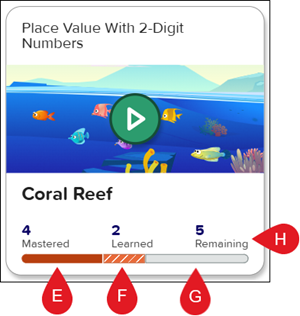
E. Solid Color Shading: Indicates what the student has mastered.
F. Striped Color Shading: Indicates what the student has learned, but not yet mastered.
G. Gray: Indicates what the student has yet to learn.
H. In Pie view, the number of lessons within the land card that have been Mastered, Learned, and are Remaining appears above the progress bar to help students visualize which topics they have learned in independent practice but have not yet demonstrated mastery of through a Knowledge Check.
Knowledge Check Portal Homepage
The Knowledge Check Portal version of the ALEKS Adventure Homepage is the same as the Standard ALEKS Adventure Homepage except that it only displays the Knowledge Check Portal. All other portals are hidden until the student takes the knowledge check. Selecting the Knowledge Check Portal and completing the Progress Knowledge Check allows the Standard ALEKS Adventure Homepage to be viewed again when the student selects the homepage.
Course Completion Homepage
Once students complete all topics in all portals of an ALEKS Adventure class, the course is put into Review Mode, which extends their experience by highlighting specific topics that the student needs to review. Topics that the student mastered without learning (such as through the Initial Knowledge Check or a Progress Knowledge Check) and topics that students need more practice on have their status changed from Completed to Ready-to-Review.
Students can access these topics through the portals to gain additional topic rewards and further their topic mastery by completing Progress Knowledge Checks. The additional Progress Knowledge Checks provide more opportunities for students to achieve 100% mastery, but they do not guarantee 100% mastery.
Portals that are Ready for Review are indicated by a green play button icon on the portal image. Portals in which students completed all topics in the land remain available to play and are indicated by a white check mark icon on the portal image.
Land with Ready to Review Topics
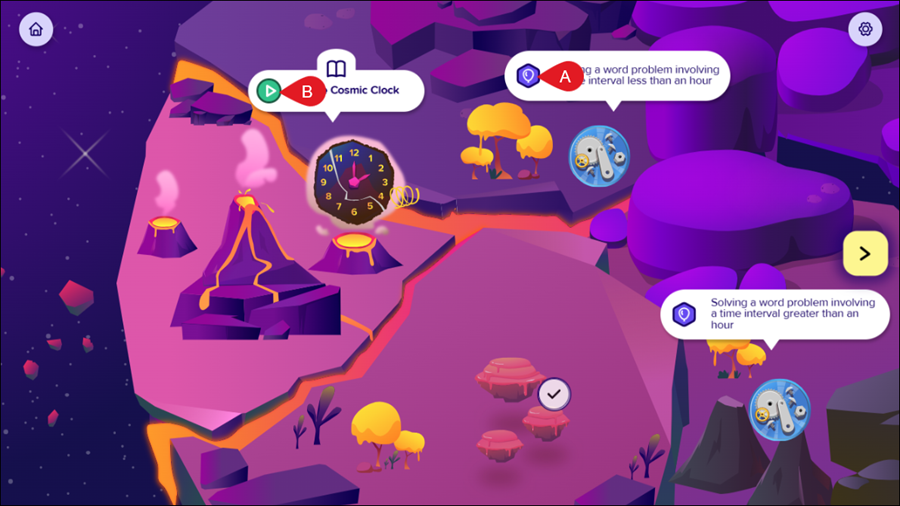
After using a portal to enter the land, students can see all the ready-to-review topics they need to learn.
A. The status icon for ready-to-review topics in a landmark shows a purple hexagon with a balloon icon.
B. Story icons will have the green play icon, but do not need to be reviewed in ready-to-review mode.
After successfully completing a ready-to-review topic within a landmark, students are directed to the Topic Rewards page and then the Progress Knowledge Check just like when completing topics prior to the course entering Review Mode, and are awarded a coin.
The landmark for that topic changes to completed status, indicated by a hexagon with a checkbox status icon. The icon appears transparent and the topic information is collapsed. Students can select and practice the topic again, but do not receive additional rewards for completing it.
Course Completion
Once all ready-to-review topics are completed on the land, Review Mode is complete, which is the conclusion of the ALEKS Adventure course. At this point, all portals on the homepage are in the completed state, which is indicated by a white check mark icon on the portal image.
Students may still enter the portal to replay completed topics if desired.
Upon course completion, students receive course completion rewards, which are unlimited access to the Store and Fact Fluency Game, and 1 greeting per day, all of which appear in the left-side panel. They also receive 100 coins. For more information on the rewards at course completion, refer to the Course Completion Rewards section of the Topic Rewards page.