
Access and Navigate the Administrator Dashboard
Use the Administrator Dashboard to access district, school, and class performance and usage reports.
- Customer Support
- PreK-12
- School Administrator
- Preschool
- Elementary School
- Middle School
- High School
- Direct Login & Auto-Rostering
- Direct Login & Manual-Rostering
- SSO & Auto-Rostering
- SSO & Manual-Rostering
- Core
- Intervention
- Supplemental
- AP, Honors & Electives
- Career & Technical Education
- Literacy
- Math
- Science
- Social Studies
- Health
- Visual & Performing Arts
- World Languages
- AP Biology
- AP Chemistry
- AP History & Geography
- AP Psychology
- AP Economics
- AP African American Studies
- AP Precalculus
- AP Statistics
- AP Computer Science
- AP Language and Composition
- AP Public Speaking
- AP Music Theory
- 5 Steps to a 5 - AP Test Prep
- Glencoe Health 2022
- Teen Health 2021
- Arrive Math
- Building Blocks 2024
- Building Blocks PreK 2025
- Number Worlds 2024
- SRA Reading Laboratory 2025
- SRA Reading Mastery Transformations
- McGraw Hill Literacy Emerge!
- McGraw Hill Literacy Summit!
- McGraw Hill Literacy Soar!
- Open Court Reading
- Open Court Reading 2025
- Open Court Reading 2016, 2018, 2023
- CA Reveal Math (K-12)
- Illustrative Math
- Reveal Math (K-12)
- CA Inspire Science 2020
- FL Science 2025 (K-12)
- Inspire Science 2020
- TN Science (K-12)
- TX Science 2025 (K-12)
- CA Impact 2019
- FL Social Studies 2024 (K-12)
- Impact Social Studies
- McGraw Hill Social Studies
- Asi se Dice 2024
- Wonders Balanced Literacy 2016
- Maravillas 2020 & 2017
- Music! Its Role
- McGraw Hill My Math 2018
- Networks 2018
- OCR Foundational Skills Kit
- OCR Word Analysis Kit
- Spotlight on Music
- Wonders 2023 2020 2017
- CTE - Business, Marketing, and Finance
- CTE - Health Science
- CTE - Computing and Technology
- CTE - Agriculture
- CTE - Culinary Arts
- CTE - Early Childhood Education
- CTE - Criminal Justice
- Texas Math
- Reports & Analytics
- Dashboard & Navigation Overview


View the demo in a separate tab.
View the Spanish version of the demo.
The Administrator Dashboard report page is available to Organization and Reporting Administrators and includes access to Usage and Standards and Activity Performance reports. All programs that use the McGraw Hill assessment platform - which includes most Open Learning and select ConnectED programs - will be able to produce reports in the Administrator Dashboard.
An assessment has to be assigned and scored before it will show in the Administrator Dashboard.
Note: Programs such as StudySync, ALEKS, ALEKS Adventure, Achieve3000 Literacy, and Actively Learn, or those that use eAssessment, will not be available in the reports as they do not use McGraw Hill Assess.
Program-specific reports:
- ALEKS Adventure Administrator Reports
- ALEKS Administrator Reports
- Achieve3000 Literacy Administrator Reports
- Actively Learn Administrator Reports
- StudySync Administrator Reports
For programs that use eAssessment, refer to the eAssessment Administrator Reports article.
Article Contents
Access the Administrator Dashboard
Standards Overview: Performance
Access the Administrator Dashboard
1. SSO or sign into your Administrator account.
If you have both the Teacher and Administrator roles, you will need to toggle over to your Administrator role to access reports.
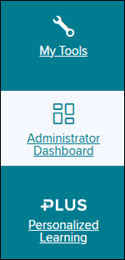
2. Click on the Administrator Dashboard option in the navigation menu.
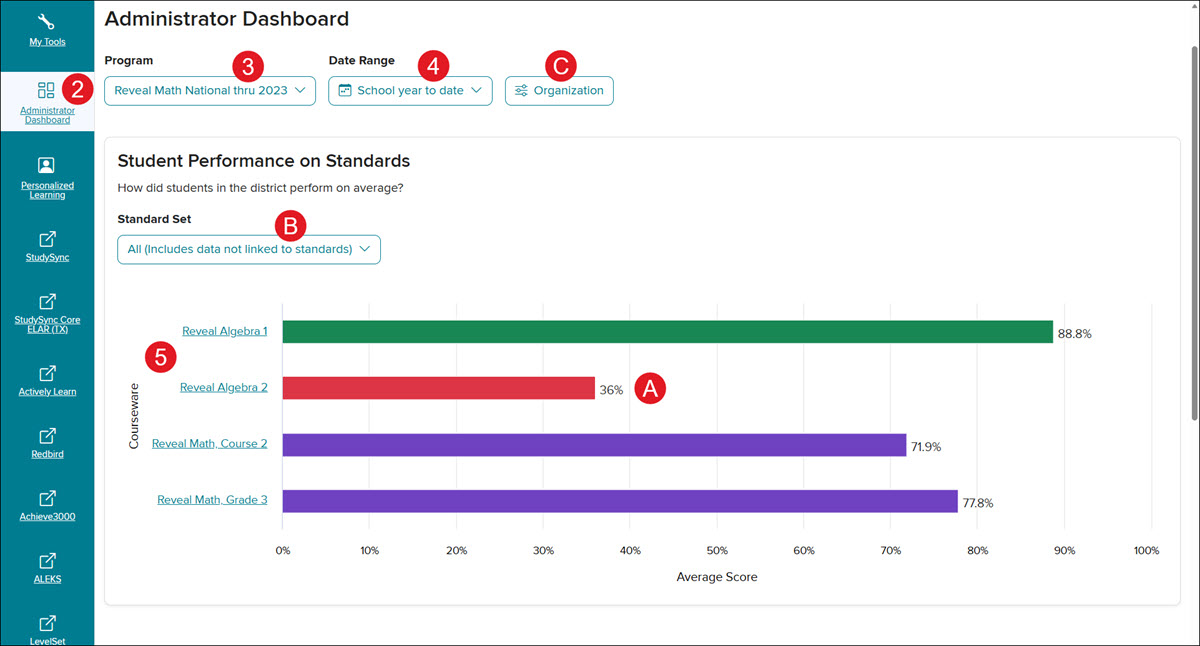
The page will default to the Student Performance on Standards bar graph.
3. Select an option from the Program drop-down.
4. Select a Date Range of School year to date, Last Day, Last 7 Days, Last 30 Days, or a Custom range.
A. Under the Student Performance on Standards section, you'll be able to view the overall percentage for the program for all schools within the selected organization.
B. If the course is associated with additional standards, you can select a specific Standard Set from the available drop-down to view.
C. Click the Organization button to view data for a specific school.
5. Click on a Courseware link to navigate to the Activities Overview report.
Note: Currently, the only way to navigate back to this page is by clicking on the Administrator Dashboard option in your navigation menu.
Usage Reports
The Usage Report is available under the Student Performance on Standards section and displays teacher and student usage based on the Program and Date Range that is selected at the top of the page.
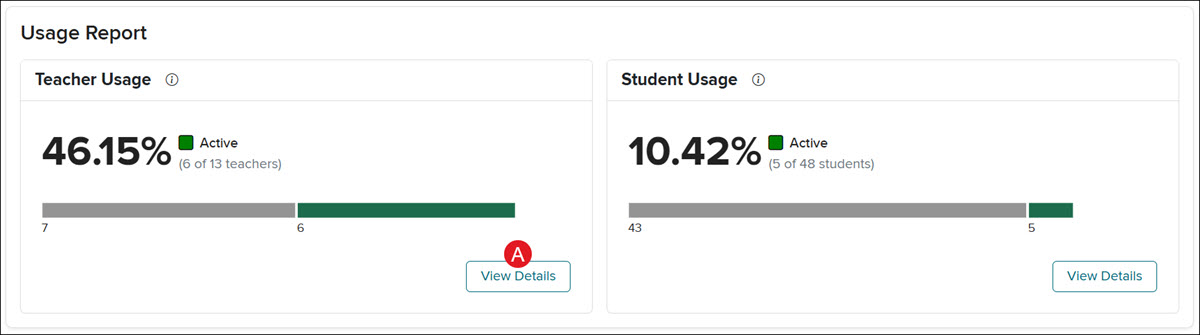
A. Click the View Details button to view and export Usage data. The data will show the Username, First Name, Last Name, Program, Course, Organization, and Last Login date of each user.
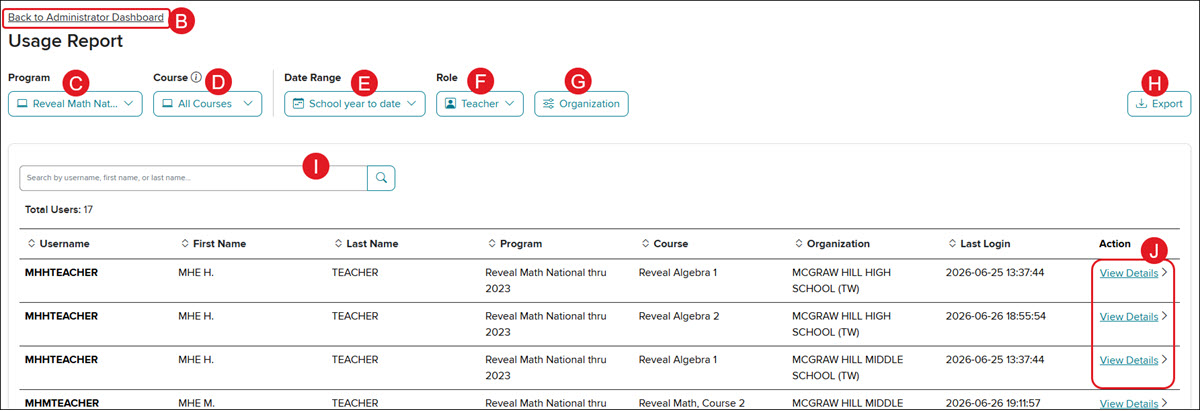
B. Click the Back to Administrator Dashboard link to navigate back to the main page.
C. Click the All Programs drop-down to view usage data for different programs. Focus the analysis on all or single program for insights. Some ConnectED programs may not show product data.
D. Click the All Courses drop-down to view all courses for the selected program, or data for only certain courses. Analyze multiple courses within a program using the multi-select functionality. Select the checkbox next to the course and click the Apply button at the bottom.
E. Click the Date Range drop-down to toggle between the different options or select a Custom date range. Keep in mind, the longer the date range that is selected, the longer it takes for the report to generate.
F. Toggle between Teacher and Student details by clicking on the Role drop-down.
G. Click the Organization button to select a specific district or school to view.
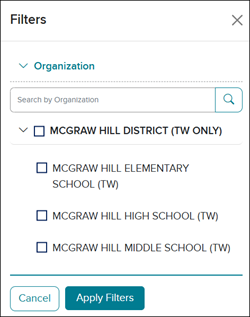
H. Click the Export button to generate a CSV file of the data.
I. Use the Search field to locate a specific user's data.
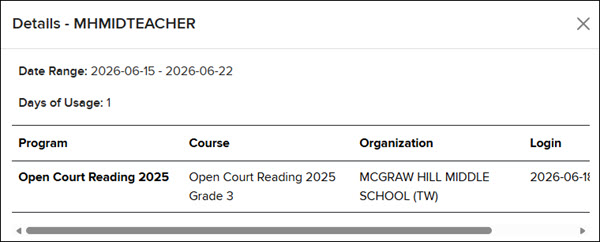
J. Click the View Details link to the right of a user to view the Date Range, Days of Usage, Program, Course, Organization, and Login date and time.
Activties Overview Report
Once you have clicked a link from the Courseware section, you will automatically navigate to the Activities Overview page for your selection.
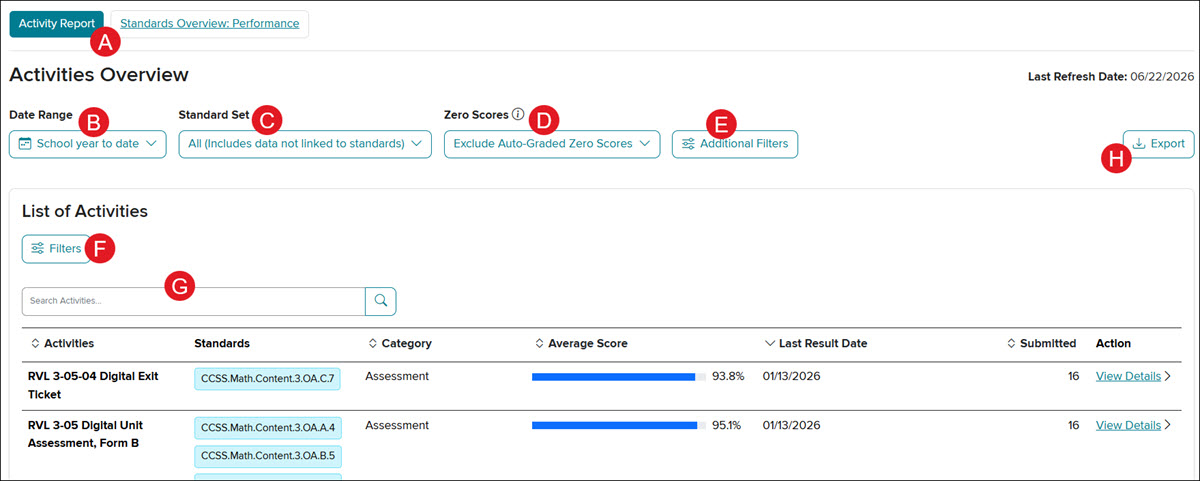
A. Easily navigate between the Activity Report and Standards Overview: Performance by clicking on the associated button at the top of the page.
B. Select the preferred Date Range of the Last Day, Last 7 Days, Last 30 Days, School year to date, or a Custom date range. The start of school year is considered to be July 1st. If selecting a Custom date range, you do not want to select more than a year.
C. Select a Standard Set to view specific standards data.
D. Select to Exclude or Include Auto-Graded Zero Scores from the Zero Scores drop-down.
- Exclude auto-graded zero scores: Scores of zero due to non-submission in auto-graded assessment won't be reported.
- Include auto-graded zero scores: Scores of zero due to non-submission in an auto-graded assessment will be reported.
E. Click on the Additional Filters button to select a specific Organization and Class to view.
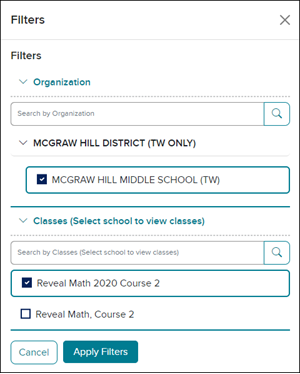
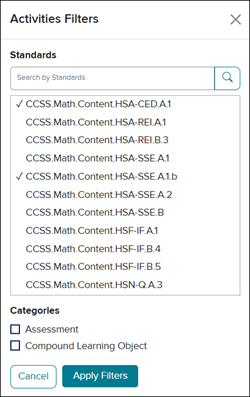
F. Click the Filters button to select to view a certain Standard(s) and/or Categories.
G. Use the Search Activities field to locate a specific assessment.
H. Click the Export button to export the data into an .xml file.
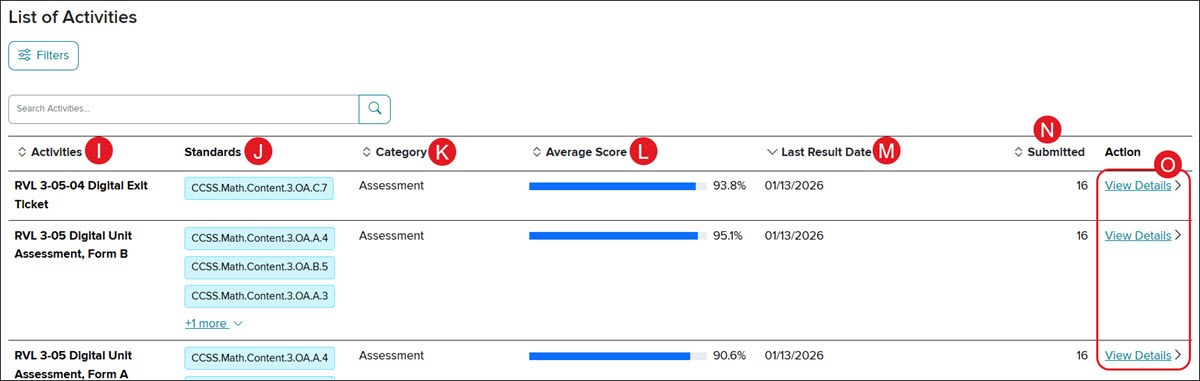
I. In the List of Activities section, each assigned activity will show in the Activities column.
Note: The only activities that are viewable in the Administrator Dashboard will be activities with the category of "Assessment" assigned by teachers. Teachers are able to view reports that include data for all activity types given (assignments, assessments, SmartBook, etc.). An assessment has to be assigned and scored before it will show in the Administrator Dashboard.
J. All standards that are covered in the activity will be listed in the Standards column.
K. The category assigned to the activity will be listed in the Category column. These will all show as Assessment or Compound Learning Object due to those being the only activity to be viewed in the Administrator Dashboard.
L. The Average Score percentage is listed for each activity.
M. The Last Result Date is the final date all scores were entered for the activity.
N. The number of students that turned in the activity will show in the Submitted column.
O. Click the View Details link in the Actions column to navigate to the Summary and Question Analysis pages.
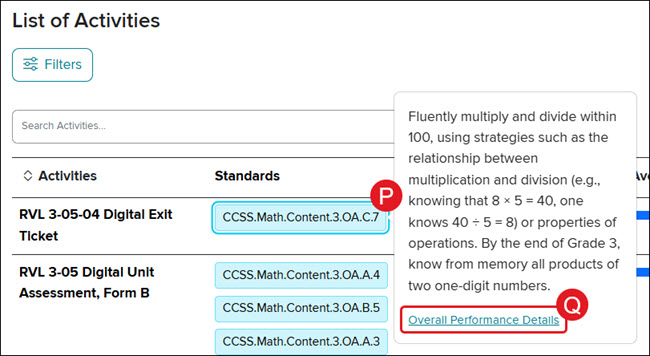
P. Click on a Standard to view the description.
Q. Click the Overall Performance Details link on the pop-up to view the Standards Performance report.
Activity Summary
The Activity Summary page includes details on the Last Refresh Date, the Type of activity, the Total Questions included in the activity, the Last Result date that scores were entered, and the Average Score for the selected activity.
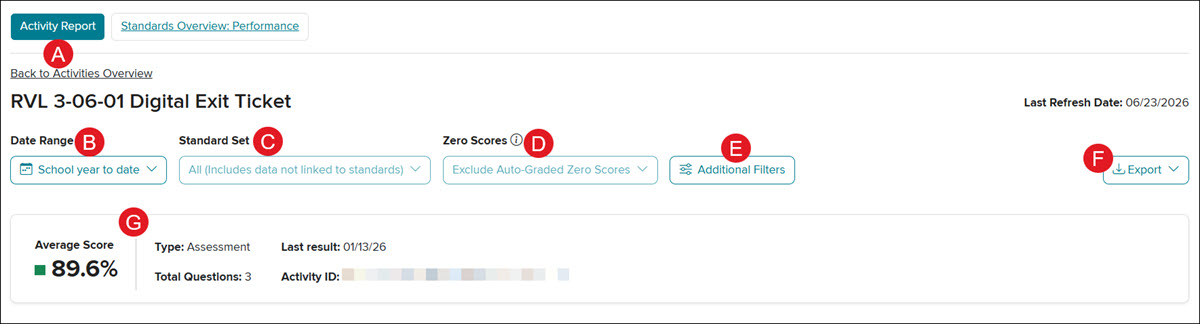
A. Click the Activity Report button or Back to Activities Overview link to navigate back to the Activity Overview page.
B. The Date Range will auto-select to what was selected on the Activity Overview page.
C. The Standard Set will auto-select to what was selected on the Activity Overview page.
D. The Zero Scores will auto-select to what was selected on the Activity Overview page.
E. Click the Additional Filters button to view data for a specific Organization and Classes.
F. Click Export to download a CSV file for Full Activity Data or Standards Alignment Data.
G. The Average Score, Type of activity, Total Questions, Last result submitted, and the Activity ID will show above the activity data.
The Standards Alignment Data option allows administrators to export standards-related performance data for each specific assessment. The export provides comprehensive learner-level metrics for every standard tagged within the selected assessment.
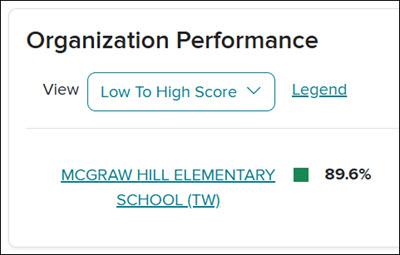
If no Organization is selected under the Additional Filters, the Organization Performance box will show. This will list all the schools that assigned the selected activity and the average percentage.
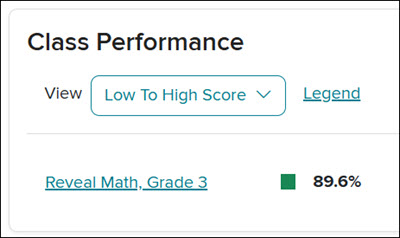
When an Organization is selected in the Additional Filters, the Class Performance will show. This will list all classes that were assigned the activity and their average score percentage.
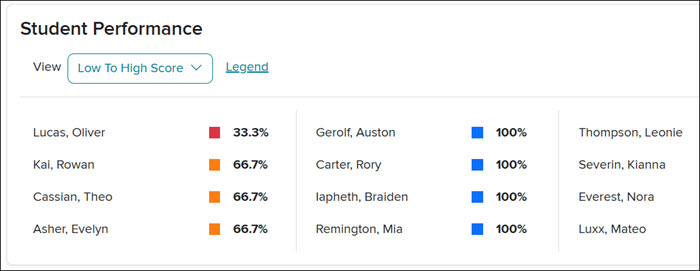
When a Class is selected in addition to an Organization, the Student Performance will show for the selected activity. This will last each student in the class and their average score percentage.
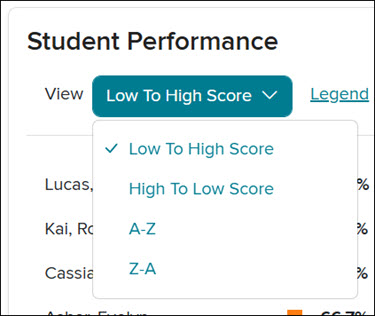
Click the View drop-down to reorganize the list.
The Standards Assessed section lists all standards that were covered in the selected activity.
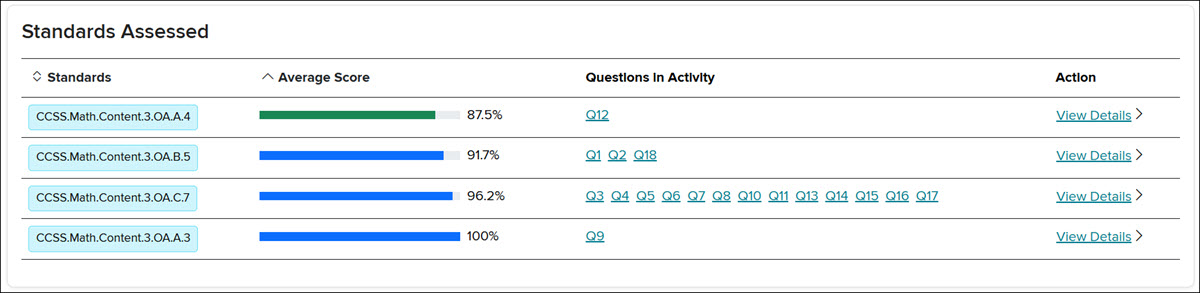
H. Click on a Standard to view the standard details.
I. Click on the Overall Performance Details link in the pop-up to navigate to the Standards report page.
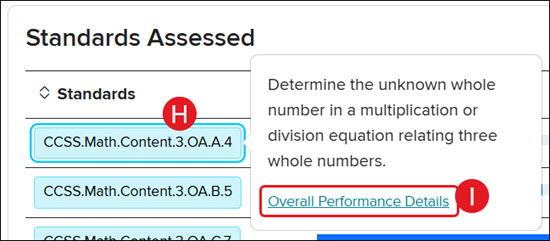
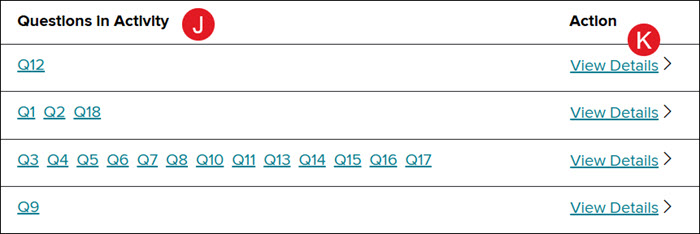
J. Click on a Questions in Activity link to view the question on the Question Analysis page.
K. Click the View Details link in the Action column to open the standards detail panel.
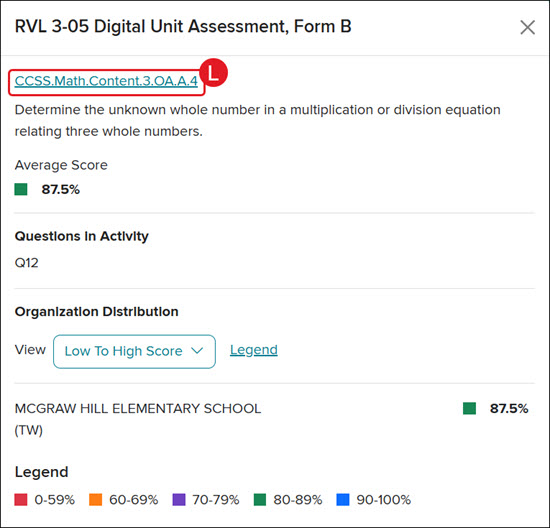
The View Details panel includes information on the standard and its meaning, the Average Score for that standard, the Questions in Activity that were associated to the selected standard, and the organization, classes, or students that were assessed on the standard depending at what level the View Details link was clicked.
L. Clicking on the standard link at the top of the panel will navigate you back to the Standards Performance report to view details on the selected standard.
Question Analysis
A. After selecting an activity to view, click the Question Analysis tab or a Questions in Activity link to navigate to a breakdown of each question in the selected activity.
With some activity selections, you will be required to select an Organization and Class from the Additional Features.
B. The Question Analysis will show a bar graph that includes each question that was in the activity. Hover over a bar in the graph to see the Average Score per Question.
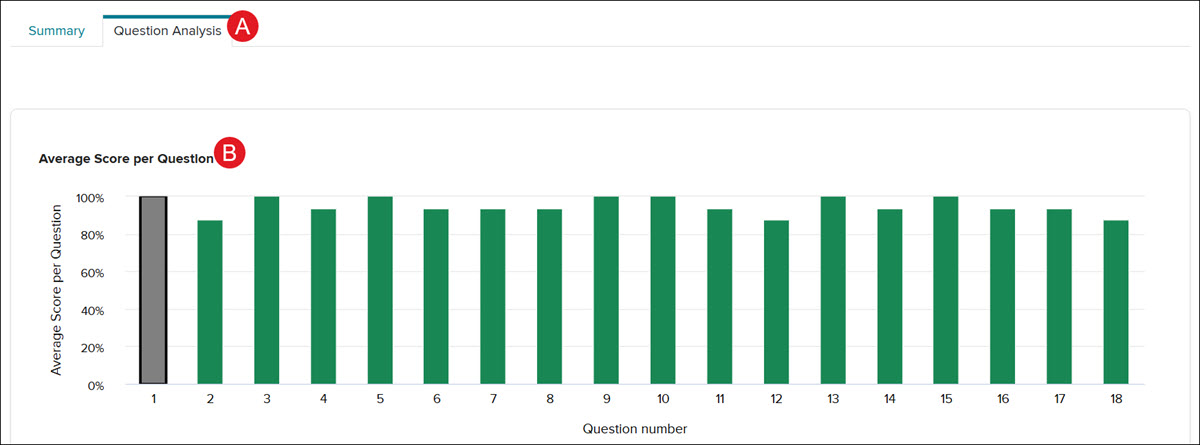
Below the bar graph will be the additional Question Details where you can view each question and student responses.
C. You can navigate between each question by clicking on the back-and-forth arrows.
D. The Student Responses section provides the list of students who answered correctly, partially correct, and incorrectly for the selected question.
E. The Additional Information section provides details on the Question Type, Average Score, the Cognitive Levels, and the Standards Covered for the selected question.
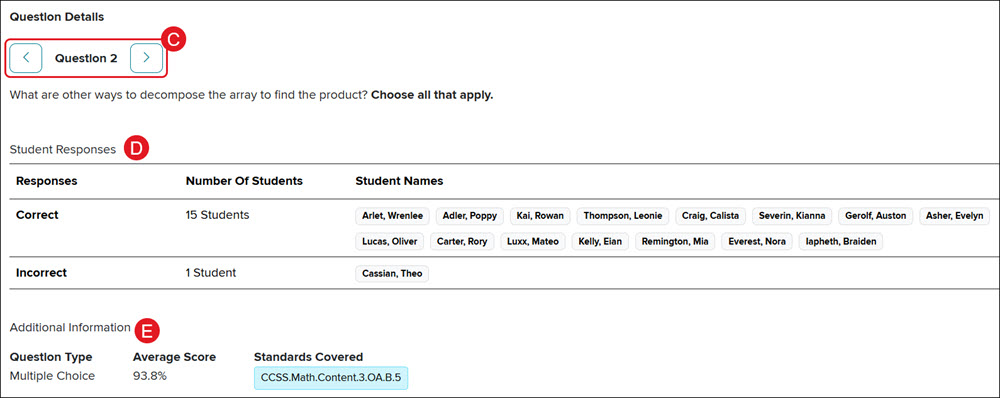
F. Click on a standard under Standards Covered will pop-up a description for that standard.
G. Click on the Overall Performance Details link in the pop-up to navigate to the Standards Performance report page.

Standards Overview: Performance
An assessment has to be assigned and scored before it will show in the Administrator Dashboard.
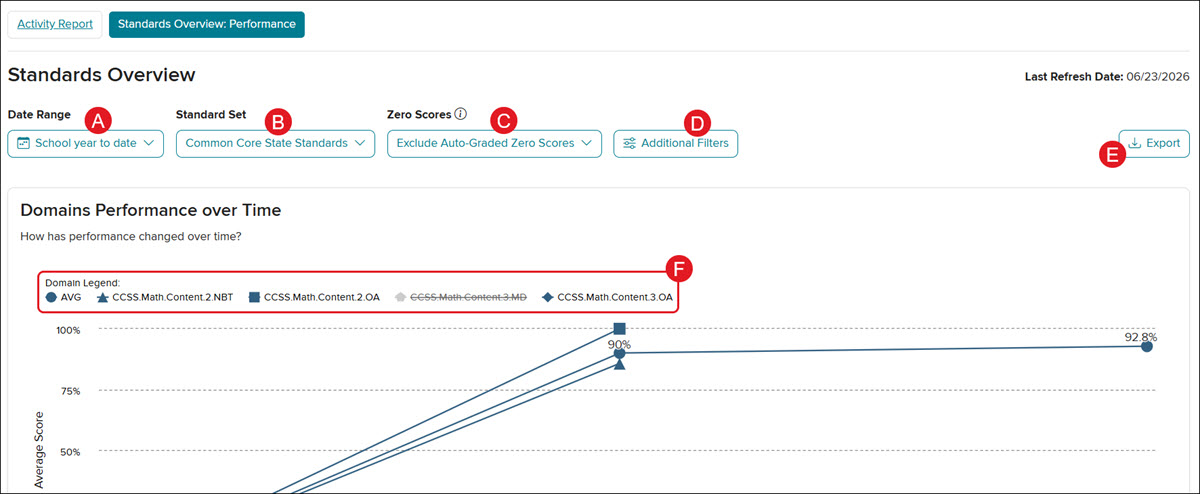
A. Select the preferred Date Range of Last Day, Last 7 Days, Last 30 Days, School year to date, or a Custom date range.
The start of school year is considered to be July 1st. If selecting a Custom date range, you do not want to select more than a year.
B. Select a Standard Set to view specific standards data.
C. Select to Exclude or Include Auto-Graded Zero Scores from the Zero Scores drop-down.
- Exclude auto-graded zero scores: Scores of zero due to non-submission in auto-graded assessment won't be reported.
- Include auto-graded zero scores: Scores of zero due to non-submission in an auto-graded assessment will be reported.
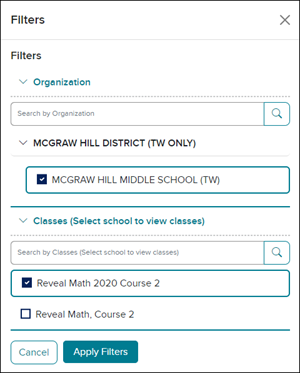
D. To view data for a specific class, click the Additional Filters button. Select an Organization and Classes from the panel.
E. Click the Export button to download a file with the viewable data.
F. Click on an option in the Domain Legend to show/remove the option in the line graph.
Under the Domains Performance over Time graph will be additional standards details.
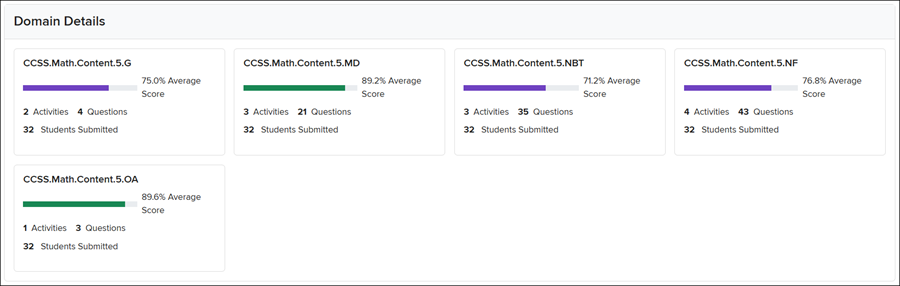
Each domain in the graph will show in the Domain Details with the Average Score, the number of Activities and Questions associated to that standard, and the number of Students Submitted for that standard.
The Standards to Focus on will list out the five standards with the lowest class score percentages.
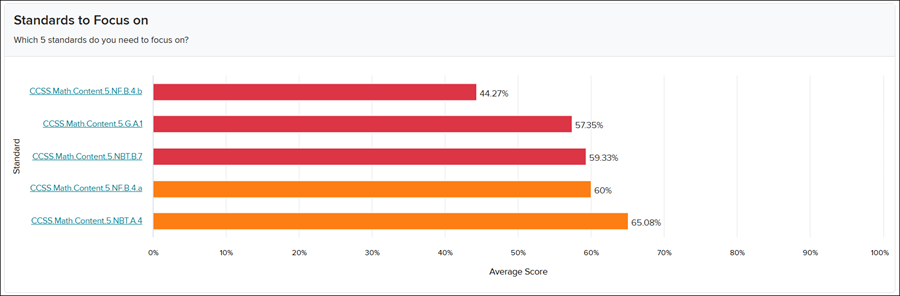
H. Click on a standard in the Standards to Focus on section to navigate to view all the classes that are having trouble with that selected standard.
Every standard that has been assessed based on the selections you have made will show in the Standard Details at the bottom of the Standards page.
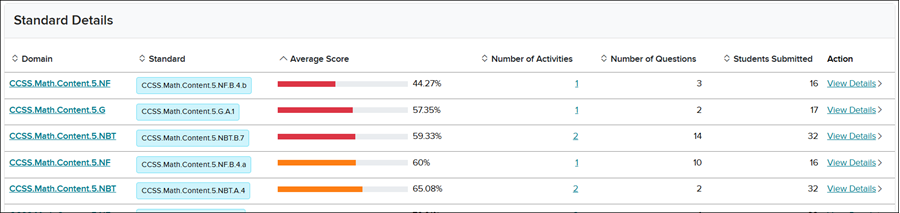
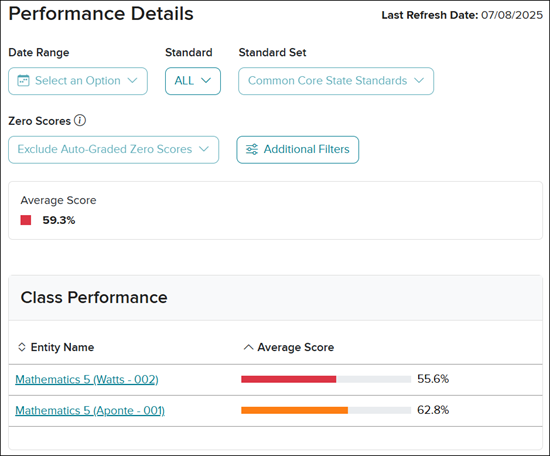
Click the Domain link or View Details link to the right of a standard to view the Performance Details for that standard.
