View Actively Learn Administrator Reports
Access and view the available Actively Learn Administrator Reports.
- PreK-12
- Customer Support
- School Administrator
- Elementary School
- Middle School
- High School
- Direct Login & Auto-Rostering
- Direct Login & Manual-Rostering
- SSO & Auto-Rostering
- SSO & Manual-Rostering
- Supplemental
- Literacy
- Actively Learn
- Reports & Analytics


Administrator Reports provide quantified information on student performance across districts and schools, as well as, for individual teachers. It breaks down login information, teacher activity, proficiency, and professional learning activity among your teachers.
Administrators, and teachers with administrator privileges, have access to these reports.
Note: If a teacher assigned an assignment and then later deleted it, any data from that assignment will still be counted for the teacher. Additionally, data from co-taught classes will always be shown in parentheses.
Article Contents
Access Administrator Reports
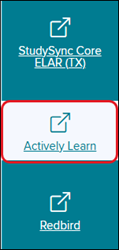
1. From the Admin Tools, click on Actively Learn from the navigation menu.
If the page does not automatically load to the Administrator Reports:
2. Click Menu at the top-left.
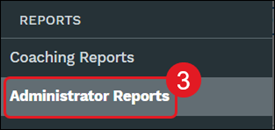
3. Click on Administrator Reports under the Reports section of the menu.
Note: If you are a teacher with administrator access, you can launch Actively Learn from your teacher My Programs page and access the reports from the Menu.
Activity Reports
The Activity Report has three tabs: Usage, Practices, and Logins.
Usage Reports
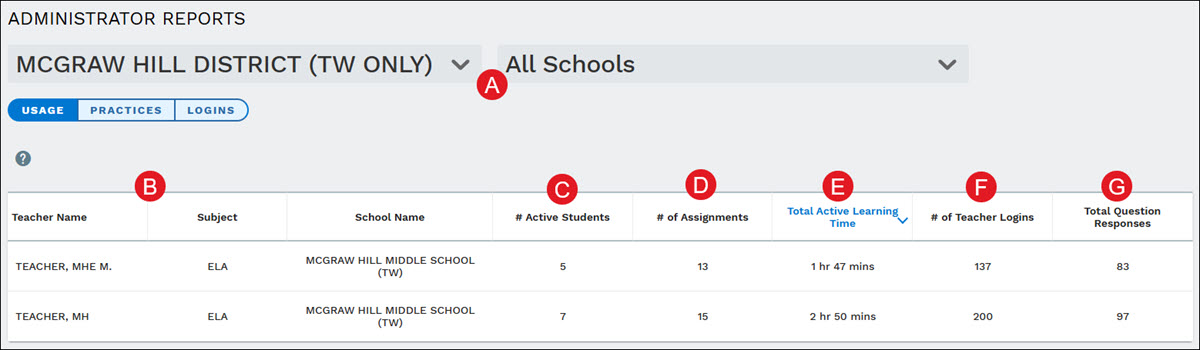
A. District Administrators will be able to view Usage data at a district or school level and can pick which to view by clicking on the drop-down menus.
B. In this table, you can view overall activity statistics for your teachers and measure how often teachers use Actively Learn with their students and also quantify the reading behaviors they are producing.
C. # Active Students - Total number of students with reading time in a class where the teacher is the main teacher of the class; data from co-taught classes will be shown in parentheses.
D. # of Assignments - Total number of assignments with reading time where the teacher is the main teacher of the assignment; data from co-taught classes will be shown in parentheses.
E. Total Active Learning Time - Total reading time of all students in every assignment across all classes where the teacher is the main teacher of the class; data from co-taught classes will be shown in parentheses.
F. # of Teacher Logins - Number of times the teacher has logged in to Actively Learn.
G. Total Question Responses - Total number of student responses in every assignment across all classes where the teacher is the main teacher of the class; data from co-taught classes will be shown in parentheses.
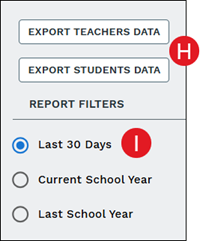
H. Export teachers' and students' usage data by clicking on the corresponding Export button.
I. Filter the data by the Last 30 Days, the Current School Year, or the Last School Year using the report filters in the right-hand panel.
Practices
The Practices tab provides more data on a teacher's instructional practices. The tab provides an overview of these practices across all teachers at a district, or school, with data presented per teacher.
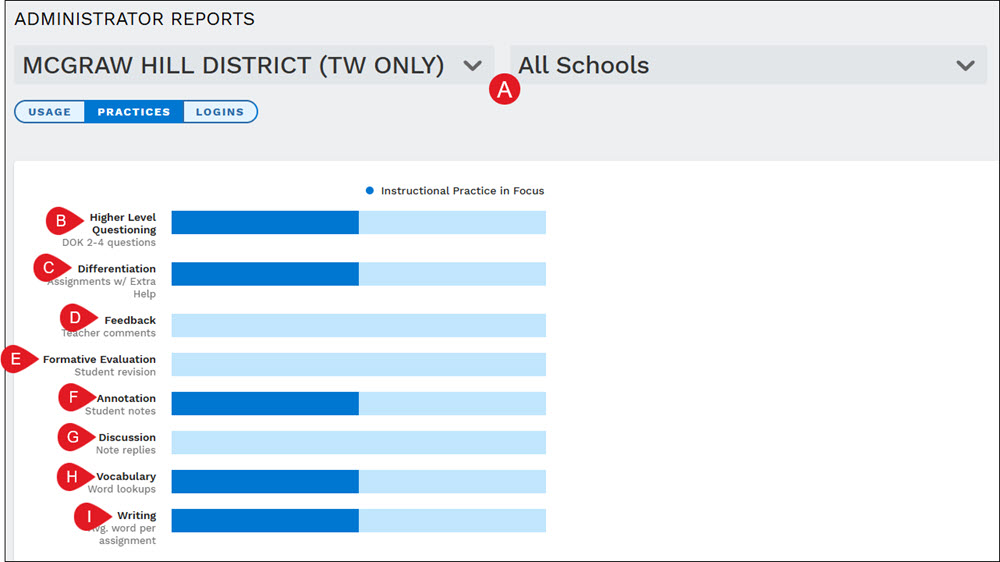
A. District Administrators will be able to view Practices data at a district or school level and can pick which to view by clicking on the drop-down menus.
B. Higher Level Questioning - Number of questions in all assignments with a DoK 2,3, or 4.
C. Differentiation - Number of assignments with at least one student marked as 'Extra Help'.
D. Feedback - Number of unique student responses where the teacher added a comment.
E. Formative Evaluation - Number of responses in all assignments that were reset by a teacher where a student revised their answer.
F. Annotation - Number of notes created by students across all of the teacher's assignments.
G. Discussion - The number of student replies by other students.
H. Vocabulary - Total number of times students performed word lookups in assignments.
I. Writing - The average words per assignment students entered.
A breakdown for each individual teacher with these fields can also be viewed.

Logins Report
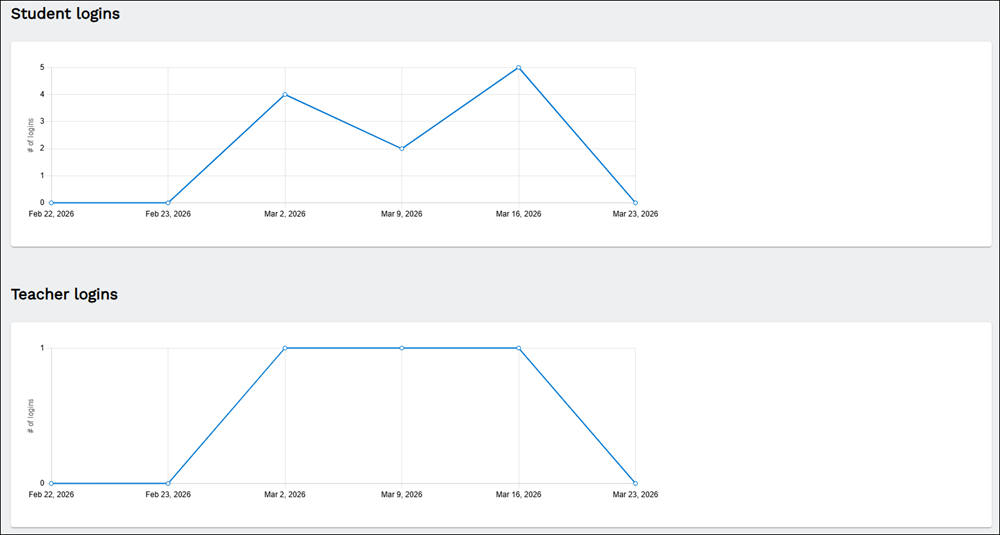
The Logins tab provides two graphs indicating Student and Teacher logins over the course of the school year.
Proficiency Reports
View the proficiency report to get a breakdown of how your students are doing by grade level or by standard.
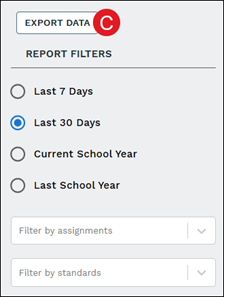
Filter data views by Last 7 Days, Last 30 Days, Current School Year, or Last School Year.
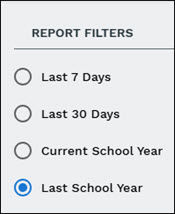
You can also filter by additional options for the Proficiency By Standard report, such as by grade level, content area, teacher, assignments, and standards.
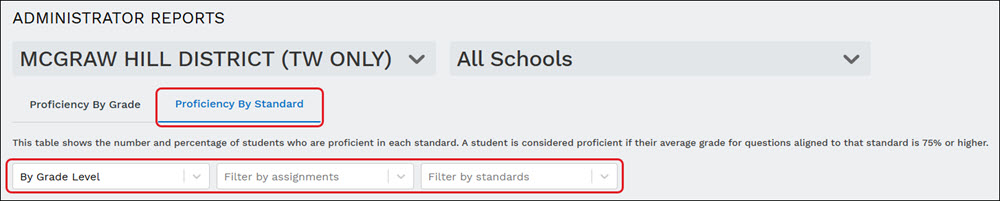
Proficiency By Grade
See the number of students developing or below, between developing and proficient, or above proficient by grade level. A student’s proficiency is based on their average grade on their Actively Learn assignments. Below developing is ≤ 50%, between developing and proficient is between 50% and 75%, and proficient is ≥ 75%.
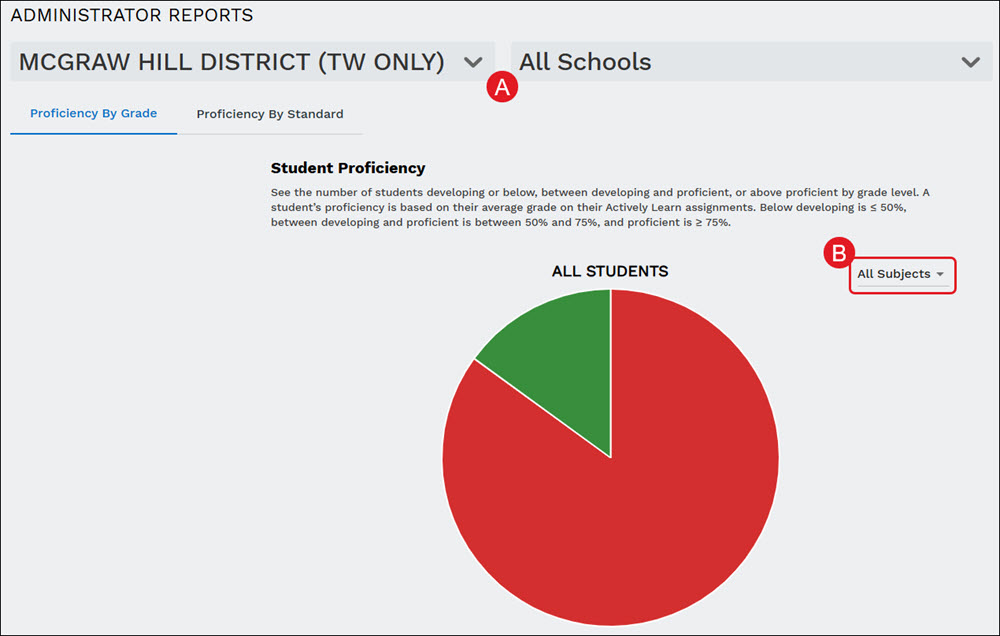
A. District Administrators will be able to view Proficiency data at a district or school level and can pick which to view by clicking on the drop-down menus.
B. Click the All Subjects drop-down to view data by the different available subjects.
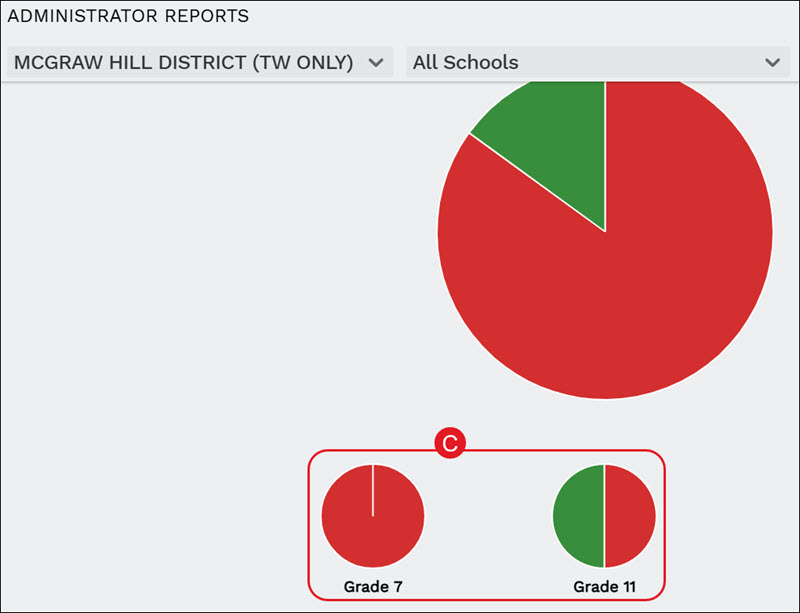
C. If more than one grade level is associated, click on the smaller graph image to toggle between grade level views.
Proficiency By Standard
See the percentage of students above proficient by standard. A student is considered proficient on a standard if their average grade on all questions aligned to a standard is ≥ 75%.
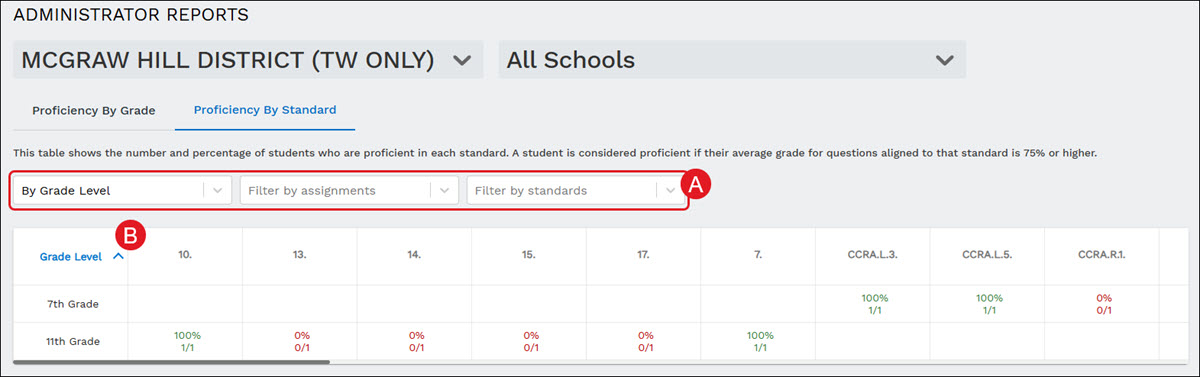
A. View the data by grade level, content area, teacher, assignments, and/or standards.
B. The table breaks down the data by Grade Level and individual standards.
C. Click the Export Data button to download a CSV file.
Custom Reports
Admins can generate custom reports for specific date ranges and/or specific schools.
Note: Custom Reports may take some time to load depending on the number of schools selected.
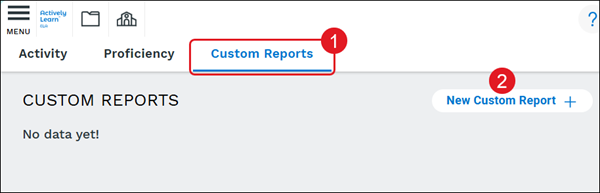
1. Click Custom Reports from the navigation menu.
2. Click the New Custom Report + button.
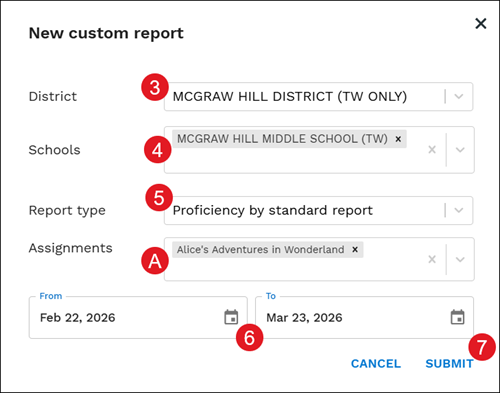
3. Select a District from the drop-down.
4. Select the Schools. More than one school can be selected at a time.
5. Select the Report type.
A. If the Proficiency by standard report is selected, select the Assignments to include on the report. More than one assignment can be selected.
6. Select the From and To dates by clicking on the calendar icon or typing in the available fields.
7. Click the Submit button.
When the report is ready, a notification about the completion of the report is sent to the requestor's email.
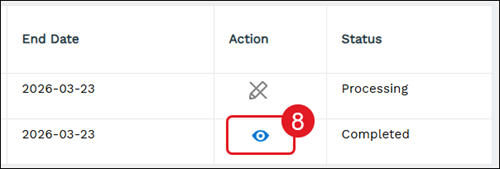
The report will also have a Status of Processing on the Custom Reports page until it is available for viewing.
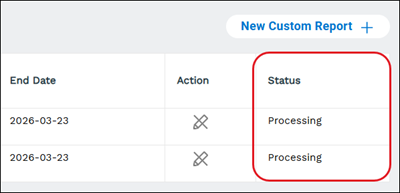
Once the reports are available, the Status will show Completed.
8. Click the View Report button in the Action column to load the report.