
Actively Learn Science Virtual Labs
Learn how to access and navigate the available Virtual Labs within Actively Learn.
- PreK-12
- Customer Support
- Classroom Teacher
- Elementary School
- Middle School
- High School
- Direct Login & Auto-Rostering
- Direct Login & Manual-Rostering
- SSO & Auto-Rostering
- SSO & Manual-Rostering
- Supplemental
- Science
- Actively Learn
- Tools & Resources
- Grades & Assignments


Article Contents
Locate the Virtual Labs
1. SSO or sign in at my.mheducation.com.
2. Launch your Actively Learn class.
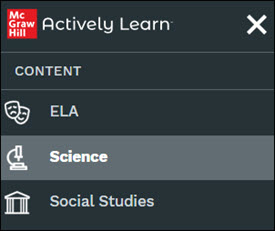
If you have access to multiple subjects, you will need to click on the Menu and click on Science.
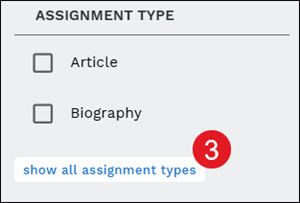
3. From the filter panel on the right, in the Assignment Type section, click show all assignment types to expand the list.
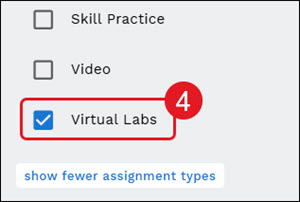
4. Checkmark the box next to Virtual Labs.
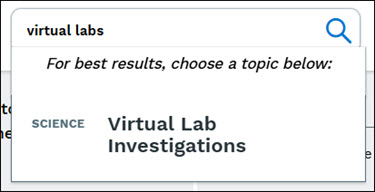
The labs can also be found by searching for "Virtual Labs" in the search field and clicking on Virtual Lab Investigations from the results.
Use the tabs at the top of the page to locate the virtual lab you're looking for.

5. Click on a lab to launch the teacher version.
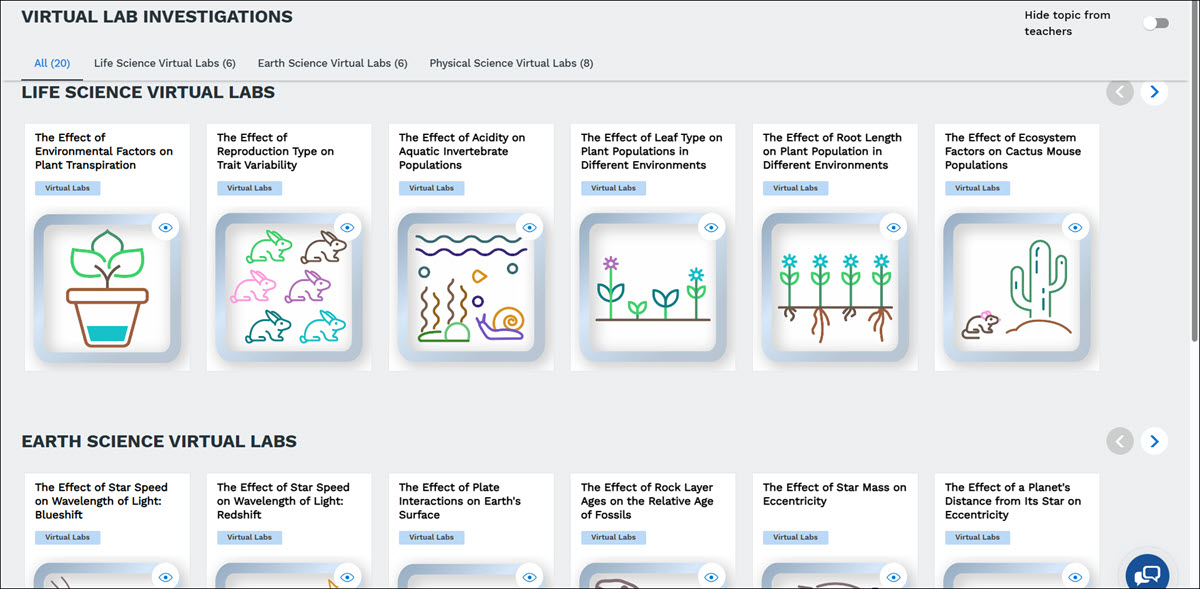
Navigate the Virtual Labs
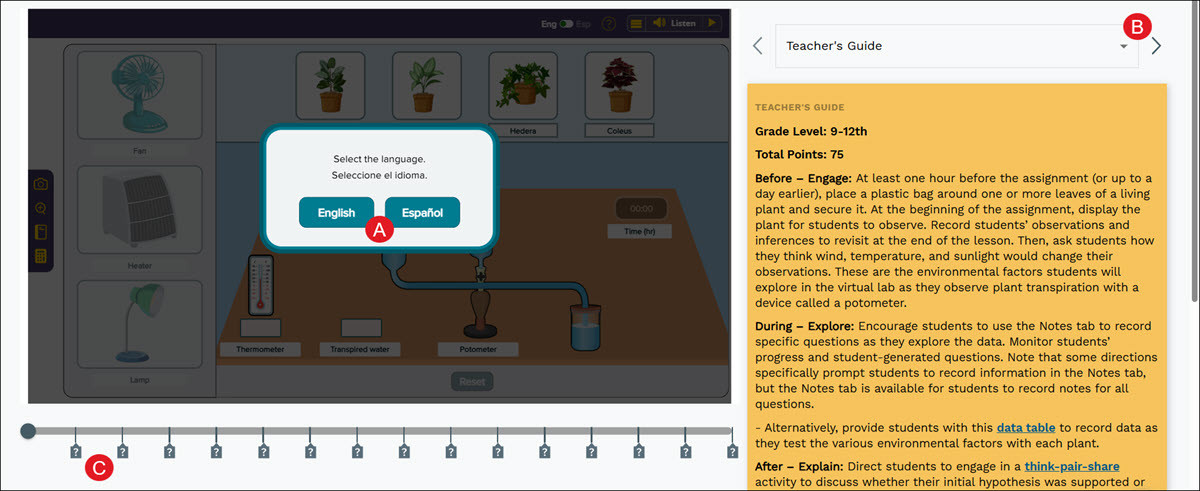
A. Select to view the lab in English or Español.
B. Use the drop-down and/or back-and-forth arrows to navigate through the lab resources, instructions, and questions.
C. Click on the icons at the bottom of the lab to navigate to each of the questions.
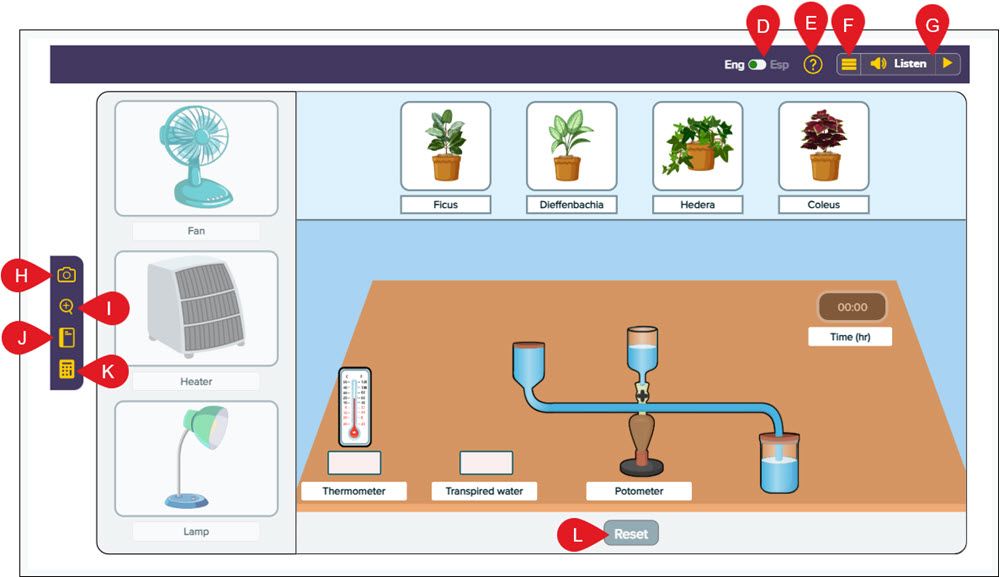
D. Click the Eng/Esp toggle to switch between viewing the lab in English or Español.
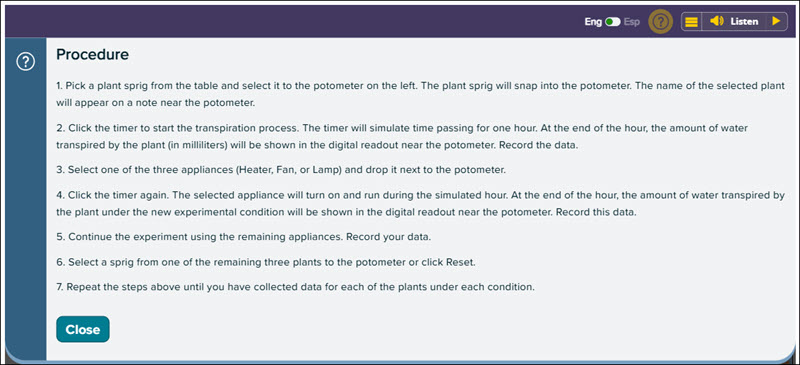
E. Click the Help icon to view the Procedure steps to complete the lab.
F. Click the Menu icon to access the lab Settings, turn on/off Keyboard Mode, Click and Listen, and Enlarge Text, access Text Mode, turn on the Page Mask, Download mp3 of the lab, and access the webReader Help.
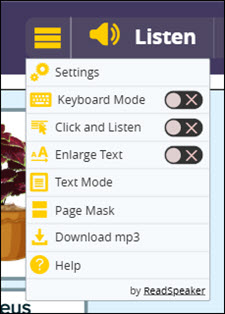
G. Click the Listen button to have the lab read aloud.
H. Click the camera icon to take a Screenshot of the lab. Screenshots are then saved in the Notebook.
I. Click the magnifying icon to activate the Zoom tool.
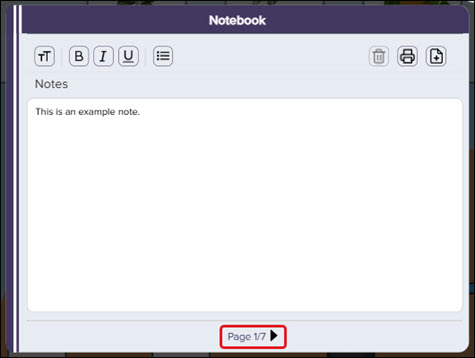
J. Click the Notebook icon to add notes to the lab.
Use the arrows to navigate through the pages of notes and screenshots.
K. Click the Calculator to help with lab calculations.
L. Click the Reset button to start the lab over from the beginning. This does not remove any notes or screenshots.
Note: Navigating away from the lab — including accessing the Student Preview — will permanently delete any notes and screenshots you've entered.
Additional Articles
Create, Duplicate, Merge, and Import Actively Learn Assignments
