Customize Actively Learn Video Assignments
Enhance Actively Learn assignments by adding images, videos, and other media resources.
- Customer Support
- PreK-12
- Classroom Teacher
- Elementary School
- Middle School
- High School
- Direct Login & Auto-Rostering
- Direct Login & Manual-Rostering
- SSO & Auto-Rostering
- SSO & Manual-Rostering
- Supplemental
- Literacy
- Science
- Social Studies
- Actively Learn
- Grades & Assignments
- Online Assessments


For steps on assigning texts to students, refer to the Create, Duplicate, Merge, and Import Actively Learn Assignments article.
For steps on customizing video assignments, refer to the Customize Actively Learn Text Assignments article.
Article Contents
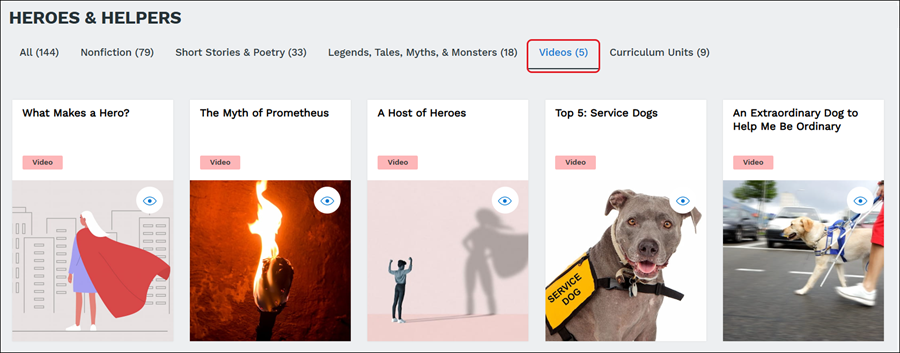
Video assignments provide a different medium to engage students. If a searched topic has related videos, they can be found under the Videos tab.
Teachers are able to add instruction to imported videos and video assignments directly from the catalog and will be able to add directions for students, as well as notes and questions throughout the video.
Customize Video Assignment
1. Click on Menu.
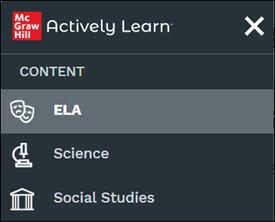
2. In the Content section, on ELA, Science, or Social Studies.
Note: Options will vary based on what the school has purchased.
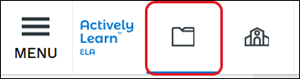
If the resource was uploaded, click the My Workspace & Imports (folder) icon.
3. Search for a video and click on the video tile.
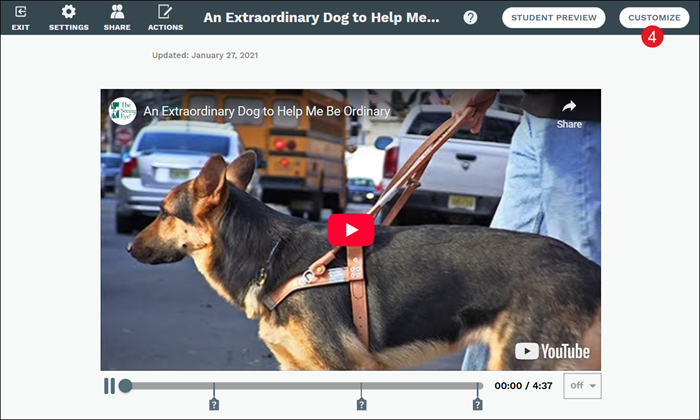
4. Click the Customize button.
Assignment Directions
Teachers can make changes to existing Assignment Directions or add new directions to the video for students to reference.
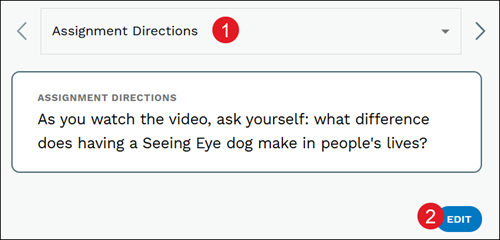
1. Select Assignment Directions from the drop-down.
2. Click the Edit button.
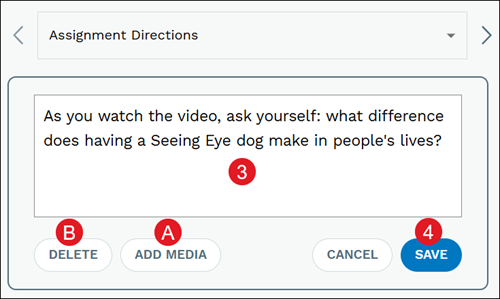
3. Enter preferred text in the Assignment Directions field.
A. Click the Add Media button to add an image or URL.
B. Click the Delete button to remove the Assignment Directions.
4. Click the Save button.
Extra Help Summary
Extra Help allows teachers to differentiate and provide additional scaffolds for their students. Since students need different levels of support, you can easily offer assistance to those who need more help.
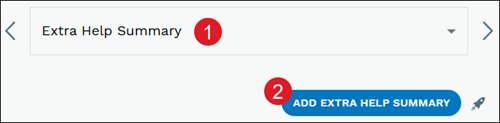
1. Select Extra Help Summary from the drop-down.
2. Click the Add Extra Help Summary button.
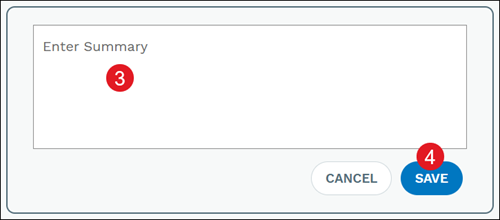
3. Add text to the Enter Summary field.
4. Click the Save button.
Edit Existing Questions
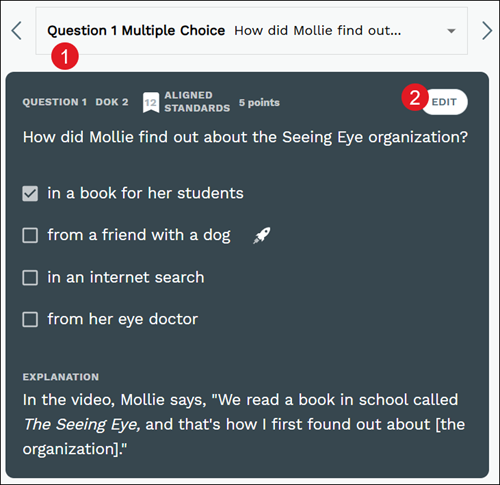
1. Select the Question from the drop-down.
2. Click the Edit button on the question.
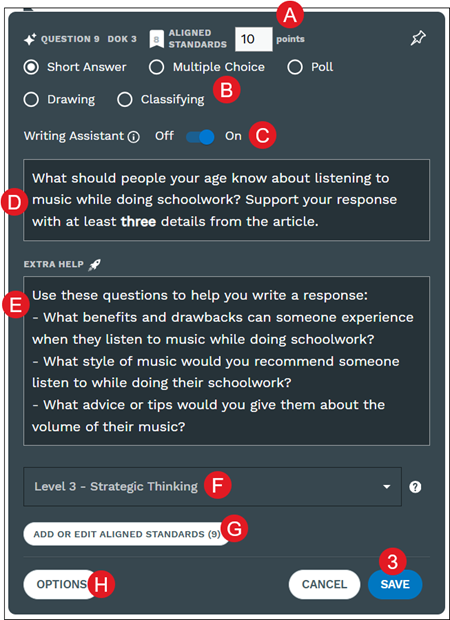
A. Click in the points field to make adjustments to the score value.
B. Select a question type radio button to make changes to the type of question it is.
C. Toggle Off/On the Writing Assistant.
This will allow students access to the AI-powered tool for short answer/essay type questions. For more information on the Writing Assistant, refer to the Using the Actively Learn Writing Assistant article.
Note: If you do not have this option it may be turned off for the district. You will need to reach out to your Organization Administrator about this access.
D. Click in the Question field to add/edit the question text.
For Multiple Choice, Poll, and Clarifying question types you can also click in the fields to change the options.
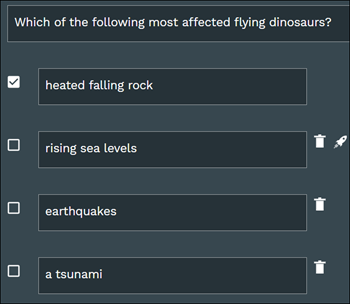
E. Click in the Extra Help or Explanation field to add/edit the text.
Note: Not all questions will have these options.
F. Click the Depth of Knowledge drop-down to change the DOK level.
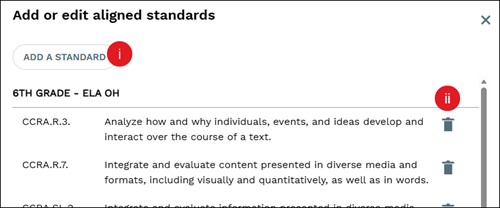
G. Click the Add or Edit Aligned Standards to add/remove associated standards.
i. Click the Add a Standard button to associate additional standards.
ii. Click the trash can icon to remove a standard.
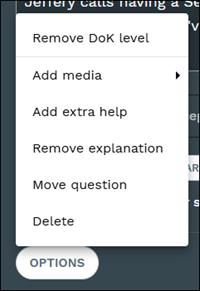
H. Click the Options button to Remove DoK level, Add media, Add/Remove extra help, Add/Remove explanation, Move question, or Delete the question.
3. Click the Save button to confirm changes.
Add Questions
Question creation tips:
- Tie your questions to a clear objective. As you create them, refer to the objective in the directions to ensure your questions support the learning target.
- Ask one question at a time. Only add one question to the text box. Adding more than one question to the text box can be confusing to students as they'll not be able to understand what question you're wanting them to answer.
- To scaffold questions, use the Extra Help feature to add question stems or provide additional support.
- Select the appropriate Depth of Knowledge (DoK) level to easily track the complexity of the questions being asked. This will help you understand if your questions are building toward higher levels of complexity.
- Align questions to standards to ensure you're varying the types of questions being asked throughout the assignment.
Note: When adding questions to the end of the video, be sure to add it at least one second before the video ends. Otherwise, students will not be able to view the questions.
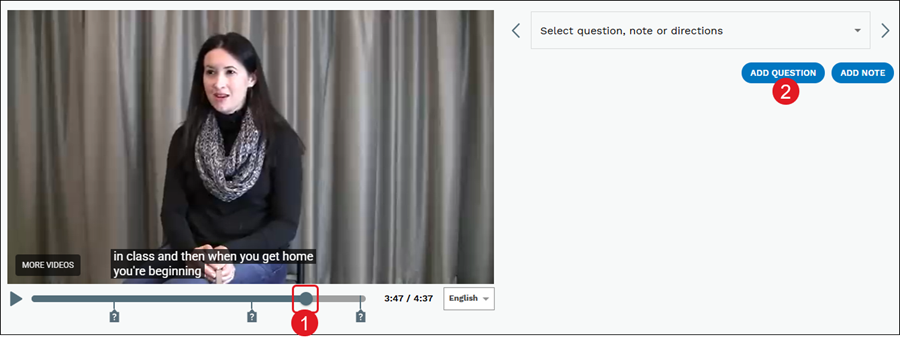
1. Select a location within the video where you want the question.
2. Click the Add Question button.
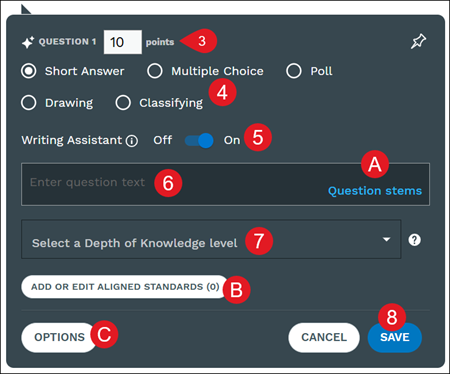
3. Enter the points value.
This option is not available for Poll questions as the question type is not scored.
4. Select the radio button for the question type.
5. Toggle Off/On the Writing Assistant.
This will allow students access to the AI-powered tool for short answer/essay type questions. For more information on the Writing Assistant, refer to the Using the Actively Learn Writing Assistant article.
Note: If you do not have this option it may be turned off for the district. You will need to reach out to your Organization Administrator about this access.
6. Enter the question text.
A. Click the Question stems links for question text suggestions.
B. If Multiple Choice, Poll, or Classifying was selected as the question type, choice text will also need to be added.
For Multiple Choice questions, an answer choice needs to be chosen as well.
C. If Multiple Choice, Poll, or Classifying was selected as the question type, click the Add Choice or Add Item to include additional fields of text.
7. Select a Depth of Knowledge level from the drop-down.
DOK levels reflect the complexity of a question, ranging from recall to extended thinking.
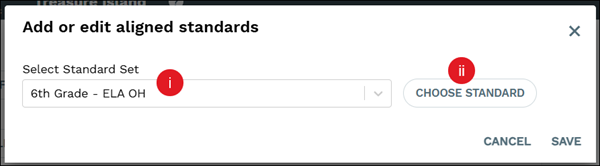
D. Click the Add or Edit Aligned Standards button to associate standards to the question.
On the pop-up, Select Standard Set (i) from the drop-down and click the Choose Standard (ii) button. Check the box next to the standards you would like to add and click the Done button at the bottom-right. Click the Save button to confirm associations.
Note: Depth of Knowledge and Add or Edit Aligned Standards is not an option for Poll questions due to those question types not being a graded question.
E. For Multiple Choice questions, click the Randomize choices for students to mix the answer choices for each student.
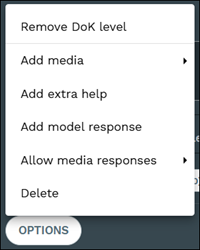
F. Click the Options button to Add media, Add extra help, Add model response, select to Allow media responses or not, or Delete the question.
8. Click the Save button.
Add Notes
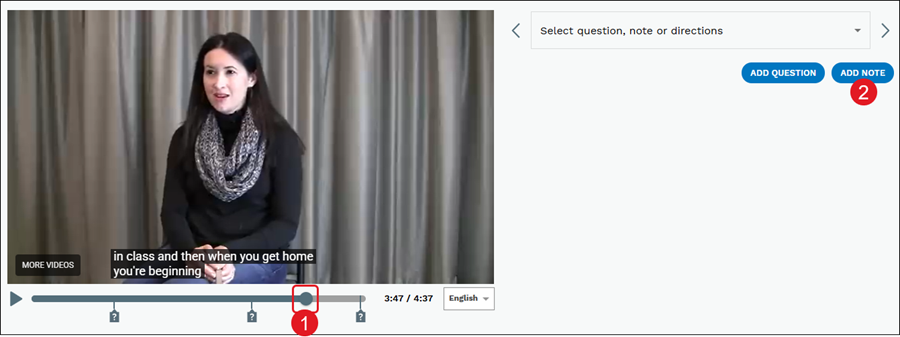
1. Select a location within the video where you want the question.
2. Click the Add Note button.
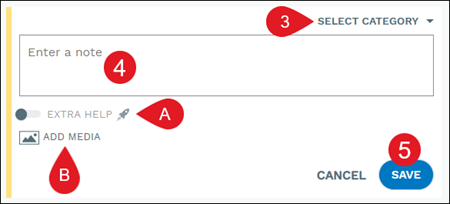
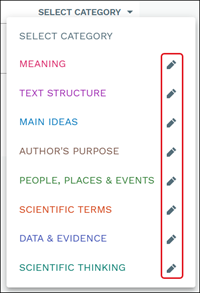
3. Click Select Category and select an option from the menu.
Click the pencil icon to the right of a category to edit the name or delete the category.
4. Enter a note in the provided field.
A. Toggle on to add Extra Help.
Extra Help allows teachers to differentiate and provide additional scaffolds for their students. Since students need different levels of support, you can easily offer assistance to those who need more help.
B. Click the Add Media button to include an image or URL.
5. Click the Save button.
Click the kebob menu on the note to Edit, Delete, or Move the note.