
Access Manager Frequently Asked Questions (FAQ)
Find answers to common questions about Access Manager roles, permissions, and setup.
- High School
- SSO & Auto-Rostering
- PreK-12
- Customer Support
- School Administrator
- Direct Login & Auto-Rostering
- Preschool
- Middle School
- Elementary School
- Reveal Math (K-12)
- AP Biology
- AP Chemistry
- AP History & Geography
- AP Psychology
- AP Economics
- AP African American Studies
- AP Precalculus
- AP Statistics
- AP Computer Science
- AP Language and Composition
- AP Public Speaking
- AP Music Theory
- 5 Steps to a 5 - AP Test Prep
- Glencoe Health 2022
- Teen Health 2021
- Arrive Math
- Building Blocks 2024
- Building Blocks PreK 2025
- Number Worlds 2024
- SRA Reading Laboratory 2025
- SRA Reading Mastery Transformations
- Achieve3000 Literacy
- Actively Learn
- McGraw Hill Literacy Emerge!
- McGraw Hill Literacy Summit!
- McGraw Hill Literacy Soar!
- Open Court Reading 2025
- Redbird
- StudySync 2021
- ALEKS
- ALEKS Adventure
- CA Reveal Math (K-12)
- Illustrative Math
- Redbird Math
- CA Inspire Science 2020
- FL Science 2025 (K-12)
- Inspire Science 2020
- TN Science (K-12)
- TX Science 2025 (K-12)
- CA Impact 2019
- FL Social Studies 2024 (K-12)
- Impact Social Studies
- McGraw Hill Social Studies
- All Sorts 2026 (K-5)
- Asi se Dice 2024
- CTE - Health Science
- CTE - Agriculture
- CTE - Computing and Technology
- CTE - Culinary Arts
- CTE - Early Childhood Education
- CTE - Business, Marketing, and Finance
- CTE - Criminal Justice
- Glencoe Health 2014
- McGraw Hill Health 2014
- 2Inform
- Building Blocks 2015
- Connecting Math Concepts
- Number Worlds 2015
- Corrective Reading
- Early Interventions in Reading
- Spelling Mastery
- WonderWorks 2022 & 2014
- Maravillas 2020 & 2017
- OCR Foundational Skills Kit
- OCR Word Analysis Kit
- Open Court Reading 2016, 2018, 2023
- StudySync
- StudySync 2015 & 2017
- Wonders
- Wonders 2014
- Wonders 2023 2020 2017
- Wonders Balanced Literacy 2016
- Wonders EL 2016
- World of Wonders 2017
- Core Plus Math 2015
- Everyday Mathematics 4 (K-6)
- Glencoe Algebra 1 2014
- Glencoe Algebra 2 2014
- Glencoe Algebra 1 2018
- Glenoce Algebra 2 2018
- Glencoe Math
- Glencoe Geometry 2014
- Glencoe Geometry 2018
- Glencoe Math Course 1
- Glencoe Math Course 2
- Glencoe Math Course 3
- McGraw Hill My Math
- McGraw Hill My Math 2013 & 2016
- McGraw Hill My Math 2018
- Pre-Algebra 2012
- Glencoe Science
- Glencoe Science 2017
- Inspire Science 2017
- iScience 2017
- Networks
- Networks 2014 (K-5)
- Networks 2014 & 2016
- Networks 2018
- Music! Its Role
- Spotlight on Music
- Asi se Dice 2016
- Texas Math
- Glencoe Math Accelerated
- Access Manager
- Account Management
- User Management
- Products & Licenses


Direct Login and Auto-Rostering
Single Sign-On (SSO) and Auto-Rostering
This article applies to districts that use the SSO and Auto-Rostering Access and Direct Login and Auto-Rostering Services.
SSO applies to districts that use an SSO portal, district website, or Learning Management System (LMS) to access McGraw Hill digital programs, and Direct Login means that teachers, students, and administrators log in at my.mheducation.com. Auto-Rostering means that account creation, class setup, and roster management are automated through a process handled by your district.
Not sure which Access Service your district uses? Click here to learn more about the four Access Services that we support.
Access Manager ingests and formats roster data for use on McGraw Hill platforms. Roster data includes user accounts, user roles, courses, classes, and content assignments. This guide provides answers to frequently asked questions.
Q: What is Access Manager?
A: Access Manager is an administrator tool that manages automated user management, class management, and assigning digital content to users. Access Manager is OneRoster® 1.0 and 1.1 certified. It can ingest both CSV and API data formats that are formatted to the OneRoster® specification to ensure the seamless flow of roster data from district systems to McGraw Hill platforms.
Q: How do I sign into Access Manager?
A: Administrators who do not access McGraw Hill platforms via single sign-on (SSO) need to sign in at my.mheducation.com. After logging into Admin Tools, the link to Access Manager is in the left-hand menu. Note: Some customers may sign in to Access Manager at https://access.mheducation.com/login.
Q: How do I reset my password for my.mheducation.com?
A: To reset your password, select the ‘Forgot your password?’ link on the my.mheducation.com log-in page. Enter your username or the email address associated with your account. A temporary password will be sent to the email address associated with your account. These steps can also be found in the How to Recover Your Teacher/Admin Username or Password article.
NOTE: Most administrators in districts that use SSO to access McGraw Hill platforms from a district Learning Management System or SSO launch point cannot use the password reset option on my.mheducation.com. Users need to follow their district password reset or recovery procedures. However, some districts may elect to allow users to reset passwords on single sign-on (SSO) platforms, but most SSO districts do not enable this feature.
Q: What do I do if the temporary activation link to access my account expires?
A: Go to my.mheducation.com and select the ‘Forgot your password?’ link. After entering the email address associated with your account. An email is sent from noreply@mheducation.com. The email contains instructions for resetting your password. The password reset link expires in 24 hours. Be sure to check your spam folder If you do not see an email from noreply@mheducation.com in your inbox.
Q: How many times per day can I upload OneRoster® data?
A: You can upload your roster data to Access Manager as many times as you need to each day to work through upload errors. You can also make changes to content assignments on Access Manager. These changes are processed the same day, however, the time for processing will vary depending on the number of changes being updated.
Q: How do I send my OneRoster® data to Access Manager?
A: There are three options to send roster data to us. The options include the following:
- Manually upload roster files on Access Manager.
- Set up an SFTP connection to send roster files to Access Manager.
- Set up an API Sync to allow Access Manager to import data from your OneRoster® API.
Manual Upload
To manually upload your files, sign in to Access Manager with your administrator account. Select Upload and then Secure Web Upload. Select Choose a File and navigate to your zipped OneRoster® files to upload them to Access Manager.
SFTP
To use the automated SFTP option, obtain SFTP credentials from your Digital Integration Specialist. They will direct you where to place your zipped OneRoster® files. Your roster data will be picked up every night. Access Manager immediately processes the data after the files are picked up from the SFTP site.
API
To use the API sync option, you need to enter your OneRoster® service URL, consumer key, and consumer secret on the Access Manager OneRoster® API Connection tab. After your API sync has been set up, access your McGraw Hill administrator tools via SSO or sign in at my.mheducation.com. Click Access Manager, which opens up a new browser tab. Select Upload and then One Roster API Connection. To initiate the data pull, click Sync Data Now. Note: Some customers may sign in to Access Manager at https://access.mheducation.com/login.
Q: Is it possible to automate sending OneRoster® data to McGraw Hill?
A: For API imports, you can set up automated syncs by selecting Schedule on Access Manager and designating the desired import time. Those that send us data via SFTP can change the settings on your system.
Q: How do I view the history of my uploads or API syncs?
A: To view the history of your uploads or API syncs, select the Upload tab and then select Upload History. This page displays the last 10 data uploads with the option to download the error log for each upload. Expand each record by selecting the “+” sign next to “ID” to view error details and a short preview of each file.
Q: How do I assign content to users on Access Manager?
A: Assigning content to individual users is only supported for ConnectED products. To assign content on Access Manager, follow the steps on the Assign Content on Access Manager article.
Q: How often do I need to assign content on Access Manager?
A: If you assign content by course and your course sourcedIds remain the same, you only need to assign content once. From then on, you only need to assign content if you add new courses or content.
Q: Can I see what content has been assigned to a user on Access Manager?
A: On the Data tab, you can search for users by name or ‘sourcedId’ to see which schools, courses, and classes they are enrolled in and to see what content is assigned to them. Hover over the exclamation point (!) to see if the content is assigned to the course, class, or individual user.
Q: Can I see what products have already been assigned?
A: On the Assign tab, select a product and then click Next. Select the Assigned column header to sort and see which courses, classes, and users are assigned to the product.
Q: Can I assign products from multiple purchasing accounts?
A: Yes, you can assign products from multiple purchasing accounts using the Accounts dropdown on the Assign page. First, select the account you wish to manage to see a list of all that purchasing account's products. Keep in mind that if you are assigning from one school's purchasing account to a course that spans multiple schools, you will want to select the specific school in the Schools dropdown when making assignments. These steps can also be found on the Assign Content on Access Manager article.
Q: Once I assign content, when will the Data page display product license data?
A: Product license data will be visible immediately on the Data tab. However, viewing licenses from the Admin Tools is the most accurate data since it includes any licenses that may be manually redeemed. Access the Admin Tools and select Manage Products on the left menu to view the license count.
Q: Can I assign more than one product to a class?
A: Yes, you can assign multiple products to a class via your OneRoster® files. If you manually assign content on Access Manager, you can also add multiple products to a class.
Q: I just purchased a new product, when will it be available on Access Manager?
A: When the order for a new product is processed, the product license appears on Access Manager after your next upload or data sync. Access Manager will also fetch new license data every night. Once the product license is available, content can be assigned on Access Manager and will be available to the users the same day the content assignment is processed. The time for processing can vary depending on the number of courses, classes, and users being assigned.
Q: How long does it take for users to see content after it has been assigned?
A: Product licenses will be available to the users the same day the content assignment is processed. The time for processing can vary depending on the number of courses, classes, and users being assigned. The class start date also determines when users will see their content:
- Teachers will see the content three weeks prior to the class start date.
- Students will see the content three days prior to the class start date.
Q: Does Access Manager update classes/rosters when a student or class is removed from roster files?
A: The file updates classes on the Open Learning Platform, however, this does not apply to ConnectED classes currently. For the updating of rosters, individual students are unenrolled from classes when removed from customer data for both Open Learning and ConnectED.
Q: How do I provide administrators, coaches, and others access to products when they are not enrolled in a course or a Teacher of Record?
A: There are a few options for providing staff or non-Teachers of Record users access to teacher content. Discuss the options with your Digital Integration Analyst when setting up your integration to determine the best solution for your district. One option is to have an Organization Administrator manually create teacher accounts for these users. Another option is to have each user self-register as a teacher.
⚠ Be aware that manually created accounts are not managed by your roster data. Likewise, any content that is manually redeemed will need to be returned by the teacher, or an Organization Administrator will need to Revoke Teacher Licenses.
To manually create teacher accounts, Organization Administrators can follow these instructions.
Staff that need to self-register follow these instructions. An Organization Administrator needs to provide staff with the teacher registration code.
⚠ Teachers on the roster data should not self-register.
Q: How do I know if there are errors processing the data?
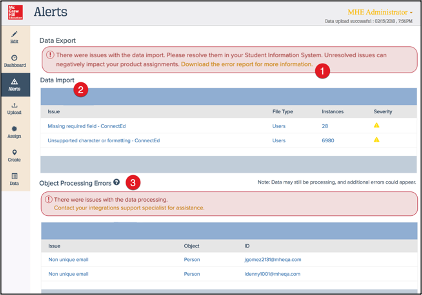
A: The Alerts page on Access Manager provides a list of errors and links to downloadable error reports and log files. Alerts are updated each time new data is sent to us. These errors identify different types of processing errors. Issues can occur with the data import and when processing data sent to ConnectED and the Open Learning Platform, which can include issues with users, classes, content, and licenses. Refer to the Access Manager Fixing Common Errors article for steps on resolving these errors.
To obtain a full error report, select "Download the error report for more information" under Data Import. Administrators are also sent an email when an import fails.
The image below represents sections you may find on an Alerts page. Each numbered item is associated with the numbers in the image below.
1. The error report identifies errors that occurred during the most recent data import.
2. The Data Import table provides a summary of errors in the last data import.
3. The Object Processing Errors table identifies all other data processing errors.
Access Manager Instructions provide more information about alerts. If you need assistance with Access Manager errors, contact IntegrationSupport@mheducation.com.
