StudySync Assignment Sync and Grade Passback with Brightspace®
Sync StudySync assignments and pass grades back to Brightspace using LMS integration.
- Open Learning Platform
- D2L Brightspace
- Literacy
- Customer Support
- Middle School
- Core
- High School
- StudySync
- Classroom Teacher
- SSO & Auto-Rostering
- PreK-12
- Preschool
- Elementary School


Single Sign-On (SSO) and Auto-Rostering
This article applies to districts that use the SSO and Auto-Rostering Access Service. SSO applies to districts that use an SSO portal, district website, or Learning Management System (LMS) to access McGraw Hill digital programs. Auto-Rostering means that account creation, class setup, and roster management are automated through a process handled by your district.
Not sure which Access Service your district uses? Click here to learn more about the four Access Services that we support.
This article walks teachers through how to use Assignment Sync and Grade Passback with StudySync and Brightspace.
To view a PDF copy of the process, click here.
Article Contents
The McGraw Hill LTI® Link: Grades and Assignment Integration tool syncs assignments and grades between StudySync ©2021 hosted on the McGraw Hill platform and your Brightspace® Learning Management System (LMS).
Class Set-Up and Pairing
Prior to syncing assignments and grades between your StudySync® classes and Brightspace, you need to pair your class.
Your StudySync® class is generated by your nightly roster file sent to McGraw Hill. You can pair manual classes however assignments would only be sent to the students rostered in your manual class which may not contain all of your enrollments.
This only needs to be done once for each class.
For instructions on how to pair your classes, see the Quick Start Guide - Assignment Sync and Grade Passback with Brightspace®.
Create Assignments
1. In Brightspace, select your course from the menu.
2. Click on Content.


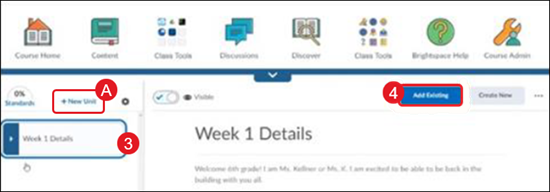
3. Select the unit, lesson, or folder from the left panel.
4. Click the Add Existing button.
If no unit is available, click the +New Unit (A) button.
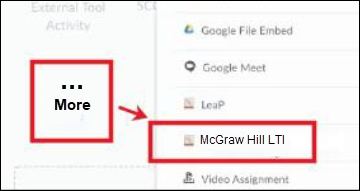
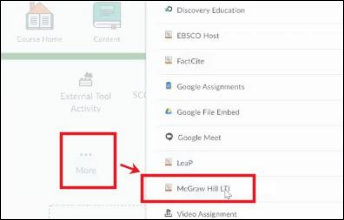
5. Click More and select McGraw Hill LTI from the menu.
Installation of this app is completed by your District Administrator. If you do not see the app, please reach out to your District Administrator or Curriculum Coordinator.
4. On the Add Assignments tile, click the Add StudySync Assignments button.
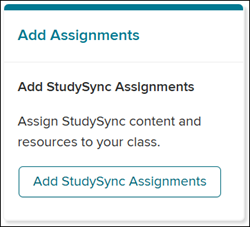
StudySync will launch in a new tab.
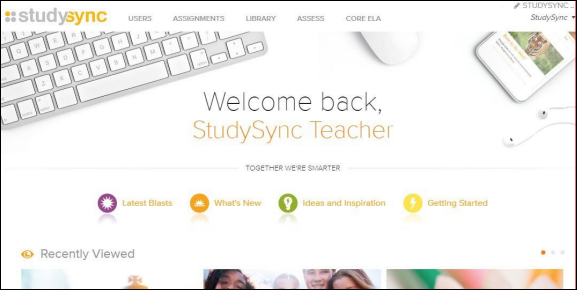
For steps on creating StudySync assignments, refer to the StudySync - Assignments article.
View/Launch Assignments
You can see the StudySync® assignment(s) by navigating back to your course in Brightspace.
Your newly created assignments display in the assignment list.
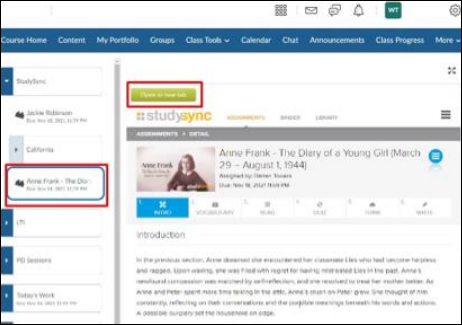
View a StudySync assignment by selecting the assignment from the left pane.
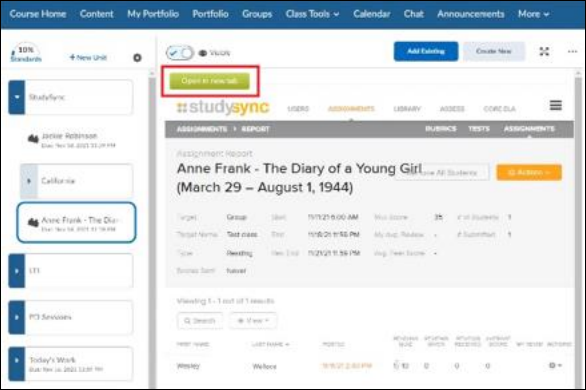
This launches the StudySync assignment’s Reports page in Brightspace.
Click the Open in new tab button to open this page in a new tab.
Student Access
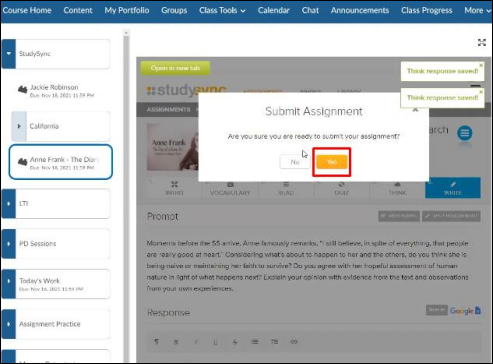
Students will launch, complete, and submit StudySync assignments in Brightspace.
1. Log into Brightspace as a student and select the course.
2. Click on Content.
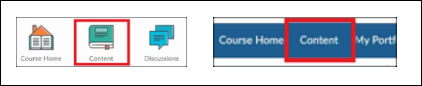
3. Select the unit, lesson, or folder from the left pane.
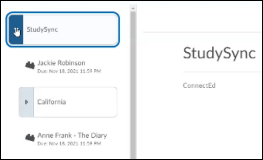
4. Click on the assignment. This launches the StudySync assignment within Brightspace.
You can also launch the assignment in a new tab by clicking the Open in new tab button within the assignment.
5. Complete and submit the StudySync® assignment.
Review Assignment Scores
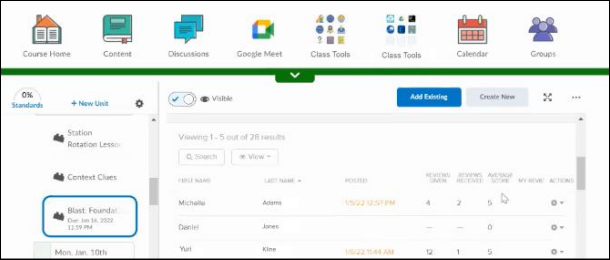
Once the StudySync® assignment has been submitted, navigate to the course in Brightspace and open the submitted assignment where scores can be seen on the StudySync® assignment’s Reports page.
Release Scores
StudySync® allows the teacher to decide when to make scores available for certain assignment types to mitigate student confusion around partial scores appearing.
For example, in a 35 point assignment, with 10 points automatically scored and 25 manually scored, a student sees 10/35 in Brightspace until the instructor releases the scores.
You must release scores from StudySync® for those assignment types in order to see the grades appear in Brightspace.
There are two ways to release scores and facilitate StudySync® grades passing to Brightspace.
1. Log into Brightspace and navigate to the desired course.
2. Select and launch the assignment.
3. Once in the assignment, do one of the following in the Assignment Report section:
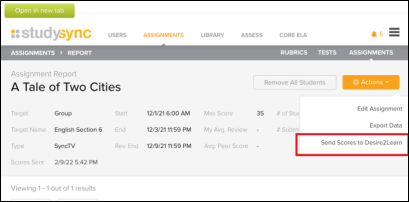
- Select Never in the Scores Sent section. The Send Scores Now? pop-up window appears. Select Yes.
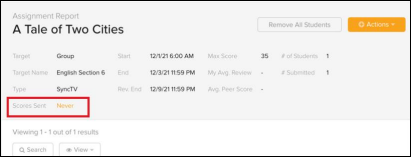
- Select the Actions button. Select Send Scores to Desire2Learn from the menu.
Re-Sync Grades
If assignment grades change or need synced, you can re-sync grades from the tool. If you alter the grade in StudySync®, don't forget to release scores again after making changes.
1. In the desired course, select Content.
2. Select the unit, lesson, or folder that you have setup, and then select Add Existing.
3. Select More and choose the McGraw Hill LTI Link: Grades and Assignment Integration tool from the list.
4. Select the assignments you would like to re-sync grades for and click Sync Grades.
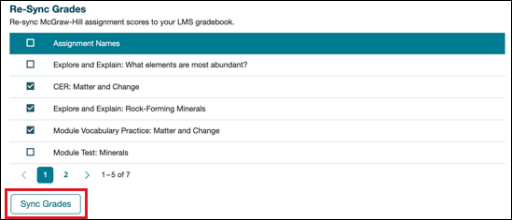
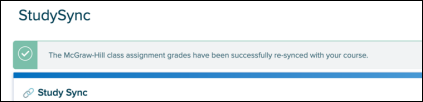
5. You will see the Success message at the top of the window.