Create and Manage StudySync Assignments
Create, manage, and assess assignments within the StudySync platform.
- StudySync 2021
- Literacy
- SSO & Manual-Rostering
- Customer Support
- Grades & Assignments
- Direct Login & Auto-Rostering
- StudySync 2015 & 2017
- Middle School
- Core
- Direct Login & Manual-Rostering
- High School
- StudySync
- Classroom Teacher
- SSO & Auto-Rostering
- PreK-12


Topics covered in this article:
Create an assignment from a Core ELA Unit
Create an assignment from the Library
Find and reactivate an inactive assignment
Edit an assignment
Reuse an assignment
Deactivate an assignment
Reopen an assignment for a student
Create an assignment from a Core ELA Unit:
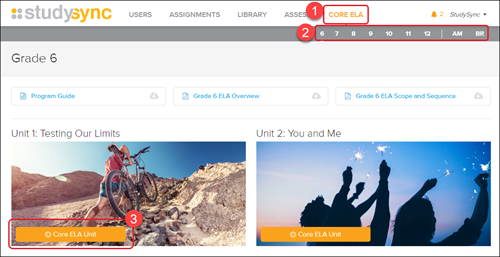
1. After launching StudySync, click on CORE ELA from the top menu.
2. Select the desired grade level in the gray menu bar.
3. Select the Unit by clicking on the Core ELA Unit button.
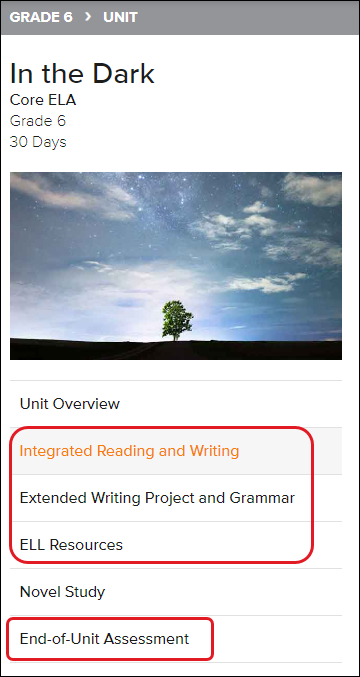
4. Select one of the menu options: Integrated Reading and Writing, Extended Writing Project and Grammar, ELL Resources, or End-of-Unit Assessment.
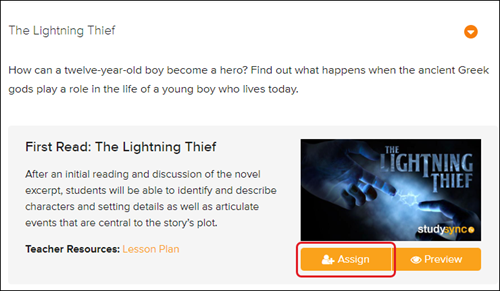
5. Expand a title on the right. Click Assign.
6. Complete the assignment configuration to suit instructional needs.
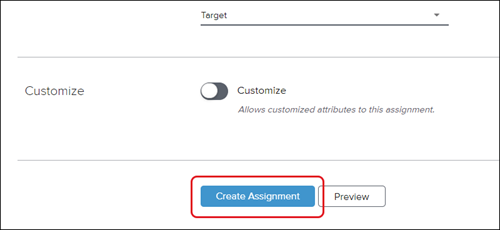
7. Click Create Assignment button at the bottom.
Create an assignment from the Library:
1. From the Library tab, search for the desired title you would like to assign.
- Detailed steps can be found in the StudySync - Library article.
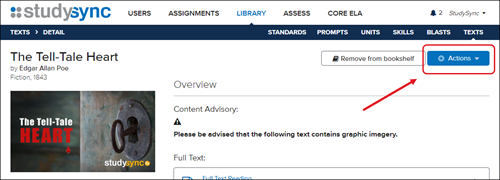
3. Click on the Actions button in the top-right.
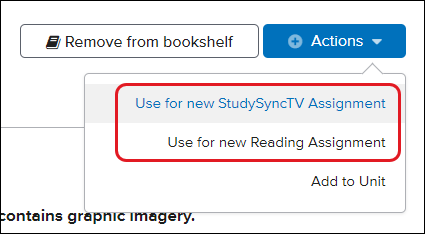
4. Click on the assignment option you would like to assign.
- Options will vary by title.
6. Complete the assignment configuration to suit instructional needs.
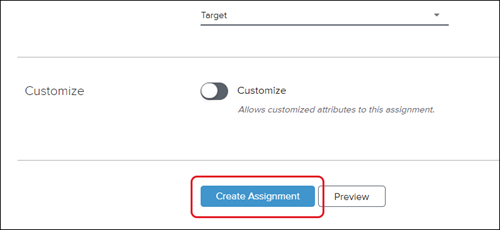
7. Click Create Assignment button at the bottom.
Find and reactivate an inactive assignment:
1. From the Assignments tab, click the Options button on the top-left.
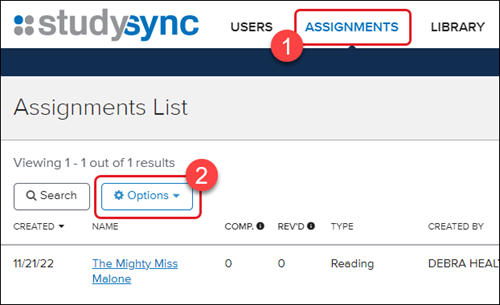
2. Select the Show Inactive Assignments box.
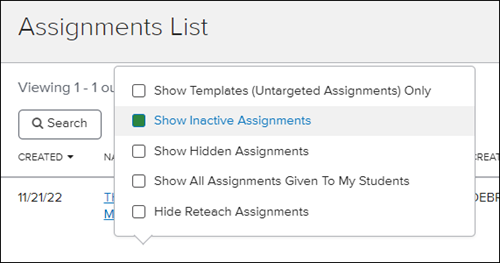
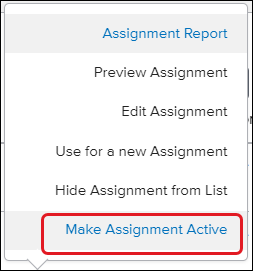
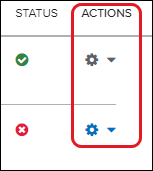
All inactive assignments will then show in the Assignments list. Active assignment titles will show blue with a green checkmark under Status. Inactive assignment titles will show black with a red x icon under Status.
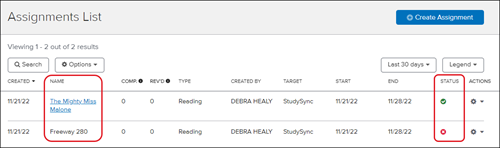
3. Click the Actions icon to the right of the assignment.
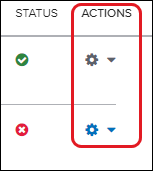
4. Click Make Assignment Active from the menu.
Edit an assignment:
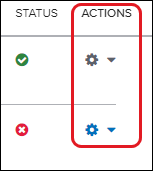
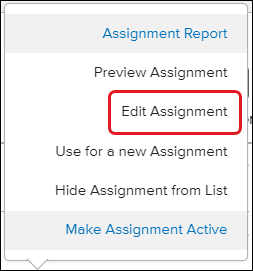
1. From the Assignments tab, click the Actions icon.
2. Select Edit Assignment from the menu.
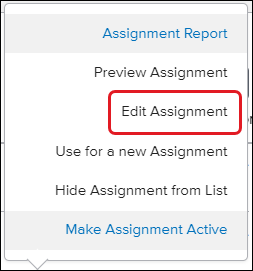
3. Make desired changes and click Save Assignment at the bottom.
Reuse an assignment:
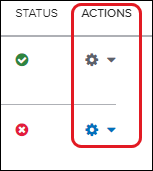
1. From the Assignments tab, click the Actions icon.
2. Click Use for a new Assignment from the menu.
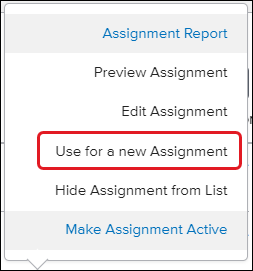
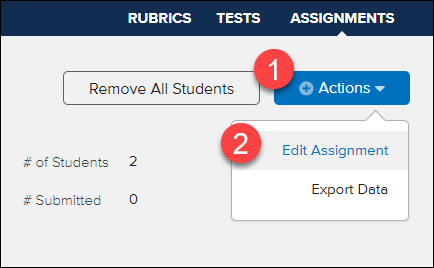
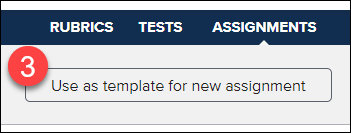
This option can also be selected by clicking on the assignment name and then Actions. Click Edit Assignment. Click the Use as template for new assignment button.
Deactivate an assignment:
1. From the Assignments tab, click the Actions icon.
2. Select Edit Assignment from the menu.
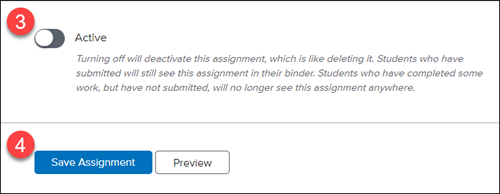
3. Scroll to the bottom of the page, toggle the Active button so it turns from green to gray.
4. Click Save Assignment.
Reopen an assignment for a student:
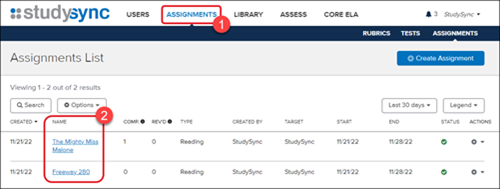
1. From the Assignments tab, click on the Assignment name.
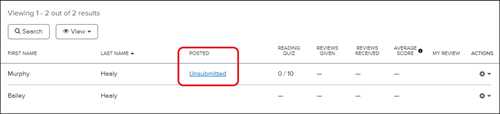
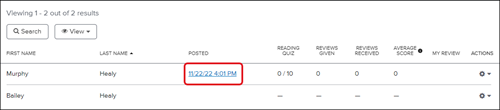
2. Click on the date and time for the student you would like to reopen the assignment for.
3. Click Reopen in the top-right.
The Posted date and time will then switch to show resubmitted for that student.